Can You Replace the Gpu in a Laptop: Ultimate Guide & Tips
Have you ever wondered if you can upgrade your laptop’s graphics card? Maybe your games are lagging, or your design work isn’t running smoothly.
The idea of boosting your laptop’s power by swapping out the GPU sounds great, but is it really possible? You’ll discover the truth about laptop GPU upgrades. By the end, you’ll know exactly whether you can replace your laptop’s GPU and what options you actually have to improve your laptop’s performance.
Keep reading—you might be surprised by what you learn.
Laptop Gpu Basics
The GPU, or graphics processing unit, is key to a laptop’s visual performance. It handles images, videos, and games. Not all laptop GPUs are the same. Understanding the basics helps when deciding about upgrades or repairs.
Some laptops have simple GPUs, others have powerful ones. Knowing the type can guide your expectations and options. Let’s explore the main types of laptop GPUs and their differences.
Types Of Laptop Gpus
Laptop GPUs come in two main types: integrated and dedicated. Each serves a different purpose and affects performance. Integrated GPUs share memory with the CPU. Dedicated GPUs have their own memory and power.
Integrated GPUs suit everyday tasks like browsing and office work. Dedicated GPUs handle demanding tasks like gaming or video editing. The type of GPU influences your laptop’s speed and graphics quality.
Integrated Vs Dedicated Gpus
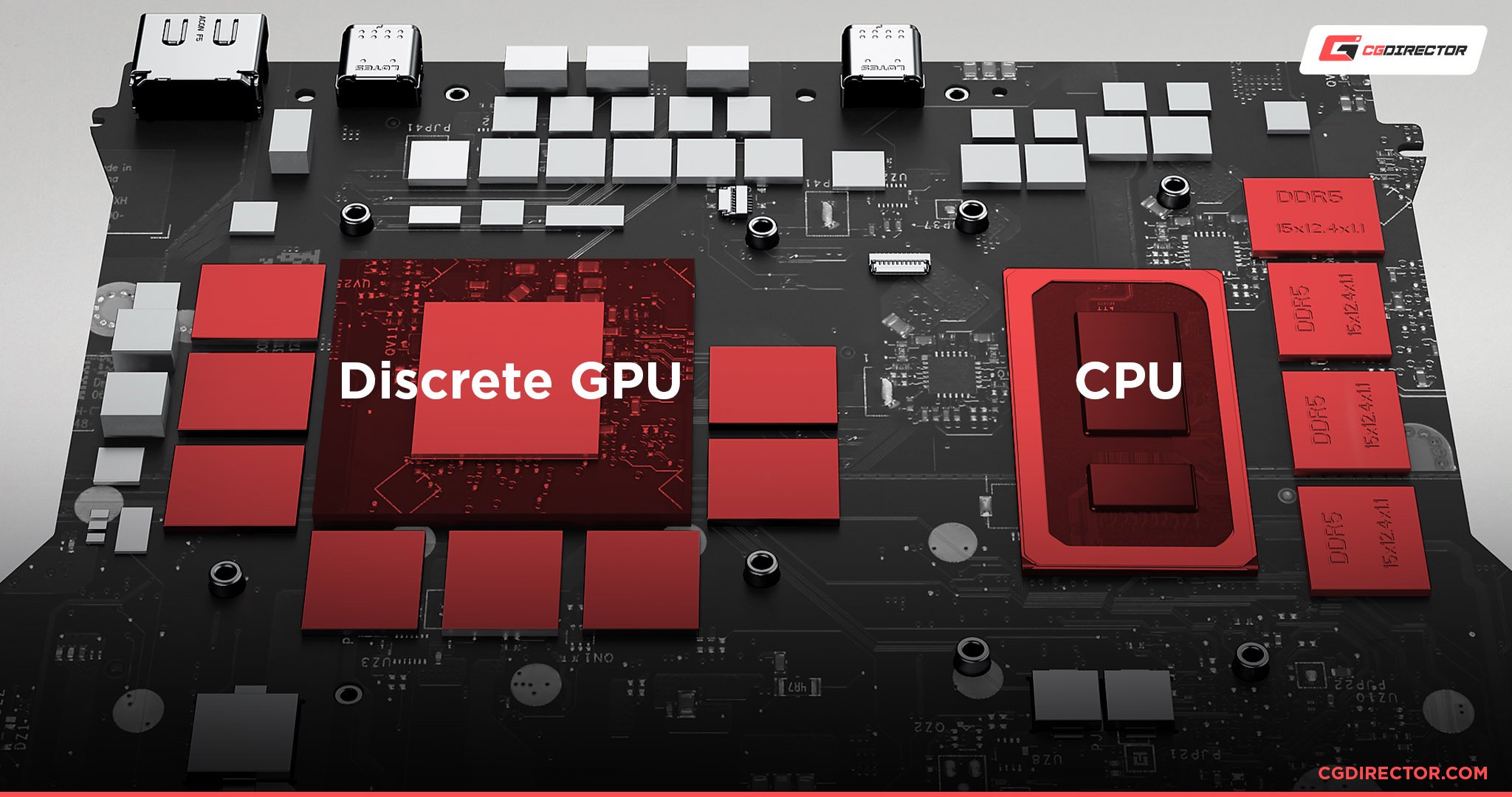
Integrated GPUs are built into the laptop’s processor. They save battery life and reduce heat. But they offer less power for graphics tasks. Dedicated GPUs are separate chips inside the laptop. They use more power but deliver stronger graphics performance.
Most thin and light laptops have integrated GPUs. Gaming and workstation laptops usually have dedicated GPUs. The choice depends on your needs and laptop design.
Laptop Gpu Upgrade Possibility
Upgrading the GPU in a laptop is not always easy. Most laptops have specific designs that limit hardware changes. Knowing your laptop’s build helps to understand if a GPU upgrade is possible.
Some laptops allow GPU swaps, but many have GPUs fixed on the motherboard. The type of GPU and laptop design affect upgrade options. Let’s explore the common differences in laptop GPUs.
Soldered Vs Modular Gpus
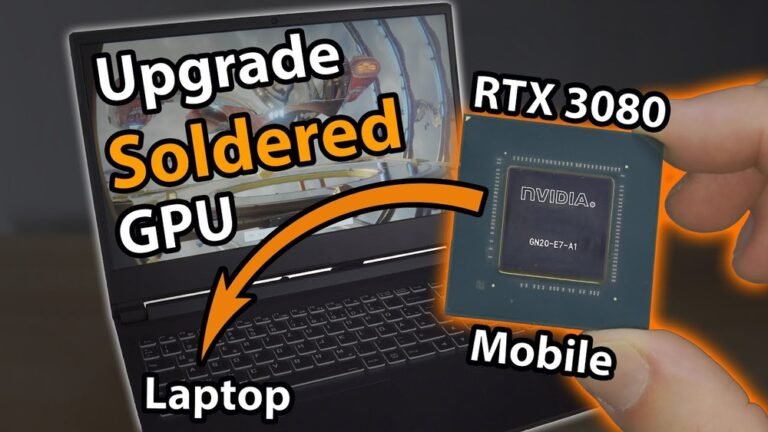
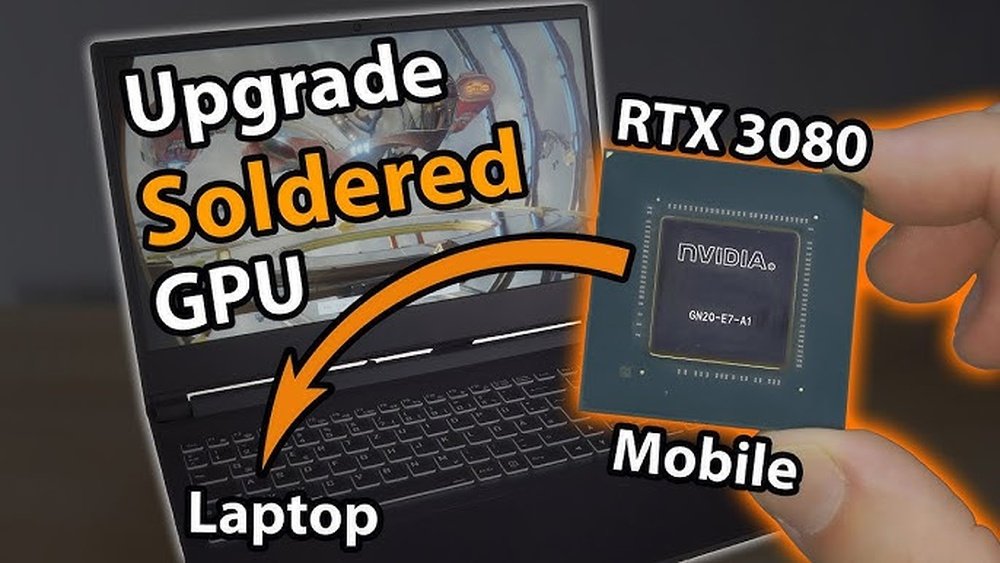
Soldered GPUs are attached directly to the laptop’s motherboard. These GPUs cannot be removed or replaced easily. Most modern laptops use soldered GPUs to save space.
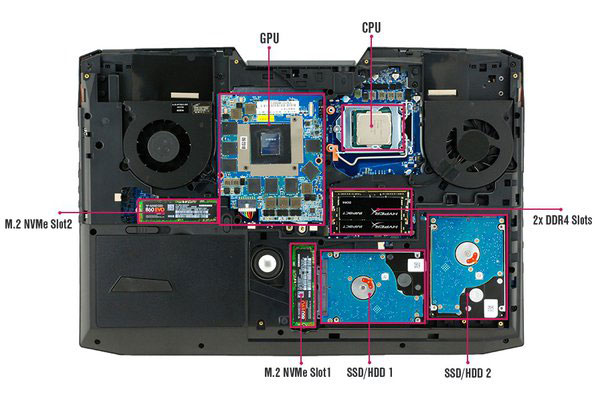
Modular GPUs, also called MXM cards, are separate parts. They plug into a slot and can be swapped out for another GPU. Few laptops use modular GPUs because they require more room and cooling.
Checking if your GPU is soldered or modular is the first step. Soldered GPUs mean no upgrade is possible. Modular GPUs offer a chance to upgrade but need compatible parts.
Common Laptop Designs
Thin and light laptops focus on portability. They usually have soldered GPUs to keep size and weight low. These designs rarely support GPU upgrades.
Gaming and workstation laptops often have better cooling. Some include modular GPUs to allow hardware upgrades. These laptops give more freedom to improve graphics power.
High-end models sometimes offer external GPU support. This uses a docking station with a desktop GPU. It is an alternative to internal GPU upgrades in many laptops.
Signs You Need A Gpu Upgrade
Knowing when your laptop’s GPU needs an upgrade can save time and frustration. A slow or outdated GPU affects your laptop’s ability to run programs smoothly. It can also limit what software you can use. Watch for clear signs that your graphics card is holding you back. These clues help decide if a GPU upgrade is necessary.
Performance Issues
Lagging or stuttering graphics show a weak GPU. Games running at low frame rates may also signal a problem. Video editing slows down or crashes more often. Your laptop might overheat or make loud fan noises. These issues point to the GPU struggling to keep up with tasks.
Compatibility With New Software
New software often needs better graphics support. Older GPUs may not meet minimum requirements. You might see error messages or failed installations. Some apps may refuse to start or run poorly. This means your GPU cannot handle the latest software features.
Checking Laptop Compatibility
Before replacing a laptop GPU, checking compatibility is crucial. Not all laptops allow GPU upgrades. Some parts must work together for the laptop to function well. Knowing what fits helps avoid damage and wasted money.
Two main factors affect GPU compatibility: the motherboard and power with cooling. Both must match the new GPU’s needs for smooth operation.
Motherboard Support
The motherboard connects the GPU to the laptop. It must have the right slot and support the GPU type. Most laptops use integrated GPUs, which cannot be swapped out easily. Some gaming laptops have modular GPUs. Check the motherboard’s manual or manufacturer’s site for supported GPUs. Not all motherboards support all GPUs. The connection type, like MXM, matters a lot.
Power And Cooling Requirements
New GPUs need the right power supply. Laptops have limited power sources. The GPU must not use more power than the laptop can give. Cooling is also important. Powerful GPUs produce more heat. The laptop’s cooling system must handle this heat. Otherwise, the laptop can overheat and slow down or break. Check the GPU’s power needs and heat output before buying.
Tools And Materials Needed
Replacing a GPU in a laptop is a delicate task. Having the right tools and materials is very important. Proper preparation helps avoid damage and makes the process smoother.
Below are the essential tools you will need. Also, learn about safety steps to protect yourself and your laptop.
Essential Tools
A small Phillips screwdriver is a must-have. It helps remove screws from the laptop case. A plastic pry tool or spudger is useful to open the laptop without scratching it. Tweezers come handy for handling small parts and screws. An anti-static wrist strap prevents static electricity damage. Thermal paste is necessary to apply on the new GPU for better heat transfer. A clean cloth or microfiber cloth helps keep parts clean during the swap.
Safety Precautions
Always work on a clean, flat surface. Avoid working on carpet or rugs to reduce static risk. Wear an anti-static wrist strap and connect it to a grounded metal object. Turn off the laptop and unplug all cables before starting. Remove the battery if possible. Handle components by the edges. Avoid touching metal contacts or chips. Keep screws and small parts organized to avoid loss. Take your time and do not force parts during removal or installation.

Credit: www.youtube.com
Step-by-step Gpu Replacement Process
Replacing a GPU in a laptop can improve graphics performance. It requires careful steps to avoid damage. Follow the process slowly and carefully.
This guide breaks down the task into clear steps. Each step helps you handle your laptop safely.
Disassembling The Laptop
Turn off the laptop and unplug all cables. Remove the battery if possible. Use a screwdriver to open the back panel carefully. Keep screws in a safe place. Avoid touching internal parts with bare hands.
Removing The Old Gpu
Locate the GPU on the motherboard. It often has a heat sink attached. Unscrew the heat sink and gently lift it off. Unlock the GPU by releasing its clip or screws. Pull the GPU out straight and slowly.
Installing The New Gpu
Align the new GPU with the slot. Push it in firmly but gently. Secure the GPU with screws or clips. Reattach the heat sink and tighten screws evenly. Check that the GPU sits flat and secure.
Reassembling The Laptop
Place the back panel on the laptop. Screw it in tight but do not over-tighten. Reinsert the battery if removed. Plug in cables and power on the laptop. Watch for normal startup without errors.
Potential Risks And Challenges
Replacing the GPU in a laptop is not easy. It involves many risks and challenges. These can affect your laptop’s performance and lifespan. Knowing the problems helps you avoid costly mistakes. Below are the main risks to consider.
Warranty Issues
Opening your laptop can void the warranty. Manufacturers often refuse repairs if you change parts. This means no free fixes if something goes wrong. Check your warranty terms before trying to replace the GPU. Sometimes, repairs must be done by authorized service centers only.
Damage Risks
Laptops have delicate parts inside. Removing the GPU may cause damage to other components. Static electricity can harm the circuit board. Using wrong tools can break tiny connectors. Even small mistakes might stop your laptop from working. It needs careful handling and technical skill.
Thermal Management
GPUs generate heat when they work. Laptops have cooling systems built for specific parts. Installing a new GPU may cause overheating. The cooling system might not handle the extra heat. Overheating can reduce performance and damage hardware. Proper thermal management is essential for a safe upgrade.
Credit: ameelectrical.co.uk
Alternative Gpu Upgrade Options
Upgrading a laptop’s GPU can be tricky because most GPUs are built into the motherboard. Many laptops do not allow direct GPU swaps. Still, there are alternative options to improve your laptop’s graphics power. These solutions offer different ways to boost graphics without opening your laptop.
External Gpus (egpus)
External GPUs connect to your laptop via a fast port like Thunderbolt 3. They use a desktop graphics card housed in a separate box. This setup gives your laptop better graphics performance for gaming or design work.
eGPUs are easy to plug in and remove. They work well with laptops that support Thunderbolt. This option is less common but effective for powerful graphics without changing the laptop’s internal parts.
Laptop Replacement
Sometimes, upgrading the GPU inside a laptop is not possible. In these cases, replacing the entire laptop is the best choice. A new laptop with a better GPU will offer improved graphics and overall speed.
Look for laptops with dedicated GPUs that match your needs. This step ensures you get the performance you want without technical issues. It may cost more but gives the most reliable upgrade.
Maximizing Gpu Performance
Maximizing your laptop’s GPU performance is key to better graphics and smoother gameplay. Even if you cannot replace the GPU, you can still improve how it works. Small changes can make a big difference in speed and quality.
Focus on updating drivers and adjusting settings. These steps help your GPU run at its best without extra hardware costs.
Driver Updates
Keep your GPU drivers current. Drivers control how your laptop communicates with the GPU. Updated drivers fix bugs and improve performance. Check the manufacturer’s website regularly for new versions. Use official sources only to avoid risks. Installing updates can prevent crashes and boost speed.
Optimizing Settings
Adjust your laptop settings for better GPU use. Lower graphics quality in games to increase frame rates. Turn off background apps that use GPU power. Set your power plan to high performance in control panel. Use software tools to tweak GPU settings safely. These small changes help your GPU work smarter, not harder.
Credit: www.shoshitamam.com
Cost Vs Benefit Analysis
Replacing the GPU in a laptop is not always simple or cheap. Before deciding, consider the cost versus the benefits. This helps you see if the upgrade is worth your money and effort. Let’s break down the main points to think about.
Upgrade Expenses
Laptop GPUs are often soldered to the motherboard. This means you cannot easily swap them like in desktops. If replacement is possible, it usually needs a technician. The cost of parts and labor can be high.
Also, newer GPUs may not fit or work with your laptop’s design. Buying a new laptop with a better GPU might cost less than an upgrade. Keep in mind extra costs like warranty loss or damage during upgrade.
Performance Gains
Upgrading the GPU can improve graphics speed and quality. You may see better frame rates in games and faster video editing. But the gain depends on your laptop’s other parts like CPU and RAM.
Old laptops may not use a new GPU fully. This limits performance improvement. Sometimes, a small boost is not worth the high upgrade cost. Evaluate how much faster or smoother your tasks will run after upgrade.
Frequently Asked Questions
Can You Upgrade A Laptop Gpu Easily?
Upgrading a laptop GPU is usually difficult. Most GPUs are soldered onto the motherboard. Only some gaming laptops have modular GPUs. Check your laptop’s specs before attempting an upgrade. Professional help is often needed for safe replacement.
What Laptops Allow Gpu Replacement?
Only a few high-end gaming or workstation laptops support GPU replacement. These laptops have MXM (Mobile PCI Express Module) slots. Most standard laptops do not offer this flexibility. Always verify your laptop model’s compatibility before considering GPU replacement.
Is Replacing A Laptop Gpu Cost-effective?
Replacing a laptop GPU can be costly and complicated. Often, buying a new laptop with a better GPU is more practical. Repair costs, compatibility, and labor can add up quickly. Evaluate the benefits before deciding on replacement.
How Can I Tell If My Laptop Gpu Is Replaceable?
Check your laptop’s service manual or manufacturer website. Look for information about modular GPU or MXM slots. If the GPU is soldered, replacement is not feasible. Contact support for precise details on your model.
Conclusion
Replacing a laptop GPU is not simple or common. Most laptops have GPUs soldered to the motherboard. This makes swapping the GPU nearly impossible. Some high-end gaming laptops allow upgrades, but these are rare. Consider external GPU options for better graphics power.
Always check your laptop’s design before planning any upgrades. Choosing the right device from the start saves time and money. Understanding these limits helps set the right expectations. Keep your laptop’s needs and possibilities in mind before making decisions.