Can You Upgrade Gpu in Laptop: Ultimate Guide to Boost Performance
Are you feeling frustrated with your laptop’s slow graphics or struggling to run the latest games and software smoothly? You might be wondering if upgrading your GPU is the solution.
The idea of boosting your laptop’s power without buying a new one sounds tempting, right? But is it really possible to upgrade your laptop’s GPU, and what should you know before trying? Keep reading, because we’re about to uncover the truth behind laptop GPU upgrades and what options you actually have to improve your laptop’s performance.
Credit: www.pcworld.com
Laptop Gpu Basics
The GPU, or Graphics Processing Unit, plays a key role in a laptop’s performance. It handles images, videos, and games. Knowing about laptop GPUs helps in understanding upgrade options. Different laptops have different GPU setups. Some GPUs are built into the processor, while others are separate parts. This affects power, speed, and upgrade possibilities.
Types Of Laptop Gpus
Laptop GPUs come in two main types: integrated and dedicated. Integrated GPUs share memory with the CPU. They use less power and create less heat. This makes them common in basic and thin laptops. Dedicated GPUs have their own memory and processor. They offer better graphics performance for games and design work. Dedicated GPUs need more power and cooling.
Integrated Vs Dedicated Gpus
Integrated GPUs are part of the CPU chip. They are good for everyday tasks like browsing and watching videos. Dedicated GPUs are separate cards inside the laptop. They handle heavy tasks like gaming and video editing. Most laptops with dedicated GPUs allow better graphics settings. Upgrading integrated GPUs is usually not possible. Dedicated GPUs are sometimes upgradeable in special models.
Factors Affecting Gpu Upgrades
Upgrading the GPU in a laptop depends on several important factors. These factors decide if the upgrade is possible and how well it will work. Understanding these can save time and avoid frustration.
Some laptops are designed to allow GPU changes, but many are not. The design and technical limits play a big role in this process. Power needs and heat management also affect whether a new GPU fits and runs safely.
Laptop Design Constraints
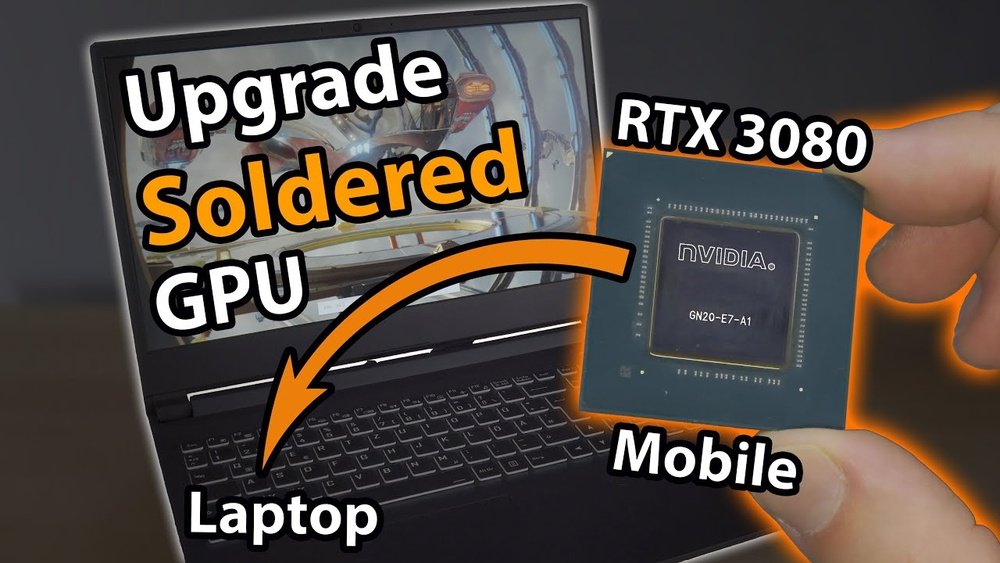
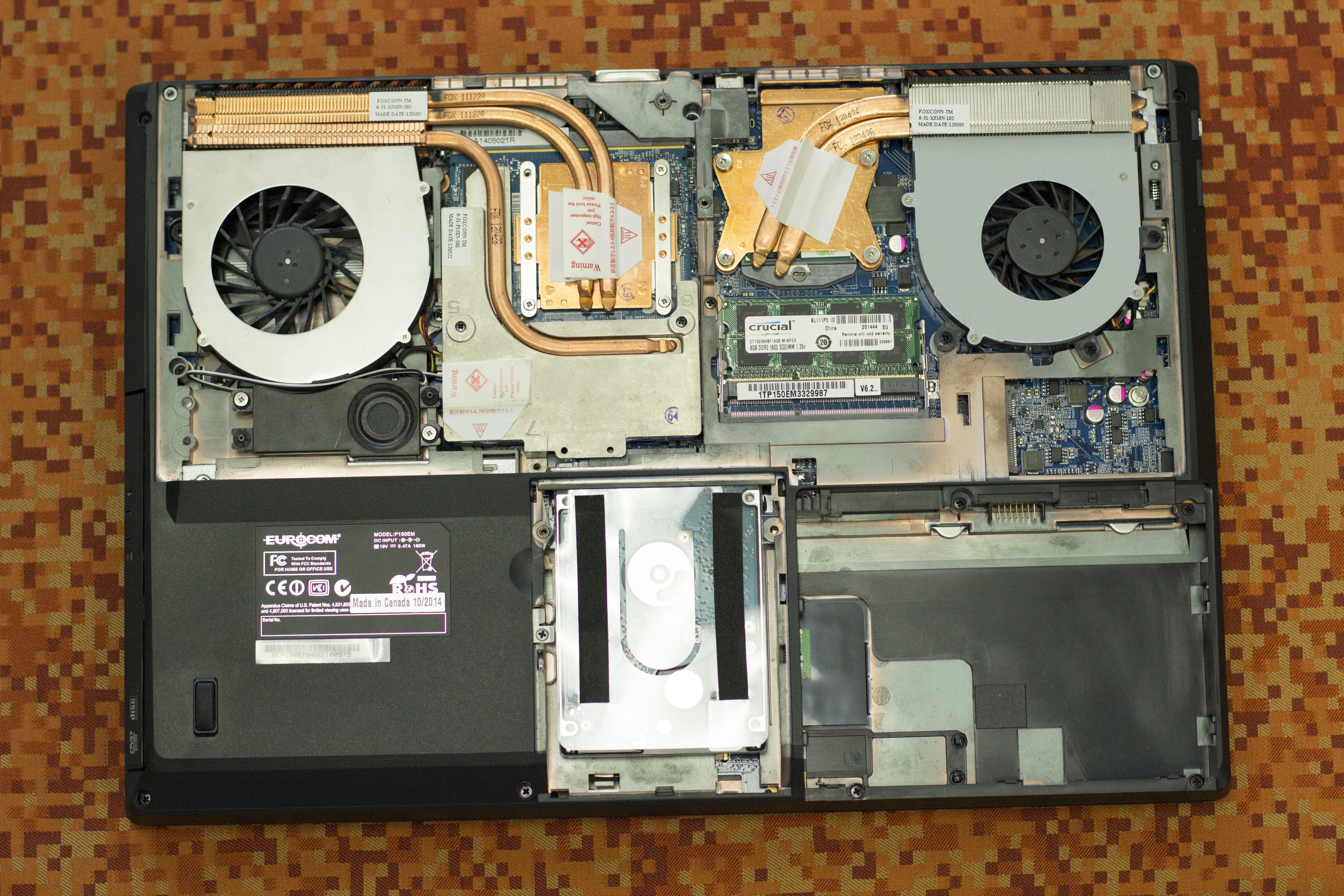
Most laptops have a fixed GPU soldered to the motherboard. This design saves space and improves durability. Only a few laptops have removable GPUs with special slots. These models are rare and usually more expensive. The slim and compact design of many laptops leaves no room for upgrades.
Compatibility Issues
Even if a laptop has a removable GPU, compatibility is a challenge. The new GPU must match the laptop’s slot and connections. BIOS support is also crucial for the GPU to work correctly. Drivers must be available for the new hardware. Some GPUs need specific power and signal standards that older laptops lack.
Power And Cooling Limitations
Newer GPUs often need more power than older models. Laptops have limited power supply units that cannot be easily replaced. The cooling system must handle the heat from a more powerful GPU. Overheating can cause damage or reduce performance. Many laptops do not have cooling designs that support stronger GPUs.
Checking Upgrade Possibilities
Before upgrading your laptop’s GPU, you must check if it is possible. Some laptops allow GPU upgrades, but many do not. Knowing your laptop’s details helps you avoid mistakes and wasted money.
Start by gathering information about your laptop and its current GPU. This helps you find compatible upgrade options. Use tools and manuals to get accurate data.
Identifying Your Laptop Model
Find your laptop’s exact model number. Look at the label on the bottom or under the battery. You can also check system information on your device. This model number is key to finding upgrade options.
Consulting Manufacturer Specifications
Visit the manufacturer’s website. Search for your laptop model and read the specifications. Check if the GPU is soldered or removable. Some laptops only support specific GPU models.
Look for upgrade guides or user manuals. They often explain what hardware parts you can change. Follow these guidelines strictly to avoid damage.
Using Diagnostic Tools
Use software tools like GPU-Z or Speccy. These tools show detailed information about your current GPU. They also reveal if your GPU is integrated or dedicated.
Some diagnostic apps can detect upgrade paths. They suggest compatible parts based on your system. This makes your search easier and safer.
Upgrade Options For Laptops
Upgrading a laptop’s GPU can be tricky. Most laptops have fixed graphics chips soldered to the motherboard. This limits direct GPU upgrades. Still, some options exist to improve graphics performance. Understanding these can help you decide the best path for your laptop.
Some laptops use special GPU modules. External devices also offer ways to boost graphics. Other parts in your laptop can be upgraded to support better overall performance.
Replacing Mxm Gpus
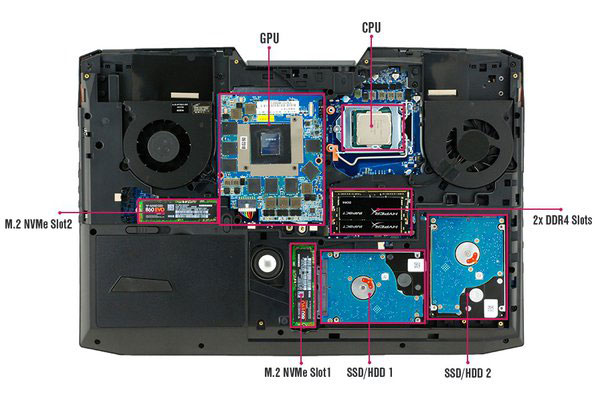
Some gaming and professional laptops have MXM (Mobile PCI Express Module) slots. These slots let you replace the GPU like a desktop graphics card. Not all laptops support MXM. You need to check your laptop’s specifications. MXM GPUs come in different sizes and power levels. Replacement requires careful matching of the GPU and cooling system. This option is rare but possible for certain models.
External Gpu (egpu) Solutions
External GPUs connect through Thunderbolt 3 or USB-C ports. These devices house desktop-level graphics cards. They offer a big boost to gaming and creative work. eGPUs require a compatible port and power supply. Setup is simple: connect the eGPU, install drivers, and switch graphics settings. This method works with many laptops without opening them. It’s a popular choice for those needing extra graphics power.
Upgrading Other Components
Improving your laptop’s CPU, RAM, or storage can help graphics performance indirectly. More RAM allows smoother multitasking during gaming or editing. A faster CPU can reduce bottlenecks in graphics-heavy tasks. Upgrading to an SSD speeds up load times and data access. These changes do not directly upgrade the GPU but enhance overall system performance. This approach suits laptops with fixed GPUs.
Step-by-step Gpu Upgrade Process
Upgrading the GPU in a laptop can improve graphics performance and speed. The process needs care and the right steps to avoid damage. Follow these simple steps to upgrade your laptop’s GPU safely and effectively.
Preparing Your Laptop
Turn off your laptop completely. Unplug it from any power source. Remove the battery if possible. Clear a clean workspace to work on. Gather tools like a small screwdriver and an anti-static wrist strap. Wear the wrist strap to avoid static damage. Read your laptop manual to locate the GPU area.
Removing The Old Gpu
Open the laptop’s back panel carefully. Find the GPU slot or module inside. Unscrew any screws holding the GPU in place. Gently disconnect cables connected to the GPU. Pull the GPU out slowly and evenly. Avoid touching any chips or connectors directly.
Installing The New Gpu
Align the new GPU with the slot correctly. Insert it firmly but gently into place. Screw it back securely to avoid movement. Reconnect any cables you removed earlier. Double-check the GPU is seated evenly and snugly. Close the laptop panel and screw it back on.
Driver Installation And Setup
Power on the laptop after the physical installation. Download the latest GPU drivers from the manufacturer’s website. Install the drivers by following the setup instructions. Restart your laptop to apply changes. Check the device manager to confirm the GPU is recognized. Test the new GPU with graphics applications or games.
Credit: www.keramischparket.nl
Performance Gains And Expectations
Upgrading the GPU in a laptop can offer better speed and graphics quality. This can improve gaming, video editing, and other tasks that need strong graphics power. But the actual improvement depends on many factors like hardware compatibility and software support.
Knowing what to expect helps in deciding if the upgrade is worth it. Some gains may be clear, while others might be limited by the laptop’s design.
Benchmarking Before And After
Benchmarking measures your laptop’s performance using tests. Running these tests before upgrading shows the current graphics speed. After upgrading, repeat the tests to see the difference.
Look for higher frame rates and faster processing times. These numbers tell if the new GPU works well with your system.
Benchmark scores vary by game or software, so test several to get a full picture.
Real-world Gaming And Productivity
Better GPU means smoother gameplay with higher settings. Games load faster and show more details. Video editing and 3D work also become quicker and easier.
Some laptops may show big improvements. Others may have only small gains if other parts limit the GPU’s power.
Check how your favorite games or apps perform after the upgrade to see real benefits.
Limitations Of Upgrades
Not all laptops allow GPU upgrades. Many have GPUs soldered to the motherboard. This stops you from swapping the graphics card.
Even if you can upgrade, the laptop’s cooling system may struggle with a stronger GPU. This can cause overheating and slowdowns.
Battery life may drop faster with a high-performance GPU. Consider power use before upgrading.
Troubleshooting Common Issues
Upgrading a laptop GPU can cause some common issues. These problems may stop your new GPU from working well. Knowing how to fix these issues helps keep your laptop running smoothly. This section covers common problems and how to solve them quickly.
Gpu Not Recognized
Sometimes, the laptop does not detect the new GPU. This can happen if the hardware is not properly connected. Check the GPU slot and ensure the card is seated firmly. Also, update the BIOS to support the new GPU. Restart the laptop after updates. This often makes the system recognize the GPU.
Overheating Problems
A new GPU may produce more heat than the old one. Overheating can cause slow performance or sudden shutdowns. Clean the laptop’s fans and vents to improve airflow. Use a cooling pad to lower temperatures. Monitor the GPU temperature with software tools. Keep the laptop on a hard, flat surface to avoid blocking vents.
Driver Conflicts
Driver issues often cause GPU malfunctions. Old drivers can conflict with new GPU software. Uninstall previous GPU drivers completely before installing new ones. Download drivers from the official GPU manufacturer’s website. Restart the laptop after driver installation. Proper drivers ensure the GPU works correctly and improves performance.
Alternative Ways To Boost Gpu Performance
Upgrading a laptop’s GPU is often hard or impossible. Still, you can improve GPU performance in other ways. These methods help your laptop run graphics tasks smoother. They also keep your system healthy and cool. Here are some simple steps to try.
Optimizing Software Settings
Adjust your laptop’s graphics settings for better speed. Lower the resolution or reduce detail levels in games and apps. Close unused programs to free up memory and processing power. Update your graphics drivers regularly to improve compatibility and performance. Use software tools from your GPU maker to fine-tune settings easily.
Regular Maintenance
Keep your laptop clean inside and out. Dust buildup can block fans and cause overheating. Overheating makes your GPU slow down to protect itself. Use compressed air to remove dust from vents and fans. Check for software updates that fix bugs and improve efficiency. Scan for malware that can slow down your system.
Using Cooling Pads
Cooling pads help lower your laptop’s temperature. They provide extra airflow around your device. Cooler temperatures prevent the GPU from throttling its speed. Choose a cooling pad with multiple fans and good ventilation. Place your laptop on the pad during heavy use for best results. This simple tool extends your laptop’s life and keeps it fast.
Cost-benefit Analysis
Upgrading a laptop GPU requires careful thought about costs and benefits. This analysis helps decide if upgrading is worth the money spent. It also compares the value against buying a new laptop. Understanding this saves time and effort.
Upgrade Costs Vs New Laptop
GPU upgrades in laptops are often costly. Many laptops do not support GPU upgrades at all. External GPU solutions exist but can be expensive and bulky. Buying a new laptop can sometimes cost the same or less. New laptops come with the latest hardware and warranty. Consider repair and upgrade costs before making a choice.
Longevity And Future Proofing
Upgrading a GPU can extend laptop life by a few years. New GPUs offer better performance and support newer software. But other parts like CPU and RAM might limit performance. New laptops offer balanced hardware that lasts longer. Future proofing means fewer upgrades and smoother use. Check if upgrading meets future needs or if a new laptop is better.

Credit: www.kaz-metiz.com
Frequently Asked Questions
Can Laptop Gpus Be Upgraded Like Desktop Gpus?
Most laptop GPUs are soldered and cannot be upgraded like desktops. Some gaming laptops use MXM modules, allowing GPU swaps, but they are rare and expensive.
What Laptops Support Gpu Upgrades?
Only a few high-end gaming or professional laptops with MXM slots support GPU upgrades. Most consumer laptops lack this feature, making upgrades impossible.
Is Upgrading A Laptop Gpu Worth It?
Upgrading a laptop GPU is rarely cost-effective due to limited options and high prices. Buying a new laptop often offers better performance and value.
Can External Gpus Boost Laptop Graphics Performance?
Yes, external GPUs (eGPUs) connected via Thunderbolt 3/4 can significantly improve graphics performance on compatible laptops. This is a popular alternative to internal GPU upgrades.
Conclusion
Upgrading a laptop’s GPU is not always simple or possible. Many laptops have fixed graphics cards. Some gaming or high-end models allow upgrades, but most do not. External GPU solutions exist but need extra gear and cost. Check your laptop’s specifications before trying any upgrade.
Often, buying a new laptop with a better GPU makes more sense. Think about your needs and budget carefully. This helps you make the best choice for better graphics performance.