Can You Change the Gpu in a Laptop: Ultimate Upgrade Guide
Have you ever wondered if you can upgrade your laptop’s graphics card to boost gaming or design performance? You’re not alone.
Many people ask, “Can you change the GPU in a laptop? ” The answer isn’t as simple as it is with desktop computers. But don’t worry—this article will clear up the mystery for you. By the end, you’ll know exactly what’s possible, what’s not, and what to consider before making any changes.
Keep reading to find out if your laptop’s GPU can get the upgrade it deserves.
Laptop Gpu Basics
Laptop GPUs handle graphics and visual tasks. They affect gaming, video editing, and everyday use. Understanding GPU basics helps decide if you can change it.
Different laptops use different GPU types. Some are built-in, while others are separate parts. The design also affects upgradability.
Types Of Laptop Gpus
Laptops use two main GPU types: integrated and dedicated. Integrated GPUs share memory with the CPU. They are less powerful but use less battery.
Dedicated GPUs have their own memory and power. They offer better performance for games and heavy work. These GPUs can be from brands like NVIDIA or AMD.
Integrated Vs Dedicated Gpus
Integrated GPUs are part of the CPU chip. They handle basic tasks like web browsing and video playback. Dedicated GPUs handle complex graphics and gaming.
Integrated GPUs save space and energy. Dedicated GPUs need more cooling and power. This difference affects laptop size and battery life.
Gpu Soldered Vs Modular Designs
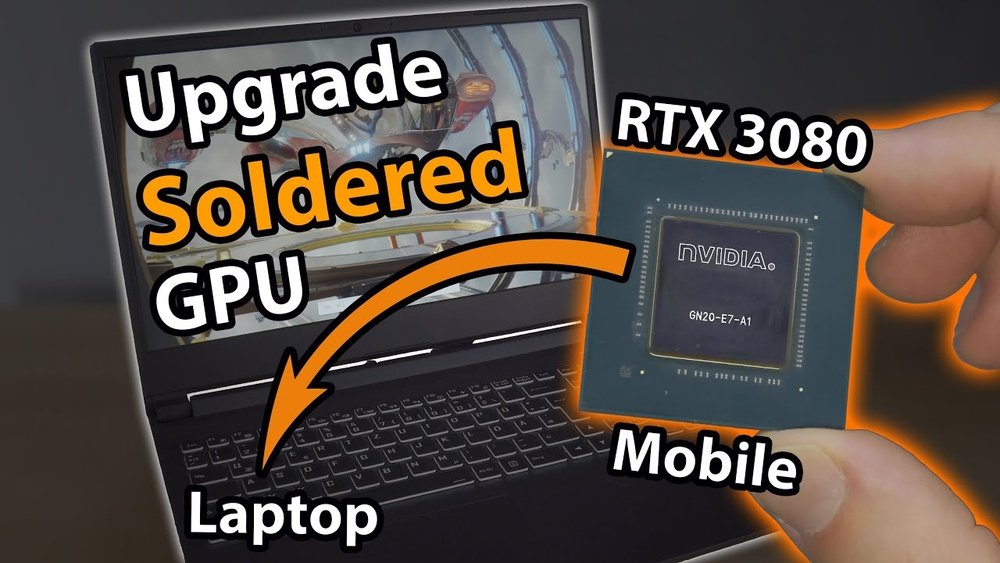
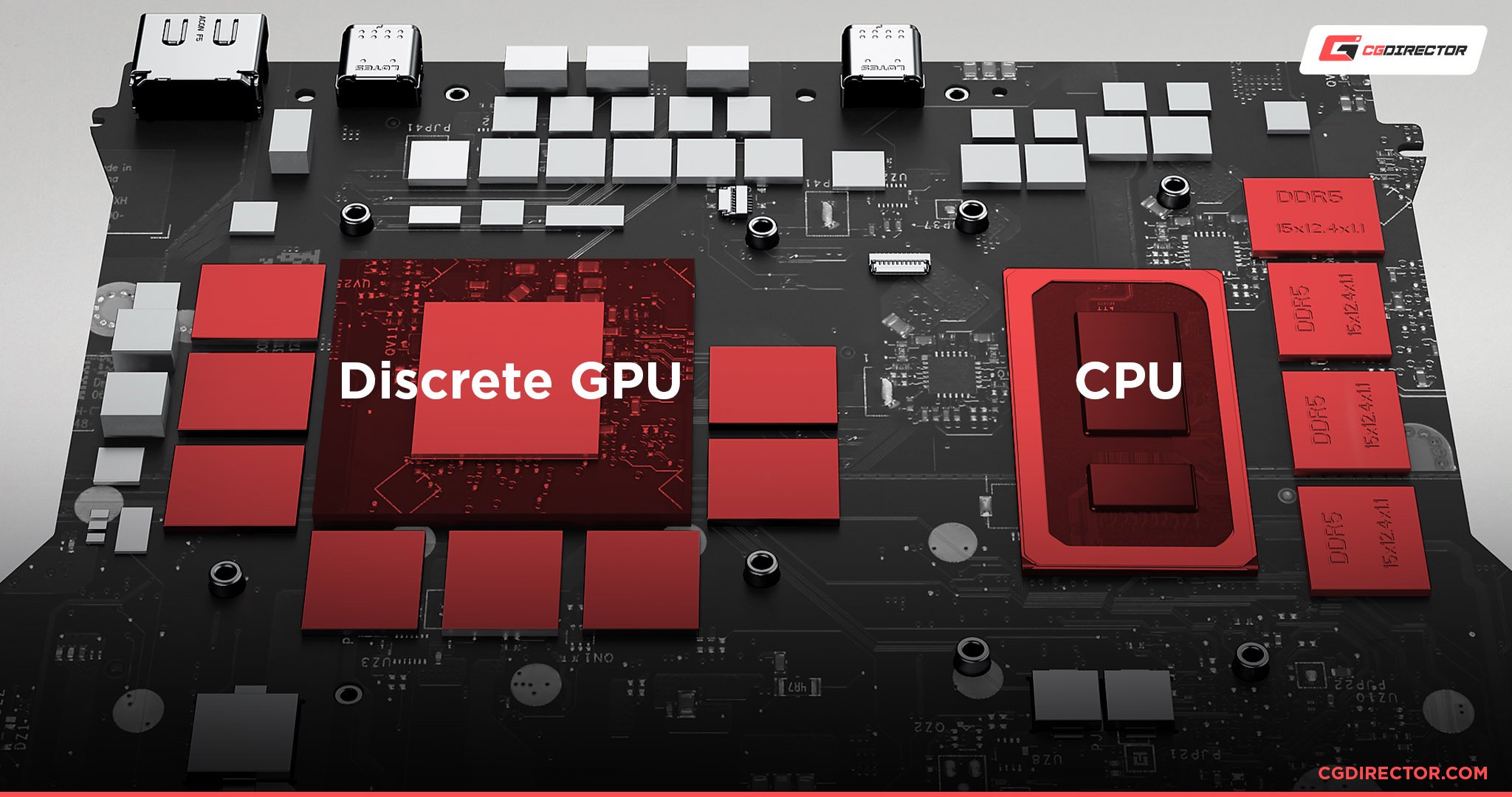
Most laptops have soldered GPUs. This means the GPU is fixed to the motherboard. It cannot be removed or replaced easily.
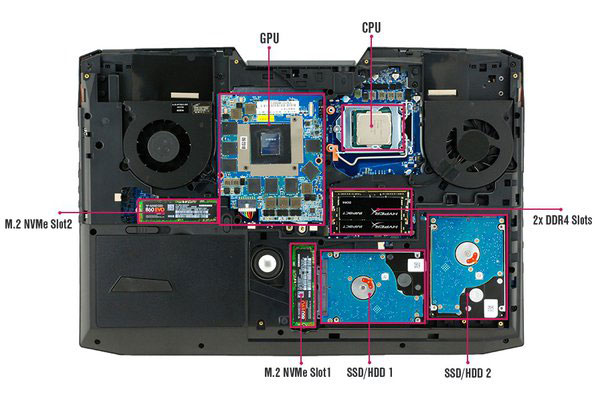
Modular GPU designs allow swapping or upgrading the GPU. These are rare and found in some gaming or workstation laptops. Modular GPUs make upgrades easier but add cost and size.
Credit: fundacioninbursa.org
Signs You Need A Gpu Upgrade
Knowing when to upgrade your laptop’s GPU can save time and improve your experience. The GPU handles graphics and visual tasks. Over time, signs appear that the current GPU no longer meets your needs. Recognizing these signs helps decide if a change is necessary.
Performance Bottlenecks
Slower video playback and lagging visuals often indicate GPU limits. Programs may freeze or stutter during use. Graphic-heavy tasks strain the current GPU, causing slowdowns. Frame rates drop in games or videos. These issues show your GPU is struggling to keep up.
New Software Demands
Software updates often need stronger graphics support. New programs may require more GPU power than before. Features like 3D rendering and high-resolution displays demand better GPUs. Older GPUs may not support these features well. This can limit your work or entertainment options.
Gaming And Creative Workloads
Games and creative apps push GPUs to the limit. Modern games need faster GPUs for smooth play. Video editing and 3D design also require powerful graphics. If your laptop lags during these tasks, the GPU may be weak. Upgrading can improve speed and quality.
Compatibility Factors
Changing the GPU in a laptop is not always simple. Several compatibility factors affect whether you can upgrade your laptop’s graphics card. Understanding these factors helps avoid costly mistakes. It also ensures the new GPU will work well with your system.
Checking Laptop Model Support
Not all laptops allow GPU upgrades. Many models have GPUs soldered to the motherboard. Check your laptop’s manual or manufacturer website. Look for information about removable GPUs. Some gaming or workstation laptops support GPU changes. Others do not. Confirm your specific model’s capability before buying a new GPU.
Power And Thermal Constraints
Laptops have strict power limits. The GPU must fit within those limits. A more powerful GPU needs more energy. Your laptop’s power supply and battery may not support it. Cooling is another concern. Higher-performance GPUs generate more heat. Your laptop’s cooling system must handle this extra heat. Otherwise, the laptop can overheat or shut down.
Physical Space And Connectors
Laptop GPUs vary in size and connectors. The new GPU must physically fit inside your laptop. Some GPUs use special slots like MXM. Others are integrated and cannot be removed. The connectors on the new GPU must match the laptop’s motherboard. Check the dimensions and connector type carefully. Even small differences can prevent installation.

Credit: www.youtube.com
Upgrade Options
Upgrading the GPU in a laptop can be tricky. Most laptops have GPUs soldered to the motherboard. This design limits the ability to swap or upgrade the internal GPU. Despite this, several options exist to improve graphics performance.
External Gpu Solutions
External GPU (eGPU) setups use a desktop graphics card outside the laptop. You connect the eGPU through a Thunderbolt 3 or 4 port. This method boosts graphics power without opening the laptop. It suits users who want better gaming or editing performance. eGPUs add weight and need extra space. They also require compatible ports and software support.
Modular Gpu Replacements
Some high-end laptops have modular GPUs. These GPUs attach using special slots or connectors. Users can replace or upgrade the GPU inside the laptop. This option is rare and mostly found in gaming or workstation laptops. It offers better upgrade flexibility but costs more. Check your laptop model to see if modular GPU upgrades are possible.
Buying A New Laptop
Buying a new laptop with a better GPU often makes more sense. New laptops come with up-to-date technology and warranty. This option saves time and effort compared to internal upgrades. It also ensures full compatibility and stable performance. Consider this choice if your laptop is old or lacks upgrade options.
Step-by-step Upgrade Process
Changing the GPU in a laptop is a complex task but possible in some models. Follow this step-by-step guide to upgrade your laptop’s graphics card safely. Prepare well and take your time. Each step matters to avoid damage.
Preparing Tools And Workspace
Gather all necessary tools before starting. You will need a small screwdriver, anti-static wrist strap, and a clean cloth. Clear a flat surface with good lighting. Work in a static-free area to protect your laptop’s parts. Organize screws and small parts in a container to avoid losing them.
Removing The Old Gpu
Turn off the laptop and unplug it from power. Remove the battery if possible. Open the laptop’s back cover carefully using the screwdriver. Locate the GPU, usually near the cooling fan. Unscrew the GPU’s fixing screws gently. Disconnect any cables attached to the GPU. Lift the old GPU out slowly and without force.
Installing The New Gpu
Place the new GPU in the same slot as the old one. Align it properly with the connectors. Press it down gently until it fits snugly. Secure the GPU with the screws you removed earlier. Reconnect any cables you had detached. Close the laptop cover and screw it back on.
Driver Installation And Testing
Power on the laptop after installing the new GPU. Download the latest drivers from the GPU manufacturer’s website. Install the drivers following the on-screen instructions. Restart the laptop to complete the process. Test the new GPU by running games or graphics software. Check for smooth performance and no errors.
Risks And Challenges
Changing the GPU in a laptop is not simple. It comes with many risks and challenges. Many people do not realize these difficulties before trying. Understanding the risks helps you make a smart choice.
Warranty Voids
Opening your laptop often voids the warranty. Manufacturers do not cover damage from self-repairs. This means any future problems may cost you money. The warranty no longer protects your device.
Potential Hardware Damage
Laptops have small, delicate parts inside. Removing or replacing the GPU can cause damage. You might break connectors or other components. Even small mistakes can stop your laptop from working.
Compatibility Issues
Not all GPUs fit in every laptop. The new GPU may not work with your motherboard. Power and cooling systems may not support it. This can cause poor performance or overheating problems.
Maximizing Gpu Performance
Maximizing your laptop’s GPU performance is key to better graphics and smoother gameplay. Even if you cannot change the GPU itself, you can still improve how well it works. Small steps can make a big difference in your laptop’s speed and visual quality.
Focus on three main areas: keeping your drivers updated, improving cooling, and learning the basics of overclocking. These methods help your GPU run faster and stay stable during heavy use.
Driver Updates
Drivers are software that help your GPU work with your laptop’s system. Updating drivers fixes bugs and improves performance. GPU makers release updates often to enhance speed and fix problems.
Check your GPU brand’s website regularly. Download the latest drivers and install them. Updated drivers can improve game compatibility and overall graphics quality.
Cooling Solutions
Heat slows down your GPU and can cause crashes. Good cooling keeps your laptop running smoothly. Use a cooling pad to increase airflow around your laptop.
Keep vents clean and free from dust. Avoid soft surfaces that block air intake. Lower temperatures help your GPU perform better for longer periods.
Overclocking Basics
Overclocking means running your GPU at higher speeds than normal. It can boost performance but may cause extra heat and power use. Start with small increases in clock speed.
Use reliable software tools made for your GPU brand. Monitor temperature and system stability carefully. Stop if your laptop gets too hot or crashes often.
When To Seek Professional Help
Changing the GPU in a laptop is not always simple. Some tasks can be tricky and need special skills. Knowing when to ask for help can save time and avoid damage. Professionals have the right tools and experience to do the job safely.
Complex Disassembly
Laptops have tight spaces and many small parts. Taking them apart needs care and knowledge. A wrong move can break delicate cables or connectors. Professionals know how to open laptops without causing harm.
Diagnosing Hardware Issues
Sometimes, the GPU problem is not obvious. Testing and finding the exact issue takes skill. Experts use tools to check if the GPU or another part is faulty. This helps avoid unnecessary repairs or costs.
Ensuring Proper Installation
Installing a new GPU needs precision. It must fit well and connect perfectly. Poor installation can cause overheating or system failure. Professionals follow correct steps to secure the GPU and check its function.
Credit: www.shoshitamam.com
Frequently Asked Questions
Can Laptop Gpu Be Upgraded Or Replaced?
Most laptops have GPUs soldered to the motherboard, making upgrades impossible. Only some gaming or workstation laptops feature modular GPUs that you can replace.
How To Check If My Laptop Gpu Is Replaceable?
Check your laptop’s service manual or manufacturer website. Look for mentions of MXM or modular GPU design, which indicate replaceability.
What Are Risks Of Changing A Laptop Gpu?
Replacing a laptop GPU can void warranty, cause hardware damage, or lead to overheating if not done properly.
Are External Gpus A Good Alternative?
Yes, external GPUs via Thunderbolt 3 provide better graphics performance without opening your laptop. They’re ideal for gaming or design work.
Conclusion
Changing a laptop’s GPU is not easy for most users. Many laptops have GPUs built into the motherboard. Some models allow upgrades, but they are rare. It takes special tools and skills to replace a GPU. Buying a new laptop with a better GPU is often simpler.
Think about your needs and budget before trying this. Remember, upgrading a GPU may not always improve performance. Choose the best option that fits your situation and helps your work or play.