Can You Add a Gpu to a Laptop: Ultimate Guide to Boost Performance
Are you wondering if you can boost your laptop’s power by adding a GPU? Maybe you want smoother gaming, faster video editing, or just better overall performance.
The idea sounds simple: just plug in a graphics card and watch your laptop transform. But is it really that easy? Before you spend money or open up your device, it’s important to know the facts. Keep reading to discover what’s possible, what isn’t, and how you can make the best choice for your laptop’s needs.

Credit: www.sietesetenta.com.ar
Laptop Gpu Options
Laptops come with different types of GPUs. These GPUs handle graphics and video tasks. Choosing the right GPU affects your laptop’s performance.
Some laptops have built-in GPUs, while others support extra graphics power. Understanding these options helps you pick the best setup.
Integrated Vs Dedicated Gpus
Integrated GPUs share memory with the CPU. They use less power and create less heat. Most everyday laptops have integrated GPUs. They work well for browsing, videos, and light games.
Dedicated GPUs have their own memory and power. They deliver better performance for gaming and design work. Laptops with dedicated GPUs cost more. They also use more battery power.
External Gpu Possibilities
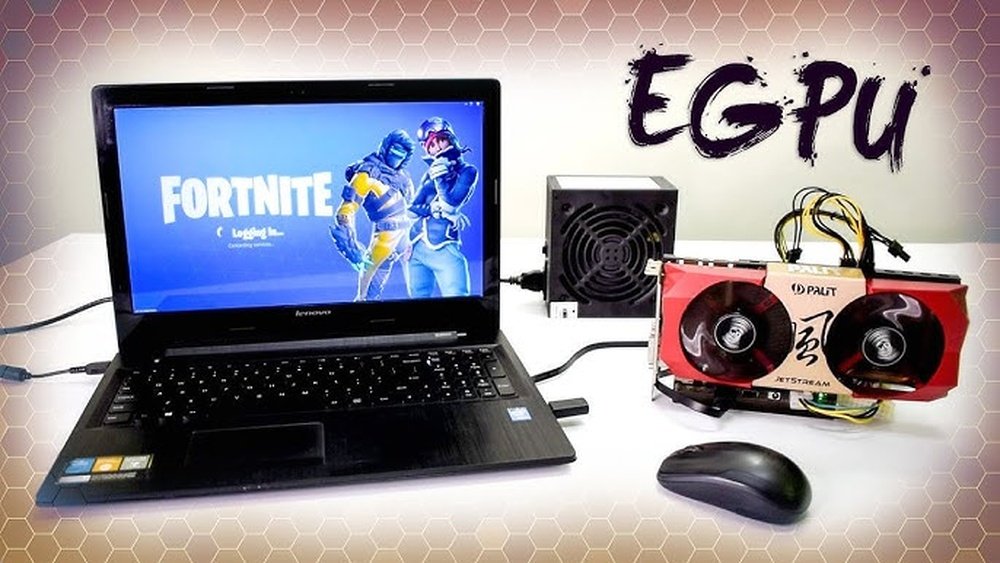
External GPUs connect to laptops through ports like Thunderbolt 3. They add extra graphics power for demanding tasks. This option is good for laptops without strong built-in GPUs.
External GPUs need extra space and a power source. They are not very portable. Still, they can boost gaming and video editing performance a lot.
Credit: www.sietesetenta.com.ar
External Gpu Setup
Adding a GPU to a laptop can improve graphics performance. An external GPU setup allows laptops to use desktop-grade graphics cards. This setup is useful for gaming, video editing, and 3D work. It requires specific hardware and careful setup to work well.
Required Hardware Components
You need a few key parts for an external GPU setup. First, an external GPU enclosure holds the graphics card. It provides power and cooling. Next, the graphics card itself. Choose a card that fits your needs and budget. A power supply is often included in the enclosure. Finally, cables connect the enclosure to your laptop.
Compatibility Considerations
Not all laptops support external GPUs. Check if your laptop has a compatible port. Your operating system must support external GPU use. Some GPUs may require specific drivers. Also, your laptop’s BIOS might need updates. Research your laptop model before buying parts.
Connection Methods
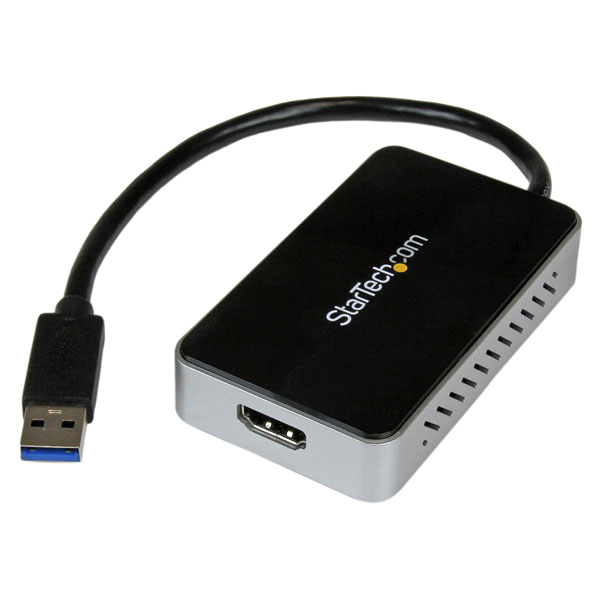
The most common connection for external GPUs is Thunderbolt 3 or 4. This port offers fast data transfer. Some setups use USB-C with Thunderbolt support. Older laptops might use ExpressCard or mPCIe slots. These methods are slower and less common today. Use the fastest connection your laptop supports.
Performance Gains
Adding a GPU to a laptop can improve its performance in many ways. The increase in graphics power helps the laptop handle tasks faster and smoother. This section explains the main benefits of adding a GPU and also points out some limits you may face.
Gaming Improvements
A dedicated GPU boosts gaming performance significantly. Games run at higher frame rates and better graphics settings. This means less lag and clearer images. The gameplay becomes more enjoyable and responsive. Older laptops can run newer games better with a GPU added.
Creative Work Benefits
Creative tasks also see big improvements with a GPU. Video editing, 3D rendering, and graphic design become faster. Programs use the GPU to process images quickly. This cuts waiting time during work. It helps users finish projects faster and with better quality.
Limitations And Bottlenecks
Some limits exist when adding a GPU to a laptop. The CPU and RAM still affect overall speed. If these parts are weak, the GPU cannot perform fully. The laptop’s cooling system may struggle with extra heat. Power supply might not support high-end GPUs. Performance gains depend on the whole system, not just the GPU.
Installation Steps
Adding a GPU to a laptop can improve its graphics power. The installation process is simple but needs care. Follow these steps to connect your external GPU correctly. Each step helps ensure your setup works smoothly.
Preparing Your Laptop
Turn off your laptop before starting. Check if your laptop supports an external GPU. Look for a Thunderbolt 3 or 4 port. This port is needed to connect the GPU. Clear space on your desk for the setup. Gather all tools and cables you will need.
Connecting The External Gpu
Place the external GPU box near your laptop. Connect the GPU box to the laptop using the Thunderbolt cable. Make sure the connection is secure and tight. Plug in the power cable for the GPU box. Turn on the GPU box before powering the laptop.
Driver And Software Setup
Turn on your laptop after connecting the GPU. Download the latest drivers from the GPU maker’s website. Install the drivers following the on-screen instructions. Restart your laptop once the installation finishes. Check the device manager to confirm the GPU is active.
Cost And Alternatives
Adding a GPU to a laptop can be costly. Many users wonder about the price and other options. Understanding the costs helps decide the best choice. Exploring alternatives might save money and improve performance.
Budgeting For External Gpus
External GPUs, or eGPUs, connect via Thunderbolt ports. They cost between $300 and $800 for the enclosure. The GPU card itself adds $200 to $1000 more. Total costs can reach $1000 to $1800. Keep in mind, you may need extra accessories. Power supplies and cables add small expenses. Also, performance may be lower than desktop GPUs.
Upgrading Internal Components
Most laptops do not allow GPU upgrades inside. Some high-end models offer modular GPUs. These are rare and often expensive. Upgrading RAM or storage is easier and cheaper. Adding more RAM can improve gaming and work speed. Replacing an SSD makes your laptop faster overall. These upgrades cost less than external GPUs.
Considering New Laptops
Buying a new laptop with a built-in GPU can be smart. Prices vary from $700 to over $2000. New laptops often have better cooling and power. This means better GPU performance and longer life. Look for laptops with dedicated graphics cards. They handle games and design software well. This option avoids the extra cost of eGPUs.
Troubleshooting Tips
Adding a GPU to a laptop can improve performance but might cause issues. Troubleshooting helps fix problems fast. This section covers common connection issues, ways to optimize performance, and how to solve compatibility problems.
Common Connection Issues
Check the cable and ports carefully. Loose or damaged cables stop the GPU from working. Use the correct port for your external GPU. Some laptops need a specific Thunderbolt port. Restart the laptop after connecting the GPU. This helps the system detect the device. Update your laptop’s BIOS and drivers for better connection.
Performance Optimization
Close unused programs to free up resources. Set the GPU as the main graphics processor in settings. Adjust power settings to high performance mode. Keep the laptop cool to avoid overheating. Use cooling pads or place the laptop on hard surfaces. Update GPU drivers regularly for best performance. Run benchmark tests to check the GPU speed.
Compatibility Fixes
Check if the external GPU supports your laptop model. Not all GPUs work with all laptops. Update the laptop’s firmware and BIOS to improve compatibility. Use the latest operating system version. Sometimes, older OS versions do not support new GPUs. Use manufacturer tools or forums to find compatibility tips. Confirm that your laptop’s power supply can handle the added GPU load.

Credit: softwareg.com.au
Frequently Asked Questions
Can You Upgrade A Laptop Gpu Internally?
Most laptops have integrated GPUs, and internal upgrades are rare. Only some gaming or workstation laptops support internal GPU upgrades through MXM modules.
Is An External Gpu Compatible With Any Laptop?
External GPUs work with laptops having Thunderbolt 3 or higher ports. Compatibility depends on your laptop’s ports and BIOS support.
Does Adding A Gpu Improve Laptop Gaming Performance?
Yes, adding a dedicated GPU significantly boosts gaming performance, enabling higher frame rates and better graphics quality.
What Are The Limitations Of Adding A Gpu To Laptops?
Laptop cooling, power supply, and BIOS restrictions limit GPU upgrades. External GPUs are a workaround but add cost and bulk.
Conclusion
Adding a GPU to a laptop is not always simple or possible. Most laptops do not support internal GPU upgrades. External GPU options exist but need extra equipment. These setups can improve graphics but may cost more. Consider your laptop model and budget carefully.
Sometimes buying a new laptop with a better GPU is easier. Always research before making changes to avoid problems. A clear understanding helps make the best choice for your needs.