How Do I Know If My Gpu is Dead: Quick and Easy Tests
Is your computer acting strange, or are your games suddenly freezing? You might be wondering, “How do I know if my GPU is dead?”
Your graphics card is a key part of your system, and when it stops working, everything can slow down or stop altogether. But don’t panic—there are clear signs that can help you figure out if your GPU is failing. Keep reading, and you’ll learn exactly what to look for, so you can decide what to do next and get your computer back to its best.

Credit: www.reddit.com
Signs Of A Dead Gpu
Knowing the signs of a dead GPU helps save time and money. A dead graphics card stops your computer from showing images correctly. It may cause sudden problems while using your PC. Recognizing these signs early can prevent further damage.
No Display Output
Your screen stays black even if the PC is on. No image appears during startup or use. Check cables and monitor first. If all are fine, the GPU might be dead. This is a clear sign your graphics card has failed.
Frequent Crashes And Freezes
Your computer crashes or freezes often during use. This happens especially when running games or graphic-heavy programs. The system may restart without warning. These issues show the GPU struggles to work properly. It may be failing or dead.
Artifacts And Visual Glitches
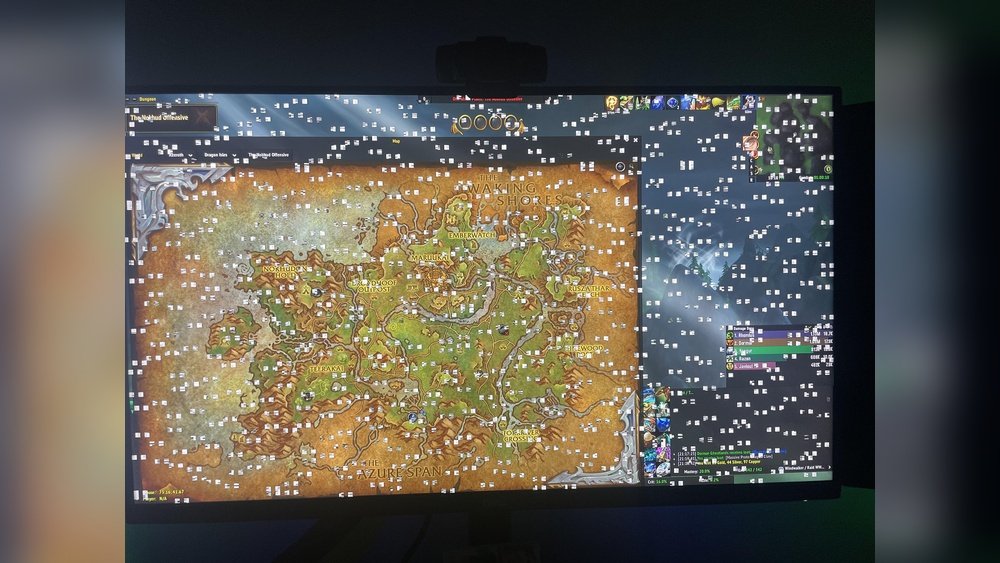
Strange lines, colors, or blocks appear on your screen. Images may flicker or distort randomly. These visual errors happen during gaming or video playback. Artifacts mean the GPU is damaged or overheating. This sign points to serious GPU problems.
Overheating Symptoms
The GPU gets very hot quickly. Fans run loudly and constantly. Your PC may shut down to avoid damage. Overheating harms the graphics card’s parts. This can lead to a dead GPU if ignored.
Initial Checks
Before jumping to conclusions about your GPU, start with initial checks. These steps help you find simple issues first. Sometimes, the problem is easy to fix. Checking these can save time and money.
Verify Power Connections
Check if your GPU is properly connected to the power supply. Make sure all cables are plugged in tightly. Loose or missing power cables can cause the GPU to fail. Look for any disconnected or damaged wires.
Inspect Physical Damage
Look closely at your GPU for visible damage. Cracks, burn marks, or broken parts mean trouble. Dust and dirt can also affect performance. Clean your GPU gently with compressed air if dusty.
Test Monitor And Cables
Confirm your monitor and cables work fine. Try using a different monitor or cable to rule out screen issues. Faulty cables or monitors might look like a dead GPU. Swap parts to isolate the problem.
Basic Software Tests
Basic software tests help check your GPU’s health without extra tools. These tests use your computer’s system and programs. They can show if the problem is with the GPU or something else. These steps are easy to do and give quick results.
Start with simple checks to see if your GPU responds correctly. These tests save time before thinking about hardware fixes or replacements.
Update Or Reinstall Drivers
Drivers help your computer talk to the GPU. Outdated or broken drivers cause many problems. Go to the GPU maker’s website to get the latest drivers. Install them and restart your PC. If the GPU works fine, old drivers were the issue.
If updating does not help, try reinstalling drivers. Use “Device Manager” to uninstall current drivers. Then install fresh ones from the official site. This removes corrupted files that may stop the GPU from working.
Use Device Manager For Detection
Device Manager shows all hardware inside your PC. Open it and look under “Display adapters.” If your GPU is missing or has a warning sign, it may be faulty.
This tool also tests if the system recognizes your GPU. A missing GPU means the computer can’t detect it. This could point to a dead or disconnected card.
Run Built-in Diagnostics
Many PCs have built-in tests for hardware. Use these diagnostics to check the GPU. They run checks and report errors clearly.
Look for programs like “Windows Memory Diagnostic” or PC manufacturer tools. These tests find problems inside the GPU or its memory. A failed test often means the GPU is damaged.
Stress Testing The Gpu
Stress testing the GPU helps check its health under heavy load. It pushes the graphics card to its limits. This shows if the GPU can handle intense tasks without errors or crashes. Stress tests reveal hidden problems that normal use may not show. This process is important to know if the GPU is dead or just struggling.
Using Benchmark Tools
Benchmark tools run demanding graphics tasks on your GPU. They test speed, stability, and power use. Popular tools include FurMark, 3DMark, and Unigine Heaven. These programs create a heavy workload for the GPU. Watch for any crashes or strange visuals during the test. Benchmark scores also show if the GPU performs below expectations.
Monitoring Temperature And Performance
High temperatures can damage your GPU quickly. Use software like MSI Afterburner or HWMonitor to check temperatures. Keep the GPU under 85°C during stress tests. Watch fan speeds and clock rates too. Sudden drops in speed or high heat hint at hardware trouble. Good cooling and steady performance are signs of a healthy GPU.
Identifying Failures During Stress
Failures show as screen glitches, freezes, or shutdowns. Artifacts or strange colors mean GPU errors. The computer may crash or restart without warning. These problems suggest serious GPU issues. If errors happen even after lowering settings, the GPU might be dead. Stress testing helps catch these signs early before total failure.
Testing With Another System
Testing your GPU in another system helps find out if it is really dead. This step removes other parts from the problem. You check the GPU alone without other PC issues. It gives a clear answer about the GPU’s health. This method is simple and effective. It saves time and money before buying a new GPU.
Swapping Gpus
Take a working GPU from another computer. Install it in your PC. Turn on the computer and watch for display or errors. If the system runs fine, your GPU might be the problem. If issues continue, the problem may be elsewhere. This test checks if other parts cause the problem.
Testing The Suspect Gpu Elsewhere
Remove your GPU and put it in a different computer. Power on that computer and check if the GPU works. If the GPU fails in the new system, it is likely dead. If it works well, your original PC might have other problems. This test confirms the true condition of your GPU.

Credit: www.wikihow.com
When To Replace Your Gpu
Knowing when to replace your GPU helps save time and money. Some problems can be fixed, but others mean the card is beyond help. Timely replacement prevents frustration and keeps your PC running well.
Cost Vs. Repair Considerations
Repairing a GPU can cost a lot. Sometimes, repair prices come close to buying a new card. Older GPUs may not be worth fixing because of slow speed or lack of support. Think about your budget and how much you want to spend. Also, consider the time spent on repairs. A new GPU might be a better choice for good performance and fewer issues.
Signs Beyond Repair
Some signs mean your GPU is beyond repair. Constant crashes or blue screens during use show serious problems. Strange noises or burning smells signal hardware damage. Visual glitches, like lines or flickering on the screen, also warn of failure. If the GPU does not work in multiple computers, it is likely dead. At this point, replacing the GPU is the best option.

Credit: softwareg.com.au
Frequently Asked Questions
How Can I Test If My Gpu Is Dead?
You can test your GPU by running stress tests or benchmarking software. If crashes, artifacts, or no display occur, the GPU may be dead. Also, try swapping with a known working GPU to confirm the issue.
What Are Common Signs Of A Dead Gpu?
Common signs include screen glitches, black screens, system crashes, and noisy fans. Frequent driver errors or failure to boot can also indicate a dead GPU.
Can A Dead Gpu Cause Computer Overheating?
Yes, a failing GPU can cause overheating. Malfunctioning fans or excessive power draw raise temperatures, leading to system instability or shutdowns.
Is It Possible To Fix A Dead Gpu?
Some GPU issues can be fixed by updating drivers or reseating the card. However, physical damage usually requires replacement as repairs are often not cost-effective.
Conclusion
A dead GPU can cause many computer problems. Watch for strange noises or no display at all. Check your computer’s performance for sudden drops. Try swapping the GPU with another to see if issues persist. Keep your drivers updated and clean the hardware regularly.
Acting fast can save you from bigger troubles. Knowing these signs helps you decide your next step. Stay calm and test carefully before replacing your GPU. Your computer will thank you for the care.