

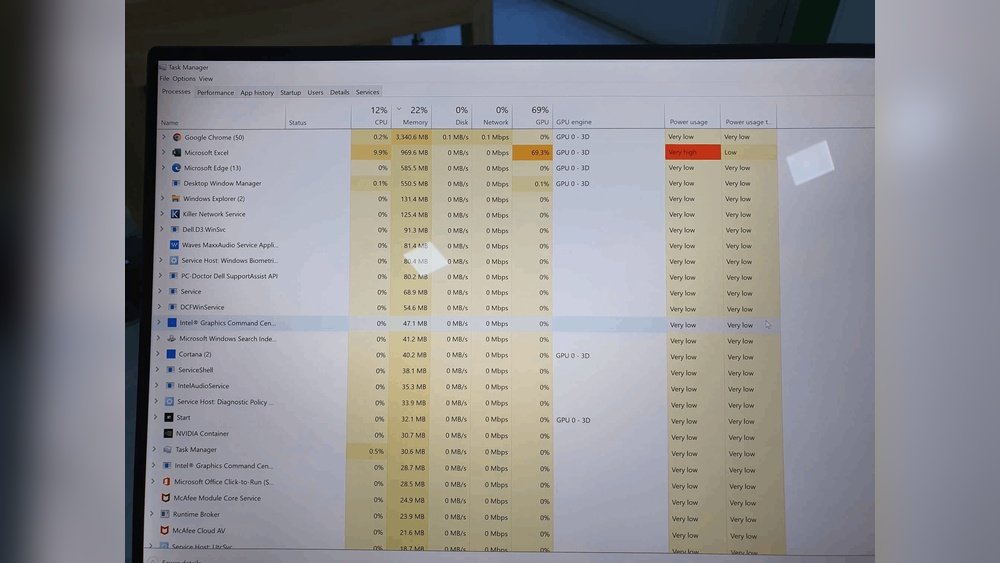
Have you ever wished Excel could work faster, especially when handling big data or complex calculations? What if your computer’s graphics card—the GPU—could help speed things up?
You’re probably wondering how to make Excel run on your GPU and whether it’s even possible. You’ll discover simple steps and tips to boost Excel’s performance using your GPU. Keep reading to unlock the full power of your hardware and make your Excel tasks smoother and quicker than ever before.
Credit: www.weka.io
Excel And Gpu Basics
Excel is a powerful tool for data analysis and calculations. It handles many tasks on its own using the computer’s main processor. Understanding how Excel works with hardware helps improve its speed and performance.
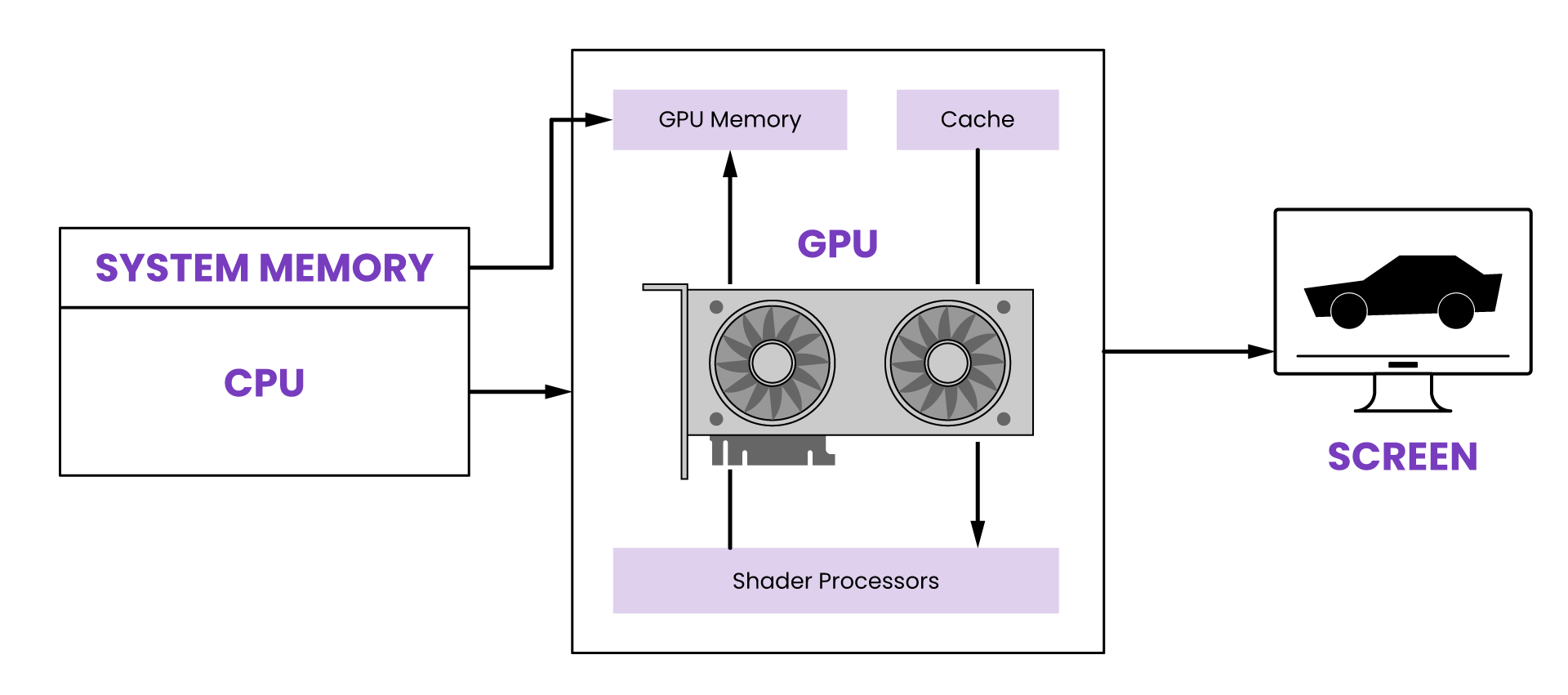
The GPU, or Graphics Processing Unit, is a special chip designed for fast calculations. It can handle many tasks at the same time, which helps with graphics and complex computations. Knowing the difference between Excel’s processing and the GPU’s role is key to making Excel run better.
Role Of Gpu In Computing
The GPU processes data in parallel, making it fast for certain tasks. It works with many cores to handle graphics and large datasets. This speed helps in video games, 3D rendering, and scientific calculations. The GPU can process many simple tasks at once.
This ability makes the GPU useful beyond graphics. It supports tasks like machine learning and data mining. The GPU can boost performance when software is designed to use it. But not all programs can use the GPU efficiently.
Excel’s Default Processing Method
Excel mainly uses the CPU, the computer’s main processor, for calculations. The CPU handles tasks one by one or in small groups. This method works well for most Excel functions and formulas.
Excel does not use the GPU by default for calculations. It relies on the CPU’s strength and speed for processing data. This limits Excel’s ability to use the GPU’s power for faster performance.
Understanding this helps explain why Excel may not run faster even with a strong GPU. The software must support GPU use to benefit from it.
Benefits Of Using Gpu With Excel
Using a GPU with Excel offers several benefits that improve your work experience. It helps Excel perform faster and handle big tasks more easily. The visuals in Excel also look better and smoother. These advantages help you save time and work more efficiently.
Speed Improvements
GPUs can process many tasks at the same time. This makes Excel calculations faster. Complex formulas finish quickly. Tasks that take long on a CPU run smoother on a GPU. You spend less time waiting for results.
Handling Large Data Sets
Excel often slows down with large data sets. A GPU helps by managing big data more effectively. It supports quick data sorting and filtering. You can work with thousands of rows without lag. This makes data analysis easier and faster.
Enhanced Graphics Rendering
Charts and graphs in Excel look better with a GPU. The images load faster and move smoothly. Visual updates happen instantly. This is useful when working with dashboards or presentations. Your reports become clearer and more professional.
Enabling Gpu Acceleration In Excel
Enabling GPU acceleration in Excel helps improve the program’s performance. It allows Excel to use your computer’s graphics card to handle tasks. This can make calculations and rendering faster, especially for large files or complex charts. The process involves checking Excel’s settings, adjusting graphics options, and updating drivers.
Checking Excel’s Gpu Settings
Start by opening Excel and going to the options menu. Find the section for advanced settings. Look for “Disable hardware graphics acceleration.” This option controls whether Excel uses the GPU. Make sure this box is unchecked to allow GPU use. Saving changes activates GPU acceleration for Excel.
Adjusting Hardware Graphics Acceleration
Hardware graphics acceleration lets Excel use your GPU to process graphics. If Excel runs slow or shows glitches, try toggling this setting. Turn off acceleration to see if it fixes issues. Turn it back on to boost speed once problems clear. Adjusting this setting can improve display and speed.
Updating Graphics Drivers
Graphics drivers connect your GPU to your computer. Outdated drivers can cause Excel to run poorly. Visit your GPU manufacturer’s website to find the latest drivers. Download and install updates to improve compatibility. New drivers help Excel use the GPU better and prevent errors.
Third-party Tools To Boost Excel With Gpu
Excel does not use the GPU by itself. It mainly works with the CPU for calculations. But some third-party tools let you use the GPU to speed up tasks. These tools help Excel run faster for big data and complex models.
They connect Excel to the GPU through special add-ins or external software. This way, Excel can handle more work in less time. Using these tools can improve your productivity and reduce waiting time.
Gpu-accelerated Add-ins
GPU-accelerated add-ins are software extensions for Excel. They use the power of the GPU to run certain functions faster. These add-ins work inside Excel and boost performance for specific tasks.
For example, some add-ins speed up data analysis and visualization. They take heavy calculations off the CPU and move them to the GPU. This helps Excel process large data sets quickly.
Installing these add-ins is simple. You just download and enable them in Excel. Once active, they run in the background to improve speed. Many are designed for users with no coding skills.
External Processing Engines
External processing engines are separate programs that work with Excel. They handle complex calculations using the GPU. Excel sends data to these engines, which then return the results.
These engines often use GPU computing platforms like CUDA or OpenCL. They can process formulas, models, or simulations faster than Excel alone. This reduces the load on your computer’s CPU.
Users can link Excel to these engines through connectors or APIs. It allows Excel to benefit from GPU speed without changing your workflow. This setup is great for advanced users with large data needs.
Optimizing Excel For Gpu Performance
Optimizing Excel for GPU performance improves speed and efficiency. It helps handle large data sets and complex calculations. Excel does not use GPU by default. But you can optimize your work to benefit indirectly from GPU power. Focus on how you build formulas and manage data. Also, reduce extra calculations that slow down processing.
Using Efficient Formulas
Choose simple formulas that calculate faster. Avoid volatile functions like NOW() or INDIRECT(). These recalculate often and waste resources. Use built-in Excel functions designed for speed. Combine formulas to reduce the number of calculation steps. Smaller, clearer formulas help Excel work better with your GPU.
Managing Data Models
Keep your data models clean and organized. Remove unused columns and rows from tables. Use Excel’s Data Model feature to manage large data sets efficiently. Proper data models reduce memory use and speed up calculations. Structured data helps Excel use GPU resources more effectively.
Reducing Unnecessary Calculations
Limit the number of times Excel recalculates formulas. Turn off automatic calculation if you work with big files. Calculate only when needed by pressing F9. Avoid duplicate calculations by reusing results in other formulas. Reducing these tasks lowers CPU load and helps GPU support faster processing.
Credit: www.geeky-gadgets.com
Common Issues And Fixes
Running Excel on a GPU can speed up some calculations and graphics tasks. Yet, users face common problems while setting this up. These issues can slow down work or stop Excel from using the GPU entirely.
Understanding these problems helps fix them quickly. This section covers common challenges and how to solve them. The goal is to make Excel run smoother with your GPU.
Compatibility Challenges
Excel may not support all GPUs or drivers. Older GPUs often lack the needed features. Excel requires specific versions of graphics drivers to work well.
Use the latest GPU drivers from the official manufacturer site. Check if your GPU meets Excel’s minimum requirements. Some GPUs work better with Windows 10 or later versions.
Sometimes, Excel updates may cause compatibility issues. Keeping Excel updated can fix these problems. Avoid using beta or unstable driver versions.
Troubleshooting Gpu Conflicts
Multiple GPUs can cause conflicts in Excel. Integrated and dedicated GPUs may fight for control. This can stop Excel from using the GPU effectively.
Set your preferred GPU for Excel in your system settings. For Nvidia users, use the Nvidia Control Panel. For AMD users, use Radeon Settings.
Disabling one GPU temporarily can help identify conflicts. Close other programs that use the GPU to free resources. Restart Excel after making changes to apply them.
Future Of Gpu In Spreadsheet Computing
Using a GPU for spreadsheet tasks could change how we handle data. GPUs process many tasks at once. This can speed up calculations in Excel. The future of GPUs in spreadsheets looks promising. It may bring faster data analysis and smoother handling of large files.
Emerging Technologies
New tech aims to link GPUs with spreadsheet software. Some tools use AI to boost GPU power. This helps with complex data tasks and visualizations. Cloud computing also supports GPU use remotely. This lets users access fast processing on any device. These technologies could make spreadsheets more powerful and efficient.
Potential Excel Updates
Microsoft may add GPU support in future Excel versions. This could improve calculation speed and data processing. Excel might use GPUs for tasks like sorting and filtering. Improved graphics rendering for charts is possible. Such updates would help users work faster and handle bigger data sets.
Credit: row64.com
Frequently Asked Questions
Can Excel Use Gpu To Speed Up Calculations?
Excel does not natively support GPU acceleration for calculations. It relies mainly on CPU power. However, some add-ins or external tools can leverage GPU for specific tasks.
How To Enable Gpu Acceleration In Excel?
Excel automatically uses GPU for rendering graphics if your system supports it. You can enable hardware graphics acceleration in Excel settings under Advanced options.
Does Gpu Improve Excel Performance For Data Analysis?
GPU acceleration does not significantly improve Excel’s data analysis speed. Most calculations depend on CPU performance. GPU helps mainly with rendering and visual tasks.
Are There Excel Add-ins To Utilize Gpu?
Yes, some third-party add-ins use GPU for advanced data processing. These add-ins are specialized and not officially integrated into Excel by Microsoft.
Conclusion
Running Excel on a GPU can speed up certain tasks. Not all Excel functions use the GPU, but some calculations benefit. Setting up GPU support takes a few steps but is worth trying. Keep your drivers updated for the best performance.
Experiment with your files to see if GPU helps your work. Small changes can lead to faster results in Excel. Give it a try and see how it works for you.
