How to Monitor Your Cpu Temp: Easy Tips for Safe Performance
Have you ever wondered if your computer is running too hot? Keeping an eye on your CPU temperature is crucial to make sure your device stays healthy and performs at its best.
If your CPU gets too warm, it can slow down, crash, or even get damaged. But don’t worry—monitoring your CPU temp is easier than you think. You’ll learn simple and effective ways to check your CPU temperature and keep your system cool.
Stay with me, and you’ll never have to guess if your computer is overheating again.
Credit: www.nextofwindows.com
Why Cpu Temperature Matters
CPU temperature is a key factor in computer health. It affects how well your computer works and how long it lasts. Keeping an eye on CPU temperature helps prevent problems before they start. Knowing why CPU temperature matters helps you protect your computer and keep it running smoothly.
Impact On Performance
High CPU temperatures slow down your computer. The CPU reduces speed to cool down. This causes programs to run slower. Games and videos may lag or freeze. Lower temperatures keep the CPU fast and responsive. Monitoring temperature helps maintain good performance.
Risks Of Overheating
Overheating can damage your CPU permanently. It can cause crashes and unexpected shutdowns. Parts may wear out faster from too much heat. Overheating can also harm other computer components. Watching CPU temperature helps avoid costly repairs. It keeps your computer safe and reliable.
Signs Of High Cpu Temperature
High CPU temperature can harm your computer. It can slow down your system and cause crashes. Knowing the signs of overheating helps protect your device. Watch for these clear signals to act fast.
System Slowdowns
Your computer may run slower than usual. Programs take longer to open. Tasks get delayed. This happens because the CPU reduces speed to cool down. It is a safety feature but affects performance.
Unexpected Shutdowns
The system may turn off suddenly. This is a sign the CPU is too hot. Shutting down prevents permanent damage. Frequent shutdowns mean the cooling system might not work well.
Fan Noise Increase
The fan inside your computer starts to spin faster. It makes more noise than normal. This happens because the CPU temperature is high. The fan tries to cool the CPU by moving more air.
Tools To Check Cpu Temperature
Monitoring your CPU temperature helps keep your computer safe. High temperatures can cause damage or slow down performance. Several tools show your CPU’s current temperature. These tools are easy to use and help prevent overheating.
Built-in Software Options
Many computers have built-in tools to check CPU temperature. BIOS or UEFI settings often display this information. Restart your computer and enter BIOS by pressing a key like F2 or Delete. Look for a section called “Hardware Monitor” or “PC Health.”
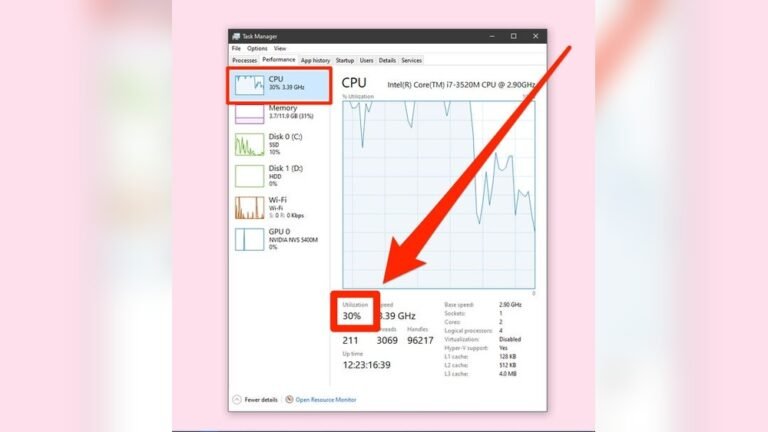
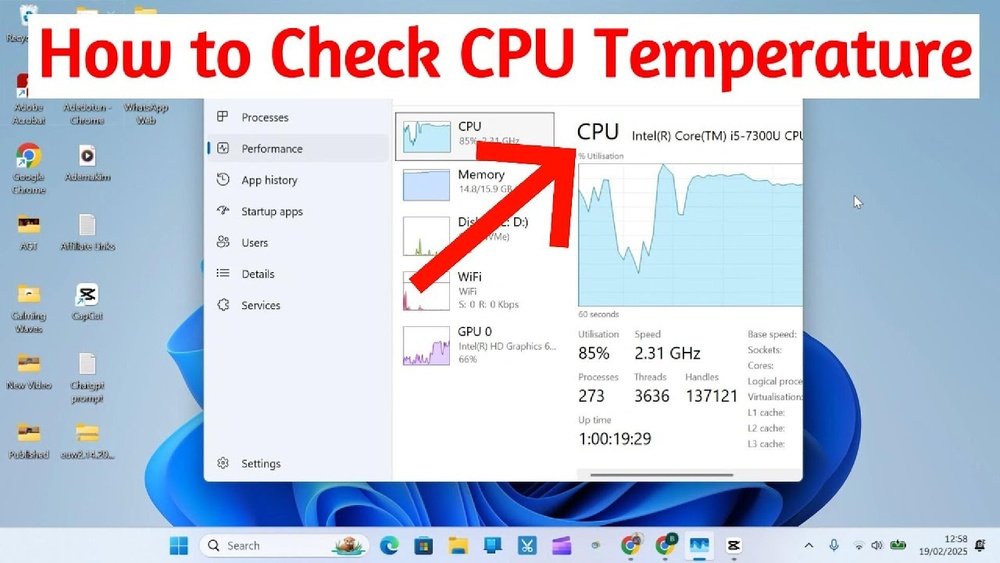
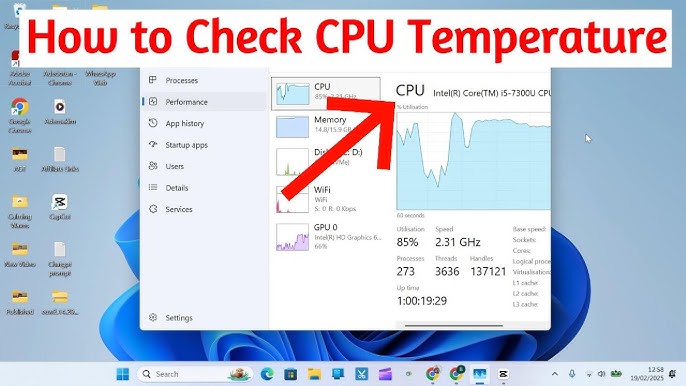
Windows also offers a basic tool called Task Manager. It shows CPU usage but not temperature. For more details, built-in software may be limited. Still, it provides quick, no-installation-needed temperature checks.
Third-party Applications
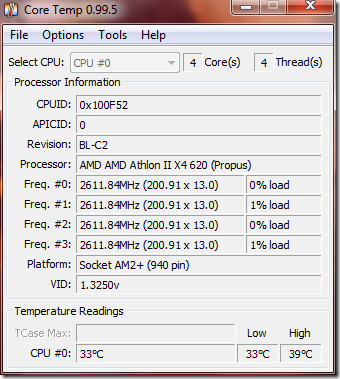
Third-party apps provide detailed CPU temperature readings. These apps show real-time data and historical temperature charts. Popular tools include HWMonitor, Core Temp, and SpeedFan.
These apps are free and easy to download. They give more information than built-in tools. Many also monitor fan speed and voltage. This helps you understand overall system health.
Credit: www.youtube.com
How To Use Temperature Monitoring Software
Using temperature monitoring software helps keep your CPU safe. It shows real-time temperature data. This helps prevent overheating. You can track your CPU’s health easily. Most software is simple to use. It gives clear readings and alerts. This guide explains how to install and use it.
Installation Steps
First, choose a reliable temperature monitoring tool. Popular options include HWMonitor and Core Temp. Download the software from the official site. Avoid third-party sources to stay safe. Run the installer and follow the prompts. Choose default settings unless you know what to change. Finish the setup and open the program.
Reading Temperature Data
Once open, the software shows CPU temperature clearly. Look for numbers labeled “CPU” or “Package.” Values are usually in Celsius or Fahrenheit. Normal CPU temperature ranges from 30°C to 50°C. Higher numbers mean the CPU is working hard. Watch for sudden spikes during heavy tasks. Some tools also show temperature for each core.
Setting Alerts
Most software lets you set temperature alerts. This warns you if the CPU gets too hot. Find the alert or notification settings in the app. Set a temperature limit, such as 80°C. Choose how you want to be warned. Options include sounds, pop-ups, or emails. Alerts help you act fast to cool your CPU down.
Tips To Keep Cpu Cool
Keeping your CPU cool is key to maintaining good performance. High temperatures can slow down your computer or cause damage. Simple steps can help your CPU stay at a safe temperature. These tips will make your computer run smoothly and last longer.
Improving Airflow
Good airflow inside your computer case moves hot air out and cool air in. Arrange cables neatly to avoid blocking air paths. Use fans to push air through the case. Place your computer in a spot with enough space around it. Avoid putting it near walls or inside closed cabinets.
Cleaning Dust And Debris
Dust can block fans and vents, trapping heat inside. Clean your computer regularly to remove dust buildup. Use a soft brush or compressed air to clean fans and vents. Turn off and unplug your computer before cleaning. Keep the area around your computer clean too.
Upgrading Cooling Systems
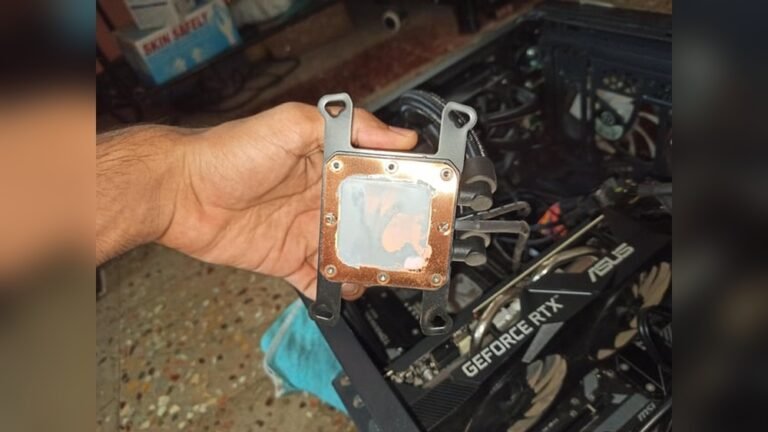
Stock coolers may not be enough for intense use. Consider better cooling options like larger fans or liquid coolers. High-quality thermal paste improves heat transfer from CPU to cooler. Check compatibility before buying new cooling parts. Upgrading can lower temperatures and boost performance.
When To Seek Professional Help
Knowing when to seek professional help is important for your CPU health. Some problems need expert attention to avoid damage. Understanding the signs can save your computer and your money.
Persistent Overheating
Continuous high CPU temperatures can harm your system. If your CPU stays hot despite cleaning and cooling, it needs a professional check. Overheating can cause crashes and slow performance. Experts can find hidden issues and fix them safely.
Hardware Issues
Strange noises or error messages may mean hardware problems. Faulty fans, damaged thermal paste, or broken sensors need expert repair. Professionals have the right tools to replace or fix parts. Trying to fix hardware alone might cause more harm.

Credit: www.alcpu.com
Frequently Asked Questions
How Can I Check My Cpu Temperature Easily?
You can check your CPU temperature using software like HWMonitor, Core Temp, or SpeedFan. These tools provide real-time temperature readings and are easy to use.
What Is A Safe Temperature Range For A Cpu?
A safe CPU temperature is usually between 30°C to 60°C during normal use. Temperatures above 80°C may cause overheating and damage.
Why Is Monitoring Cpu Temperature Important?
Monitoring CPU temperature prevents overheating, ensures system stability, and extends hardware lifespan. It helps avoid crashes and performance issues.
Can High Cpu Temperature Affect My Computer’s Performance?
Yes, high CPU temperatures can cause thermal throttling, reducing speed and performance. It may also lead to unexpected shutdowns.
Conclusion
Monitoring your CPU temperature helps keep your computer safe. It stops overheating and slows down damage. You can use simple tools to check the heat. Watch your CPU often for any sudden changes. Cooling your system keeps it working well and longer.
Stay alert to keep your device running smooth. Small steps now save big problems later. Keep your CPU cool, and it will thank you.