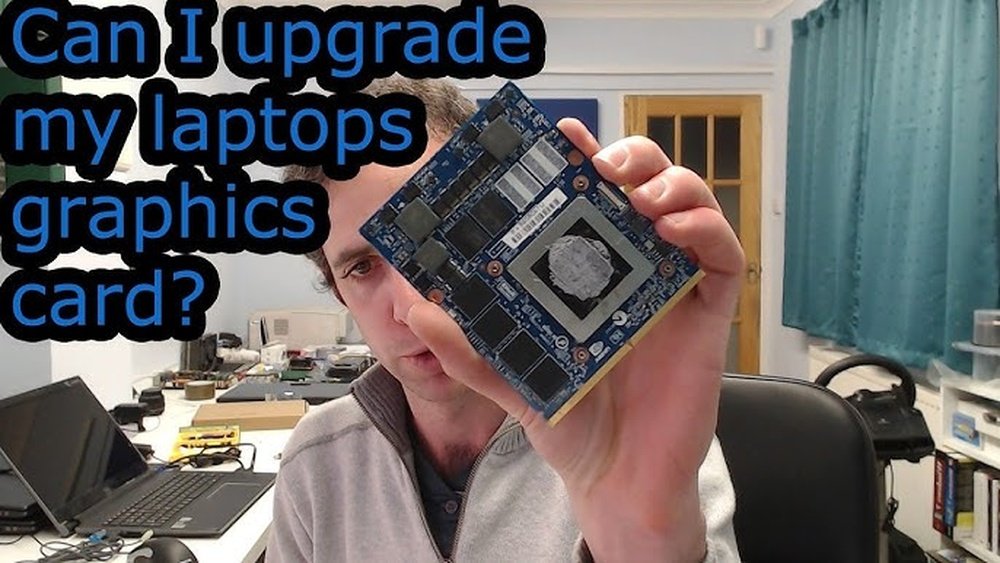
Can I Upgrade My Gpu in My Laptop: Ultimate Guide to Success
Are you wondering if you can boost your laptop’s gaming or graphic power by upgrading the GPU? You’re not alone.
Many laptop users ask this question when their system starts to feel slow or can’t keep up with new games and software. The good news is, understanding whether you can upgrade your laptop’s GPU might be simpler than you think—and it could save you money and hassle.
Keep reading to discover the truth about laptop GPU upgrades and what options are really available for your device.
Credit: www.liftingitalia.com
Laptop Gpu Basics
Understanding laptop GPUs is key to knowing if you can upgrade your laptop’s graphics card. The GPU, or graphics processing unit, controls what you see on the screen. It handles images, videos, and games. Not all laptop GPUs are the same. Some are built into the processor, while others are separate parts. Knowing the types and how they work helps you make smart decisions about upgrades.
Types Of Laptop Gpus
There are two main types of laptop GPUs: integrated and dedicated. Integrated GPUs share memory with the CPU. They are part of the main processor. Dedicated GPUs have their own memory and power. They offer better performance for gaming and heavy tasks. Most gaming and high-performance laptops use dedicated GPUs. Ultrabooks and budget laptops usually have integrated GPUs.
Integrated Vs Dedicated Gpus
Integrated GPUs are built into the CPU chip. They use less power and create less heat. This helps keep laptops thin and light. Dedicated GPUs are separate chips. They need extra space and cooling. Dedicated GPUs run complex graphics faster. They suit video editing, 3D work, and gaming better. Upgrading dedicated GPUs in laptops is often hard or impossible. Integrated GPUs cannot be upgraded since they are part of the CPU.
Gpu Performance Factors
GPU speed depends on clock rate and core count. More cores and higher clock speeds mean better graphics. Memory size and speed also matter. Dedicated GPUs have their own fast memory. Cooling impacts performance too. Overheating can slow down the GPU. Power supply limits how strong a GPU can be. Laptop design often limits GPU upgrades. Knowing these factors helps set upgrade expectations.
Laptop Gpu Upgrade Possibilities
Many people wonder if they can upgrade their laptop’s GPU to boost performance. The truth is, options depend on the laptop model and design. Some laptops allow GPU upgrades, while others do not. Understanding your laptop’s GPU upgrade possibilities helps you make the right choice.
Choosing the right upgrade path can improve gaming, video editing, and other tasks. Knowing the difference between soldered and modular GPUs is key. External GPU solutions also offer some flexibility for certain users.
Upgradeable Laptop Models
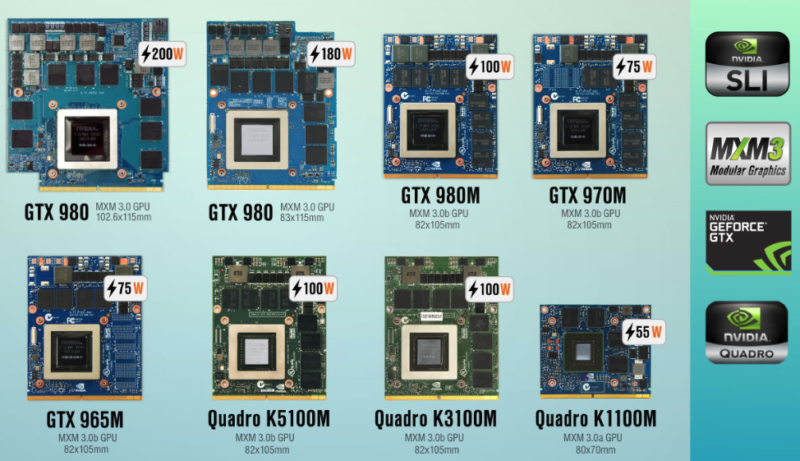
Most laptops have GPUs soldered to the motherboard. Few models have modular GPUs that you can swap out. Gaming laptops and some workstation models are more likely to support upgrades. Always check the manufacturer’s specs before buying or upgrading.
Soldered Vs Modular Gpus
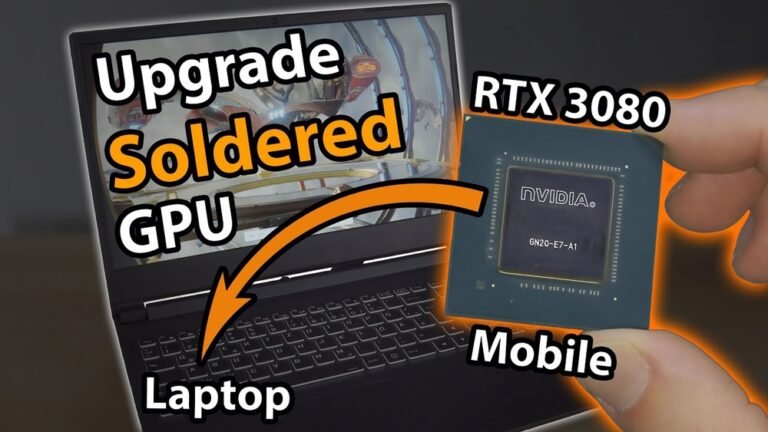
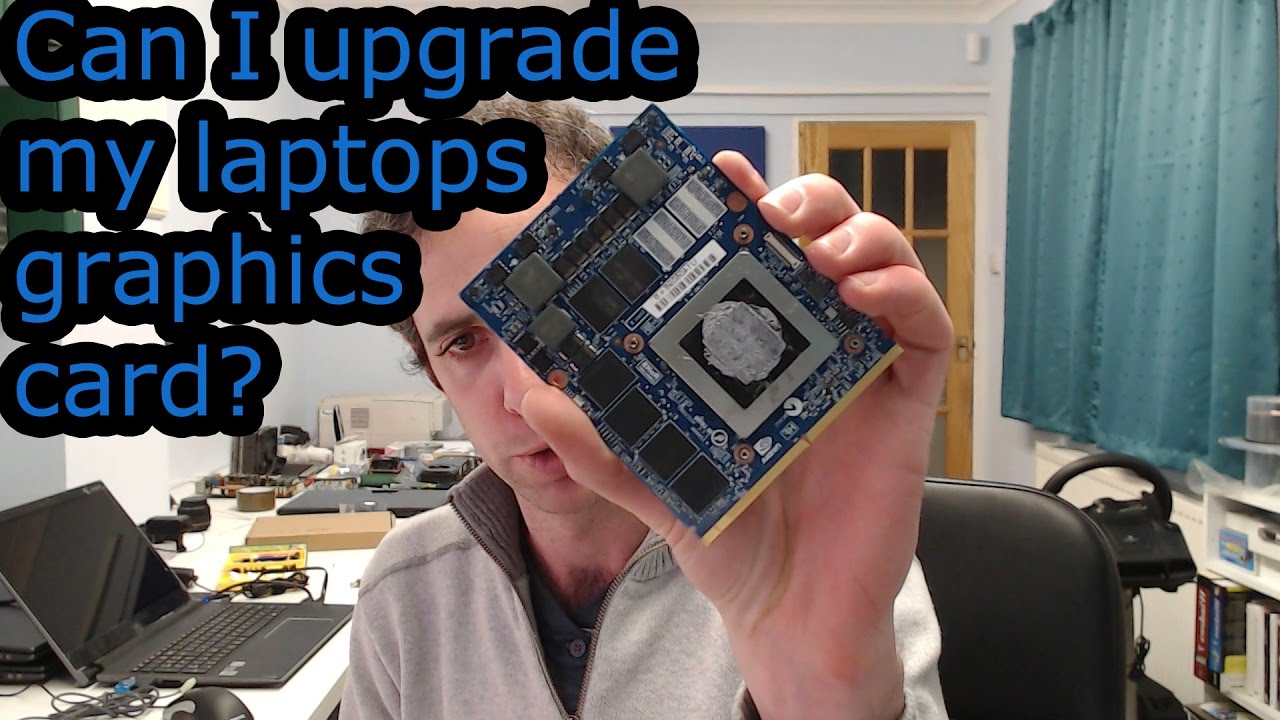
Soldered GPUs are fixed and cannot be changed. They save space and reduce weight in laptops. Modular GPUs connect through slots and can be replaced. These laptops tend to be larger and more expensive. Modular GPUs offer more upgrade freedom but are rare.
External Gpu Options
External GPUs, or eGPUs, connect through Thunderbolt ports. They add desktop-level graphics power to laptops. eGPUs work with many laptops but need extra hardware. This option is good for users who want better graphics without opening their laptop.
Checking Compatibility
Checking your laptop’s compatibility is the first step before upgrading your GPU. It helps you avoid buying parts that won’t fit or work. Not all laptops support GPU upgrades. Some have fixed graphics chips soldered to the motherboard. Others allow changes but with limits. You need to check your model, BIOS, power, and cooling. These factors affect whether a new GPU can work well.
Identifying Your Laptop Model
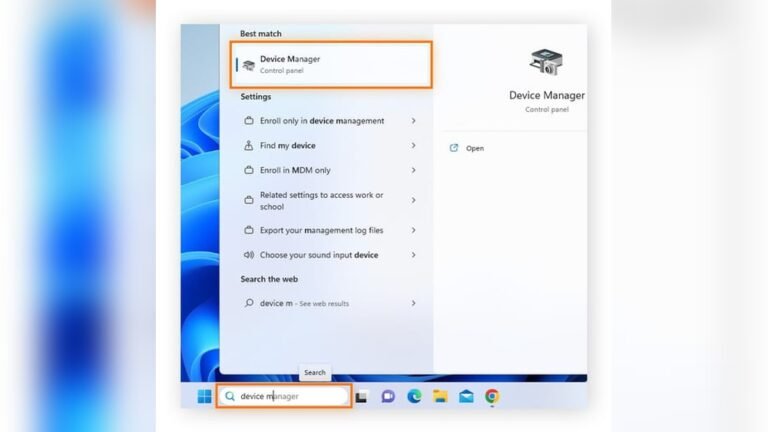
Find the exact model number of your laptop. It is usually on a sticker under the laptop or inside the battery slot. You can also find it in system settings or by using system information tools. Knowing your model helps you check online if your laptop supports GPU upgrades. Some brands and models have upgrade guides or forums with useful info. This step saves time and prevents mistakes.
Bios And Firmware Considerations
BIOS controls hardware functions and startup processes. Some laptops have BIOS that limits hardware changes. Your BIOS must recognize the new GPU for it to work. Check if your laptop manufacturer provides BIOS updates. Updates may add support for new GPUs. Be careful updating BIOS as a wrong update can harm your laptop. Always follow official instructions exactly.
Power And Cooling Requirements
Upgrading a GPU increases power use inside your laptop. Your power supply must handle the new GPU’s needs. Some laptops have limited power capacity or fixed power adapters. Cooling is also critical. New GPUs produce more heat. Your laptop’s cooling system must keep temperatures safe. Overheating can reduce performance or damage parts. Check if your laptop’s fan and heat pipes are enough for the upgrade.
Credit: www.youtube.com
Choosing The Right Gpu
Upgrading a laptop GPU is not the same as a desktop. It requires careful thought.
Picking the correct GPU can improve your laptop’s speed and graphic quality.
Focus on what you need and what fits your device best.
Performance Needs Assessment
Think about what you use your laptop for. Gaming? Video editing? Or simple tasks?
High-end games need strong GPUs. Basic tasks do not need much power.
Match the GPU to your activity for good balance of speed and cost.
Budget And Availability
Set a clear budget before choosing a GPU. Prices vary widely.
Some GPUs are rare or hard to find. Check availability in your area.
Choose a GPU that fits your budget and is easy to buy.
Brand And Driver Support
Popular brands offer better support and regular driver updates.
Good driver support means fewer bugs and improved performance.
Choose brands known for reliable software and hardware updates.
Step-by-step Upgrade Process
Upgrading the GPU in a laptop can improve its performance. The process requires care and patience. Follow these steps to upgrade your GPU safely.
Preparing Your Workspace
Choose a clean, flat surface to work on. Use a soft cloth to avoid scratches. Gather all tools like screwdrivers and an anti-static wristband. Turn off the laptop and unplug all cables. Remove the battery if possible. This step keeps your workspace organized and safe.
Disassembling The Laptop
Flip the laptop and unscrew the back panel carefully. Keep track of all screws. Use a small container to store them. Gently lift the panel off. Avoid forcing it to prevent damage. Find the GPU and nearby components once open.
Removing And Installing The Gpu
Locate the GPU connected to the motherboard. Carefully unplug any cables attached to it. Unscrew and remove the old GPU. Align the new GPU with the slot. Press it firmly but gently until it clicks. Secure it with screws and reconnect cables.
Reassembling And Testing
Place the back panel onto the laptop. Screw all screws back in their spots. Reinsert the battery and plug in the laptop. Turn it on and check if it boots properly. Install necessary drivers to ensure the GPU works well.
Optimizing Gpu Performance
Optimizing your laptop’s GPU performance ensures smooth visuals and better speed. This is important for gaming, video editing, and other graphics-heavy tasks. Proper steps can improve your experience without hardware changes.
Installing Drivers
Start by installing the latest GPU drivers. These drivers help your system talk to the GPU properly. Visit the official website of your GPU maker to download updates. Keep drivers current for best performance and fewer bugs.
Adjusting Settings
Change your GPU settings to match your needs. Lowering resolution or detail can boost speed. Use the control panel software to set preferences. Choose balanced settings for good visuals and smooth operation.
Monitoring Temperatures
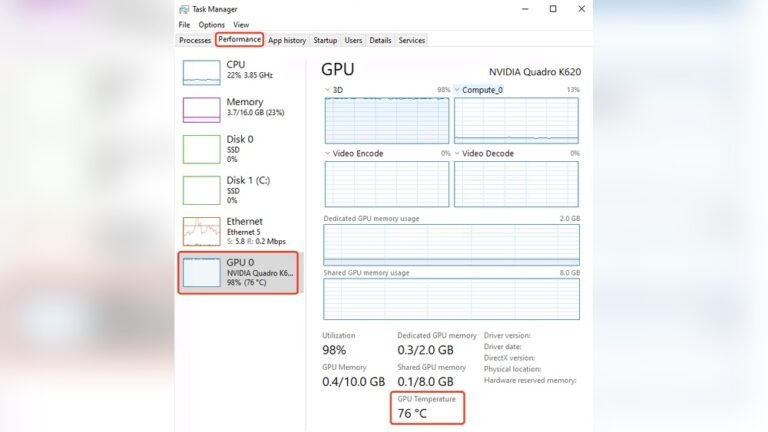
Keep an eye on your GPU temperature. High heat can slow down or damage your laptop. Use software tools to check temperatures regularly. Clean dust from vents to help cool your GPU better.
Potential Risks And Limitations
Upgrading a laptop GPU sounds appealing but comes with risks and limits. These must be clear before making changes.
Many laptops have fixed GPU parts. Changing them can cause issues beyond simple upgrades.
Warranty Voidance
Opening a laptop often voids its warranty. Manufacturers do not cover damage from upgrades.
This means repairs may cost more if something breaks after the upgrade.
Hardware Compatibility Issues
Laptop GPUs are designed for specific models. A new GPU might not fit or work properly.
Drivers and BIOS may not support a different GPU. This can cause system crashes or errors.
Thermal And Power Constraints
Laptops have limited cooling systems. A stronger GPU can cause overheating.
Power supplies in laptops are fixed. A new GPU may need more power than available.
Overheating and power problems can damage the laptop or reduce performance.
Alternatives To Gpu Upgrades
Upgrading the GPU in a laptop is often not possible or very difficult. There are other ways to improve your laptop’s performance without changing the internal graphics card. These alternatives can help you get better speed and visuals for gaming, video editing, or work tasks.
Using External Gpus
External GPUs connect to your laptop via a special port. They offer better graphics power without opening your laptop. You need a compatible port, usually Thunderbolt 3 or 4. External GPUs are great for gaming and heavy graphic work. They are portable and easy to set up. This option costs less than buying a new laptop.
Upgrading Other Components
Improving other parts of your laptop can boost overall speed. Increasing RAM helps your laptop run programs smoothly. Replacing a hard drive with a fast SSD improves loading times. These upgrades do not increase graphics power but make your laptop feel faster. They are easier and cheaper than changing the GPU.
Buying A New Laptop
Sometimes, buying a new laptop is the best choice. New models have better GPUs built-in. They also come with faster processors and more memory. This option gives you the latest technology and longer use. It can be more cost-effective in the long run. Choose a laptop that fits your needs and budget.
Credit: rog.asus.com
Frequently Asked Questions
Can I Upgrade The Gpu In Any Laptop?
Most laptops have integrated GPUs that cannot be upgraded. Only some gaming or workstation laptops with MXM modules allow GPU upgrades. Check your laptop’s specifications and manufacturer support before attempting an upgrade.
What Are The Benefits Of Upgrading A Laptop Gpu?
Upgrading your laptop GPU can improve gaming performance, speed up video editing, and enhance graphic-intensive tasks. It extends your laptop’s usability without buying a new system.
How Do I Know If My Laptop Gpu Is Upgradeable?
Look for MXM GPU modules or removable GPU slots in your laptop. Consult your user manual or manufacturer’s website to confirm upgrade options and compatibility.
Is Upgrading A Laptop Gpu Cost-effective?
Upgrading a laptop GPU can be costly and complex. Sometimes, buying a new laptop offers better value and performance improvements than upgrading an old GPU.
Conclusion
Upgrading a laptop GPU is often tricky and limited. Many laptops have fixed graphics cards soldered to the motherboard. Some models allow external GPUs, but they need extra gear. Check your laptop’s manual or support site first. Consider your budget and goals before deciding.
Sometimes, buying a new laptop suits better than upgrading. Remember, knowing your laptop’s design helps make the right choice. Take time to research and plan carefully. This keeps you happy with your laptop’s performance in the long run.