Does Overclocking Gpu Increase Fps: Ultimate Performance Boost?
Are you looking to get more frames per second (FPS) from your gaming setup without buying a new graphics card? Overclocking your GPU might sound like a simple fix, but does it really boost your FPS the way you hope?
Before you jump in, it’s important to understand what overclocking does and how it can impact your gaming experience. You’ll discover the real effects of overclocking on your GPU’s performance and whether it’s worth the risk. Keep reading to find out how to get the most out of your graphics card safely and effectively.
How Overclocking Works
Overclocking is a way to make your GPU run faster than its factory settings. It changes how the graphics card handles tasks. This can give you better performance in games and apps. Overclocking pushes the GPU beyond its normal limits. This process involves adjusting clock speeds and power levels. It is important to know how these changes affect your GPU.
Gpu Clock Speeds
GPU clock speed is the rate at which the graphics processor runs. It is measured in megahertz (MHz). Increasing the clock speed means the GPU can process data faster. This usually leads to higher frames per second (FPS) in games. Overclocking raises the clock speed above the default level. The GPU works harder and completes tasks quicker. Small boosts can improve game smoothness and reduce lag.
Voltage And Temperature Effects
Raising the clock speed needs more power from the GPU. This means the voltage supplied to the GPU also increases. Higher voltage can cause the GPU to heat up more. Heat can reduce the GPU’s lifespan and cause crashes. Cooling systems must be effective to handle this extra heat. Monitoring temperature is crucial to keep the GPU safe. Good cooling helps maintain stable performance during overclocking.

Credit: www.youtube.com
Fps Gains From Overclocking
Overclocking a GPU means running it at a higher speed than its factory setting. This can lead to higher frames per second (FPS) in games. FPS is important for smooth gameplay. More FPS means less lag and better visuals. Let’s explore how much FPS can improve with overclocking.
Typical Performance Improvements
On average, overclocking a GPU can boost FPS by about 5% to 15%. The exact gain depends on the GPU model and cooling system. Some GPUs handle overclocking better and show bigger FPS jumps. Others may only improve slightly. Small FPS gains can still make a noticeable difference in game smoothness.
Game-specific Results
Different games respond to overclocking in various ways. Fast-paced games like shooters often see clear FPS improvements. Strategy or simulation games may show smaller gains. Games that are limited by the CPU might not benefit much from GPU overclocking. Testing each game helps find where overclocking matters most.
Risks Of Overclocking
Overclocking a GPU can boost your FPS, but it is not without risks. Pushing your hardware beyond its limits may cause problems. Understanding these risks helps you decide if overclocking is worth it.
Hardware Damage Potential
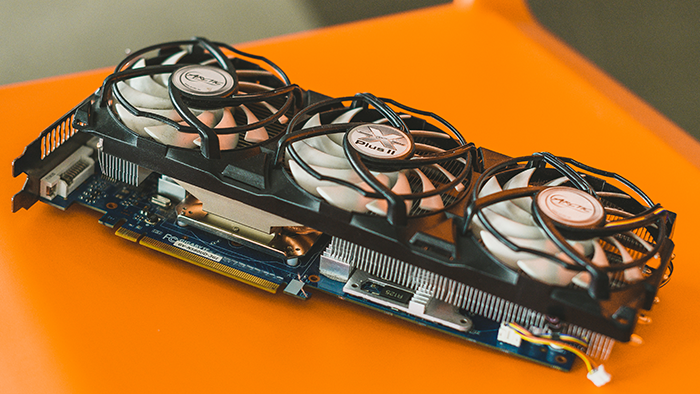
Running a GPU at higher speeds creates more heat. Excessive heat can damage the GPU and other parts. Cooling systems may not handle the extra heat well. Over time, this can shorten the life of your graphics card. Voltage increases during overclocking add more stress to the hardware. This stress can cause permanent damage to the GPU chip or memory.
System Stability Issues
Overclocking can cause your system to crash or freeze. Games may suddenly stop or show graphical glitches. These problems occur because the GPU is pushed too hard. Unstable overclock settings make your computer unreliable. You may lose unsaved work or face frequent restarts. Stability issues can disrupt your gaming or work experience.
Credit: www.avast.com
Tools For Overclocking
Overclocking a GPU can help increase FPS in games. It means running the graphics card at higher speeds than the factory settings. To do this safely, you need the right tools. These tools let you control the clock speed, voltage, and fan speed of your GPU. They also help you check if your overclock is stable and cool enough. Choosing good software is important for better results and safety.
Popular Software Options
Several programs are popular for GPU overclocking. MSI Afterburner is widely used. It works with most GPU brands and has a simple interface. EVGA Precision X1 is another choice, mainly for NVIDIA cards. ASUS GPU Tweak II is good for ASUS graphics cards. These tools let you increase clock speeds and adjust fan curves easily. They also show real-time information about temperature and usage.
Monitoring And Testing
Monitoring your GPU during overclocking is crucial. Software like HWMonitor and GPU-Z provide detailed data. They track temperature, voltage, and clock speeds. Testing tools check if your GPU runs stable after overclocking. Programs like FurMark and 3DMark stress your card to find issues. If your GPU crashes or shows artifacts, the overclock may be too high. Monitoring helps avoid damage and ensures good performance.
Optimizing Overclock Settings
Optimizing overclock settings can improve your GPU’s performance and increase FPS. Careful adjustments help avoid damage and keep your system stable. Small steps and testing are important for the best results.
Safe Voltage Limits
Voltage controls the power sent to the GPU. Too much voltage can cause overheating and damage. Stay within the recommended voltage range for your specific GPU model. Use software tools to monitor voltage while testing overclock settings. Avoid sudden or large voltage jumps. Keeping voltage safe protects your hardware and ensures longer GPU life.
Cooling Solutions
Overclocking raises the GPU temperature. Effective cooling stops overheating and maintains performance. Use high-quality fans or liquid cooling systems. Keep your PC case clean to improve airflow. Consider adding extra case fans if needed. Good cooling helps the GPU run faster without crashing or slowing down.
Alternatives To Overclocking
Overclocking a GPU can increase FPS but it may cause heat and stability issues. Many users want better performance without these risks. There are safer ways to improve FPS without changing hardware speeds. These alternatives can keep your system stable and cool while boosting game performance.
Driver Updates
GPU drivers control how your graphics card works. Updating drivers can fix bugs and improve game performance. Manufacturers release new drivers to support the latest games and optimize hardware use. Check your GPU brand’s website regularly for updates. Installing the newest drivers can increase FPS and reduce crashes.
Game And System Tweaks
Adjusting game settings can improve FPS without overclocking. Lower the resolution or reduce graphics details like shadows and textures. Turn off extra effects such as motion blur or anti-aliasing. Close unnecessary background programs to free up system resources. Keeping your operating system updated also helps games run smoother. These small changes can boost FPS and keep gameplay stable.

Credit: www.avg.com
Frequently Asked Questions
Does Overclocking Gpu Always Increase Fps?
Overclocking a GPU usually boosts FPS by increasing clock speeds. However, gains depend on the GPU model, cooling, and game optimization. Some games benefit more, while others see minimal improvement. Stability and heat management are key to maintaining consistent FPS after overclocking.
How Much Fps Gain Can Overclocking Gpu Provide?
FPS gains from GPU overclocking typically range from 5% to 20%. The exact increase varies based on hardware, game, and overclock settings. Higher overclocks yield better FPS but also increase heat and power consumption. Realistic expectations help avoid disappointment.
Is Overclocking Gpu Safe For Gaming Performance?
Overclocking is generally safe if done carefully with proper cooling. Excessive overclocking can cause crashes, overheating, and hardware damage. Use reliable software, monitor temperatures, and increase speeds gradually to protect your GPU and maintain stable gaming performance.
Will Overclocking Gpu Void The Warranty?
Most GPU manufacturers consider overclocking a warranty risk but may not void it if done using official tools. Extreme overclocking or physical modifications usually void warranties. Check your GPU’s warranty terms before overclocking to avoid losing support.
Conclusion
Overclocking a GPU can boost FPS, but results vary widely. It may improve game smoothness but can increase heat and power use. Not all GPUs handle overclocking well, so risks exist. Careful testing and good cooling help keep the system safe.
Weigh benefits against potential hardware stress before deciding. Remember, steady performance matters more than chasing high FPS. Choose wisely based on your setup and needs.