Do I Need to Uninstall Old Gpu Drivers: Essential Guide
Are you wondering if you really need to uninstall your old GPU drivers before installing new ones? It’s a question many users face, especially when trying to boost their computer’s performance or fix graphic glitches.
Using the wrong approach can cause crashes, slowdowns, or even hardware issues. You’ll discover exactly when and why removing old GPU drivers matters, and how to do it safely. Keep reading to make sure your graphics card runs smoothly and your system stays stable.
Credit: www.partitionwizard.com
Why Remove Old Gpu Drivers
Removing old GPU drivers is a crucial step before installing new ones. Old drivers can cause various problems that affect your computer’s graphics and overall performance. Clearing out these old files helps ensure a smoother update process and better system stability.
Avoiding Driver Conflicts
Old GPU drivers often clash with new ones. This conflict can cause errors, crashes, or poor graphics performance. Removing outdated drivers stops these issues. It creates a clean slate for the new drivers to work properly.
Improving System Performance
Old drivers take up space and can slow down your system. They may also have bugs that affect speed and responsiveness. Deleting these drivers frees up resources and helps your computer run faster and smoother.
Preventing Installation Errors
Installing new drivers over old ones can lead to errors. These errors might stop the installation or cause incomplete updates. Removing old drivers first reduces the chance of installation problems and ensures the new driver installs correctly.
Credit: www.cgdirector.com
Signs You Should Uninstall Old Drivers
Old GPU drivers can cause many problems on your computer. They may affect how your graphics card works. Knowing the signs helps you decide when to uninstall them. Here are some common signals that it is time to remove old drivers.
Frequent Crashes Or Freezes
Your computer crashes or freezes often during games or video playback. This can happen because old drivers do not work well with your system. Removing outdated drivers can stop these crashes and improve stability.
Poor Graphics Performance
Graphics look slow or choppy, and frame rates drop. Old drivers might not support new software features well. Updating and uninstalling old drivers can fix poor graphics and make your system run smoother.
Compatibility Issues With New Gpu
New graphics cards may not work properly with old drivers. You might see error messages or no display at all. Uninstalling old drivers ensures the new GPU works correctly and avoids conflicts.
Methods To Uninstall Gpu Drivers
Removing old GPU drivers helps avoid conflicts and improves system stability. Several methods exist to uninstall these drivers safely. Choose the one that fits your comfort level and needs. Each method has clear steps to guide you through the process.
Using Device Manager
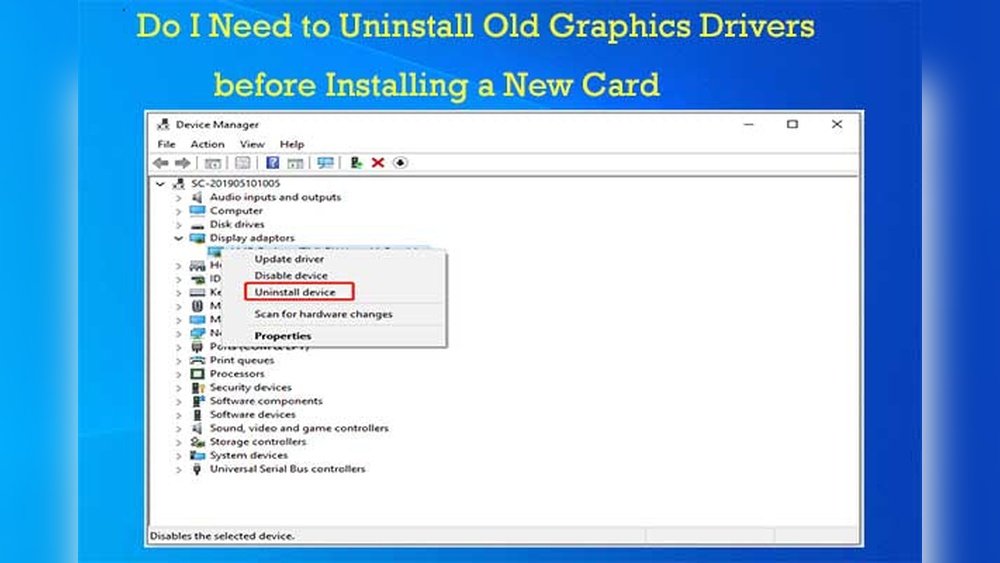
Open Device Manager by pressing Windows + X and selecting it. Find “Display adapters” and expand the list. Right-click your GPU and choose “Uninstall device.” Check the box to delete the driver software if available. Click “Uninstall” and wait for the process to finish. Restart your PC to complete the removal.
Using Display Driver Uninstaller (ddu)
Download DDU from its official site. Boot your computer into Safe Mode for best results. Run DDU and select your GPU brand. Click “Clean and Restart” to remove all driver files. This tool removes leftover files and registry entries. Restart your system normally after the process.
Uninstalling Via Control Panel
Open Control Panel and go to “Programs and Features.” Find your GPU driver in the list. Select it and click “Uninstall.” Follow the on-screen prompts to remove the driver. Restart your computer to finalize the uninstallation. This method works well for standard driver packages.

Credit: www.youtube.com
Steps To Clean Install New Gpu Drivers
Cleaning your system before installing new GPU drivers helps avoid conflicts. Old drivers can cause errors or poor performance. A clean install clears these issues. Follow these simple steps to install new GPU drivers correctly.
Downloading Latest Drivers
Visit the official website of your GPU maker. Select your exact GPU model and operating system. Download the latest driver version available. Avoid third-party sites to prevent corrupted files. Keep the installer in an easy-to-find folder.
Performing A Clean Installation
Uninstall existing GPU drivers first. Use the device manager or a special tool like DDU (Display Driver Uninstaller). This removes leftover files and settings. Run the new driver installer after uninstalling. Choose the “clean installation” option if available. Follow the on-screen instructions carefully.
Restarting Your System
Restart your computer after installation finishes. This helps apply changes and load the new drivers. Check if the GPU works properly after reboot. Restarting ensures the system runs smoothly with updated drivers.
When You Can Skip Uninstalling Old Drivers
Knowing when you can skip uninstalling old GPU drivers helps save time. It also reduces the chance of errors during installation. Not all driver updates need a full uninstall. Certain situations allow you to install new drivers directly over old ones. This keeps your system running smoothly without extra steps.
Using Same Manufacturer Drivers
When upgrading drivers from the same brand, uninstalling is often unnecessary. Brands like NVIDIA or AMD design their drivers to overwrite older versions. Installing the new driver replaces the old one automatically. This avoids conflicts and keeps settings intact. Simply download and install the latest driver from the official site.
Upgrading Within Driver Series
Minor updates within the same driver series usually do not require removal. These updates fix bugs or improve performance. They are made to install on top of existing drivers. This keeps your GPU optimized without extra hassle. Check the update notes to confirm if uninstall is needed.
Automatic Driver Updates
Windows and some GPU software update drivers automatically. They handle uninstalling old drivers themselves. This process ensures a clean upgrade without user action. Letting the system manage updates reduces mistakes. Keep automatic updates enabled to maintain your GPU’s health.
Tips To Maintain Gpu Driver Health
Maintaining your GPU driver health is key for smooth computer performance. Good driver care helps avoid crashes and slowdowns. It also keeps your system secure and ready for new software. Follow simple tips to keep your GPU drivers in top shape.
These steps are easy and save time. They help your computer run better and last longer.
Regular Driver Updates
Update your GPU drivers often. New updates fix bugs and improve speed. They also add support for new games and apps. Check the official website for the latest driver version. Avoid third-party sites to keep your PC safe.
Backing Up Driver Settings
Save your current driver settings before making changes. Backups let you restore old settings if new drivers cause issues. Use tools or software that come with your GPU to save profiles. This step prevents loss of custom preferences.
Monitoring Driver Performance
Keep an eye on how your drivers perform. Notice any slowdowns, crashes, or errors. Use system tools to track GPU temperature and usage. Early detection of problems helps fix issues fast. Regular checks keep your GPU stable and efficient.
Frequently Asked Questions
Do I Need To Uninstall Old Gpu Drivers First?
Yes, uninstalling old GPU drivers prevents conflicts and ensures a clean installation. It improves system stability and performance when upgrading or reinstalling drivers.
Can Old Gpu Drivers Cause Performance Issues?
Old GPU drivers can cause crashes, glitches, and reduced performance. Removing outdated drivers helps fix compatibility issues and optimizes graphics card functionality.
How Do I Safely Uninstall Old Gpu Drivers?
Use the device manager or a dedicated tool like DDU (Display Driver Uninstaller) to completely remove old GPU drivers safely. Avoid manual deletion to prevent system errors.
Will Uninstalling Old Gpu Drivers Remove My Settings?
Uninstalling drivers may reset some GPU settings to default. Back up important configurations before uninstalling to restore them later after installing new drivers.
Conclusion
Uninstalling old GPU drivers can help avoid conflicts and improve performance. Clean drivers keep your system stable and reduce crashes. Always choose the right method to remove old drivers safely. Installing new drivers on a clean system often works best.
This simple step can save time and prevent problems later. Remember, taking care of your drivers keeps your computer running smoothly. So, consider uninstalling old GPU drivers before updating to new ones. It’s a small task that makes a big difference.


