How to Connect External Gpu on Laptop: Ultimate Step-by-Step Guide
Are you looking to boost your laptop’s graphics power without buying a new machine? Connecting an external GPU (eGPU) could be the perfect solution.
Imagine running your favorite games or heavy design software smoothly, all by plugging in an extra device. In this guide, you’ll learn exactly how to connect an external GPU to your laptop step-by-step. By the end, you’ll know how to unlock your laptop’s full potential and enjoy stunning visuals like never before.
Keep reading, because your laptop’s performance upgrade is just a few clicks away.

Credit: developer.nvidia.com
Choosing The Right External Gpu
Choosing the right external GPU is key to improving your laptop’s graphics power. Not all GPUs work well with every laptop. Picking a compatible model avoids problems and ensures better performance. Consider your laptop’s ports and power needs before buying.
Compatible Gpus For Laptops
External GPUs must fit your laptop’s system and software. Most use Thunderbolt 3 or 4 connections. Check if your laptop supports these connections. Popular brands include NVIDIA and AMD. Choose a GPU with drivers that support your laptop’s operating system.
Checking Laptop Ports
Look closely at your laptop’s ports. Thunderbolt 3 and 4 ports are common for eGPU use. These ports offer fast data transfer needed for good graphics speed. USB-C ports are not always the same as Thunderbolt ports. Confirm your laptop has the right port type to avoid compatibility issues.
Power Supply Requirements
External GPUs need a separate power supply. Check the wattage needed for the GPU model you want. Make sure your eGPU enclosure provides enough power. Some high-end GPUs demand more electricity and need stronger power adapters. Proper power ensures stable and safe GPU operation.

Credit: www.youtube.com
Required Accessories
Connecting an external GPU to your laptop requires a few key accessories. These parts help your laptop use the GPU properly. Each accessory plays a role in power, data transfer, and cooling. Understanding these accessories makes setup easier and improves performance.
External Gpu Enclosures
An external GPU enclosure holds the graphics card safely. It supplies power and connects the GPU to your laptop. These enclosures come with built-in power supplies. They protect the GPU from damage and help it work efficiently.
Cables And Adapters
Cables link the external GPU enclosure to your laptop. Thunderbolt 3 or 4 cables are common choices. Some laptops may need adapters for these connections. Using the right cables ensures fast data transfer and smooth performance.
Additional Cooling Solutions
External GPUs can get hot during use. Cooling solutions like extra fans or cooling pads help. They keep the GPU temperature low and prevent overheating. Proper cooling extends the life of your GPU and maintains speed.
Preparing Your Laptop
Preparing your laptop is a key step before connecting an external GPU. This process ensures your system works smoothly with the new hardware. Taking a few simple actions can improve performance and avoid problems. Follow these steps to get your laptop ready.
Updating Drivers And Bios
Start by updating your laptop’s graphics drivers. New drivers improve compatibility and fix bugs. Visit the official website of your laptop or GPU maker. Download the latest drivers and install them carefully.
Next, check your laptop’s BIOS version. BIOS updates can support new hardware better. Look for BIOS updates on your laptop manufacturer’s site. Follow their instructions to update the BIOS safely. Do not turn off your laptop during this process.
Disabling Integrated Graphics
Disabling integrated graphics can help your external GPU work properly. It stops conflicts between the built-in and external graphics. Open Device Manager on your laptop. Find the integrated graphics device under “Display adapters.” Right-click and choose “Disable.”
This step forces your system to use the external GPU. Some laptops switch automatically, but disabling ensures better control. You can enable integrated graphics later if needed.
Adjusting Power Settings
Adjust power settings to give your external GPU enough energy. Open the Control Panel and go to “Power Options.” Set your laptop to “High Performance” mode.
This mode prevents your laptop from lowering power to save battery. It keeps the GPU running at full speed. Plug your laptop into a power source during use for best results.
Connecting The External Gpu
Connecting an external GPU to your laptop can boost graphics power. This is helpful for gaming, video editing, or 3D work. The process needs careful setup to ensure everything works smoothly.
Follow these steps to connect your external GPU correctly. Each part is important to avoid damage and get the best performance.
Setting Up The Enclosure
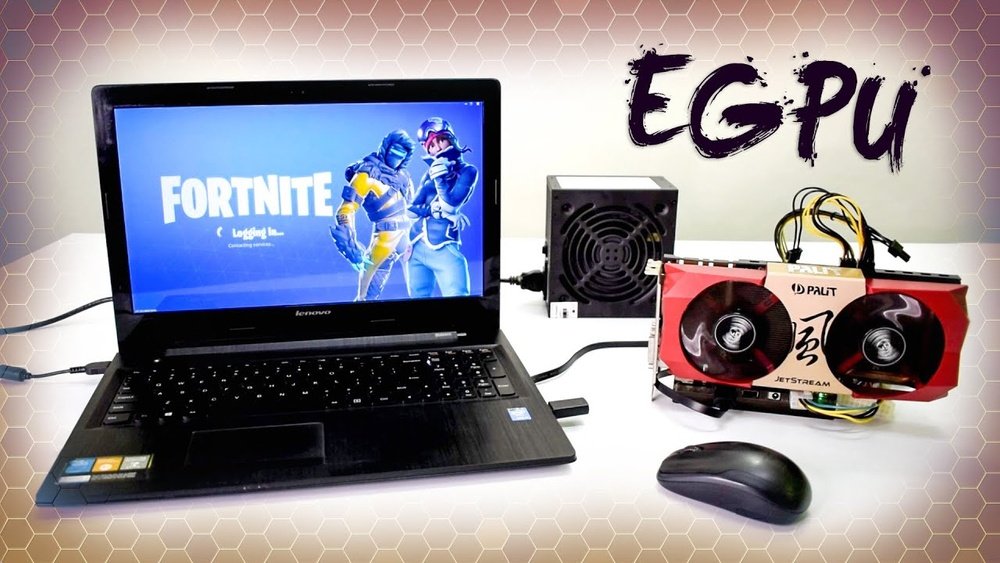
Start by placing your external GPU into its enclosure. This case protects the GPU and provides power and cooling. Open the enclosure carefully and insert the graphics card into the PCIe slot. Make sure it fits snugly and locks in place. Close the enclosure and connect any internal power cables from the enclosure to the GPU. This step secures your GPU for safe use.
Connecting To Laptop Ports
Next, link the enclosure to your laptop using a compatible port. Thunderbolt 3 or 4 ports work best for fast data transfer. Use the provided Thunderbolt cable to connect the enclosure’s output to your laptop’s Thunderbolt port. Avoid using slower USB or HDMI ports, as they limit performance. Check the cable is firmly plugged in on both ends.
Powering On The Setup
After connections, power on the GPU enclosure. Most enclosures have a power switch or button. Turn on your laptop and wait for it to detect the external GPU. You may hear fan noise from the enclosure as it starts cooling the GPU. Install any necessary drivers or software to enable the GPU. This final step activates your new graphics power.
Installing Drivers And Software
Installing the right drivers and software is crucial for your external GPU to work well. This step ensures your laptop can communicate correctly with the external graphics card. Without proper drivers, your GPU might not perform or may not be recognized at all.
Follow clear steps to download and install drivers. Then, configure settings for the best experience. Troubleshoot common problems to avoid delays and frustration.
Downloading Gpu Drivers
Start by visiting the GPU manufacturer’s official website. Choose the correct model of your external GPU. Select the driver that matches your laptop’s operating system.
Download the latest version for better support and performance. Avoid third-party sites to reduce risks of malware. Save the file in an easy-to-find folder for quick access.
Run the installer and follow the on-screen instructions. Restart your laptop after installation to apply changes fully.
Configuring Graphics Settings
Open your laptop’s graphics control panel after driver installation. This panel allows you to adjust how your external GPU works.
Set the external GPU as the preferred graphics processor for heavy tasks. Adjust resolution and refresh rates for better display quality.
Check power settings to keep your laptop from limiting GPU performance. Save your settings and test by running a graphics-heavy application.
Troubleshooting Common Issues
Problems like no display or driver errors can occur. First, confirm that the external GPU is properly connected.
Update your laptop’s system software and BIOS if issues persist. Reinstall drivers if the GPU is not recognized.
Check for conflicts with other hardware or software. Use device manager to spot and fix hardware problems quickly.

Credit: www.pcworld.com
Optimizing Performance
Connecting an external GPU (eGPU) to your laptop can boost graphics power. To get the best results, you must optimize performance. Small changes in settings can make a big difference. This section covers key steps to help your eGPU work well.
Adjusting Display Settings
Set your laptop to use the eGPU for graphics tasks. Open your graphics control panel to choose the external GPU as the main device. Lowering resolution can improve speed on older laptops. Turn off unnecessary effects to reduce GPU load. These changes help the eGPU run smoother and faster.
Using External Monitors
Connect an external monitor to your eGPU for better visuals. External screens often support higher refresh rates and resolutions. Using a dedicated monitor reduces strain on your laptop’s built-in display. This setup lets the eGPU focus fully on rendering graphics. It also lowers input lag during gaming or video editing.
Monitoring Gpu Usage
Keep an eye on your eGPU’s performance with monitoring tools. Apps like MSI Afterburner or GPU-Z show real-time usage and temperature. Watch for high temperatures that can slow down your GPU. Adjust fan speeds or close heavy programs if needed. Monitoring helps maintain steady performance and prevents overheating.
Maintaining Your External Gpu Setup
Maintaining your external GPU setup helps keep your laptop running smoothly. A well-kept setup prevents slowdowns and hardware problems. Follow simple steps to protect your investment and enjoy better graphics performance.
Regular Cleaning
Dust can block air vents and cause overheating. Clean the external GPU and cables often. Use a soft cloth or compressed air to remove dirt. Avoid liquid cleaners that can damage electronics. Keep the area around your setup tidy to reduce dust build-up.
Firmware Updates
Manufacturers release firmware updates to improve performance. Check for updates regularly on the GPU maker’s website. Updates fix bugs and add new features. Install them carefully following the instructions. Updated firmware helps your GPU run faster and safer.
Safe Disconnection Practices
Always turn off your laptop before unplugging the external GPU. Use the “Safely Remove Hardware” option in your operating system. Avoid pulling the cable out quickly. Proper disconnection prevents data loss and hardware damage. Handle all connections gently to extend their life.
Frequently Asked Questions
What Is An External Gpu For Laptops?
An external GPU (eGPU) is a device that boosts laptop graphics. It connects via Thunderbolt or USB-C ports. It enhances gaming, video editing, and 3D rendering performance. EGPUs offer desktop-level graphics power for portable laptops.
How Do I Connect An External Gpu To My Laptop?
To connect an eGPU, use a compatible Thunderbolt 3 or USB-C port. Attach the eGPU enclosure, then install necessary drivers. Restart your laptop to detect the new hardware. Configure settings to use the eGPU for graphics tasks.
Can All Laptops Support External Gpus?
Not all laptops support eGPUs. Your laptop must have a Thunderbolt 3 or USB-C port with PCIe support. Check the manufacturer’s specifications for eGPU compatibility. Older or budget laptops may lack the required hardware or software support.
Do External Gpus Improve Laptop Gaming Performance?
Yes, external GPUs significantly boost gaming performance on laptops. They provide more powerful graphics processing than integrated or mobile GPUs. This results in higher frame rates and better graphics quality. However, performance depends on the eGPU model and connection speed.
Conclusion
Connecting an external GPU to your laptop can boost graphics power. It helps run better games and software smoothly. Make sure your laptop supports the right ports. Choose a compatible external GPU for the best fit. Follow simple steps for safe and easy setup.
This upgrade can extend your laptop’s life and performance. Try it to enjoy improved visuals and speed.