Is My Gpu Dying: Warning Signs You Can’t Ignore
Is your computer acting slower than usual? Are your games freezing or your screen flickering?
If you’ve been wondering, “Is my GPU dying? ” you’re not alone. Your graphics card is key to smooth visuals and fast performance, so when it starts to fail, it can be frustrating and confusing. But don’t panic just yet.
You’ll discover simple signs to watch for and easy steps to check if your GPU is really on its way out. Keep reading—your computer’s health could depend on it.
Common Gpu Issues
GPUs can show many signs when they start to fail. Recognizing these issues helps you decide if your GPU needs repair or replacement. Common problems affect your computer’s display and performance. These issues can happen with any GPU brand or model. Watch for unusual behavior to avoid bigger problems later.
Artifacts And Screen Glitches
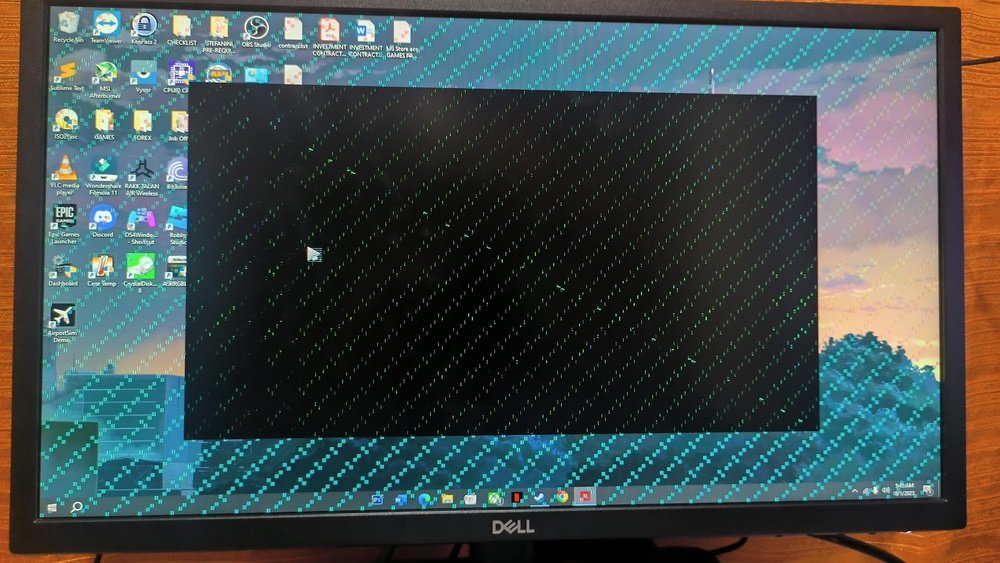
Artifacts appear as strange shapes or colors on your screen. You might see lines, dots, or flickering areas. These glitches happen during games or video playback. Artifacts usually mean your GPU is struggling or damaged. Dust, heat, or old drivers can cause these problems too.
Unexpected Crashes And Freezes
Your computer may suddenly stop or freeze while using the GPU. Crashes often occur during heavy tasks like gaming or video editing. The screen might go black or show error messages. These signs show the GPU cannot handle its workload anymore. Faulty hardware or overheating can cause crashes.
Performance Drops
Slow performance is a common sign of a dying GPU. Games and applications may lag or run at lower frame rates. Tasks that used to be smooth may now stutter or freeze. This drop happens because the GPU loses power or efficiency. Updating drivers rarely fixes this if hardware is faulty.
Overheating Symptoms
Too much heat harms GPU health and causes failures. Your computer may feel hotter than usual near the GPU area. Fans might run loudly and constantly. Overheating leads to reduced performance and sudden shutdowns. Dust buildup and poor ventilation often cause heat problems.
Diagnosing Gpu Problems
Diagnosing GPU problems helps find if your graphics card is failing. A clear diagnosis saves time and money. It also guides you on the next steps.
Several simple checks can reveal GPU health. These checks show if your GPU needs repair or replacement.
Monitoring Temperatures
High GPU temperature can cause crashes and slowdowns. Use software like MSI Afterburner to check GPU heat. Keep the temperature below 85°C for safe use. Clean dust from fans and vents to improve cooling. Overheating often signals a hardware issue.
Running Stress Tests
Stress tests push your GPU to its limits. Tools like FurMark or Heaven Benchmark are popular choices. Watch for crashes, artifacts, or freezes during tests. These signs point to a weak or dying GPU. Do not run tests for too long to avoid damage.
Checking Driver And Software Issues
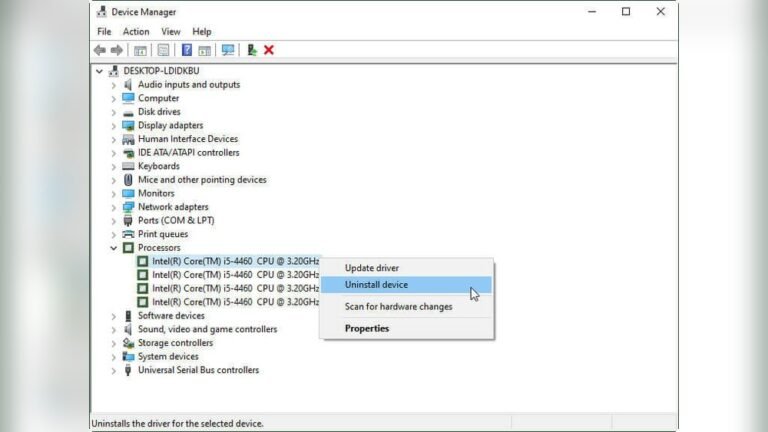
Outdated or corrupt drivers cause many GPU problems. Update drivers from the official GPU maker’s website. Remove old drivers using Display Driver Uninstaller (DDU). Also, check for Windows updates and software conflicts. Fixing software issues often restores GPU function.
Using Diagnostic Tools
Diagnostic tools scan your GPU for errors and faults. GPU-Z and HWMonitor provide detailed GPU data. Some manufacturers offer their own diagnostic apps. These tools help spot failing hardware parts. Regular checks keep your GPU running smoothly.
Causes Of Gpu Failure
Understanding why a GPU fails helps you spot early signs. GPUs face many risks that can cause them to stop working. These risks come from heat, power, physical harm, and wear over time. Knowing these causes helps protect your GPU and keep it running longer.
Thermal Damage
Heat is the main enemy of any GPU. When a GPU runs too hot, its parts can get damaged. Poor cooling or dust buildup blocks airflow. This causes the GPU to overheat. Overheating makes the GPU slow or shut down suddenly. Long-term heat damages circuits and chips permanently.
Power Supply Problems
A bad power supply can harm your GPU. If the power is unstable or too low, the GPU may fail. Sudden power spikes or drops damage its components. Using a weak or old power supply risks harming your graphics card. A steady and correct power source keeps the GPU safe.
Physical Damage
Physical harm often comes from dropping or hitting the GPU. Even small cracks or broken parts stop it from working. Improper installation or handling can damage the card. Dust and dirt inside the GPU cause short circuits. Protecting the card from physical harm is crucial.
Aging Components
Over time, all GPUs wear out. Electronic parts lose strength and fail after years. Older GPUs may show glitches or crash more. Performance slows as the card ages. Regular use and heat speed up this process. Aging is natural but means the GPU needs care or replacement.

Credit: www.reddit.com
Preventing Gpu Damage
Preventing GPU damage is key to keeping your computer running smoothly. A damaged GPU can cause crashes, slow performance, or even complete failure. Taking simple steps helps extend your GPU’s life and keeps it working well.
Proper Cooling Solutions
Heat is the main enemy of a GPU. Good cooling stops your GPU from overheating. Use quality fans or liquid cooling systems to keep temperatures low. Make sure your PC case has enough airflow. Avoid placing the computer in hot or closed spaces.
Regular Maintenance
Dust buildup blocks airflow and traps heat. Clean your PC inside regularly with compressed air. Check fans for dust and dirt. Replace any broken or noisy fans. Regular cleaning helps your GPU stay cool and last longer.
Safe Overclocking Practices
Overclocking makes your GPU run faster but adds stress. Increase clock speeds slowly and test stability each time. Watch temperatures carefully to avoid overheating. Use good cooling and avoid pushing the GPU beyond safe limits. Balanced overclocking keeps your GPU safe.
Updating Drivers
GPU drivers control how your card works with software. Outdated drivers can cause errors or reduce performance. Download the latest drivers from the official website. Update drivers regularly for the best stability and compatibility. Updated drivers help your GPU run smoothly and last longer.
When To Replace Your Gpu
Knowing when to replace your GPU is important for smooth computer use. A bad GPU can cause crashes and slow performance. Replacing it at the right time saves money and avoids frustration.
Not all GPU problems need replacement. Some issues can be fixed with repairs or updates. But some signs show your GPU is beyond repair and needs a new one.
Signs Replacement Is Necessary
Frequent crashes or screen flickering are clear signs. Your GPU may also overheat quickly and cause your system to shut down. Lower performance in games or programs is another warning. Artifacts or strange colors on your screen mean the GPU is failing. If these problems happen often, replacement is best.
Weighing Repair Vs. New Purchase
Repairs can cost less but may only fix some issues. Older GPUs often fail again after repair. New GPUs come with better speed and features. Consider the repair cost against a new GPU price. A new purchase often gives longer-lasting and improved performance. Choose repair only for minor or recent damage.
Choosing A New Gpu
Pick a GPU that fits your needs and budget. Look for one compatible with your computer system. Check the power supply and size before buying. Read reviews about reliability and performance. Focus on GPUs that run your favorite programs well. A good GPU improves your computer experience greatly.

Credit: softwareg.com.au

Credit: www.reddit.com
Frequently Asked Questions
How To Tell If My Gpu Is Dying?
Look for frequent crashes, artifacts, or screen flickering during use. Overheating and poor performance also signal GPU issues. Monitoring temperatures and running stress tests can help confirm GPU health.
What Causes A Gpu To Fail Prematurely?
Poor cooling, dust buildup, and power surges often cause early GPU failure. Overclocking beyond safe limits and manufacturing defects also contribute to GPU lifespan reduction.
Can Outdated Drivers Cause Gpu Problems?
Yes, outdated drivers can cause crashes, glitches, and poor performance. Keeping GPU drivers updated ensures compatibility and fixes bugs for smooth operation.
Is Overheating Damaging My Gpu?
Overheating can degrade GPU components and reduce lifespan. Proper cooling and cleaning dust from fans prevent damage caused by high temperatures.
Conclusion
A dying GPU shows clear signs you should not ignore. Strange screen glitches or crashes often mean trouble. Checking your GPU’s temperature helps spot overheating issues early. Keep your drivers updated to avoid many problems. Sometimes, cleaning dust from inside your computer improves performance.
If problems persist, consider testing the GPU in another system. Knowing these steps saves time and money. Act fast to protect your computer’s health. Don’t wait for total failure to take action. Stay alert and keep your GPU running smoothly.