How to Find My Gpu: Easy Steps to Identify Your Graphics Card
Are you curious about what GPU powers your computer but don’t know where to look? Finding your GPU might seem tricky at first, but it’s easier than you think.
Knowing your GPU helps you understand your system’s performance, choose the right games, or upgrade your setup wisely. In this guide, you’ll learn simple steps to quickly find out exactly which GPU is inside your device. Keep reading—you’re just moments away from unlocking important info about your computer!
Check System Information
Checking your system information is a simple way to find out which GPU your computer uses. Every operating system has built-in tools to show this data. These tools provide clear details about your graphics card. No need for extra software or technical skills. Just follow the steps below for your device.
Use Windows System Info
Press the Windows key and type “System Information.” Open the app from the list. In the window, expand the “Components” section on the left. Click “Display” to see GPU details. Look for the “Name” field. It shows your graphics card model. This method works on Windows 10 and 11.
Access Mac About This Mac
Click the Apple icon at the top-left corner. Select “About This Mac” from the menu. A window appears with an overview of your Mac. Click the “System Report” button for more details. Choose “Graphics/Displays” from the sidebar. Your GPU name and specs show here clearly.
Linux Commands For Gpu Details
Open your terminal window. Type lspci | grep VGA and press Enter. This command lists your graphics devices. For more detailed info, run glxinfo | grep "OpenGL renderer". It reveals the GPU used for graphics rendering. These commands work on most Linux distros.
Credit: www.avast.com
Use Device Manager
Using Device Manager is a quick way to find your GPU on a Windows computer. It shows all hardware components connected to your system. This tool helps you see detailed information about your graphics card without extra software.
Follow simple steps to open Device Manager and locate your GPU. The process takes just a few clicks. It works for most versions of Windows, including Windows 10 and 11.
Open Device Manager On Windows
Press the Windows key and the letter R at the same time. This opens the Run box.
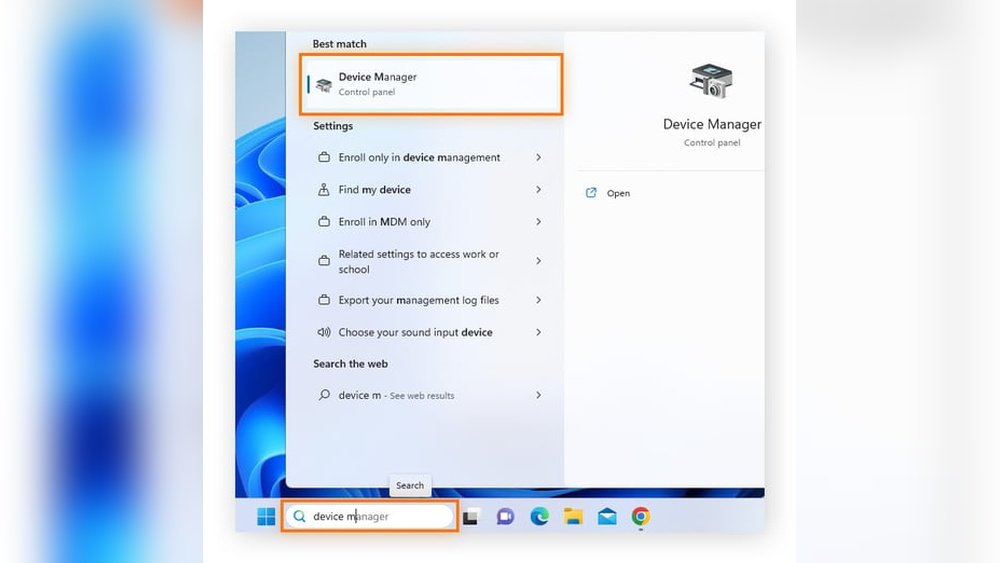
Type devmgmt.msc and press Enter. Device Manager will open.
You can also right-click the Start button and select Device Manager from the menu.
Locate Display Adapters
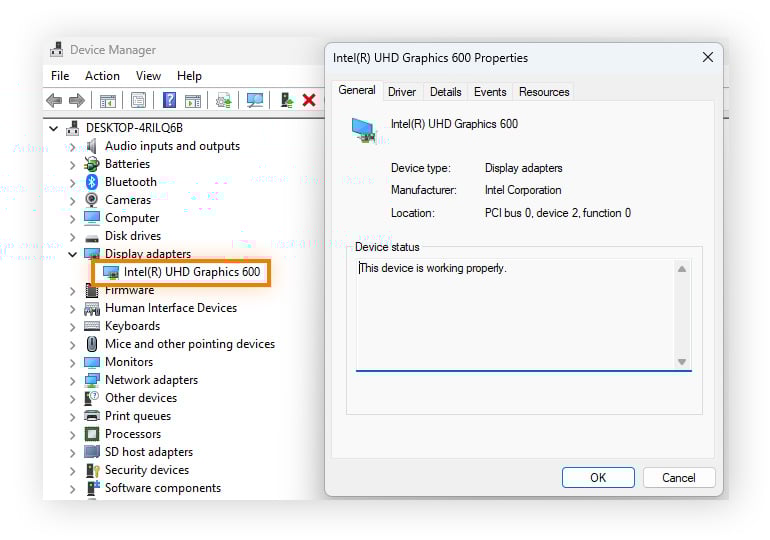
In Device Manager, find the section called Display adapters. Click the arrow to expand it.
This section lists all graphic devices installed on your computer. Most PCs show one or two entries here.
Look for names that indicate the GPU brand like NVIDIA, AMD, or Intel.
Identify Gpu Model
Right-click the name under Display adapters and select Properties.
Go to the Details tab and select Hardware Ids from the drop-down menu.
The values shown reveal the exact GPU model. You can copy this text for further search if needed.
Try Third-party Tools
Sometimes, finding your GPU details can be tricky using built-in tools. Third-party software can make this task easier. These tools scan your system and show detailed information about your graphics card quickly. They are simple to use and work on most computers.
Popular Gpu Identification Software
Many programs help identify your GPU accurately. GPU-Z is a favorite for its clear interface and detailed reports. Speccy shows not only your GPU but also other hardware parts. HWMonitor tracks your GPU temperature and performance in real-time. Each tool offers unique features suitable for different needs.
Benefits Of Using Third-party Tools
Third-party tools provide detailed and accurate GPU information. They often show data that built-in system tools miss. These programs help you check your GPU model, memory size, and driver version. They also assist in monitoring GPU health and temperature. Easy to install and free options are widely available. These tools save time and reduce confusion for users.
Check Graphics Card Physically
Checking your graphics card physically helps identify its exact model. This method works well for desktop PCs. It gives clear and direct information about your GPU.
Opening the PC case allows you to see the hardware inside. Locating the GPU on the motherboard is simple once the case is open. Reading the model information on the card confirms its make and model.
Open Your Pc Case Safely
Turn off your computer and unplug all cables. Place your PC on a flat, clean surface. Use a screwdriver to remove the screws holding the case. Slide or lift the case panel carefully. Avoid touching other components to prevent damage.
Locate The Gpu On The Motherboard
The graphics card is usually the largest card on the motherboard. It connects to the PCIe slot near the bottom. It has one or more fans and a metal bracket. The bracket holds the ports like HDMI or DisplayPort. This helps identify the card quickly.
Read Model Information On The Card
Look for a sticker or printed text on the GPU. It shows the brand, model number, and serial number. Write down this information for reference. This info helps find drivers or check performance. Use a flashlight if the text is hard to see.
Find Gpu Through Task Manager
Finding your GPU through Task Manager is a quick and easy way to learn about your graphics card. Task Manager is built into Windows and shows real-time information about your hardware. This method works well for all users, even those who are not tech experts. Follow these simple steps to find your GPU details using Task Manager.
Open Task Manager
Press Ctrl + Shift + Esc on your keyboard to open Task Manager. You can also right-click the taskbar and select Task Manager from the menu. This tool lets you see all running processes and hardware usage.
Navigate To Performance Tab
Inside Task Manager, click on the Performance tab at the top. This tab shows different parts of your computer like CPU, memory, and GPU. Scroll down the list on the left side until you find GPU. Click on it to see more details.
View Gpu Details
In the GPU section, you will see the name of your graphics card. You can also view usage, memory, and driver version. This information helps you understand your GPU’s capability and current workload. Use these details for troubleshooting or upgrading your system.
Use Command Line Tools
Using command line tools is a quick way to find your GPU details. These tools work on different operating systems. They show the exact GPU model and other important info. You don’t need to open complex apps or settings. Just type simple commands and get your GPU data fast.
Windows Command Prompt Methods
Open Command Prompt by typing “cmd” in the search box. Then enter the command wmic path win32_videocontroller get name. This command lists your GPU name clearly. Another option is dxdiag. It opens the DirectX Diagnostic Tool. Click on the Display tab to see GPU info.
Mac Terminal Commands
Launch Terminal from Applications or Spotlight. Type system_profiler SPDisplaysDataType and press Enter. This command shows detailed info about your graphics card. It lists the GPU model and VRAM size. Easy to read and complete for Mac users.
Linux Terminal Queries
Open Terminal on your Linux system. Use lspci | grep VGA to find your GPU. It shows the vendor and model name. Another command is glxinfo | grep "OpenGL renderer". This tells you the GPU used for graphics rendering. Both commands work on most Linux distributions.
Identify Gpu On Laptops
Identifying the GPU on a laptop helps understand its graphics power. This knowledge guides you in gaming, video editing, or software needs. Laptops may have different types of GPUs. Some have built-in graphics, while others include separate, dedicated cards. Knowing which one your laptop has can affect performance and battery life. Several ways exist to find this information easily.
Check Manufacturer Specifications
Start by checking the laptop’s official specifications. Visit the manufacturer’s website and enter your model number. Look for the section on graphics or display. This area will list the GPU type and model. This method gives accurate, reliable information. It works well for all brands and models.
Use Pre-installed Software
Most laptops come with software that shows hardware details. Windows users can open “Device Manager” and find “Display adapters.” This section lists the GPU name. Another tool is “System Information” available on many systems. Mac users can click the Apple icon, then “About This Mac.” The graphics card details appear under the “Overview” tab. These tools are quick and easy to access.
Identify Integrated Vs Dedicated Gpu
Integrated GPUs share memory with the CPU and save power. They are common in budget or ultrabook laptops. Dedicated GPUs have their own memory and offer better performance. Gaming and professional laptops usually have dedicated GPUs. You can spot this difference in the device manager or system info. Knowing the type helps understand your laptop’s capability.

Credit: www.breezeresidency.com

Credit: totalplumbingfl.com
Frequently Asked Questions
How Can I Check My Gpu On Windows?
To check your GPU on Windows, open Device Manager. Expand the “Display adapters” section. Your GPU model will appear there. Alternatively, use Task Manager under the “Performance” tab to view GPU details instantly.
What Is The Easiest Way To Find My Gpu?
The easiest way is to use system tools like Task Manager or Device Manager. These provide quick, accurate GPU information without additional software.
How Do I Find Gpu Details On Mac?
On Mac, click the Apple menu and select “About This Mac. ” The “Graphics” section shows your GPU model and specifications clearly.
Can I Find My Gpu Using Command Prompt?
Yes, open Command Prompt and type “wmic path win32_VideoController get name”. It will display your GPU name quickly and precisely.
Conclusion
Finding your GPU is easier than it seems. Use simple tools like Device Manager or system settings. Knowing your GPU helps with gaming, software, and updates. Take a moment to check it now. Understanding your computer better makes tech tasks smoother.
Keep these steps handy for future use. Your GPU info is just a few clicks away.