How to Tell If My Gpu is Dying: Top Signs You Can’t Ignore
Is your computer acting up, and you suspect your GPU might be the problem? Knowing if your GPU is dying can save you from unexpected crashes and costly repairs.
You don’t have to be a tech expert to spot the warning signs. You’ll learn simple ways to check your GPU’s health and what to do if it’s failing. Keep reading to protect your PC and avoid frustrating downtime.
Common Gpu Failure Symptoms
Many signs point to a failing GPU. Knowing common symptoms helps you act fast. Catching problems early can save your computer and your work.
Watch for visual glitches, crashes, heat, and driver trouble. These issues often mean the GPU is struggling or close to failing.
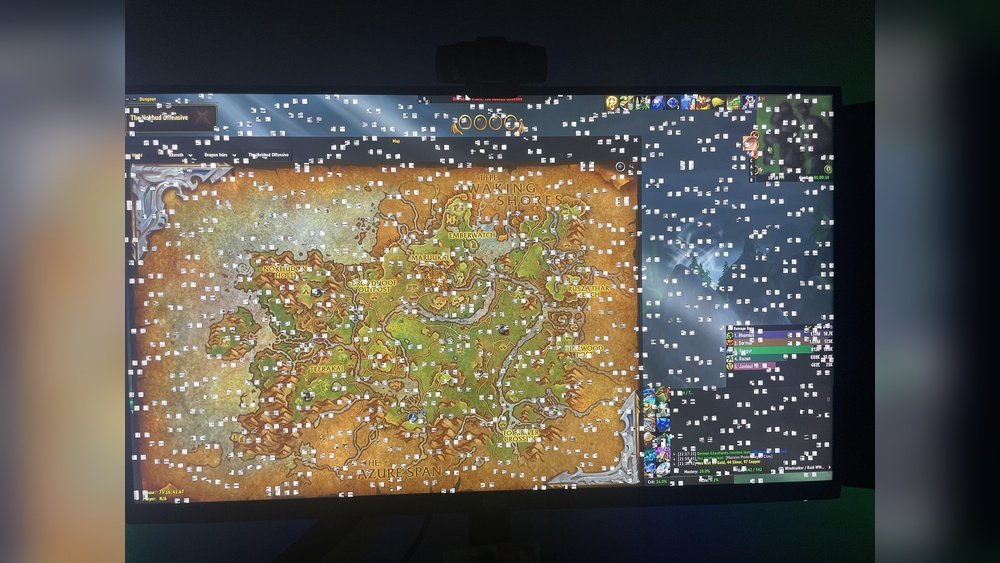
Screen Artifacts And Glitches
Artifacts are strange lines, dots, or colors on your screen. They may appear during games or videos. Flickering or weird shapes also show GPU problems. These glitches mean the graphics card is not processing images correctly.
Frequent Crashes And Freezes
Your computer may crash or freeze often. Crashes happen during gaming or heavy tasks. Freezing means the screen stops responding. Both symptoms suggest the GPU cannot handle the workload. This indicates hardware failure or damage.
Overheating Issues
Too much heat harms your GPU. Fans running loudly or constantly is a warning. The computer may shut down to cool off. Overheating shortens the GPU’s life and causes errors. Dust buildup or poor ventilation often leads to heat problems.
Driver Errors And Crashes
Driver errors show as messages or screen flickers. The system may fail to install or update GPU drivers. Crashes during driver use mean software or hardware conflicts. Persistent driver problems can point to a dying GPU.

Credit: www.wikihow.com
Performance Drops To Watch For
Noticing your computer slowing down during games or videos can signal GPU problems. Watch for clear signs in performance that show your graphics card might be failing. These changes can affect your whole experience and hint at deeper issues.
Lower Frame Rates
Frame rates drop when the GPU struggles to keep up. Games may run less smoothly than before. A steady decline in frames per second suggests the GPU is losing power. This drop can make gameplay frustrating and less enjoyable.
Stuttering And Lag
Stuttering happens when frames don’t load on time. This creates pauses or jumps in video or game action. Lag can also appear during simple tasks, not just gaming. Such interruptions can mean the GPU is overheating or damaged.
Unexpected Shutdowns
The computer or game shutting down suddenly is a serious sign. It often happens when the GPU overheats or fails. These shutdowns protect your system but disrupt your work or play. Frequent shutdowns need immediate attention to avoid hardware damage.
Physical Signs Of Gpu Damage
Physical signs of GPU damage are often the first clues your graphics card might be failing. These signs are visible or audible and can warn you before serious problems start. Checking your GPU regularly helps catch issues early.
Noticing something unusual around your GPU can prevent bigger trouble. Pay attention to sounds, smells, and any visible damage on the card itself. These signs show that your GPU needs attention or replacement soon.
Unusual Noises
Fans on a healthy GPU should spin quietly and smoothly. Strange noises like clicking, grinding, or buzzing mean the fan may be damaged. This can cause overheating and reduce your GPU’s life.
Listen closely during gaming or heavy use. Loud or irregular sounds are a clear sign of trouble inside the GPU.
Burning Smell
A burning smell near your computer is a serious warning. It can mean the GPU’s circuits are overheating or melting. This smell should never be ignored.
Turn off your PC immediately if you notice any burning odor. This smell often points to electrical damage or a short circuit in the GPU.
Damaged Fans Or Components
Look inside your computer case for broken or bent fan blades. Damaged fans reduce cooling and cause your GPU to overheat quickly. Check for loose wires or burnt spots on the card too.
Visible damage on the GPU’s surface means it might stop working soon. Physical harm can come from drops, dust buildup, or poor handling during installation.
Diagnostic Tools And Tests
Detecting a failing GPU requires the right tools and tests. Basic checks do not reveal all problems. Diagnostic software and tests help find hidden issues early. These tools show how your GPU performs and if it faces any trouble.
Using diagnostic tools helps save time and money. It prevents hardware damage and data loss. Follow simple steps to test your GPU’s health and spot problems fast.
Using Gpu Monitoring Software
GPU monitoring software tracks your graphics card’s activity. It shows real-time data like usage, clock speed, and memory load. Popular tools include MSI Afterburner and GPU-Z. These apps reveal unusual behavior or slowdowns. Watch for sudden drops or spikes in performance.
Monitoring helps identify if the GPU struggles under load. It also flags driver or hardware issues early. Use these tools regularly to keep your GPU in check.
Running Benchmark Tests
Benchmark tests measure your GPU’s power and speed. They compare your card to standard scores for similar models. Use software like 3DMark or Unigine Heaven for testing. Run tests in a controlled environment for accurate results.
Low benchmark scores may signal GPU problems. Repeated crashes or artifacts during tests also indicate failure. Benchmarking helps verify if your GPU runs as expected.
Checking Temperature Levels
GPU temperature affects its performance and lifespan. High heat can cause crashes and permanent damage. Use monitoring tools to check temperature while gaming or working. Normal GPU temperatures usually stay below 85°C.
Temperatures above this limit need attention. Clean your PC fans and improve airflow. Overheating may mean faulty cooling or thermal paste issues. Keep your GPU cool to avoid early failure.
Preventing Gpu Failure
Preventing GPU failure saves money and avoids frustration. A well-maintained GPU lasts longer and works better. Small actions can protect your graphics card from damage. Focus on cooling, driver updates, and overclocking habits.
Proper Cooling And Maintenance
Keep your GPU cool to prevent overheating. Dust buildup blocks airflow and raises temperature. Clean your computer case and fans regularly. Use compressed air to remove dust from the GPU. Ensure your PC has good ventilation and enough space around it. Overheating can cause crashes and permanent damage.
Updating Drivers Regularly
Install the latest GPU drivers from the official website. New drivers fix bugs and improve performance. Outdated drivers may cause errors or crashes. Check for updates every month or before playing new games. Updated drivers help your GPU run smoothly and last longer.
Safe Overclocking Practices
Overclocking increases GPU speed but adds stress. Raise clock speeds slowly and test stability after each change. Watch your GPU temperature closely during overclocking. Avoid pushing your GPU beyond safe limits. Unsafe overclocking can damage your hardware and reduce its life.

Credit: www.reddit.com

Credit: softwareg.com.au
Frequently Asked Questions
How Can I Check If My Gpu Is Failing?
Monitor your GPU temperature and performance regularly. Look for artifacts, crashes, or screen glitches. Use diagnostic tools like GPU-Z or MSI Afterburner for stress testing and error detection.
What Are Common Signs Of A Dying Gpu?
Common signs include frequent crashes, graphical glitches, screen flickering, overheating, and reduced gaming performance. If these occur often, your GPU may be failing.
Can Software Issues Mimic Gpu Failure Symptoms?
Yes, outdated drivers or malware can cause similar problems. Always update drivers and scan for viruses before concluding hardware failure.
How Long Does A Typical Gpu Last?
A well-maintained GPU usually lasts 3 to 5 years. Lifespan depends on usage intensity, cooling, and maintenance.
Conclusion
Watching your GPU’s health helps avoid big problems later. Strange noises, crashes, or screen glitches often signal trouble. Regularly check temperatures and update drivers to keep it smooth. Acting early can save money and time. Trust your eyes and listen to your computer’s signs.
Don’t wait until it stops working. Stay aware and keep your system running well.