How to Fix Gpu Crashing: Easy Steps to Stop GPU Failures
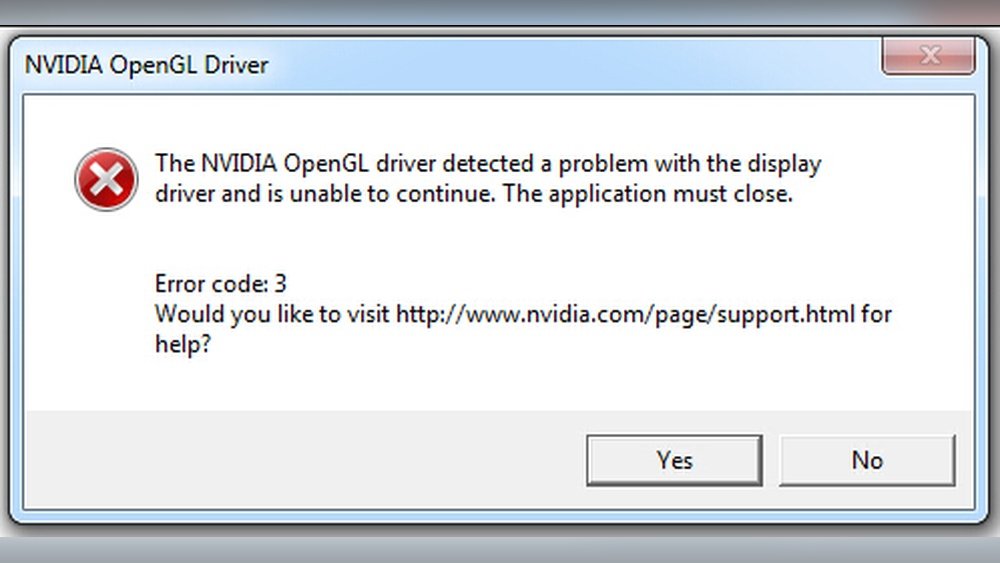
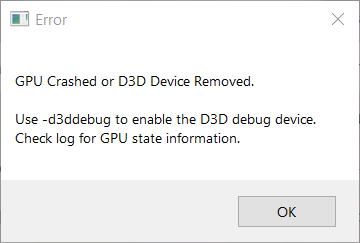
Is your GPU crashing just when you need it most? It’s frustrating, especially when you’re in the middle of a game or working on a project.
But don’t worry—this problem has solutions that you can try right now. You’ll discover simple and effective ways to fix your GPU crashing issues. By the end, you’ll feel confident getting your graphics card back to smooth, reliable performance. Keep reading to unlock the fixes that will save you time and stress.
Credit: www.esseg.eu
Common Causes Of Gpu Crashing
GPU crashing can be frustrating and disrupt your work or gaming. Understanding the common causes helps to fix issues faster. Many problems come from hardware, software, or power-related issues. Knowing these causes can save time and effort.
Overheating Issues
GPUs generate heat during use. If the cooling system fails, the GPU gets too hot. Overheating causes the GPU to crash or shut down. Dust buildup, poor airflow, or broken fans often cause overheating.
Driver Conflicts
GPU drivers control how the card works with your system. Outdated or corrupted drivers can cause crashes. Conflicts between new and old driver versions create problems. Installing the right driver version is essential for stability.
Power Supply Problems
A weak or failing power supply cannot provide enough power to the GPU. This lack of power causes random crashes and freezes. Check if your power supply meets your GPU’s power needs. Loose or damaged cables also cause power issues.
Hardware Failures
Physical damage to the GPU or motherboard can lead to crashes. Faulty memory chips or overheating damage inside the GPU cause failure. Hardware failures often require repair or replacement of components.
Software Incompatibilities
Some programs or games may not work well with your GPU. Software bugs or outdated applications can cause GPU crashes. Updating software and ensuring compatibility helps reduce errors. Avoid running too many programs at once to prevent conflicts.
Monitoring Gpu Performance
Monitoring GPU performance is vital to stop crashes and keep your system stable. It helps find problems early. Watching how your GPU works can prevent damage and improve its life.
Regular checks show if your GPU runs too hot or if it uses too much power. This data guides your next steps to fix issues. Let’s explore key ways to monitor your GPU.
Using Diagnostic Tools
Diagnostic tools check your GPU’s health and performance. They give clear reports on errors and failures. Tools like GPU-Z and MSI Afterburner provide real-time data. They help spot problems before crashes happen. Use these tools often to track your GPU’s status.
Checking Temperature Levels
High temperatures cause GPU crashes. Keep an eye on your GPU’s heat using software or hardware sensors. Ideal GPU temperatures are usually below 85°C. If your GPU gets too hot, clean dust or improve airflow. Cooling keeps your GPU running smoothly and avoids damage.
Analyzing Gpu Usage Patterns
Look at how your GPU is used during tasks. High usage for long times can lead to crashes. Monitor if your GPU works too hard or idles too much. Balancing workload helps maintain performance. Knowing usage patterns guides better system management and prevents failures.
Updating And Reinstalling Drivers
Updating and reinstalling drivers is a key step to fix GPU crashing. Drivers help your computer and GPU talk to each other. Old or broken drivers cause crashes and errors. Keeping drivers fresh can improve your GPU’s stability and performance.
Sometimes, drivers get corrupted or outdated. Reinstalling them clears any bad files. It also replaces old versions with new ones. This process often stops crashes and helps your GPU run smooth.
Finding The Latest Drivers
Start by visiting your GPU maker’s official website. Look for the support or driver download section. Enter your GPU model and operating system. Download the newest driver version available.
Check the release date and version number. Newer drivers usually fix bugs and improve stability. Avoid third-party websites to prevent malware risks.
Clean Driver Installation
Before installing new drivers, remove old ones. Use a tool like Display Driver Uninstaller (DDU) in safe mode. This ensures no leftover files cause conflicts.
After cleaning, run the new driver installer. Choose the “clean installation” option if available. This option resets all settings and removes old files.
Restart your computer after installation. This helps the new driver load correctly and prevents crashes.
Rolling Back Problematic Updates
New drivers sometimes cause issues instead of fixing them. Rolling back means going back to an older, stable driver version.
Open Device Manager and find your GPU under “Display adapters.” Right-click and select “Properties.” Go to the “Driver” tab and click “Roll Back Driver.”
If the option is greyed out, download and install an older driver manually. Test different versions until crashes stop.

Credit: www.reddit.com
Improving Cooling And Ventilation
Overheating is a common cause of GPU crashes. Improving cooling and ventilation helps keep the GPU temperature low. Lower temperatures prevent sudden shutdowns and improve performance. Simple steps can make a big difference in cooling efficiency.
Cleaning Dust And Debris
Dust blocks airflow inside the computer case. It settles on fans, vents, and heat sinks. This reduces the cooling power of the GPU. Use compressed air to blow dust out. Clean the GPU fans and surrounding areas carefully. Regular cleaning keeps the GPU cooler and more stable.
Optimizing Fan Settings
GPU fans control the heat by spinning faster or slower. Adjusting fan speed can improve cooling. Use software tools to monitor GPU temperature and fan speed. Set fans to spin faster at lower temperatures. This keeps the GPU cool before it overheats. Balanced fan settings reduce noise and improve cooling.
Upgrading Cooling Solutions
Stock coolers may not be enough for powerful GPUs. Consider upgrading to better cooling parts. Options include larger fans, better heat sinks, or liquid cooling. Aftermarket coolers offer improved heat dissipation. Upgraded cooling helps maintain stable GPU performance during heavy use.
Adjusting Power Settings
Adjusting power settings can stop your GPU from crashing. Power issues often cause your graphics card to fail or shut down unexpectedly. Fixing these settings helps your GPU run smoothly and stay stable. Let’s explore simple steps to adjust power settings and reduce crashes.
Checking Power Supply Unit (psu)
Your PSU provides power to the GPU. A weak or faulty PSU can cause crashes. Check if your PSU meets the GPU’s power needs. Look at the wattage and connectors. Make sure cables are plugged in tightly. Replace the PSU if it shows signs of damage or low power output.
Configuring Gpu Power Limits
GPU power limits control how much power your card uses. Setting limits too low can cause crashes during heavy use. Use software like MSI Afterburner to adjust power limits safely. Increase the power limit slightly to improve stability. Avoid pushing limits too high to prevent overheating or damage.
Using Stable Overclocking Settings
Overclocking boosts GPU speed but can cause crashes if unstable. Use small steps to increase clock speeds and test stability each time. Find the highest stable settings for your GPU. If crashes happen, lower the overclock or return to default settings. Stable overclocking keeps your GPU fast and reliable.
Testing Hardware Components
Testing hardware components helps find the cause of GPU crashing. It shows if the problem is with the graphics card or other parts. This step saves time and money by avoiding unnecessary replacements. Careful testing can point out issues like overheating or faulty chips. It also checks if the GPU works well under stress. Follow clear steps to test and diagnose hardware problems.
Running Stress Tests
Stress tests push the GPU to its limits. They reveal problems that only show up during heavy use. Use software like FurMark or MSI Kombustor. Run tests for 15 to 30 minutes. Watch for crashes or artifacts on the screen. If the GPU fails, it may have hardware issues. Stop the test immediately if temperatures rise too high. Stress tests help confirm if the GPU is stable.
Checking For Physical Damage
Inspect the GPU for visible signs of damage. Look for broken fans, burnt spots, or loose connections. Dust buildup can cause overheating and crashes. Clean the card carefully with compressed air. Check the PCIe slot and power connectors for damage. Bent pins or corrosion can cause issues. Physical damage often leads to performance problems. Fix or replace damaged parts to restore function.
Replacing Faulty Parts
Replace parts that show clear faults during testing. Fans are common parts that fail and cause overheating. Swap out power cables if they are loose or damaged. Sometimes the whole GPU needs replacement if chips are faulty. Use compatible parts to avoid further issues. After replacement, run stress tests again to confirm stability. Replacing faulty parts improves the GPU’s performance and stops crashes.
Preventing Future Gpu Failures
Preventing future GPU failures is key to keeping your computer running smoothly. Taking simple steps can save you time and frustration. A well-maintained GPU lasts longer and performs better.
Understanding how to care for your GPU helps avoid crashes and errors. Follow clear tips to keep your graphics card in top shape.
Regular Maintenance Tips
Clean your GPU and computer case often. Dust blocks airflow and causes overheating. Use compressed air to blow dust off fans and vents. Check that all cables are secure and not damaged. Keep your PC in a cool, dry place. Avoid placing it near heat sources or direct sunlight.
Software And Driver Updates
Update your GPU drivers regularly. New drivers fix bugs and improve performance. Visit the manufacturer’s website for the latest versions. Use automatic update tools if available. Keep your operating system updated as well. Some updates improve hardware compatibility.
Safe Overclocking Practices
Overclocking can boost GPU speed but raises risks. Increase clock speeds in small steps only. Test stability with stress tests after each change. Monitor GPU temperature closely to avoid overheating. Use trusted software designed for overclocking. Stop overclocking if your GPU crashes or shows errors.

Credit: repairit.wondershare.com
Frequently Asked Questions
Why Does My Gpu Keep Crashing Randomly?
GPU crashes often result from outdated drivers, overheating, or hardware conflicts. Updating drivers and cleaning your PC can resolve many issues. Check for software conflicts and ensure proper cooling to maintain GPU stability.
How Can I Update My Gpu Drivers Safely?
Visit the official GPU manufacturer’s website for the latest drivers. Download the correct version matching your GPU model and OS. Install the update following on-screen instructions and restart your computer for best performance.
Can Overheating Cause Gpu Crashes?
Yes, overheating is a common cause of GPU crashes. Excessive heat can damage components or cause automatic shutdowns. Ensure proper airflow, clean dust from fans, and monitor temperatures to prevent overheating-related crashes.
What Role Does Power Supply Play In Gpu Crashes?
An insufficient or faulty power supply can cause GPU instability. Ensure your PSU provides adequate wattage for your GPU. Use a reliable power source and check all connections to avoid power-related crashes.
Conclusion
Fixing GPU crashes can improve your computer’s performance. Check drivers and update them regularly. Keep your system cool and clean from dust. Avoid overclocking if you face frequent crashes. Test your hardware for any faults or damage. Simple steps often solve complex problems.
Stay patient and follow each step carefully. Your GPU will run smoother and more stable. Enjoy better graphics and fewer interruptions.