

Are you curious about the exact GPU model inside your computer? Knowing your GPU model is key to understanding your system’s performance, gaming capabilities, and compatibility with software.
But finding this information isn’t always straightforward, especially if you’re not tech-savvy. Don’t worry—this guide will show you simple, step-by-step methods to quickly identify your GPU model. By the end, you’ll have the confidence to check your graphics card anytime you want, helping you make smarter decisions for upgrades or troubleshooting.
Let’s dive in and uncover your GPU together.
Credit: breezeresidency.com
Check System Settings
Checking your system settings is the easiest way to find your GPU model. Every operating system has built-in tools to show hardware details. These tools give quick and accurate information about your graphics card. No need to install extra software. Just follow simple steps on your device.
Windows Device Manager
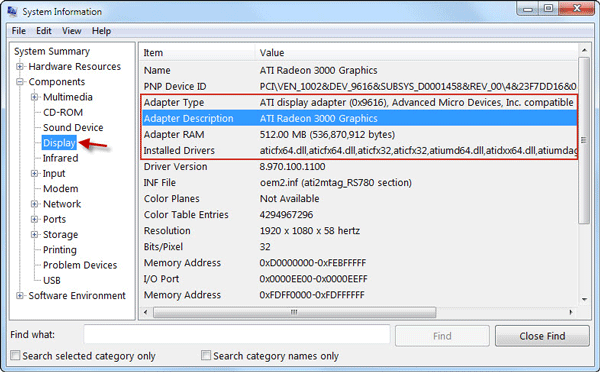
Open the Start menu and type “Device Manager.” Click the top result. In the Device Manager window, expand the “Display adapters” section. You will see your GPU listed here. The name usually includes the brand and model. Right-click the GPU name and select “Properties” for more details. This method works on Windows 10 and 11.
Mac About This Mac
Click the Apple icon in the top-left corner of your screen. Choose “About This Mac” from the drop-down menu. A window will pop up showing an overview of your Mac. Click the “System Report” button. In the new window, select “Graphics/Displays” from the sidebar. You will find your GPU model and its specifications here.
Linux Terminal Commands
Open the Terminal application on your Linux system. Type lspci | grep VGA and press Enter. This shows the graphics card details installed on your computer. For more detailed info, type lshw -C display and hit Enter. These commands work on most Linux distributions. They reveal the GPU name and other hardware facts.
Credit: www.laptopmag.com
Use Third-party Tools
Third-party tools help find your GPU model quickly. They provide detailed information about your graphics card. These tools are easy to use and work on different systems. They show data that Windows may not reveal easily. Using these tools saves time and avoids confusion.
Gpu-z For Windows
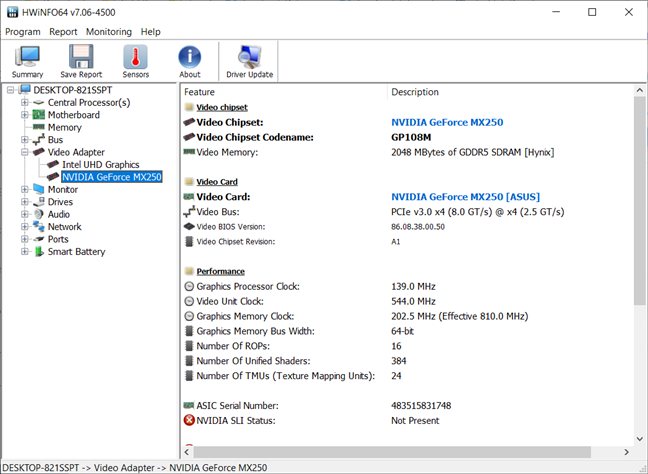
GPU-Z is a popular tool for Windows users. It gives clear details about your GPU model and specs. The interface is simple with easy-to-read information. It shows the GPU name, memory size, and clock speeds. You can download it for free and run it instantly.
Speccy Overview
Speccy is a system information tool that lists your hardware. It shows the GPU model along with other computer parts. The tool uses color codes for easy understanding. It is lightweight and does not slow down your PC. Speccy also offers a summary for quick checks.
Cpu-z Insights
CPU-Z mainly focuses on the processor but includes GPU details. It identifies the graphics card connected to your system. The program is small and runs without installation. It provides accurate data about your GPU model and vendor. CPU-Z is useful for quick hardware checks.
Identify Gpu Via Command Line
Finding your GPU model can be done quickly through the command line. This method works without opening system menus or third-party apps. It gives clear details about your graphics card. Below are simple commands for different operating systems.
Windows Powershell Commands
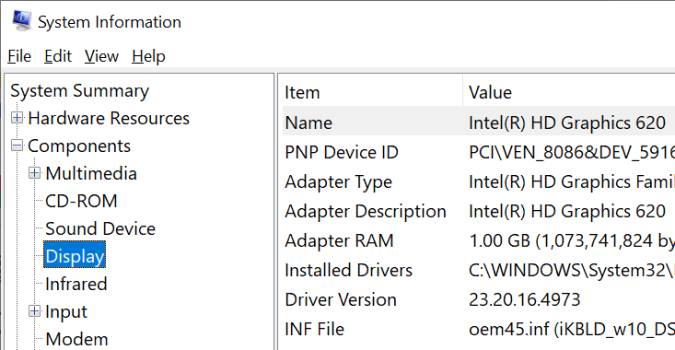
Open PowerShell by typing powershell in the Start menu. Use the command Get-WmiObject win32_VideoController | Format-List Name,DriverVersion. This shows the GPU name and driver version. Another quick command is dxdiag. Run it, then check the Display tab for GPU details.
Mac Terminal Queries
Launch Terminal from Applications > Utilities. Type system_profiler SPDisplaysDataType and press Enter. This command lists the GPU model and VRAM size. It also shows details about connected displays. Use this to confirm your Mac’s graphics hardware quickly.
Linux Lspci And Glxinfo
Open a terminal window. Type lspci | grep VGA to find basic GPU info. For more details, install and run glxinfo | grep "OpenGL renderer". This command reveals the exact GPU model used by the system. These tools help identify graphics hardware on Linux easily.
Check Physical Gpu
Checking the physical GPU is a direct way to find out its model. This method works well if you can open your PC or laptop safely. It helps you see the exact graphics card installed. You can identify the model number and brand by looking at the hardware itself.
Locating The Gpu Inside Pc
First, turn off your PC and unplug all cables. Open the side panel of the computer case carefully. Inside, look for a card that is plugged into the motherboard. It is usually a large card with fans on it. This card is the GPU. Most desktop GPUs sit in the PCI Express slot near the CPU.
Reading Model Information On Hardware
Look closely at the GPU’s surface for stickers or labels. These labels often show the brand name and model number. You might see names like “NVIDIA GeForce” or “AMD Radeon.” The model number is usually a combination of letters and numbers. Write down this information for easy reference.
Laptop Gpu Identification Tips
Laptops do not have removable GPUs like desktops. Open the bottom panel if you want to see inside. The GPU chip is often smaller and may have a heat sink above it. If you cannot open the laptop, check the manufacturer’s sticker on the bottom. It may list the GPU model as part of the laptop’s specs.
Use Manufacturer Software
Using manufacturer software is a simple way to find your GPU model. This software is made by the company that built your graphics card. It shows detailed info about your GPU and helps you check its settings. You do not need to open your computer or use complex tools. Just open the right program, and you see your GPU model quickly.
Nvidia Control Panel
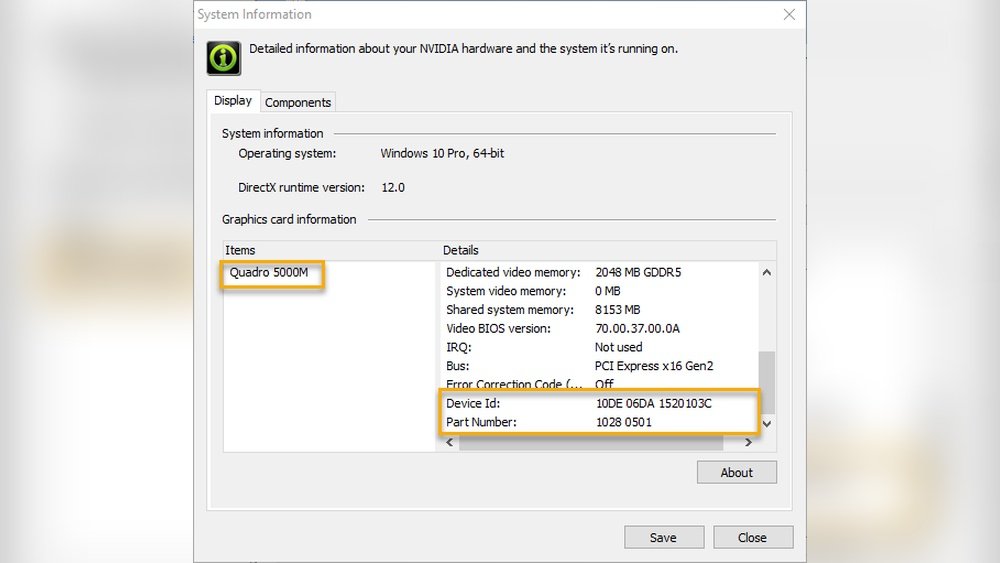
The NVIDIA Control Panel works for NVIDIA graphics cards. To open it, right-click on your desktop and select “NVIDIA Control Panel.” Go to the “System Information” section. Here, you find your GPU model and other details like driver version. This tool also lets you adjust graphics settings easily.
Amd Radeon Settings
AMD Radeon Settings is for AMD graphics cards. Right-click on the desktop and choose “AMD Radeon Settings.” In the “System” tab, look for the “Hardware” section. Your GPU model appears there. This software also helps you update drivers and optimize performance.
Intel Graphics Command Center
The Intel Graphics Command Center is for Intel integrated graphics. Open it from the Start menu or search bar. Click on the “System” tab. Your GPU model and driver version show up here. This tool helps you manage display and video settings simply.
Troubleshoot Common Issues
Troubleshooting common GPU issues helps you find your GPU model quickly. Problems like missing GPUs or driver errors can block your progress. Simple checks and fixes often solve these problems fast. Follow the tips below to fix common GPU issues.
Missing Or Unknown Gpu In System
Your computer may not show the GPU correctly. It can appear as unknown device or be missing. This happens if the GPU is not installed properly or power is off. Check if the GPU is seated well in its slot. Also, confirm the power cables are connected. Restart your PC and check device manager again.
Driver Update Problems
Drivers are essential for your GPU to work right. Old or wrong drivers cause many issues. Download the latest drivers from the official GPU maker’s website. Avoid third-party sites to prevent wrong or unsafe drivers. Uninstall old drivers fully before installing new ones. Use safe mode if needed for driver removal.
Compatibility Checks
Not all GPUs fit all computers. Check your motherboard supports your GPU model. Also, verify your power supply can handle the GPU’s needs. Some GPUs require specific BIOS versions. Update your BIOS if necessary before installing the GPU. Read your PC or motherboard manual for compatibility info.
Credit: synengco.com
Frequently Asked Questions
How Can I Check My Gpu Model On Windows?
You can check your GPU model on Windows via Device Manager. Expand Display adapters to see the GPU name. Alternatively, use DirectX Diagnostic Tool by typing “dxdiag” in Run and checking the Display tab.
What Is The Easiest Way To Find Gpu Model On Mac?
On a Mac, click the Apple menu, select About This Mac, and look under the Graphics section. It shows the GPU model along with its specifications clearly.
Can I Find My Gpu Model Using Command Prompt?
Yes, open Command Prompt and type “wmic path win32_VideoController get name”. This command displays the GPU model installed on your Windows PC quickly and accurately.
How To Identify Gpu Model On Linux System?
Use the terminal command “lspci | grep VGA” on Linux. It lists the graphics card information, including the GPU model and vendor details efficiently.
Conclusion
Finding your GPU model is easier than you might think. Just follow simple steps on your computer. Knowing your GPU helps with gaming, work, and buying new parts. Use built-in tools or third-party apps to check it quickly. Keep your system updated for the best results.
Understanding your GPU gives you control over your device. Now you can confidently find the right information every time. No more guessing or confusion. Simple, fast, and clear—just what you need.
