How Much Should I Overclock My Gpu: Expert Tips for Safe Boosts
Are you thinking about overclocking your GPU but unsure how much is safe or worth it? Pushing your graphics card beyond its limits can boost your gaming and creative work, but too much can cause crashes or even damage.
You want the sweet spot—the perfect balance between performance and stability. You’ll discover practical tips to find that ideal overclock for your GPU. Keep reading to unlock the secrets that will help you get the most out of your hardware without risking it.

Credit: www.reddit.com
Benefits Of Gpu Overclocking
Overclocking a GPU means running it faster than the factory setting. This can bring several advantages for many users. It helps get more power from your graphics card without buying a new one. Overclocking can improve how your computer handles games and tasks. It allows better use of the hardware you already own. Let’s explore some key benefits of GPU overclocking.
Performance Gains
GPU overclocking raises the clock speed of the graphics processor. This increases the number of calculations done per second. As a result, the GPU can process images and data faster. This leads to smoother graphics and quicker rendering times. You may notice fewer lags and faster frame rates in games. Overclocking helps your system run more demanding applications efficiently.
Improved Gaming Experience
Many gamers overclock their GPUs to get better frame rates. Higher frame rates make gameplay smoother and more responsive. This reduces stuttering and screen tearing during fast action scenes. Overclocking can also improve game load times slightly. The graphics appear sharper and more detailed. This creates a more enjoyable and immersive gaming session.
Enhanced Productivity
Overclocking is not only for gamers but also for professionals. It speeds up tasks like video editing, 3D rendering, and graphic design. Faster GPU performance shortens the time needed for complex calculations. This means less waiting and more work done in less time. Creators and designers benefit from quicker previews and smoother workflows.
Risks Involved In Overclocking
Overclocking a GPU can boost performance but carries risks. These risks affect your hardware, system stability, and power use. Knowing these dangers helps you avoid problems and make smart choices.
Hardware Damage
Overclocking pushes your GPU beyond its limits. This extra stress can cause heat build-up. High temperatures may damage the GPU permanently. It can shorten the life of your graphics card. Cooling solutions may not always be enough.
System Instability
Overclocked GPUs can cause crashes and freezes. Games or apps may suddenly close without warning. System errors and blue screens may happen more often. Unstable performance can ruin your user experience. Testing is necessary to find a stable overclock.
Increased Power Consumption
Overclocking demands more power from your GPU. This raises electricity use and heat output. Your power supply must handle the extra load. Higher power use can increase your bills. It may also cause your system to run hotter overall.
Preparing For Overclocking
Preparing your GPU for overclocking is a crucial first step. It helps ensure safety and better results. Taking time to prepare protects your hardware and improves performance.
Start by checking your hardware. Next, update drivers and BIOS. Finally, set up tools to monitor your GPU during overclocking.
Checking Hardware Compatibility
Not all GPUs handle overclocking well. Some models have locked speeds or limited cooling. Verify your GPU supports overclocking. Check your power supply capacity. Confirm your cooling system can handle extra heat. Good hardware is vital for safe overclocking.
Updating Drivers And Bios
Old drivers may cause instability. Download the latest GPU drivers from the official website. Also, check for BIOS updates on your motherboard’s site. Updated BIOS can improve hardware support and stability. Keep your system software current for smooth overclocking.
Setting Up Monitoring Tools
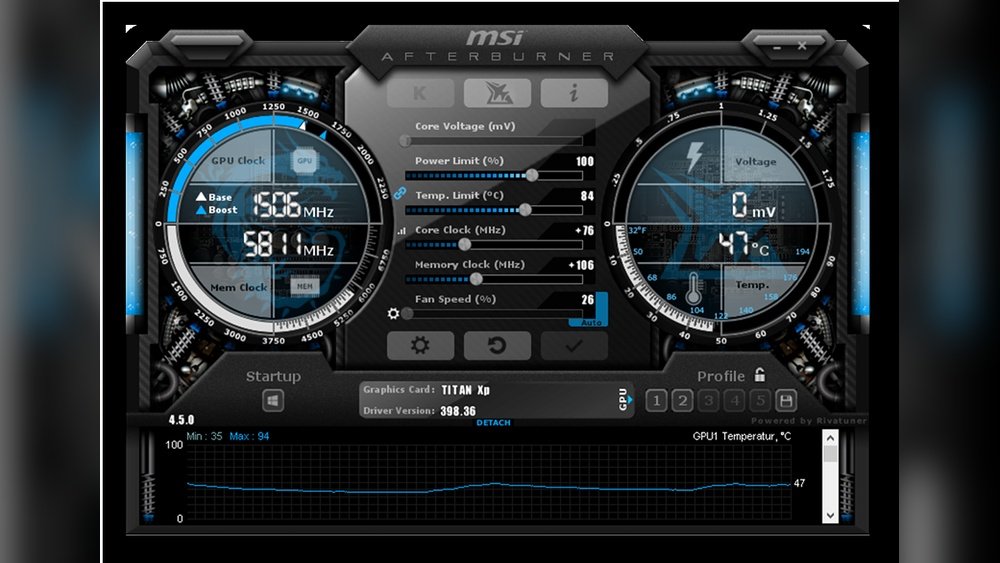
Monitoring tools track temperature, clock speed, and voltage. Use software like MSI Afterburner or GPU-Z. Watch these values closely during overclocking tests. Proper monitoring helps avoid overheating and crashes. Always have monitoring tools running while tuning your GPU.
Safe Overclocking Steps
Overclocking your GPU can boost performance but carries risks. Safe steps help protect your hardware and keep your system stable. Follow these guidelines carefully to avoid damage and get steady results. Always move slowly and check your changes before continuing.
Incremental Frequency Increases
Start by raising the GPU clock speed in small steps. Increase by 10 to 20 MHz at a time. Small changes reduce the risk of crashes or overheating. After each change, watch the temperature and performance closely. Avoid large jumps to keep your GPU safe.
Adjusting Voltage Carefully
Voltage controls the power your GPU uses. Raising it can help stability at higher speeds. Increase voltage very slowly, in small amounts. Too much voltage causes heat and can damage parts. Keep voltage increases minimal and monitor temperature carefully.
Testing Stability After Changes
Check if your GPU runs well after each change. Use stress tests or games to see if it crashes or lags. Watch for artifacts or strange graphics on screen. If problems appear, reduce the clock or voltage. Stable tests mean your overclock is safe and effective.
Temperature Management
Temperature management is key when overclocking your GPU. Keeping your graphics card cool helps it run better and last longer. Too much heat can cause problems like crashes or slowdowns. Managing temperature well means finding a balance between speed and safety. This section covers ways to keep your GPU temperature in check.
Optimal Cooling Solutions
Good cooling starts with your PC setup. Use quality fans and a well-ventilated case. Airflow moves hot air away from your GPU fast. Liquid cooling can lower temperatures more than air cooling. Choose the cooling method that fits your budget and needs. Clean dust from fans and vents regularly to keep airflow strong.
Monitoring Gpu Temperatures
Track your GPU’s temperature with software tools. Many apps show real-time heat levels and clock speeds. Watch for spikes during heavy use or overclocking tests. Set alerts to warn you if temperatures reach unsafe levels. Regular checks help catch problems before damage occurs.
Avoiding Thermal Throttling
Thermal throttling happens when your GPU gets too hot. It slows down to cool off, reducing performance. Avoid pushing your GPU beyond safe temperature limits. Adjust your overclock or improve cooling if throttling occurs. Keeping temperatures stable keeps your GPU fast and reliable.
Benchmarking And Stress Testing
Benchmarking and stress testing play a key role in overclocking your GPU safely. These tests show how well your graphics card performs under higher speeds. They help find the right balance between speed and stability.
Running benchmarks measures your GPU’s power and speed. Stress tests push the GPU to its limits. Both reveal how your card handles extra load without crashing or overheating.
Choosing Benchmark Tools
Select benchmark tools that match your GPU and goals. Popular options include 3DMark, Unigine Heaven, and FurMark. These tests simulate real gaming or heavy tasks. They offer scores that help compare before and after overclocking.
Pick tools easy to use. Some offer detailed reports on temperature and frame rates. Use multiple tools for a clearer picture of performance.
Interpreting Test Results
Look at frame rates, temperatures, and scores. Higher frame rates mean better performance. Keep GPU temperature below safe limits, usually under 85°C. Watch for big score changes between runs. Stable results mean your overclock is solid.
Compare results before and after overclocking. Small improvements can boost gaming or work without risk. Large gains might stress your GPU too much.
Detecting Instability Signs
Watch for crashes, freezes, or screen glitches. These are signs your GPU is unstable. Sudden drops in frame rate also warn of trouble. Overheating causes shutdowns or artifacts on screen.
Stop overclocking if instability appears. Lower clock speeds and retest. Gradually raise speeds while checking stability. This keeps your GPU safe and reliable.
Knowing When To Stop
Knowing when to stop overclocking your GPU is important. Pushing your graphics card too far can cause problems. It may crash or even get damaged. Finding the right balance helps keep your system stable and lasts longer. Overclocking is not about going as high as possible. It is about safe and effective performance improvements.
Recognizing Safe Limits
Every GPU has a maximum safe frequency and voltage. Check your GPU’s specs and community guides. Use monitoring tools to track temperature and stability. Stop increasing the clock speed if temperatures rise above 85°C. Watch for crashes or visual glitches during stress tests. These signs mean you reached your safe limit.
Balancing Performance And Longevity
Higher clock speeds boost performance but also increase heat. Heat can shorten your GPU’s life span. Aim for a moderate overclock that delivers good gains without overheating. Keep fan speeds and cooling in mind. A small boost can improve games and apps without stressing your card.
Avoiding Diminishing Returns
Each step higher in speed yields smaller performance gains. After a point, extra effort does not improve gaming noticeably. Pushing beyond this wastes time and risks hardware damage. Find your GPU’s sweet spot where speed and stability meet. Stop once gains become too small or unstable.

Credit: www.avg.com
Common Overclocking Mistakes
Overclocking a GPU can boost performance but comes with risks. Many beginners make simple mistakes that harm their hardware or cause crashes. Understanding common errors helps you overclock safely and get better results.
Skipping Stress Tests
Stress tests check if your GPU runs stable at new speeds. Skipping these tests can cause sudden crashes or screen glitches. Always run stress tests after each change. They show if your overclock is safe and steady.
Ignoring Temperature Warnings
GPUs get hot when overclocked. Ignoring temperature warnings can damage the card. Watch the temperature closely. Stop or reduce overclocking if temps go too high. Cooling is key to a healthy GPU.
Pushing Voltages Too High
Increasing voltage can improve stability but is risky. Too much voltage causes heat and shortens GPU life. Raise voltage slowly and only if needed. Find the balance between power and safety.
Using Overclocking Software
Using overclocking software makes adjusting your GPU easier and safer. These tools provide a user-friendly way to boost performance. They help control clock speeds, voltages, and fan speeds without complex hardware changes.
Many programs offer presets and guides to start overclocking. Some also include monitoring features. This helps track temperature and stability during use. Overclocking software suits both beginners and advanced users.
Popular Tools And Features
Several tools stand out for GPU overclocking. MSI Afterburner is widely used and supports most GPUs. It offers real-time monitoring and custom fan profiles. EVGA Precision X1 is another favorite with easy controls and RGB settings. ASUS GPU Tweak II provides detailed tuning and automatic updates. These tools allow you to save different profiles for various uses.
Automated Overclocking Options
Many overclocking tools include automatic tuning. This option tests your GPU to find a safe speed boost. It adjusts clock and voltage settings step-by-step. Automatic overclocking saves time and reduces risk. Still, results vary based on your GPU model and cooling system.
Manual Tweaks For Precision
Manual tuning lets you control every setting. You can increase clock speeds in small steps. Testing stability after each change is key. Adjust voltage carefully to avoid overheating. Manual overclocking requires patience and testing. It often results in higher, more stable performance than auto modes.
Real-world Overclocking Examples
Real-world overclocking shows how much you can safely boost your GPU. It varies by the type of graphics card. Each level of GPU has different limits and results. Understanding typical overclock ranges helps set realistic expectations.
Below are examples based on actual user experience. These examples focus on common GPU categories. They give a clear idea of what to expect from your hardware.
Entry-level Gpus
Entry-level GPUs often handle small overclocks well. Most users see a boost of around 5-10% in clock speed. This means a 50-100 MHz increase on average. Overclocking these cards can improve gaming at lower settings. Stability is important, so keep temperatures low.
Mid-range Cards
Mid-range GPUs offer more headroom for overclocking. Users typically raise clock speeds by 10-15%. This can add 100-200 MHz to the core clock. Memory speeds can also increase by 200-400 MHz. These gains improve gaming performance noticeably. Cooling solutions help maintain stability during these boosts.
High-end Models
High-end GPUs usually support higher overclocks. Experienced users often push these by 15-20%. That means adding 200-300 MHz or more to the core clock. Memory overclocking can increase by 400-600 MHz. These improvements help with high-resolution gaming and heavy workloads. Proper cooling and power delivery are crucial to avoid crashes.

Credit: www.reddit.com
Frequently Asked Questions
How Much Should I Safely Overclock My Gpu?
Safe GPU overclocking depends on your specific model and cooling. Start with small increments, like 5-10%, and test stability. Avoid pushing beyond temperature limits, usually under 85°C. Monitor performance and temperatures to ensure longevity and prevent damage.
What Are The Risks Of Overclocking My Gpu Too Much?
Overclocking too much can cause overheating, instability, and hardware damage. It may reduce GPU lifespan and cause system crashes. Always monitor temperatures and test stability to avoid these issues. Use gradual increments and reliable software for safer overclocking.
How Do I Know When My Gpu Overclock Is Stable?
A stable GPU overclock runs benchmarks or games without crashes or artifacts. Use stress tests like FurMark or 3DMark for at least 30 minutes. Monitor temperatures and performance consistency. If your system crashes or shows errors, lower your overclock settings.
Can Overclocking Improve Gaming Performance Significantly?
Yes, overclocking can boost gaming performance by increasing clock speeds. Gains vary by GPU and game but usually range from 5-15%. However, benefits depend on cooling and power limits. Always balance performance improvements with system stability and temperature control.
Conclusion
Finding the right GPU overclock balance matters most. Push your card just enough for better speed. Too much strain can cause crashes or damage. Test carefully and watch your temperatures closely. Stability beats maximum numbers every time. Enjoy smoother performance without risking your hardware.
Take small steps, and be patient with results. Overclocking can help, but don’t rush it. Play safe and keep your GPU healthy.