

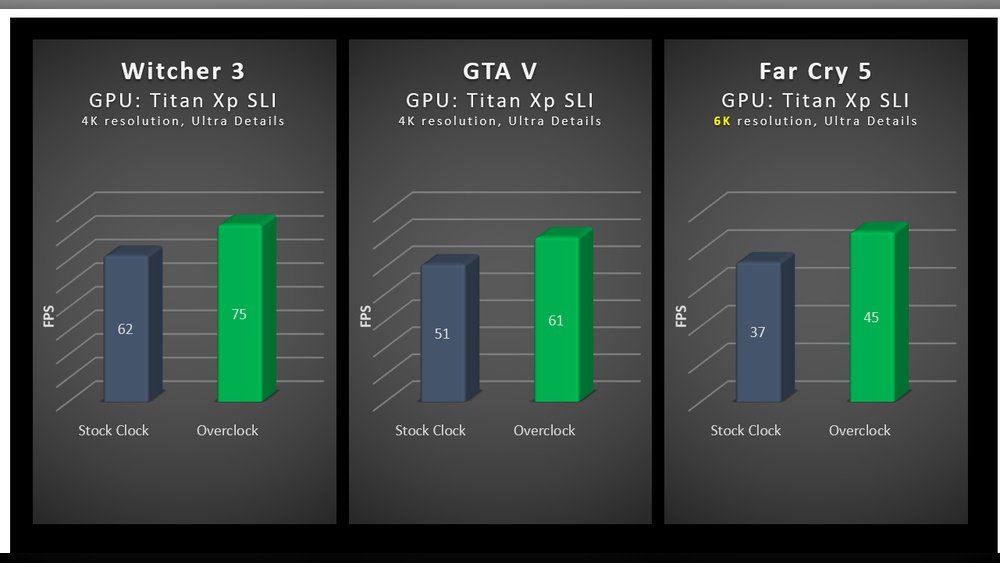
Have you ever wondered if it’s safe to push your GPU beyond its limits? Overclocking your graphics card promises faster speeds and smoother gaming, but is it really worth the risk?
You might be excited to boost your system’s power, yet concerned about damaging your hardware or voiding warranties. You’ll discover exactly what overclocking means for your GPU, the benefits you can expect, and the potential dangers you need to watch out for.
Keep reading to find out if overclocking your GPU is a smart move for you and how to do it right without regrets.
What Is Gpu Overclocking
GPU overclocking means making your graphics card run faster than its normal speed. This helps the GPU process more data in less time. Overclocking can boost gaming and graphic performance on your computer.
It involves adjusting the GPU’s core clock speed and memory speed. These changes push the hardware to perform beyond its factory settings. Overclocking requires careful tuning to avoid problems like crashes or overheating.
How Does Gpu Overclocking Work?
Every GPU has a base clock speed set by the manufacturer. Overclocking increases this speed to make the GPU run faster. This speed controls how many operations the GPU can do each second.
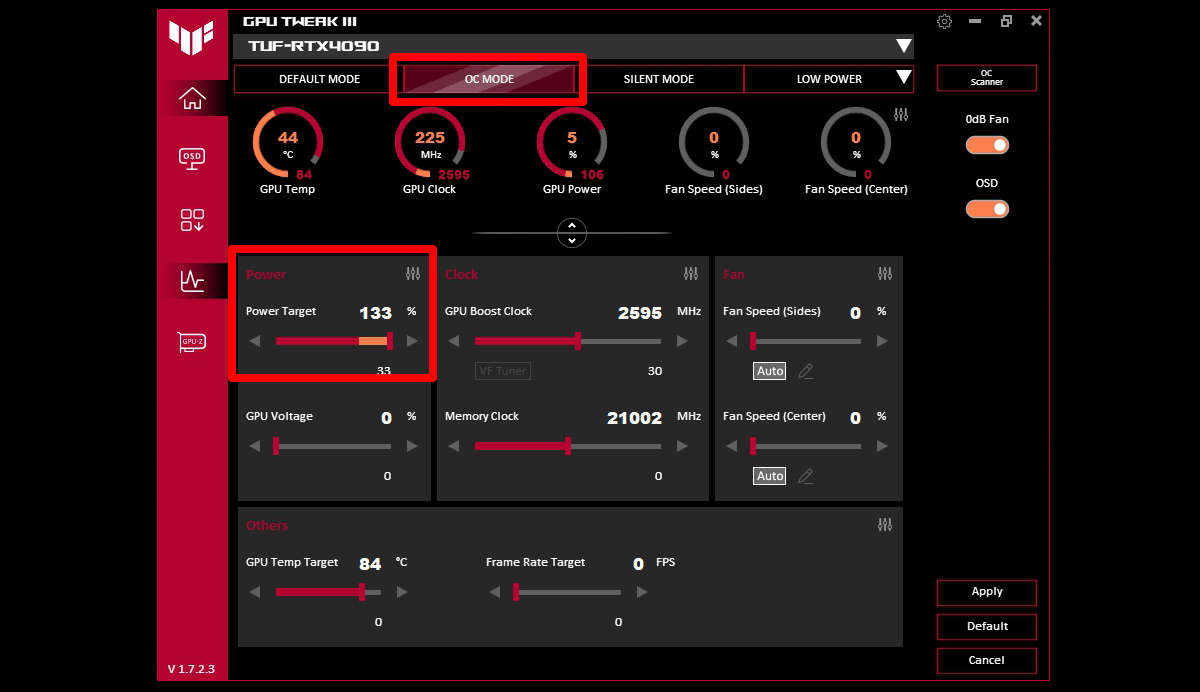
Users adjust clock speeds using software tools. The software changes settings inside the GPU to increase performance. This process also raises the power consumption and heat output.
Why Do People Overclock Their Gpus?
Many users overclock to get better performance in games and software. It helps older GPUs run new games with higher settings. Overclocking can also improve frame rates and reduce lag.
Some people enjoy tweaking hardware and testing limits. Overclocking offers a way to customize and improve their system’s power.
What Are The Risks Of Overclocking?
Overclocking can cause the GPU to run hotter than normal. This extra heat can damage parts if not cooled properly. It may also cause system crashes or instability.
Incorrect settings might shorten the GPU’s lifespan. Overclocking can void the warranty on some graphics cards. Careful monitoring and gradual changes reduce these risks.
Credit: rog.asus.com
Benefits Of Overclocking A Gpu
Overclocking a GPU can bring several benefits for users who want more from their graphics card. It involves increasing the clock speed of the GPU beyond its factory settings. This simple change can improve how the GPU performs in many tasks.
Understanding the benefits helps decide if overclocking is right for your needs. It can boost gaming, speed up rendering, and save money on upgrades.
Improved Gaming Performance
Overclocking raises the GPU’s speed, which helps games run smoother. Frame rates improve, making gameplay more fluid. This means less lag and better visuals. Higher clock speeds allow the GPU to handle more complex scenes easily.
Enhanced Rendering Speeds
Rendering tasks, like video editing or 3D modeling, finish faster with a boosted GPU. Overclocking reduces the time needed to process images or videos. Creators can complete projects quicker and work more efficiently. This is useful for users who rely on heavy graphics work.
Cost-effective Upgrade
Overclocking offers better performance without buying new hardware. It extends the life of your current GPU by making it work faster. This method saves money compared to purchasing a new graphics card. For many, it is a smart, budget-friendly option to improve their system.
Risks Of Gpu Overclocking
Overclocking a GPU can boost performance, but it comes with risks. Pushing hardware beyond its limits can cause problems. Understanding these risks helps you decide if overclocking is right for you.
Hardware Damage
Overclocking increases the power the GPU uses. This extra power can harm the GPU’s circuits. Damage can be permanent and costly to fix. Sometimes, the GPU stops working completely.
Increased Heat Output
Higher speeds make the GPU produce more heat. Too much heat can cause parts to wear out faster. It can also make your computer louder due to fan noise. Proper cooling is necessary to avoid heat problems.
System Instability
Overclocked GPUs may cause crashes or freezes. Games and apps might close unexpectedly. This happens because the GPU is running beyond stable limits. You might lose work or data during crashes.
Void Warranty
Many GPU makers do not cover damage from overclocking. Your warranty might become void if you overclock. Repair costs will be your responsibility. Check your warranty terms before overclocking.
Essential Tools For Overclocking
Overclocking a GPU requires the right tools to do it safely and effectively. These tools help adjust settings and track performance during the process. Using proper tools reduces the risk of damage and improves results.
Software Utilities
Software utilities let you change GPU clock speeds and voltages. Popular options include MSI Afterburner and EVGA Precision X1. These programs have user-friendly interfaces for adjusting settings easily. They also offer profiles to save your preferred configurations. Some utilities include built-in stress tests to check stability after changes.
Monitoring Tools
Monitoring tools display important data like temperature, fan speed, and power use. HWMonitor and GPU-Z are common choices. Keeping an eye on temperatures helps prevent overheating. Monitoring ensures the GPU runs within safe limits. These tools provide real-time feedback during overclocking sessions.
Best Practices For Safe Overclocking
Overclocking a GPU can boost performance but carries risks. Following best practices helps keep your GPU safe and stable. These steps reduce the chance of damage and ensure smoother operation. Careful adjustments and monitoring are key to successful overclocking.
Gradual Frequency Increase
Increase the GPU clock speed slowly. Small steps give you control over changes. Rushing can cause crashes or hardware failure. Test the new speed before going higher. This approach helps find the best balance between speed and stability.
Temperature Management
Monitor the GPU temperature closely during overclocking. High heat can damage parts and reduce lifespan. Use good cooling solutions like fans or liquid coolers. Keep the temperature under safe limits suggested by the manufacturer. Proper airflow inside the case is also important.
Stress Testing
Run stress tests to check GPU stability after each change. Use tools designed to push the GPU to its limits. Watch for crashes, artifacts, or overheating signs. Stress testing confirms the overclock is safe and reliable. Stop if you notice any problems.
Backup And Recovery
Save your original GPU settings before overclocking. Use software profiles to keep track of changes. Have a recovery plan in case the GPU fails to start. This may include resetting the BIOS or reinstalling drivers. Backups prevent long-term damage and data loss.
Signs You Should Stop Overclocking
Overclocking a GPU can boost its performance, but it has limits. Knowing when to stop is important. Pushing your GPU too far can cause damage or instability. Watch for key signs that signal it’s time to stop overclocking. These signs help protect your hardware and keep your system stable.
Temperature Rising Too High
One clear sign to stop overclocking is high temperatures. If your GPU temperature goes above 85°C, it risks damage. Overheating can shorten the GPU’s life and cause crashes. Use monitoring tools to check temperatures during use.
System Crashes Or Freezes
Frequent crashes or freezes during games or work show instability. Overclocking can cause your system to fail if pushed too far. Stop overclocking if your computer cannot run smoothly. Stability matters more than speed.
Artifacts Appear On Screen
Strange lines, dots, or colors on the screen are called artifacts. They mean your GPU is struggling with the overclock. Artifacts show the GPU cannot handle the current settings. Reduce the clock speeds to avoid permanent damage.
Unusual Fan Noise Or Behavior
Fans working too hard or making loud noises signal overheating or stress. Overclocking increases power use, causing fans to spin faster. If fans sound abnormal, it may be time to stop. Protect your GPU from overheating.
Performance Does Not Improve
Sometimes, higher clock speeds do not boost performance. Overclocking beyond a point can cause slowdowns or stutters. If you see no benefit, stop raising speeds. Saving your hardware is better than chasing small gains.
Alternatives To Overclocking
Overclocking a GPU is popular to boost performance. Yet, it carries risks like overheating and damage. Many users seek safer ways to improve their graphics without pushing hardware too hard. Alternatives to overclocking offer options to enhance gaming or work without stress on the GPU.
These methods focus on upgrading parts or adjusting settings. They help your system run smoother and faster. This approach keeps your GPU safe and extends its life. Explore these alternatives to find a better fit for your needs.
Upgrading Hardware
One clear alternative is upgrading your GPU or other parts. A newer graphics card gives better speed and power naturally. Increasing RAM can help games and apps run better. A faster processor also supports graphics performance well. These upgrades improve your system without risking damage.
Optimizing Software Settings
Adjusting software can boost performance without hardware changes. Lowering game resolution or detail reduces GPU load. Updating drivers ensures your GPU runs efficiently. Using performance mode in settings can improve speed. These tweaks help your GPU work smarter, not harder.

Credit: www.avira.com

Credit: www.avg.com
Frequently Asked Questions
Is It Safe To Overclock My Gpu?
Overclocking a GPU is generally safe if done correctly. Use reliable software and monitor temperatures closely. Avoid pushing hardware beyond its limits to prevent damage or instability. Proper cooling is essential for safe overclocking.
How Does Gpu Overclocking Affect Performance?
GPU overclocking increases clock speeds, improving gaming and rendering performance. However, gains vary depending on the GPU model and cooling setup. Overclocking can boost frame rates but may also increase power consumption and heat output.
Can Overclocking Reduce Gpu Lifespan?
Excessive overclocking and high temperatures may shorten GPU lifespan. Running a GPU above recommended limits stresses components. Proper cooling and moderate overclocking help maintain longevity while enhancing performance.
What Tools Are Best For Gpu Overclocking?
Popular tools include MSI Afterburner, EVGA Precision X1, and ASUS GPU Tweak. These allow fine-tuning clock speeds, voltage, and fan curves. They provide real-time monitoring for safe and effective overclocking.
Conclusion
Overclocking your GPU can boost performance but carries risks. It may cause overheating or shorten hardware life. Always monitor temperatures and test stability carefully. Use reliable software and follow clear instructions. Know your limits and don’t push too far. Many users enjoy gains, but safety comes first.
Decide if the extra speed is worth the potential issues. Balance your needs with caution for the best results.
