How to Know If Gpu is Dead: Easy Signs to Diagnose Quickly
Is your computer acting up, or is your screen showing strange glitches? You might be wondering, “Is my GPU dead?” Knowing if your graphics card has truly failed can save you time, money, and frustration.
But how can you be sure? This guide will help you spot the signs of a dying GPU and show you simple steps to check if it’s still working. Keep reading—you don’t want to miss these crucial tips that could bring your system back to life or help you make the right repair decisions.

Credit: www.wikihow.com
Common Gpu Failure Symptoms
Knowing the common signs of a failing GPU helps you act fast. The graphics card is crucial for your computer’s display and performance. Problems with it can cause serious issues. Watch out for these common symptoms to spot GPU failure early.
Screen Artifacts And Glitches
Screen artifacts are strange lines, dots, or shapes on your display. These glitches appear during games or video playback. They can be colorful or flickering. Artifacts mean the GPU struggles to process graphics correctly. This often signals hardware damage or overheating.
Frequent Crashes And Freezes
Your computer crashes or freezes often while using graphics-heavy apps. Programs close without warning or the system stops responding. These crashes happen more with games or video editing software. Frequent freezes suggest the GPU cannot handle the workload anymore.
Black Screen On Startup
The screen stays black when you turn on your computer. No logo or loading screen appears. This can mean the GPU is dead or not working properly. Sometimes the PC boots but shows no display. This symptom is serious and needs quick attention.
Unusual Noises From The Gpu
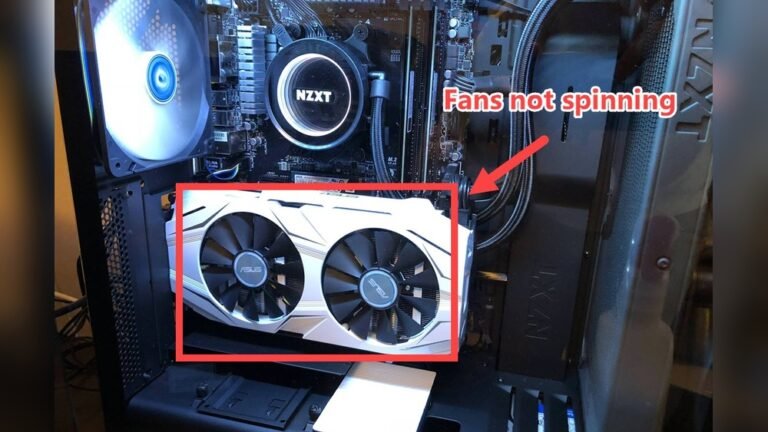
The GPU fan makes strange sounds like clicking or grinding. Loud noises may come from a failing fan or damaged parts. Healthy GPUs run quietly or with low noise. Unusual sounds often warn of hardware failure ahead.
Basic Hardware Checks
Basic hardware checks help identify if your GPU is dead or just having minor issues. These checks are simple and do not need special tools. Follow these steps carefully to avoid mistakes.
Inspect Physical Damage
Start by looking closely at the GPU. Check for burnt spots or broken parts. Look for dust or dirt on the fan and heatsink. Damaged fans can cause overheating and failure. Bent pins or cracked circuit boards are signs of serious problems.
Check Gpu Connections
Make sure the GPU is firmly seated in its slot. Loose connections cause display issues or no signal. Check power cables connected to the GPU. Loose or missing cables can stop the card from working. Clean the slot and connectors gently to remove dust.
Test With Another Pc
Try the GPU in a different computer. This step confirms if the card is faulty. If the GPU works fine in another PC, the problem might be with your system. If it still fails, the GPU is likely dead. This test saves time and avoids unnecessary replacements.
Software And Driver Troubleshooting
Troubleshooting GPU problems often starts with software and drivers. These control how your graphics card works with your computer. Errors in drivers or software settings can make your GPU seem dead. Checking these first can save time and effort before looking at hardware issues.
Update Or Reinstall Drivers
Old or corrupted drivers cause many GPU issues. Updating your drivers can fix bugs and improve performance. Use the official website of your GPU maker to download the latest version. If updates do not help, try reinstalling the drivers. Remove the current driver completely, then install a fresh copy. This process removes errors that might stop your GPU from working.
Use Diagnostic Tools
Diagnostic software tests your GPU’s health and performance. Programs like GPU-Z, MSI Afterburner, or built-in tools on your PC can give useful info. They show if the GPU is detected and running properly. Some tools identify driver conflicts or hardware faults. Use these to find problems before deciding the GPU is dead.
Monitor Gpu Temperature
High temperatures can cause GPU failure or shutdowns. Monitoring temperature helps prevent overheating damage. Use software like HWMonitor or SpeedFan to track heat levels. Normal GPU temperatures range between 30°C and 80°C. If the temperature stays too high, clean your computer’s fans and vents. Overheating may make the GPU appear dead or unstable.
Testing Gpu Performance
Testing GPU performance helps find out if your graphics card works well. It shows if the GPU is slow, unstable, or not working at all. Simple tests can reveal problems before they get worse. These tests check speed, heat, and stability. You can do these tests at home with free tools.
Run Benchmark Tests
Benchmark tests measure how fast your GPU runs games or graphics tasks. Use popular tools like 3DMark or Unigine Heaven. These programs give scores based on your GPU’s performance. Compare these scores with the average for your GPU model. Low scores may mean your GPU has issues.
Stress Test The Gpu
Stress tests push your GPU to work hard for a long time. Use tools like FurMark or MSI Kombustor. Watch for crashes, freezes, or strange lines on your screen. If the GPU overheats or shuts down, it might be failing. Stop the test if the temperature gets too high.
Compare Performance Results
Compare your test results with other users’ results online. Use forums or review sites to check standard scores for your GPU. Big differences in scores or errors show possible GPU damage. Comparing helps confirm if your GPU is dead or just slow.
When To Replace Your Gpu
Knowing when to replace your GPU can save you time and frustration. A damaged GPU can cause poor performance or stop working completely. Understanding the signs helps you decide if it is time for a new one. This section covers clear indicators for replacement and tips for choosing the right GPU.
Signs Of Irreparable Damage
Screen glitches or artifact lines often show GPU damage. Sudden crashes or blue screens during gaming or work are strong warning signs. Overheating that causes your computer to shut down repeatedly also points to hardware failure. No image on the monitor after testing another cable or screen means the GPU might be dead. Loud fan noises or burning smells come from internal GPU damage. These signs usually mean repair is not possible or worth it.
Cost Vs. Repair Considerations
Repairing a GPU can be expensive and take time. Sometimes, the cost of fixing is close to buying a new card. Older GPUs may not get full repairs because parts are rare. New models offer better performance and energy savings. Compare repair prices with new GPU costs before deciding. If your GPU is old or heavily damaged, replacement is often the smarter choice.
Choosing A Replacement
Pick a GPU that matches your computer’s power supply and size. Check compatibility with your motherboard and case. Consider what you use your PC for, like gaming or video editing. Look for models with good reviews and reliable brands. Set a budget but aim for the best value within it. Newer GPUs support updated software and games better than old ones.
Credit: www.reddit.com

Credit: softwareg.com.au
Frequently Asked Questions
How Can I Tell If My Gpu Is Dead?
A dead GPU shows no display output and causes system crashes. Check for artifacts, fan failure, or overheating. Testing with another GPU confirms the issue. If none of these work, your GPU may be dead.
What Are Common Signs Of A Failing Gpu?
Common signs include screen flickering, driver crashes, artifacting, and sudden shutdowns. Overheating and loud fan noise also indicate GPU problems. Monitoring these symptoms early helps prevent complete GPU failure.
Can A Dead Gpu Be Fixed Or Repaired?
Some GPU issues can be fixed by updating drivers or cleaning dust. However, hardware damage often requires professional repair or replacement. Assess the damage before deciding between repair or buying a new GPU.
Why Is My Gpu Not Detected By The Computer?
A GPU not detected may be due to driver errors, loose connections, or BIOS settings. Reseating the GPU, updating drivers, or resetting BIOS often solves detection problems. Persistent issues may indicate GPU failure.
Conclusion
A dead GPU can cause many problems for your computer. Watch for unusual noises, screen glitches, or no display. Test the card in another system to be sure. Keep your drivers updated and clean the hardware often. Knowing these signs helps you act fast and avoid bigger issues.
Regular checks save time and money. Stay calm and follow these steps to find out if your GPU really is dead.