How to Check If Gpu is Working: Easy Steps to Diagnose Fast
Is your computer feeling slower than usual? You might be wondering if your GPU is working properly.
Your GPU plays a big role in how smoothly your games run and how well your videos play. But how do you know if it’s doing its job? You’ll discover simple ways to check your GPU’s performance and spot any issues early.
Keep reading to make sure your graphics card is keeping up with what you need.
Credit: www.driversupport.com
Signs Of A Working Gpu
Knowing the signs of a working GPU helps keep your computer running smoothly. A good GPU shows clear signs through visuals and system behavior. Watch for these signs to ensure your graphics card works properly.
Visual Performance Indicators
Look for smooth and sharp images on your screen. No strange lines or flickering should appear during use. Games and videos should run without stuttering or lag. Colors must display correctly without distortion. High frame rates and good resolution also show your GPU is working well.
System Stability Checks
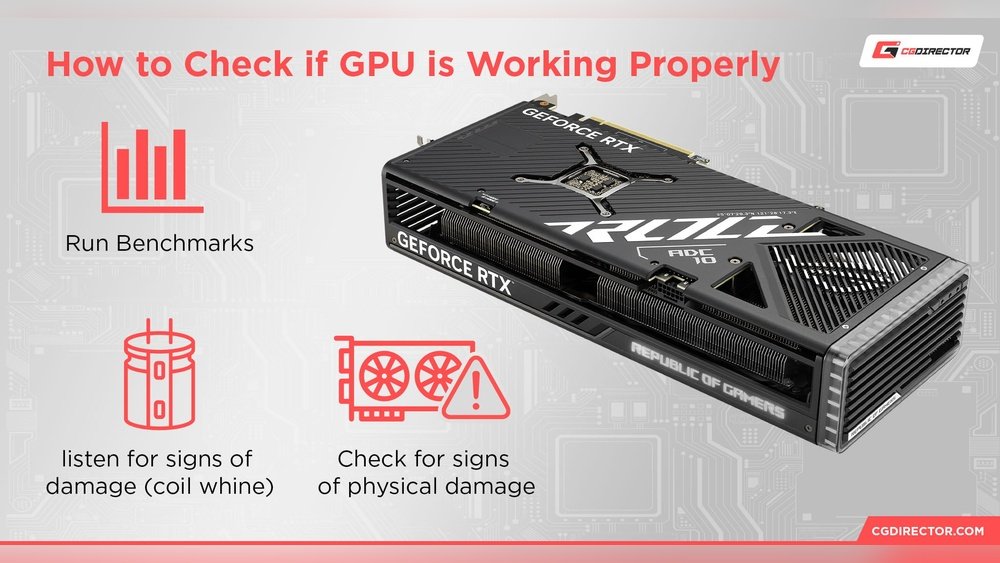
Your system should stay stable during heavy tasks like gaming or editing. No sudden crashes or freezes should occur. The computer should not overheat or shut down unexpectedly. Check if the GPU fan spins quietly and consistently. Stable performance during long sessions confirms a healthy GPU.
Using Device Manager
Using Device Manager is a quick way to check if your GPU is working. It shows all hardware connected to your computer. You can find your GPU and see its status here. This tool helps spot problems and confirms if the GPU is detected.
Locating The Gpu Device
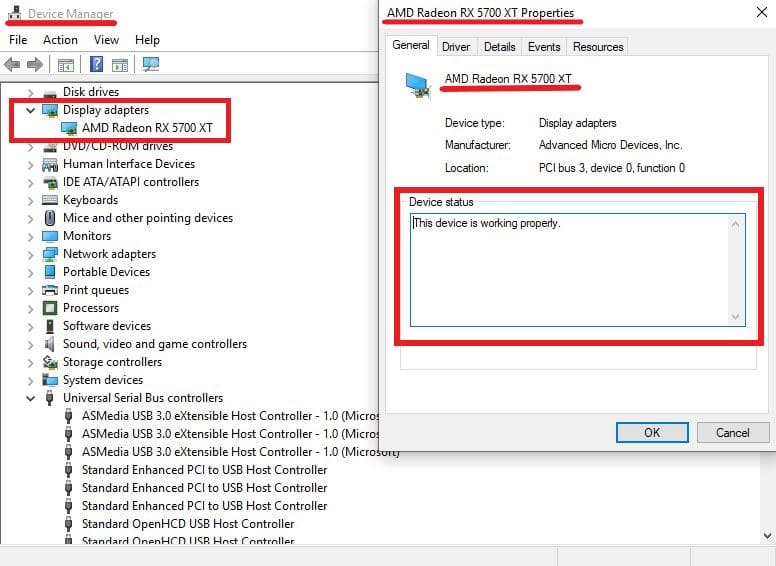
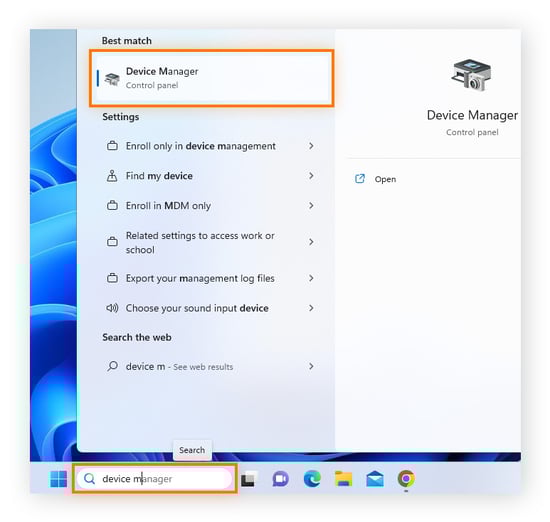
Open Device Manager by typing it in the Start menu search. Click on “Display adapters” to expand the list. You will see your GPU name listed here. This confirms your system recognizes the graphics card. If no GPU appears, it may not be installed or detected.
Checking For Error Messages
Look for any yellow warning icons next to the GPU name. These icons signal a problem with the device. Right-click the GPU and select “Properties” to see more details. The Device Status box shows if the GPU works properly or has an error. Errors might need driver updates or hardware checks.
Monitoring Gpu Performance
Monitoring GPU performance helps you see if your graphics card works well. It shows how much power the GPU uses and if it runs smoothly. Watching the GPU can spot problems early. It also tells you if the GPU handles tasks without lag.
There are simple ways to check GPU performance. Windows has built-in tools. You can also use third-party software for detailed info. Both methods show real-time data on GPU use.
Using Task Manager
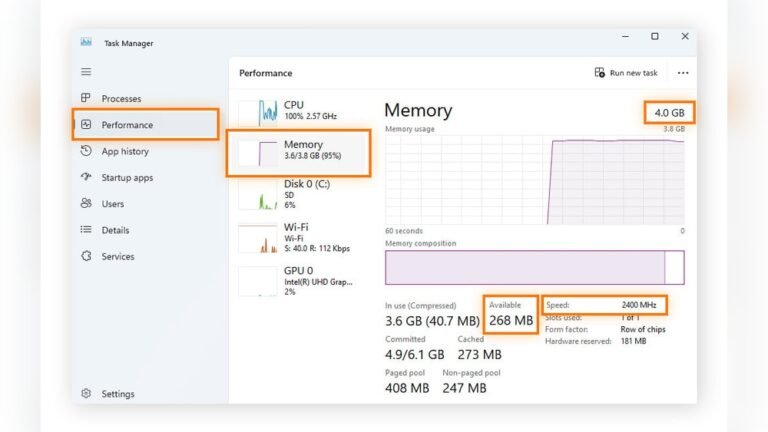
Task Manager is a quick way to check your GPU. Press Ctrl + Shift + Esc to open it. Click the Performance tab. Find GPU on the left side. You will see graphs and numbers.
It shows GPU usage in percentage. You can see memory use and temperature too. Watching these helps know if the GPU is busy or idle. If usage is low during heavy work, the GPU may have issues.
Third-party Monitoring Tools
Third-party tools give more details than Task Manager. Programs like MSI Afterburner and GPU-Z are popular. They show clock speeds, temperatures, and fan speeds.
These tools update data every second. They help watch GPU under different loads. You can spot overheating or slowdowns fast. Some tools also log data for later review.

Credit: superuser.com
Running Gpu Stress Tests
Running GPU stress tests helps check if your graphics card works well under pressure. These tests push your GPU to its limits. This shows how stable and strong your GPU is. Stress tests also reveal overheating or other hardware issues. You get a clear idea of your GPU’s health and performance.
Popular Stress Test Software
Several programs test GPU performance effectively. FurMark is a common choice. It creates heavy loads and monitors temperature. MSI Kombustor is another popular tool. It offers various tests for different GPU types. Heaven Benchmark provides detailed graphics tests. It also shows real-time temperature and frame rates. These tools are easy to use and free.
Interpreting Stress Test Results
Look at the temperature during the test. A GPU running hotter than 85°C might have cooling issues. Watch for crashes or screen glitches. These signs point to hardware problems. Stable frame rates mean the GPU handles stress well. Check if the fan speed increases as temperature rises. Proper fan response helps keep the GPU cool. Use these results to decide if your GPU needs repair or upgrade.
Checking Driver Status
Checking the driver status is a key step to know if your GPU works well. Drivers help the computer talk to the GPU. If drivers are missing or old, the GPU may not perform properly. You can find driver status on your computer in a few simple steps. This helps fix many common GPU problems fast.
Updating Gpu Drivers
Updating drivers keeps the GPU running smoothly. Visit the GPU maker’s official website. Download the latest driver for your GPU model. Use the automatic update tool if available. Updated drivers fix bugs and improve performance. Check for updates regularly to avoid issues.
Reinstalling Drivers
Reinstalling drivers can solve hidden driver problems. First, uninstall the current driver from Device Manager. Restart your computer after uninstalling. Then, download the latest driver from the official site. Install the driver carefully following the instructions. This process resets the driver and clears errors.
Credit: www.avast.com
Testing With Games And Applications
Testing your GPU with games and applications is a practical way to see if it works properly. It shows how your graphics card handles real tasks. This test helps find problems like lag or crashes. You can check performance and stability easily.
Running games or apps that need good graphics puts your GPU under pressure. This lets you observe its true power. You can spot overheating or driver issues this way. Testing also confirms your GPU runs as expected.
Benchmarking Tools
Benchmarking tools measure GPU speed and power. They run a set of tests to score your graphics card. These scores tell how well your GPU performs compared to others. Tools like 3DMark and Unigine Heaven are popular choices.
Benchmark results help identify if your GPU meets game requirements. They also detect if your card runs slower than usual. This could mean hardware or software problems. Testing with benchmarks gives clear, easy-to-understand results.
Real-world Usage Tests
Playing games or using graphic software tests the GPU in normal conditions. Choose games or apps that require strong graphics. Watch for smooth gameplay, clear images, and no crashes. Check if frame rates stay stable during play.
Real-world tests show how your GPU handles daily tasks. They reveal problems benchmarks might miss. Look for unusual noise, screen flicker, or slow loading times. These signs suggest your GPU needs attention.
Inspecting Physical Hardware
Inspecting the physical hardware is a key step in checking if your GPU is working. This helps find simple problems that stop the graphics card from working right. Physical checks avoid wrong guesses and save time before using software tests.
Look closely at the GPU and its parts. Small faults like loose cables or dust can cause big issues. Basic care keeps the GPU healthy and working well for a long time.
Checking Connections
First, check if the GPU is firmly seated in the PCIe slot. A loose card may not work or cause display problems. Press the card gently but firmly to ensure it fits well.
Next, examine power cables. Some GPUs need extra power from the PSU. Make sure these cables plug in tightly and correctly. Loose or missing power cables stop the GPU from running.
Check the video cable from the GPU to the monitor. Confirm it is secure and undamaged. A bad cable can cause no display or flickering issues.
Cleaning And Maintenance
Dust and dirt block airflow and cause overheating. Overheated GPUs slow down or shut off. Use compressed air to blow dust from fans and heatsinks.
Clean the GPU and surrounding area regularly. Avoid using water or liquids. Use a soft brush or cloth for stubborn dust.
Check fan spins freely without noise. Dust buildup can stop fans and harm the GPU. Keep fans clean and free to spin smoothly.
Troubleshooting Common Gpu Issues
Troubleshooting common GPU issues helps keep your graphics card running smoothly. Problems with the GPU can cause crashes, poor display, or slow performance. Identifying the issue early saves time and prevents damage. This section covers simple ways to fix common GPU problems.
Fixing Display Problems
Display issues often show as flickering, black screens, or strange colors. First, check the cable connections between the GPU and monitor. Loose or damaged cables cause many display problems.
Next, update your graphics driver. Old drivers may not work well with new software. Use the official website to find the latest version for your GPU model.
Try changing the screen resolution and refresh rate. Wrong settings can cause flickering or blank screens. Use recommended settings for your monitor.
Finally, test the GPU in another computer. If the problem stays, the GPU may need repair or replacement.
Resolving Overheating
Overheating slows down the GPU and causes crashes. Check if the GPU fan is running properly. Dust can block the fan and vents, so clean them gently with compressed air.
Make sure the computer case has good airflow. Avoid blocking vents with objects or cables. Use extra fans if needed to cool the system better.
Monitor the GPU temperature using free software tools. Temperatures over 85°C are too high and can damage the GPU.
If overheating continues, consider replacing the thermal paste between the GPU and cooler. Old paste dries out and loses effectiveness.
Frequently Asked Questions
How Do I Know If My Gpu Is Working Properly?
Check your GPU status using Device Manager on Windows or System Information on Mac. Monitor performance through benchmark tools like MSI Afterburner or GPU-Z. If visuals are smooth and no errors appear, your GPU works fine.
What Tools Can Test Gpu Performance Effectively?
Popular tools include MSI Afterburner, GPU-Z, FurMark, and 3DMark. These programs monitor temperature, clock speed, and frame rates. They help identify any GPU issues by stressing the graphics card.
Why Is My Gpu Not Detected By The System?
This may happen due to outdated drivers, loose connections, or hardware failure. Reinstall drivers, check physical GPU seating, and ensure BIOS settings recognize the GPU. If problems persist, hardware diagnostics are needed.
Can I Check Gpu Health Without Specialized Software?
Yes, you can use built-in tools like Windows Task Manager or macOS Activity Monitor. These show GPU usage and basic stats. However, detailed diagnostics require dedicated GPU monitoring apps.
Conclusion
Checking if your GPU works does not have to be hard. Simple steps like running tests or using software help a lot. Watching for signs like screen glitches or slow graphics shows issues fast. Regular checks keep your computer running smooth.
Stay patient and follow these tips for best results. Your GPU’s health matters for good performance every day. Try these easy methods and feel confident about your device’s graphics.