Is My Gpu Compatible With My Motherboard: Ultimate Compatibility Guide
Are you about to upgrade your gaming setup or build a new PC but unsure if your GPU will work with your motherboard? This question can be confusing and frustrating, especially if you want everything to run smoothly without unexpected issues.
Understanding compatibility is key to avoiding costly mistakes and wasted time. You’ll discover simple ways to check if your graphics card fits perfectly with your motherboard. By the end, you’ll feel confident making the right choice for your system and get the best performance out of your hardware.
Keep reading to find out exactly what you need to know!

Credit: vixencomposites.com
Gpu And Motherboard Basics
The GPU and motherboard are two main parts of a computer. They work together to run programs and show images on the screen. Understanding these parts helps you know if they fit well.
Choosing the right GPU for your motherboard is important. This ensures your computer runs smoothly without issues. Let’s look at the basics of each part.
Key Components Explained
The GPU, or graphics processing unit, creates images and videos. It handles complex tasks like games or video editing. The motherboard is the main board that connects all parts.
It holds the CPU, memory, GPU, and other devices. The motherboard controls communication between all parts. Both need to match well to work properly.
Role Of Gpu And Motherboard
The GPU processes graphics data and sends it to the monitor. It helps show clear and fast visuals. The motherboard provides the slot where the GPU fits.
It also supplies power and data connections. If the GPU and motherboard don’t match, the computer may not start. Correct pairing makes the system stable and fast.

Credit: www.be-expert-energie.be
Checking Physical Compatibility
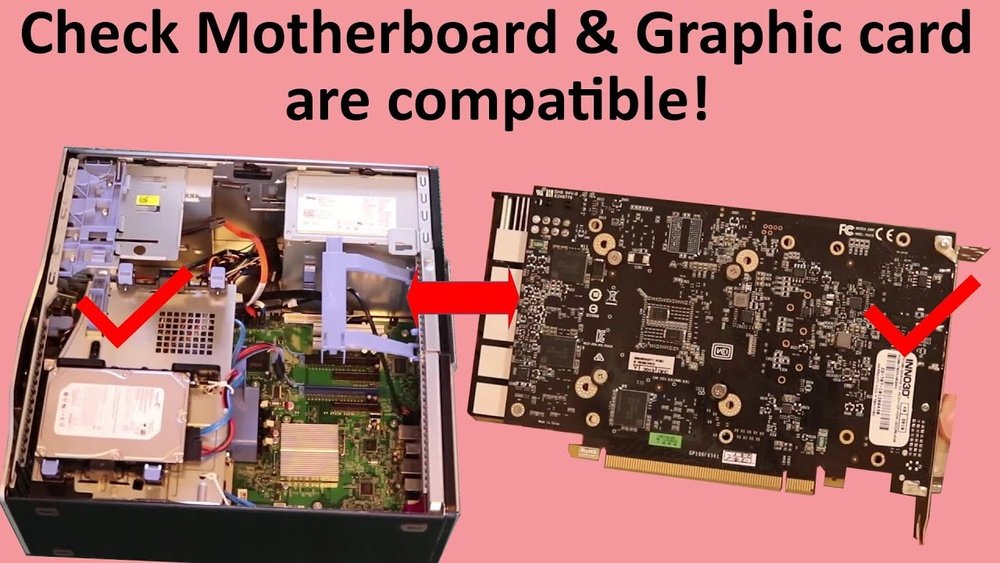
Checking physical compatibility is a key step before buying a GPU for your motherboard. This step ensures your new graphics card fits well and works without issues. Two main factors matter here: the type of PCIe slot on your motherboard and the size of the GPU compared to your computer case space.
Pcie Slot Types And Sizes
Your motherboard uses PCIe slots to connect GPUs. The most common type is PCIe x16, which supports most modern GPUs. Some older or smaller motherboards may have PCIe x8 or x4 slots. These slots can limit GPU speed but usually still allow the card to work.
Check your motherboard manual or look inside your PC to see the slot type. The GPU must match or be compatible with your motherboard’s PCIe slot. The slot size also matters. PCIe x16 slots are longer than x8 or x4 slots. A GPU designed for x16 slots might not fit in smaller ones.
Gpu Dimensions And Case Space
GPU size varies a lot. Some are short and slim, while others are long and thick. Measure your case space before buying. Check length, height, and width of your current GPU or the area inside your case.
Many GPUs need extra room for cooling fans and cables. If your case is too small, the GPU might not fit or block other parts. Also, check if your power supply cables can reach the GPU. These details help avoid problems after installation.
Power Requirements
Power requirements are crucial when matching a GPU with a motherboard. The right power setup ensures your system runs smoothly and safely. Ignoring power needs can cause crashes or damage. It helps to know about PSU wattage and GPU power consumption. These factors affect compatibility and performance.
Psu Wattage And Connectors
The power supply unit (PSU) must provide enough wattage for the GPU and other parts. Check your PSU’s total wattage rating. It should meet or exceed the GPU’s needs. Also, look at the power connectors. Most GPUs need 6-pin or 8-pin connectors. Your PSU must have the correct number and type of these connectors. Without proper connectors, the GPU won’t work properly.
Gpu Power Consumption
Each GPU has a specific power consumption measured in watts. Higher-end GPUs usually consume more power. Find this number in the GPU’s specifications. Compare it with your PSU capacity. If the GPU uses more power than your PSU can deliver, the system may fail. Also, consider the power needs of other components. Add them up to get the total power draw. This ensures your PSU can handle the entire system load.

Credit: softwareg.com.au
Bios And Firmware Factors
BIOS and firmware play a key role in making your GPU work with your motherboard. These small programs control the hardware and help the system recognize new parts. Sometimes, a GPU might not work right because the BIOS or firmware is outdated or not set up properly. Understanding these factors helps avoid compatibility problems and ensures smooth performance.
Bios Updates For Gpu Support
Motherboard manufacturers release BIOS updates to support new GPUs. These updates add code that helps the BIOS recognize the latest graphics cards. Without the update, your system might fail to boot or not detect the GPU at all. Checking the motherboard’s website for BIOS updates before installing a new GPU is important. Installing the latest BIOS can improve compatibility and stability.
Common Compatibility Issues
Sometimes the BIOS does not support certain GPU features. This can cause low performance or driver errors. Older motherboards may lack the right firmware to work with new GPUs. Another problem is power delivery, where BIOS does not manage power well for the GPU. These issues cause crashes or the GPU running at lower speeds. Updating BIOS and firmware often fixes these problems and helps the GPU run smoothly.
Performance Considerations
Performance is key when pairing your GPU with your motherboard. The right match ensures smooth operation and better results. Several factors affect how well your GPU performs with your system.
Understanding these can help avoid slowdowns or wasted power. Check these points before making a choice.
Bottlenecks And Cpu Compatibility
A powerful GPU can be held back by a weak CPU. This is called a bottleneck. The CPU may not process data fast enough for the GPU. This leads to poor gaming or app performance.
Choose a CPU that matches your GPU’s strength. Check your motherboard’s CPU support list. Using a compatible CPU keeps the system balanced and efficient.
Memory And Bandwidth Impact
Your motherboard’s memory speed and size also affect GPU performance. Faster RAM helps the CPU feed data to the GPU quicker. Low bandwidth can limit the GPU’s potential.
Make sure your motherboard supports enough RAM speed and capacity. Also, check the PCIe slot version. Newer PCIe slots offer higher data transfer rates. This can improve graphics performance and reduce lag.
Compatibility Tools And Resources
Checking if your GPU works with your motherboard is easier with the right tools. These tools help avoid mistakes and save money. Use them to see if parts fit well together.
Online Compatibility Checkers
Many websites let you check GPU and motherboard compatibility. Enter your GPU and motherboard models to get a quick answer. These tools show if the parts fit in size and support each other. They also warn about power or slot issues. Use these checkers before buying new parts.
Manufacturer Specifications
Every GPU and motherboard comes with a manual or datasheet. These documents list the size, slots, and power needs. Check the motherboard’s PCIe slot type and version. Compare it with the GPU’s requirements. Also, look at power supply needs for both. Reading these specs helps confirm compatibility. This step ensures your parts will work together smoothly.
Troubleshooting Compatibility Problems
Troubleshooting compatibility problems between your GPU and motherboard is essential for a smooth computer experience. Sometimes, the GPU may not work correctly due to compatibility issues. Identifying and fixing these problems quickly helps avoid frustration and wasted time.
Understanding common signs of incompatibility and following clear steps to resolve them can get your system running well. This section guides you through detecting issues and fixing them effectively.
Detecting Incompatibility Symptoms
Watch for unusual screen flickering or no display after installing the GPU. Your computer might not start or may show error codes during boot. The system could freeze or crash frequently. Sometimes, the GPU fan runs loudly or not at all. These signs often point to compatibility problems.
Steps To Resolve Issues
First, check if the GPU fits the motherboard slot physically. Ensure the power connectors match and supply enough power. Update your motherboard BIOS to support newer GPUs. Install the latest GPU drivers from the manufacturer’s website. Remove and reseat the GPU carefully to ensure proper contact. Test the GPU in another compatible system to confirm the problem. Replace cables or connectors if they look damaged or worn out.
Frequently Asked Questions
How To Check Gpu Compatibility With Motherboard?
Check your motherboard’s PCIe slot type and version. Match it with your GPU’s interface. Also, confirm BIOS support and physical space for the GPU.
Does Motherboard Size Affect Gpu Compatibility?
Yes, motherboard size affects GPU fitment. Larger GPUs need enough space and proper PCIe slots on your motherboard to function correctly.
Can All Gpus Work With Any Motherboard?
No, not all GPUs work with every motherboard. Compatibility depends on PCIe slot, power requirements, BIOS, and physical space.
What Motherboard Specs Matter For Gpu Compatibility?
Focus on PCIe slot type, PCIe version, power connectors, BIOS version, and physical clearance when checking GPU compatibility.
Conclusion
Choosing the right GPU for your motherboard is key. Check the slot type and power needs first. Size and BIOS compatibility also matter a lot. Don’t forget to update your drivers regularly. A good match improves your computer’s speed and stability.
Take time to research and compare parts before buying. This careful approach saves money and avoids headaches later. You can build a system that works well and lasts longer. Simple checks make a big difference in performance. Stay informed and enjoy a smooth PC experience.