How Hot Should a Gpu Get: Essential Temps for Peak Performance
Have you ever wondered how hot your GPU should really get? Whether you’re gaming, editing videos, or just browsing, your graphics card works hard and heats up.
But how much heat is normal, and when should you start worrying? Knowing the right temperature range can protect your GPU from damage and keep your system running smoothly. You’ll discover the safe temperature limits for your GPU, learn how to monitor its heat, and find simple tips to keep it cool.
Keep reading to make sure your GPU stays in the safe zone and performs at its best.
Credit: www.novydomov.eu
Optimal Gpu Temperature Range
Knowing the optimal GPU temperature range helps keep your graphics card safe. It also improves performance and extends its life. Too much heat can cause damage and slow down your PC. Keeping your GPU cool is important for smooth gameplay and efficient work.
Different tasks cause your GPU to heat up differently. The ideal temperature changes from idle to heavy use. Understanding these ranges helps you watch your GPU’s health and avoid problems.
Idle Temperatures
Idle temperature is how hot the GPU gets while doing little or no work. Normally, it should stay between 30°C and 45°C. This range means your cooling system works well and your GPU is not stressed. If idle temperature goes higher, check for dust or poor airflow. Too hot at idle can signal a problem with cooling or hardware.
Load Temperatures
Load temperature shows how hot the GPU gets during heavy tasks. Playing games, editing videos, or mining can push the GPU to this range. Safe load temperatures usually lie between 65°C and 85°C. Some GPUs can handle up to 90°C, but staying below 85°C is best. High temperatures over 90°C risk damage and reduce performance. Good cooling and proper airflow help keep load temperatures safe.
Factors Influencing Gpu Heat
The heat a GPU produces varies depending on many factors. Understanding these factors helps keep your GPU safe and working well. Heat depends on what the GPU is doing, how it is cooled, and the environment around it. Each factor affects the temperature in different ways.
Workload Types
Different tasks cause different heat levels in a GPU. Heavy tasks like gaming or video editing push the GPU hard. This makes it heat up quickly. Light tasks, such as browsing or watching videos, create less heat. The more the GPU works, the hotter it gets.
Cooling Solutions
Cooling systems control how hot a GPU becomes. Fans and heatsinks help move heat away from the GPU. Liquid cooling is another option that cools better than air. Good cooling keeps the GPU temperature lower. Poor cooling allows heat to build up fast.
Ambient Room Temperature
The room temperature affects GPU heat too. A hotter room makes it harder for the GPU to cool down. Cooler rooms help lower the GPU’s temperature. High ambient temperatures raise the GPU’s base heat level. Proper room airflow also helps reduce heat.
Risks Of Overheating
Overheating poses serious risks to your GPU’s health and your computer’s overall function. High temperatures cause several problems that affect performance and stability. Understanding these risks helps protect your device and avoid costly repairs.
Performance Throttling
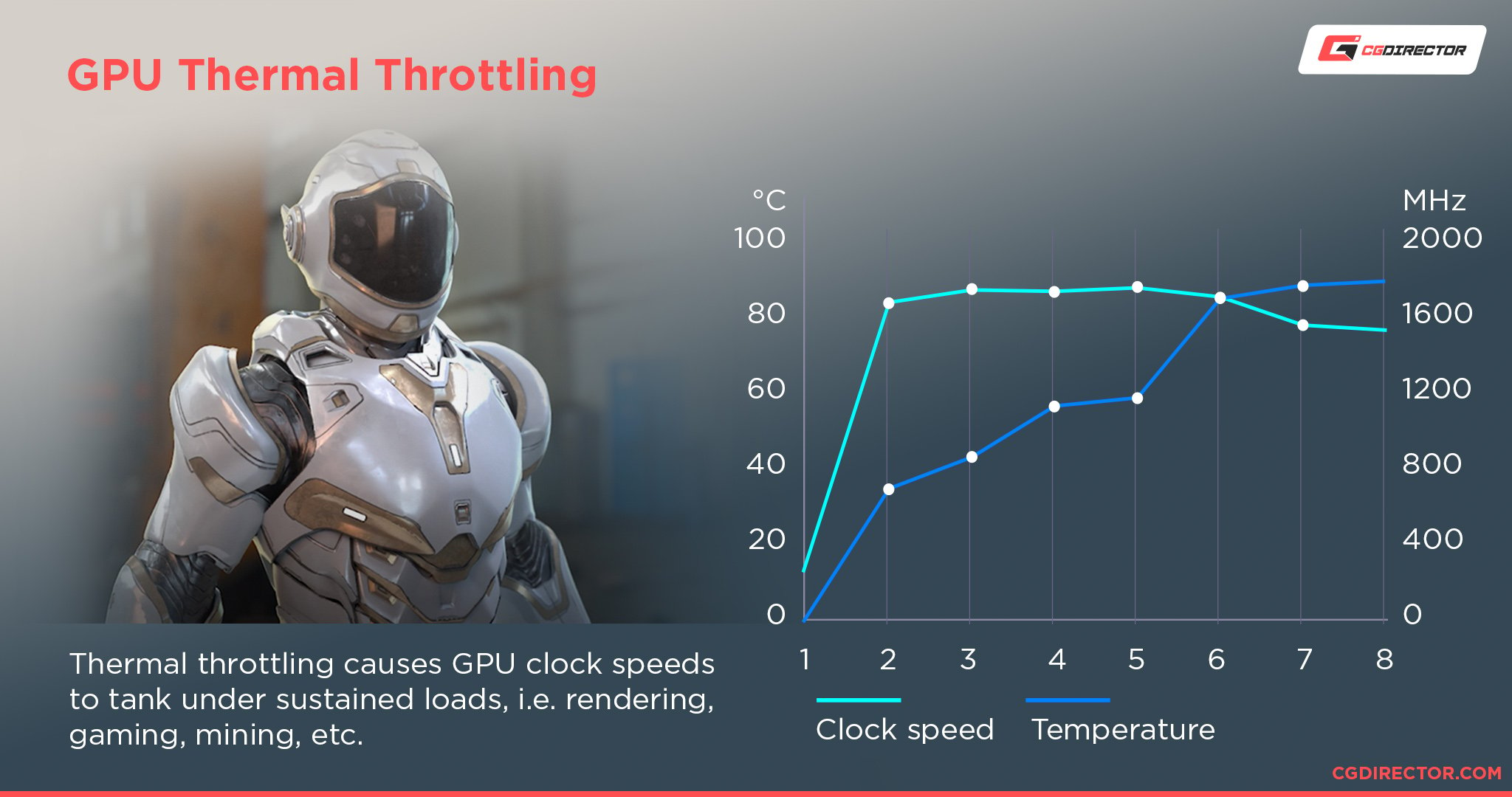
When a GPU gets too hot, it slows down automatically. This process is called performance throttling. It reduces the clock speed to lower heat output. As a result, games and applications run slower. This protects the hardware but hurts your experience.
Hardware Damage
Excessive heat can permanently harm your GPU components. Over time, it wears out the circuits and chips. This damage may cause the GPU to fail completely. Repair or replacement can be expensive and time-consuming.
System Instability
High GPU temperatures can cause crashes and freezes. Your system might restart unexpectedly or show error messages. This instability disrupts your work and gaming sessions. Keeping temperatures in check avoids these problems.
Credit: www.cgdirector.com
Monitoring Gpu Temperatures
Keeping an eye on your GPU temperature is important for smooth performance. High temperatures can slow down your computer or cause damage. Monitoring helps you know when the GPU is too hot. This way, you can take action to cool it down and keep it safe.
Software Tools
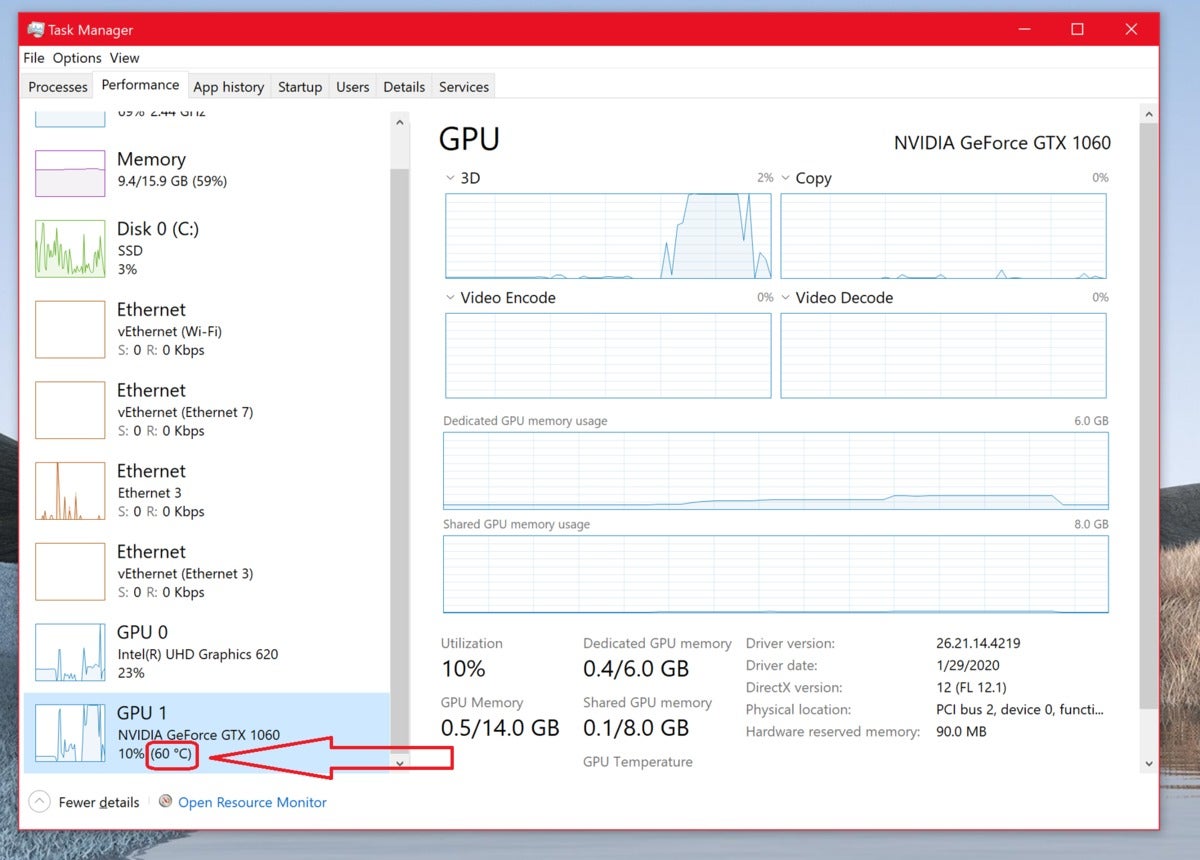
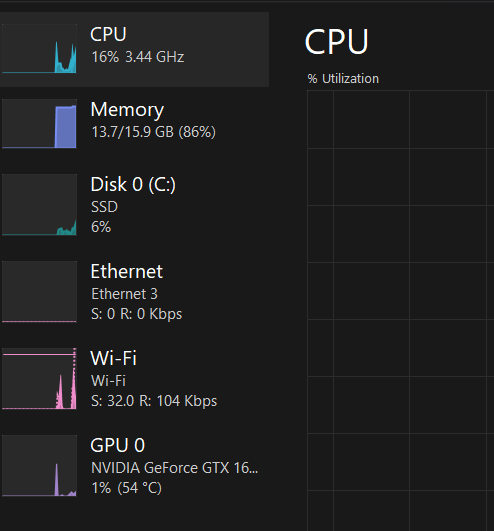
Software tools make monitoring GPU temperatures easy. Programs like MSI Afterburner and HWMonitor show real-time temperatures. They display data in simple graphs and numbers. You can set alerts to warn you if the GPU gets too hot. These tools also track fan speed and usage. Many are free and easy to install.
Hardware Sensors
Your GPU has built-in sensors to measure temperature. These sensors send data directly to your computer. This data is accurate and updates quickly. Some motherboards and cases have extra temperature sensors. They provide more details about heat inside your PC. Using hardware sensors helps prevent overheating and damage.
Improving Gpu Cooling
Keeping your GPU cool is key for its performance and lifespan. High temperatures can slow down your graphics card or cause damage over time. Improving GPU cooling helps maintain steady performance and prevents overheating issues. Simple steps can make a big difference in temperature control.
Airflow Optimization
Good airflow inside your PC case moves hot air out and brings cool air in. Arrange cables neatly to avoid blocking air paths. Use case fans to create a steady flow of air. Intake fans pull cool air, and exhaust fans push hot air out. Check that fans spin properly and are clean from dust.
Aftermarket Coolers
Stock GPU coolers may not be enough for heavy use. Aftermarket coolers offer better cooling with bigger heatsinks and stronger fans. Some models include liquid cooling options for even lower temperatures. Installing an aftermarket cooler can lower GPU heat by several degrees. This upgrade suits users who want quieter and cooler operation.
Thermal Paste Replacement
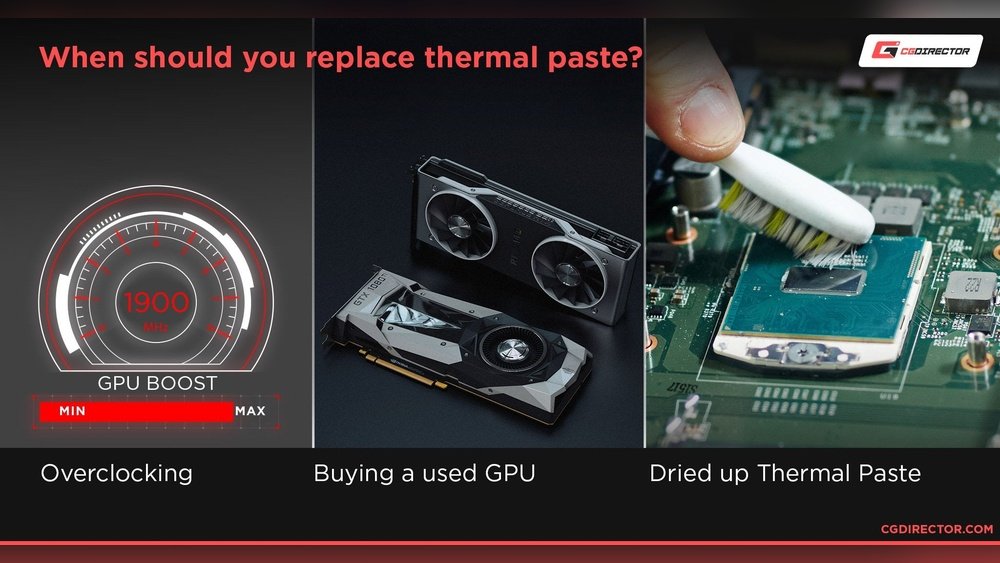
Thermal paste transfers heat from the GPU chip to the cooler. Over time, thermal paste can dry out and lose effectiveness. Replacing old thermal paste improves heat transfer and lowers temperatures. Use a high-quality thermal paste and apply it carefully. This simple step can reduce GPU temperature by several degrees.
Safe Temperature Limits By Gpu Brands
Every GPU brand sets its own safe temperature limits. These limits help keep your graphics card running well. Knowing these limits prevents damage and lowers the risk of crashes. Different brands use different designs and materials. This means their temperature ranges vary. Let’s look at the safe temperature limits for popular GPU brands.
Nvidia Gpus
NVIDIA GPUs usually run safely up to 85°C. Some models can handle temperatures near 90°C. Most NVIDIA cards start to throttle performance above 85°C. Throttling protects the card from overheating. Keeping the GPU below 85°C is best for long life. Newer NVIDIA cards have better cooling designs. They often run cooler than older models under load.
Amd Gpus
AMD GPUs have a safe temperature range up to about 95°C. Many AMD cards work well near this limit. They often allow higher temps before slowing down. AMD uses a feature called “PowerTune” to manage heat. This feature reduces power when temps get high. Staying below 90°C helps avoid stress on the GPU. Good airflow in your case can keep AMD GPUs cooler.
Signs Of Excessive Gpu Heat
Knowing the signs of excessive GPU heat helps protect your computer. Overheating can harm your graphics card and reduce its life. Watch for unusual behavior during gaming or heavy use. Early detection keeps your GPU safe and working well.
Visual Artifacts
Visual artifacts show as strange lines, colors, or shapes on the screen. These glitches appear during gaming or video playback. They happen because the GPU is too hot to work properly. Spotting artifacts means the GPU needs immediate cooling.
Unexpected Shutdowns
The computer may turn off without warning. This happens to stop damage from high GPU temperatures. Sudden shutdowns during games or tasks mean the GPU is too hot. This is a serious sign to check your cooling system.
Noise Levels
Fans run louder when the GPU gets hot. You might hear a high-pitched whine or fast spinning sounds. Increased noise means the GPU is working hard to cool itself. Persistent loud noise shows the GPU is overheating and needs attention.
Credit: www.cherryservers.com
Frequently Asked Questions
What Is The Ideal Temperature For A Gpu?
The ideal GPU temperature ranges between 65°C and 85°C during heavy use. Staying within this range ensures optimal performance and longevity without overheating or thermal throttling.
Can A Gpu Get Too Hot And Cause Damage?
Yes, GPUs exceeding 90°C for prolonged periods risk permanent damage. High heat can reduce lifespan, cause crashes, and trigger automatic shutdowns to protect hardware.
How Can I Monitor My Gpu Temperature Effectively?
Use software tools like MSI Afterburner or GPU-Z to track GPU temperature. Regular monitoring helps prevent overheating and maintains stable performance during gaming or intensive tasks.
What Causes Gpus To Overheat Quickly?
Poor airflow, dust buildup, and overclocking commonly cause GPUs to overheat. Ensuring clean fans, adequate case ventilation, and moderate clock speeds helps maintain safe temperatures.
Conclusion
A GPU needs to stay cool to work well and last long. Temperatures between 65°C and 85°C are usually safe. Going above 90°C can cause problems and slow your computer. Clean fans and good airflow help keep your GPU cool.
Check your GPU temperature often during use. This keeps your system stable and avoids damage. Remember, a cool GPU means better performance and longer life. Take care of your hardware for smooth and safe gaming or work.