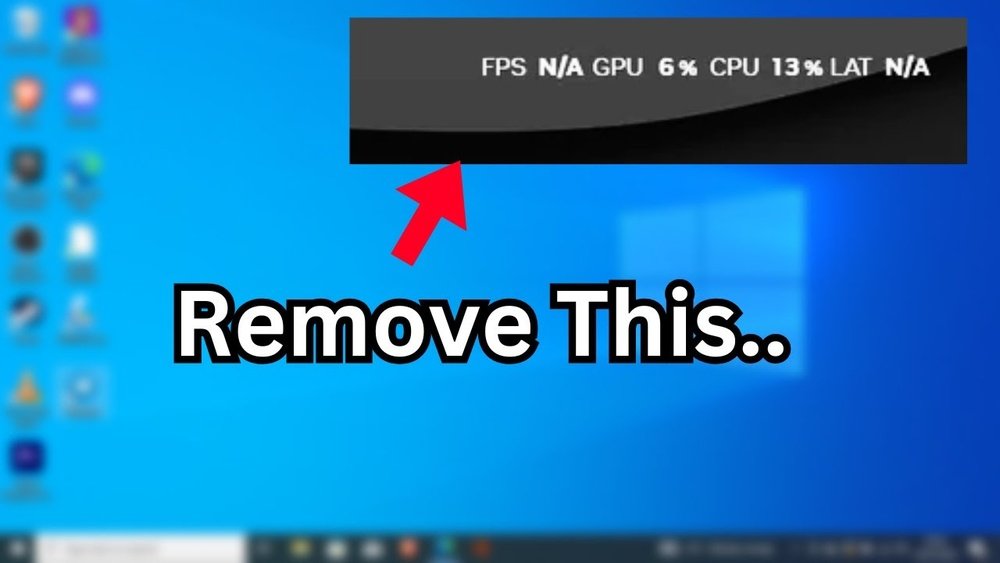
How to Turn off Gpu Cpu Overlay: Quick & Easy Guide
Are you tired of that distracting GPU CPU overlay popping up while you’re gaming or working? It can block important parts of your screen and slow down your focus.
You’re not alone, and the good news is it’s easy to turn off. You’ll learn simple steps to disable the overlay quickly, so you can enjoy a cleaner, smoother experience on your PC. Keep reading, and take back control of your screen right now!

Credit: www.youtube.com
Reasons To Disable Gpu Cpu Overlay
GPU CPU overlays show real-time data about your computer’s performance. This information can be useful for some users. Yet, many people find these overlays distracting or unnecessary. Disabling the overlay can improve your experience in several ways.
Impact On Performance
Overlays use system resources to display data. This can slow down your computer slightly. Disabling the overlay frees up these resources. Your games or applications may run smoother without the overlay. This is especially true for older or lower-end systems.
Reducing Screen Clutter
Overlays add extra text and numbers on your screen. This can make the display look busy or cluttered. Turning off the overlay gives you a cleaner view. You can focus on your task without extra distractions. This is helpful during gaming or video editing.
Avoiding Distractions
Constant updates on CPU and GPU usage can draw your attention away. This breaks your focus and interrupts your workflow. Disabling the overlay helps keep your eyes on the main content. It creates a calmer, less distracting environment for work or play.
Accessing Overlay Settings
Accessing overlay settings is the first step to turn off GPU or CPU overlays. These overlays can affect your screen view during gaming or work. Knowing where to find these settings saves time and makes changes easier. Overlays come from different sources, so checking each method helps.
Using Gpu Software
GPU software like NVIDIA GeForce Experience or AMD Radeon software controls many overlays. Open the software from your desktop or start menu. Look for a section named “Overlay” or “In-Game Overlay.” You can toggle the overlay off here. This stops the GPU overlay from showing on your screen.
Through Game Settings
Many games include their own overlay settings. Open the game and go to the settings menu. Find the “Display” or “HUD” options. There is often a toggle for overlays or performance stats. Turn this off to remove the overlay while playing. This method controls overlays only within the game.
System-level Options
Your operating system may also control overlays. On Windows, check the “Game Bar” settings in the system menu. Disable the Game Bar to stop its overlay. Mac users can look in the system preferences for screen recording or performance tools. Turning these off helps reduce unwanted overlays on your screen.
Disabling Nvidia Gpu Overlay
Disabling the Nvidia GPU overlay can help improve your computer’s performance. This overlay sometimes causes distractions or slows down games and apps. Turning it off is simple and quick. Here are the steps to disable it using GeForce Experience.
Using Geforce Experience
Open the GeForce Experience app on your PC. Look for the settings icon, usually a gear symbol. Click on it to open the settings menu. Find the section labeled “General.”
Inside “General,” locate the option called “In-Game Overlay.” Toggle this switch off. This action will disable the Nvidia GPU overlay across your system. You may need to restart your computer for changes to take effect.
Turning Off In-game Overlay
Open GeForce Experience again and go to the “Settings” menu. Click on “In-Game Overlay” settings. Here, you can customize the overlay features or turn them off completely.
To turn off the overlay, simply disable the toggle for the in-game overlay. This stops the overlay from appearing during gameplay or other applications. It helps reduce distractions and can improve game performance.

Credit: www.reddit.com
Turning Off Amd Cpu Gpu Overlay
Turning off the AMD CPU GPU overlay can help improve your computer’s performance. This overlay shows real-time data about your CPU and GPU usage. Sometimes, it can distract or slow down your system. Disabling it is simple and quick.
Using Radeon Software
Open the Radeon Software on your PC. You can find it by right-clicking the desktop and selecting “AMD Radeon Software.”
Once open, go to the “Performance” tab. Here, you will see the overlay settings.
Look for the option called “Overlay” or “Metrics.” Toggle it off to disable the overlay display.
Adjusting Overlay Preferences
Inside Radeon Software, you can also change what the overlay shows. Click on “Settings” in the Performance tab.
Choose “Metrics” or “Overlay Preferences.” You can turn off specific features you do not want to see.
Save your changes and close the software. The overlay will no longer appear on your screen.
Managing Intel Gpu Overlay
Intel GPU overlay shows performance data like FPS and CPU usage. It helps users monitor their system during games or apps. Sometimes, this overlay can be distracting or affect performance. Turning off the Intel GPU overlay improves your screen view and system speed.
Here is a simple guide to manage and disable the Intel GPU overlay easily.
Intel Graphics Command Center
The Intel Graphics Command Center controls many graphics settings. You can open it from the Start menu or taskbar. This app shows options to customize your display and graphics features. The overlay settings are found inside this center. Navigating here is key to turning off the overlay.
Disabling Overlay Features
Inside the Intel Graphics Command Center, find the overlay section. Look for options related to performance or game overlays. You will see a toggle to enable or disable the overlay. Switch it off to stop the GPU and CPU overlay from showing. This action clears your screen and may boost performance.
Troubleshooting Overlay Issues
Sometimes, turning off the GPU or CPU overlay does not work as expected. The overlay might still appear on your screen. Troubleshooting these issues can help you remove the overlay completely. Follow simple steps to fix common problems and regain control of your display.
Overlay Still Visible
If the overlay remains on your screen after turning it off, check if other software is causing it. Some apps run overlays independently. Close all unnecessary programs, especially those related to graphics or gaming. Restart your computer to clear any stuck overlay processes. This often removes the persistent overlay.
Software Update Tips
Outdated software can cause overlay problems. Check for updates for your graphics drivers and overlay software. Use official websites or device managers to find updates. Installing the latest version can fix bugs and improve performance. After updating, restart your system and try turning off the overlay again.
Resetting To Default Settings
Resetting overlay settings to default can solve many issues. Open the overlay or graphics control panel. Look for an option to reset or restore default settings. This action removes custom configurations that may cause the overlay to stay active. After resetting, test if the overlay is gone. Repeat the process if needed for other related apps.
Alternative Monitoring Tools
Alternative monitoring tools offer easy ways to track your CPU and GPU use without intrusive overlays. These tools often provide cleaner interfaces and fewer distractions. They help keep your screen clear and your focus sharp.
You can choose from simple programs that only show basic data. Or pick tools that let you change the overlay to fit your style and needs. Both types improve your experience while keeping an eye on system performance.
Lightweight Options
Lightweight tools use minimal system resources. They run quietly in the background without slowing your computer. These tools show essential information like temperature, usage, and clock speed.
Examples include small apps that pop up only when needed. This way, your screen stays clean most of the time. They suit users who want quick data without distractions.
Customizable Overlays
Customizable overlays let you change what and how data shows. You can move the display to any screen corner. Change colors, size, and transparency for easier reading.
These options fit different preferences and setups. You control what matters most, like FPS, CPU load, or GPU temperature. Custom overlays keep your workspace tidy and informative.

Credit: www.reddit.com
Frequently Asked Questions
How Do I Disable Gpu Cpu Overlay On Windows?
To disable GPU CPU overlay on Windows, open your graphics control panel. Navigate to the overlay or performance monitoring section. Turn off the overlay toggle to stop the display of CPU and GPU stats on your screen.
Can I Turn Off Gpu Cpu Overlay In Game Settings?
Yes, many games allow you to disable the GPU CPU overlay within their settings. Look for performance or HUD options. Simply uncheck the overlay feature to remove real-time CPU and GPU data from your gameplay screen.
Why Should I Turn Off Gpu Cpu Overlay?
Turning off the GPU CPU overlay can improve your system’s performance. It reduces resource usage and eliminates screen clutter. This helps focus better on your tasks or gameplay without distractions from constant monitoring.
How To Disable Gpu Cpu Overlay On Nvidia Software?
Open Nvidia GeForce Experience and go to the settings menu. Select the “In-Game Overlay” tab and disable it. This stops Nvidia from showing GPU and CPU usage overlays during gameplay or other applications.
Conclusion
Turning off the GPU CPU overlay can improve your system’s performance. It reduces screen clutter and helps focus on important tasks. The steps are simple and quick to follow. You just need to find the right settings and switch it off.
This small change makes your computer run smoother. Keep your device clean and fast by managing overlays well. Try these tips to enjoy a better user experience.