How to Figure Out What Gpu You Have: Quick & Easy Guide
Are you curious about the graphics card inside your computer but don’t know where to start? Knowing what GPU you have can help you unlock better gaming, improve video editing, or simply understand your system’s power.
Don’t worry if you’re not tech-savvy—this guide will walk you through simple steps to find out exactly which GPU is running your machine. By the end, you’ll have the confidence to check your GPU anytime and make smarter decisions about upgrades or troubleshooting.
Keep reading to discover how easy it really is!

Credit: www.pcmag.com
Check Gpu On Windows
Checking your GPU on Windows helps you know your computer’s graphics power. This is useful for gaming, video editing, or software that needs strong graphics. Windows offers simple ways to find your GPU details fast. Below are three easy methods to check your GPU.
Using Device Manager
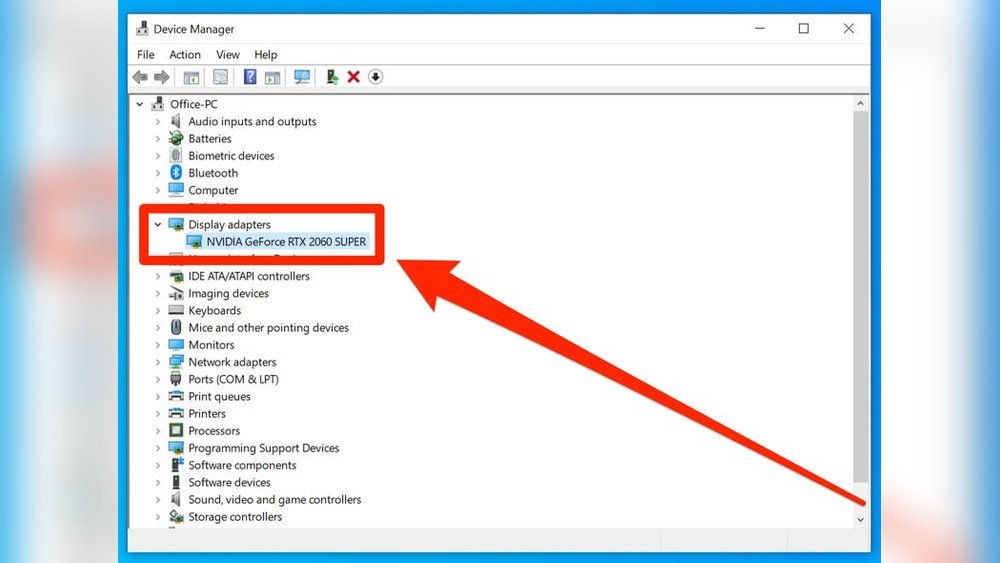
Device Manager shows all hardware on your PC. To open it, press Windows + X and select Device Manager. Find the section called “Display adapters.” Click the arrow next to it. You will see your GPU name here. This tells you the exact model installed on your PC.
Using Directx Diagnostic Tool
The DirectX Diagnostic Tool gives detailed system info, including GPU. Press Windows + R to open the Run box. Type “dxdiag” and press Enter. Click the Display tab at the top. The Device section shows your GPU name and manufacturer. This tool also shows driver version and features.
Using Settings App
Windows Settings provide a quick way to check your GPU. Open Settings by pressing Windows + I. Click on System, then choose Display. Scroll down and click on “Advanced display settings.” Here, you will find the name of your GPU under “Display information.” This method is easy and requires no extra tools.
Check Gpu On Mac
Checking the GPU on your Mac helps you know what graphics card your computer uses. This is useful for gaming, video editing, or software that needs strong graphics. Mac makes it easy to find this information with built-in tools.
About This Mac
Start by clicking the Apple logo on the top left of your screen. Choose “About This Mac” from the menu. A window will open showing an overview of your Mac’s specs.
Look for the “Graphics” or “Graphics/Displays” section. This tells you the name of your GPU. It also shows how much video memory it has. This quick view gives you basic GPU details fast.
System Report
For deeper details, click the “System Report” button in the “About This Mac” window. A new window will open with a list of hardware and software info.
On the left side, find and click “Graphics/Displays.” This section shows detailed info about your GPU. You can see the model, VRAM, and display settings here.
This method helps if you want full specs or have multiple GPUs. It gives the most accurate and complete info on your Mac’s graphics hardware.
Check Gpu On Linux
Checking your GPU on Linux is simple. Knowing your graphics card helps with troubleshooting and upgrading. Linux offers easy ways to find this information.
Using Terminal Commands
Open the terminal to start. Type lspci | grep VGA and press Enter. This command shows your GPU details. It lists the graphics card model and manufacturer.
For more details, use lshw -c video. This command provides information about the video hardware. It shows the product name, vendor, and driver used.
You can also try glxinfo | grep "OpenGL renderer". This tells you the GPU used for OpenGL rendering. It is useful to check the active graphics card.
Using System Settings
Many Linux systems have a graphical tool to check hardware. Open the system settings or control panel. Find the section named “About” or “Details.”
Here, you can see the graphics card information. It shows the GPU model and driver status. This method is easy for users who prefer not to use commands.

Credit: breezeresidency.com
Identify Gpu With Third-party Software
Identifying your GPU using third-party software is a simple and effective method. These tools give detailed information about your graphics card. They help you find the exact model and specifications without opening your computer.
Third-party programs are easy to use and provide accurate results. They work on different Windows versions and show useful details like GPU name, memory size, and driver version. These tools are great for beginners and experts alike.
Popular Gpu Detection Tools
Several reliable tools help detect your GPU quickly. GPU-Z is a lightweight program made for graphics card information. Speccy is another popular tool that shows system details, including the GPU. Both are free and safe to use.
How To Use Gpu-z
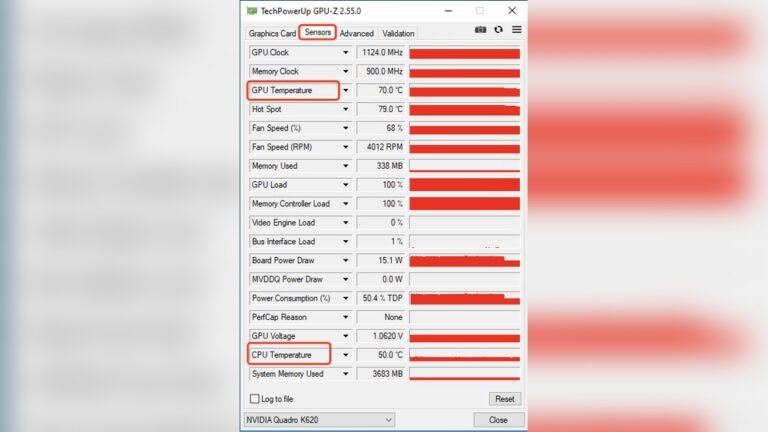
Download GPU-Z from the official website. Open the program after installation. The main screen shows your GPU name and model at the top. Scroll down to see memory type, size, and driver version. You can also check temperature and clock speeds here.
GPU-Z does not require complex setup. It displays all GPU details in one window. This makes it easy to understand your graphics card’s specs.
How To Use Speccy
Install Speccy from its official site. Launch the program after setup. On the left side, select the “Graphics” tab. Speccy lists your GPU name, manufacturer, and memory size here. It also shows other system information if needed.
Speccy’s interface is simple and user-friendly. It helps you see GPU data alongside other hardware details. This tool is useful for general system checks as well.
Check Gpu Physically
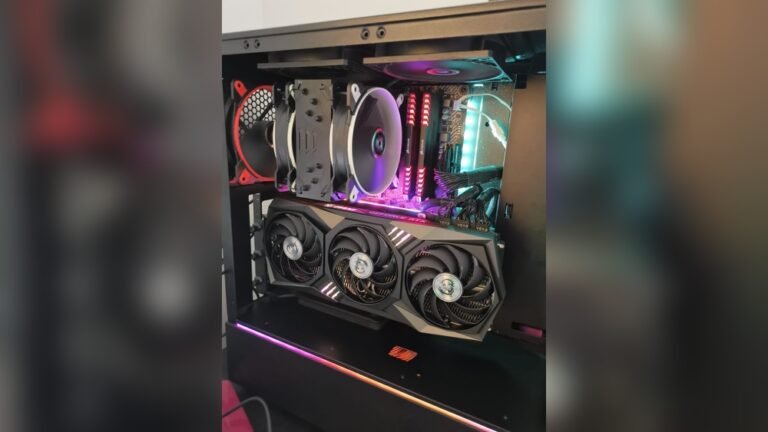
Open your computer case carefully to see the GPU inside. Look for the brand and model number printed on the card itself. This helps identify your graphics card without using software.
Opening The Case
Checking your GPU physically means opening your computer case. This lets you see the graphics card inside. First, turn off your PC and unplug all cables. Find a clean, flat surface to work on. Most cases have screws or latches at the back. Remove these carefully. Slide or lift the side panel off. Be gentle to avoid damage. Now you can see the inside parts clearly.
Reading The Gpu Label
The graphics card usually sits in a slot on the motherboard. Look for a big card with fans. Check the label on the card itself. It often shows the brand and model number. The label may be on the front or back. Sometimes, you find stickers with serial numbers too. Write down the details for later use. This helps you identify your GPU exactly.
Interpreting Gpu Information
Understanding your GPU information helps you know its power and features. It also helps with troubleshooting and upgrading your PC. This section explains how to read and use GPU details effectively.
Understanding Gpu Model Numbers
GPU model numbers tell a lot about the card’s performance and generation. For example, “NVIDIA GeForce GTX 1660” means it is part of the GTX 16 series.
The first digits often show the generation or series. Higher numbers usually mean newer or stronger GPUs.
Letters like “GTX” or “RTX” indicate the technology used. RTX cards support ray tracing, a graphics technique for better visuals.
Knowing these basics helps you compare GPUs easily and understand their capabilities.
Checking Gpu Specifications Online
Once you have the model number, you can find detailed specs online. Official websites list memory size, clock speed, and core count.
These specs show how fast and powerful the GPU is. They also show supported features like DirectX version and VR readiness.
Reading specs helps you decide if your GPU fits your needs or if an upgrade is needed.
Troubleshooting Gpu Detection Issues
Sometimes your computer does not recognize the GPU. This can cause problems when checking which graphics card you have. Troubleshooting these detection issues helps your system find the GPU correctly. It also improves your computer’s performance and stability.
Driver Updates
Outdated or missing drivers often cause GPU detection problems. Drivers help your system talk to the graphics card. Check the manufacturer’s website for the latest driver updates. Install the correct version for your GPU and operating system. Restart your computer after updating the drivers. This often fixes detection issues fast.
Bios Settings
Sometimes the BIOS settings block the GPU from being detected. Restart your computer and enter BIOS setup. Look for settings related to graphics or video. Make sure the GPU is enabled and set as the primary display device. Save changes and exit BIOS. This can help your system find the GPU during startup.
Hardware Problems
Physical problems with the GPU or its connection can stop detection. Turn off your computer and unplug it. Open the case and check if the GPU is properly seated in the slot. Look for dust, loose cables, or damage on the card. Clean the area and reseat the GPU firmly. Faulty hardware may need repair or replacement.

Credit: au.pcmag.com
Frequently Asked Questions
How Can I Check My Gpu On Windows 10?
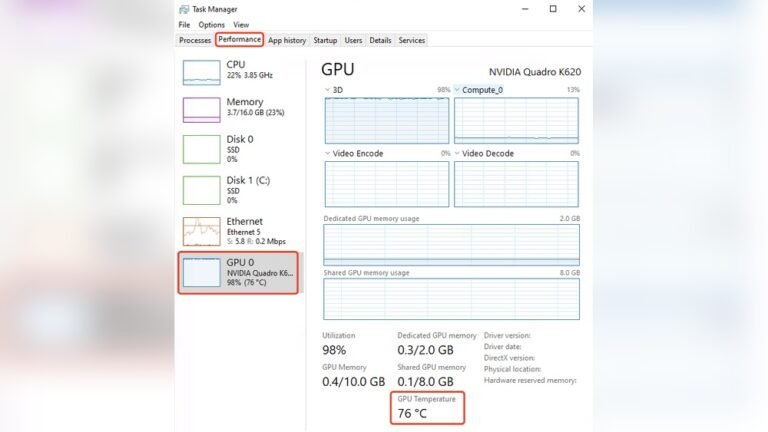
Open Task Manager by pressing Ctrl + Shift + Esc. Click the “Performance” tab. Select “GPU” to see your GPU model and usage details instantly.
What Is The Easiest Way To Find Gpu On Mac?
Click the Apple menu, then “About This Mac. ” Look under the “Overview” tab for “Graphics,” which shows your GPU model clearly.
Can I Identify My Gpu Using Command Prompt?
Yes. Open Command Prompt and type “wmic path win32_VideoController get name. ” Press Enter, and your GPU name will display on the screen.
How To Find Gpu Details Without Opening The Pc Case?
Use system information tools like DirectX Diagnostic Tool on Windows. Press Win + R, type “dxdiag,” and check the “Display” tab for GPU info.
Conclusion
Knowing your GPU helps you understand your computer better. It guides you in choosing the right software and games. Checking your GPU is quick and easy with simple tools. Keep your drivers updated for the best performance. This small step can improve your computer experience a lot.
Now, you can feel confident about your GPU knowledge. Ready to explore what your graphics card can do?