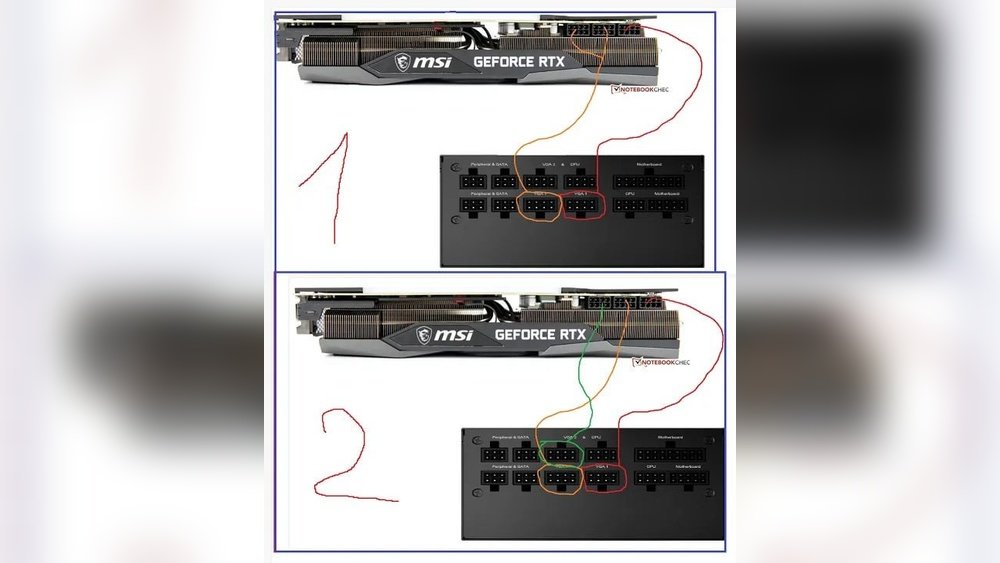
How to Connect Gpu to Psu: Easy Steps for Perfect Setup
Are you ready to boost your computer’s power but unsure how to connect your GPU to your PSU? Connecting these two components correctly is key to unlocking your system’s full potential and avoiding costly mistakes.
In this guide, you’ll learn simple, step-by-step instructions to get your GPU powered safely and efficiently. By the end, you’ll feel confident handling your hardware and enjoy smoother gaming or faster processing. Let’s dive in and make your setup rock-solid!
Choosing The Right Psu
Choosing the right power supply unit (PSU) is very important for connecting your GPU safely. The PSU gives power to your graphics card and other parts in your computer. Pick a PSU that fits your system’s needs. A poor choice can cause crashes or damage. Focus on wattage, connectors, and efficiency to find the best PSU for your GPU.
Wattage Requirements
Check your GPU’s power needs in watts. Most GPUs need between 150 and 350 watts. Add the power needs of other parts like CPU and drives. Choose a PSU with a little more wattage than your total. This helps keep your system stable and safe. Avoid using a PSU with too low wattage.
Connector Types
Your GPU needs the right power connectors from the PSU. Common types include 6-pin and 8-pin PCIe connectors. Some high-end GPUs may need two or more connectors. Make sure the PSU has these connectors ready. Using adapters can cause problems. Check the GPU manual for exact connector types.
Efficiency Ratings
Efficiency shows how well a PSU uses electricity. A higher rating means less power waste and less heat. Look for PSUs with 80 Plus ratings like Bronze, Silver, Gold, or higher. Gold or better is good for most users. Efficient PSUs save energy and run cooler. This helps your PC last longer.
Credit: www.nicehash.com
Preparing Your Workspace
Preparing your workspace is the first step before connecting your GPU to the PSU. A clean, safe, and organized space makes the process easier. It also reduces the risk of damage to your computer parts. Take time to prepare well. This will save you from problems later.
Safety Precautions
Turn off your PC and unplug it from the wall. This stops any electric flow. Use an anti-static wristband or touch a metal object to remove static. Static can damage your GPU or PSU. Avoid working on carpet or soft surfaces. Keep liquids away from your workspace to prevent spills.
Gathering Tools
Get all tools before starting. You will need a screwdriver, usually a Phillips head. Have cable ties or Velcro straps to organize wires. Keep your GPU and PSU manuals nearby. They help identify the right cables and connections. A flashlight may help if your workspace is dim.
Clearing The Area
Remove clutter around your workspace. A tidy area helps you find tools and parts fast. Clear off your desk or table. Make sure there is enough light. Good lighting helps you see small connectors clearly. Keep pets and children away while you work. Distractions can cause mistakes or damage.
Identifying Gpu Power Connectors
Identifying the correct power connectors for your GPU is a key step before connecting it to your PSU. Different GPUs need different connectors. Using the wrong one can cause damage or prevent your system from working.
Many GPUs require extra power beyond what the motherboard supplies. This power comes through specific cables from the PSU. Knowing which connectors your GPU needs helps you prepare the right cables and avoid problems.
6-pin Vs 8-pin Connectors
GPUs usually use 6-pin or 8-pin power connectors. The 6-pin connector provides up to 75 watts of power. The 8-pin connector supplies up to 150 watts. Some high-end GPUs need one or more 8-pin connectors.
Check your GPU to see which connectors it has. Some have one 6-pin, some one 8-pin. Others have both or multiple connectors. Match these with your PSU cables for proper power supply.
Checking Gpu Manual
The best source for connector information is your GPU manual. It shows exactly what power connectors your GPU needs. It also guides you on how to connect them safely.
If you do not have a physical copy, check the manufacturer’s website. Download a digital manual or look for a specification sheet. This helps you avoid guesswork and mistakes.
Adapter Options
Sometimes your PSU does not have the right connectors. Adapters can help bridge this gap. Common adapters change two 6-pin connectors into one 8-pin, or split one connector into two.
Use adapters only when necessary. Make sure the adapter matches your GPU’s power needs. Poor quality adapters or wrong types can cause power issues or damage.
Credit: forums.tomshardware.com
Connecting Psu To Gpu
Connecting your power supply unit (PSU) to your graphics processing unit (GPU) is a key step in building or upgrading a PC. A secure power connection ensures your GPU runs smoothly and avoids power issues. This process is simple when you follow the correct steps.
Locating Psu Cables
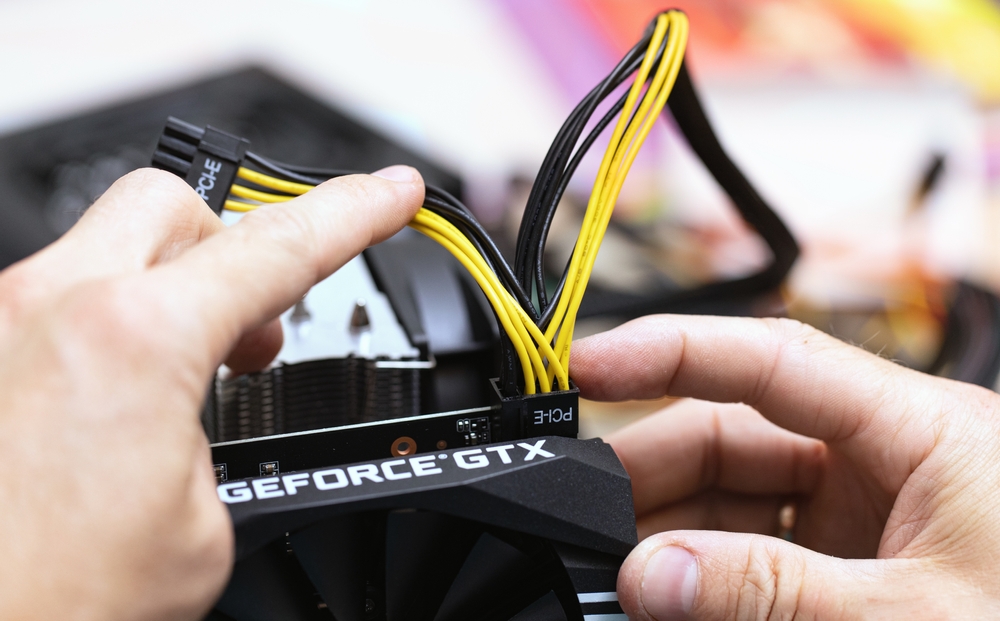
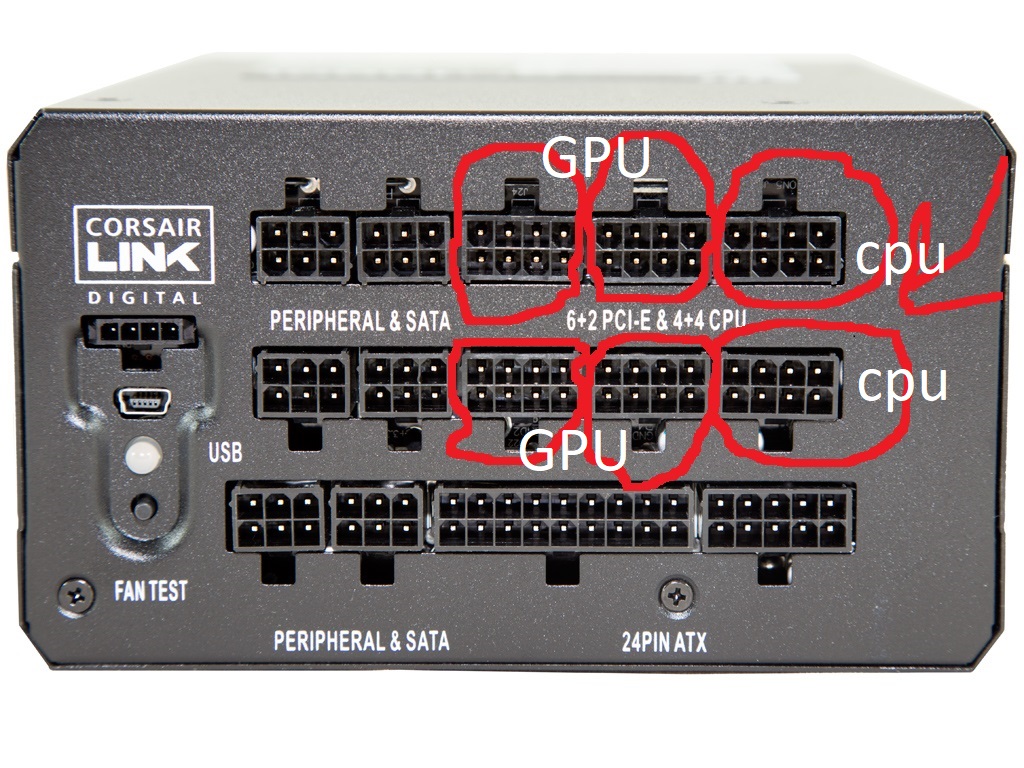
First, find the right cables from your PSU. Most GPUs need 6-pin or 8-pin PCIe power cables. These cables usually have a clip on one side for secure connection. Check your PSU for cables labeled “PCI-E” or “GPU.”
Proper Cable Insertion
Align the connector with the GPU power port. Make sure the clip on the cable matches the slot on the GPU. Do not force the cable. It should slide in smoothly and fit snugly.
Securing Connections
Press the cable firmly until you hear a click. This click means the clip locked the cable in place. A loose connection can cause power loss or crashes. Double-check all cables before turning on your PC.
Cable Management Tips
Good cable management is key when connecting your GPU to the PSU. It keeps your build neat, safe, and efficient. Proper cable handling helps avoid damage and makes future upgrades easier. It also improves airflow, which keeps your system cool.
Follow simple tips to organize your cables well. These tips reduce clutter and protect your components.
Using Cable Ties
Cable ties help bundle cables neatly. Group similar cables together to reduce mess. Use ties to secure cables to the case frame. Avoid tightening ties too much to prevent damage. Velcro straps work well for easy adjustments.
Avoiding Cable Strain
Do not stretch cables too far. Keep enough slack to prevent pulling on connectors. Bending cables sharply can cause breaks inside. Gently route cables along natural curves. Support heavy cables to stop stress on ports.
Maintaining Airflow
Clear airflow paths improve cooling. Keep cables away from fans and vents. Arrange cables along the case edges. This prevents blocking air circulation. Clean cable routes help reduce dust buildup too.
Testing The Setup
Testing the setup is a crucial step after connecting the GPU to the PSU. It ensures everything works correctly and safely. This phase helps spot any power or connection problems early. Follow these simple steps to check your setup.
Powering On The System
Start by turning on your computer. Watch for any unusual sounds or lights. The fans should spin smoothly. The system should boot without errors. If it does, the power connection is likely good.
Monitoring Gpu Power Status
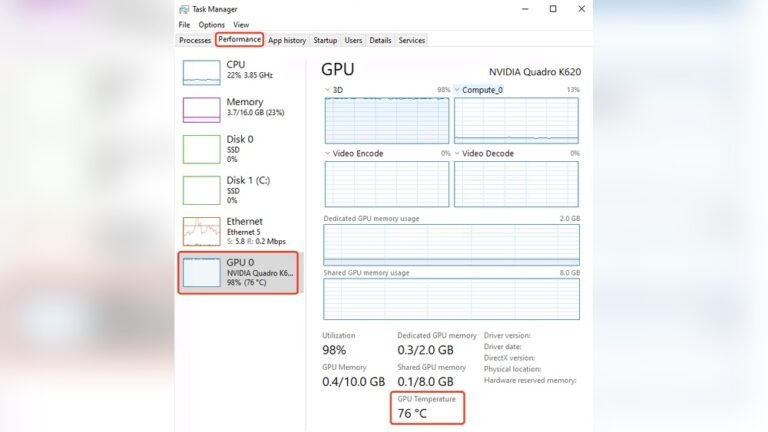
Use software tools to check the GPU’s power status. Programs like GPU-Z show power consumption and voltage. Confirm the GPU receives stable power from the PSU. Look for any sudden drops or spikes in power.
Troubleshooting Common Issues
If the GPU does not power up, check the cable connections. Ensure all power connectors fit tightly. Try using another PSU cable if available. Listen for beep codes during boot; they can indicate problems. Reset the CMOS if the system fails to start.
Credit: www.reddit.com
Frequently Asked Questions
How Do I Connect Gpu To Psu Safely?
Use the correct PCIe power connectors from your PSU. Match the connector type and wattage to your GPU. Always power off and unplug before connecting to avoid damage.
What Cable Types Connect Gpu To Psu?
GPUs typically use 6-pin or 8-pin PCIe power connectors. Some high-end GPUs require multiple connectors. Check your PSU and GPU manuals for compatible cables.
Can I Use Adapters For Gpu Power Connection?
Yes, adapters can convert Molex or SATA to PCIe connectors. However, use them cautiously as they might not supply adequate power and could cause instability.
How To Check If Psu Supports My Gpu?
Check your PSU’s wattage and PCIe connectors. Ensure it meets or exceeds your GPU’s power requirements. Verify connector types match GPU inputs.
Conclusion
Connecting a GPU to a PSU is simple with the right steps. Always check your power supply’s cables and wattage first. Secure connections keep your computer safe and running well. Take time to match connectors carefully to avoid damage. A good setup helps your system work smoothly every day.
Trust the process and stay patient while connecting parts. This guide makes it easy to power your GPU correctly.