How to Switch from Amd to Nvidia Gpu: Easy Step-by-Step Guide
Thinking about upgrading your graphics card and wondering how to switch from AMD to Nvidia GPU? You’re in the right place.
Making this change can boost your gaming, improve your video editing, or simply give your PC a fresh new performance edge. But it’s not just about swapping hardware—you need to know the exact steps to avoid headaches and get everything running smoothly.
Keep reading, and you’ll discover a simple, clear guide that walks you through the process. By the end, you’ll be confident and ready to make the switch without any guesswork.
Credit: forum.endeavouros.com
Prepare Your System
Preparing your system is the first step before switching from an AMD GPU to an Nvidia GPU. This process ensures a smooth transition without errors or conflicts. Taking the right steps helps your computer work well with the new hardware.
Backup Important Data
Save all your important files and documents. This prevents data loss in case something goes wrong. Use an external drive or cloud storage for backup. Keep a copy of your current system settings too. It makes recovery easier if needed.
Uninstall Amd Drivers
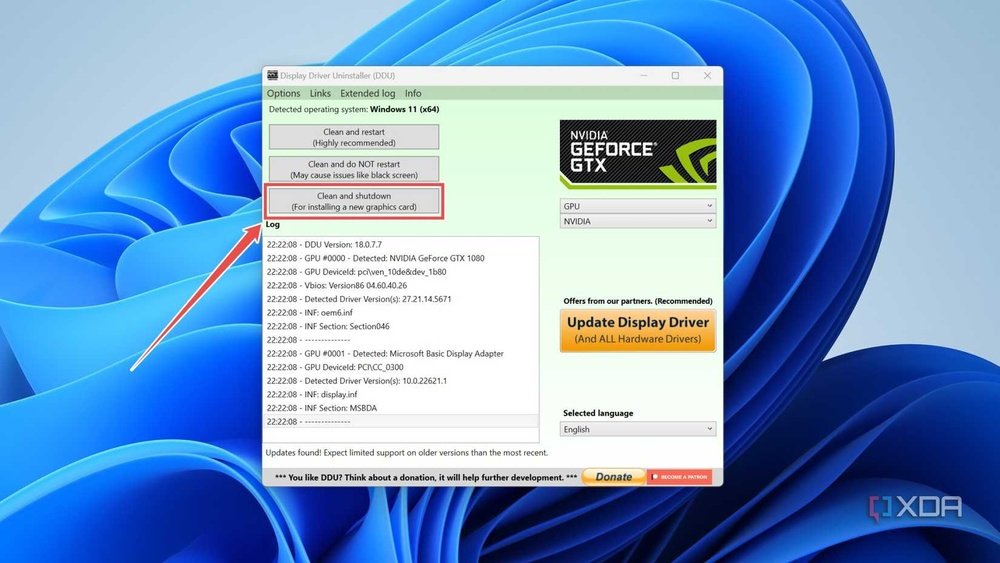
Remove all AMD graphics drivers from your system. This avoids driver conflicts with the new Nvidia GPU. Open the Control Panel and find “Programs and Features.” Select AMD drivers and click “Uninstall.” Restart your computer after this step.
Download Nvidia Drivers
Visit the official Nvidia website to download the latest drivers. Choose the correct model and operating system. Save the driver file to your computer. Installing the right driver ensures your new GPU works correctly and efficiently.
Remove Amd Gpu
Removing your AMD GPU is the first step in switching to an Nvidia graphics card. It requires care and attention to avoid damage. Follow these simple steps to safely take out the AMD card.
This guide helps you remove the GPU with clear instructions. No special tools are needed beyond basic PC tools.
Power Down And Unplug
Turn off your computer completely. Do not use sleep or hibernate mode. Unplug the power cable from the wall socket. This stops any electrical flow to the PC. Also, disconnect other cables like monitor and keyboard. Safety first.
Open The Case
Remove the side panel of your PC case. Most cases have screws or a latch on the back. Keep the screws safe for later. Slide or lift the panel off gently. This exposes the inside of your computer.
Disconnect And Remove Card
Locate your AMD GPU on the motherboard. It fits into the PCIe slot. First, unplug any power connectors attached to the card. Find the locking clip on the PCIe slot. Press or pull it to release the card. Carefully pull the card straight out. Avoid bending or forcing it.
Install Nvidia Gpu
Installing your Nvidia GPU is the next key step in switching from AMD. This process requires care and attention. Proper installation ensures your new card works perfectly and safely. Follow these steps to get your Nvidia GPU ready.
Insert Nvidia Card
Start by opening your computer case. Find the PCIe slot on your motherboard. Hold the Nvidia card by its edges. Gently push it straight into the slot. You should hear a soft click when it fits well.
Secure The Card
Use screws to fix the card to the case. This keeps it stable and prevents movement. Make sure screws are tight but not over-tightened. A secured card avoids damage during use or moving the PC.
Reconnect Power Cables
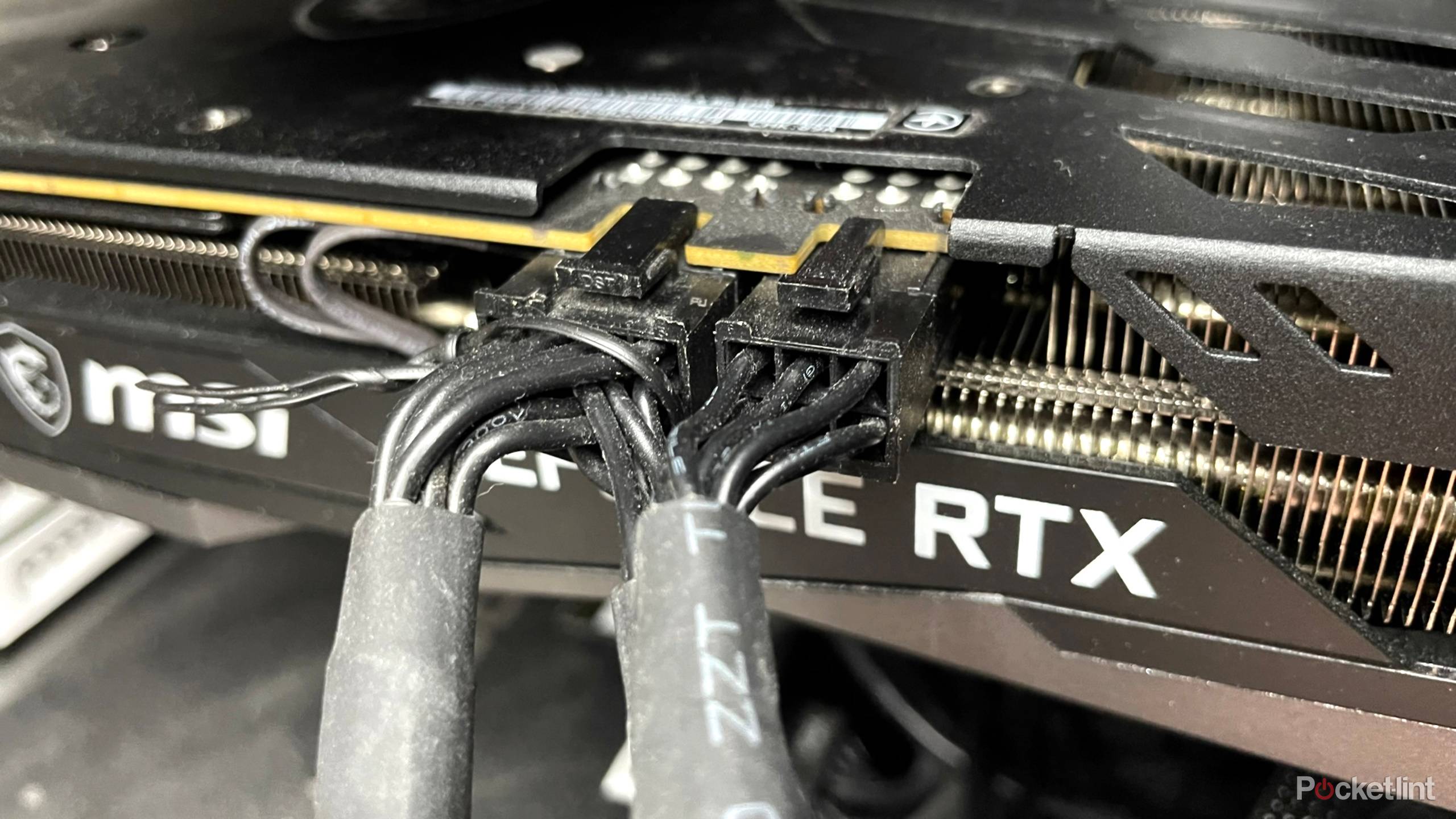
Check your Nvidia card’s power needs. Connect the correct power cables from your PSU. Firmly attach each cable to the card’s power ports. Loose cables can cause errors or system failure.
Credit: vixencomposites.com
Configure Nvidia Settings
After switching from an AMD GPU to an Nvidia one, setting up Nvidia settings is key. This step helps your computer work smoothly with the new graphics card. Proper Nvidia configuration improves performance and display quality. Follow these steps to get your Nvidia GPU ready.
Install Nvidia Drivers
Start by downloading the latest Nvidia drivers. Visit the official Nvidia website. Choose your GPU model and operating system. Download the correct driver version. Run the installer and follow the instructions. Restart your computer after installation. Updated drivers ensure your GPU works well with software and games.
Update Windows
Keep Windows updated for best compatibility. Open the Settings app on your PC. Go to Update & Security. Click Check for updates. Install any available updates. Restart your computer if needed. Updated Windows helps Nvidia drivers run without errors.
Adjust Display Settings
Open the Nvidia Control Panel by right-clicking the desktop. Select Display settings inside the panel. Choose the correct monitor resolution and refresh rate. Adjust color settings like brightness and contrast. Set up multiple monitors if you use them. These changes improve your viewing experience and performance.
Test Your New Gpu
Testing your new Nvidia GPU is important after installation. It shows if the card works well and meets your needs. This step helps catch problems early and improves your system’s performance.
Run Benchmark Tests
Start by running benchmark tests to measure your GPU’s power. Use tools like 3DMark or Unigine Heaven. These tests show how fast your new card handles graphics. Compare results with your old AMD GPU to see the difference. Benchmarking ensures your GPU runs at expected speeds.
Check For Issues
Look for problems such as screen flickering or crashes. Check if your drivers installed correctly without errors. Watch for overheating by monitoring temperatures. Stop testing if the GPU gets too hot. Fixing these issues early prevents damage and keeps your system stable.
Optimize Performance
Adjust settings in Nvidia Control Panel for better results. Update your GPU drivers to the latest version. Lower graphics settings if games lag or stutter. Use Nvidia’s GeForce Experience to optimize games automatically. Small changes can improve speed and smoothness significantly.
Credit: vixencomposites.com
Frequently Asked Questions
How Do I Uninstall Amd Drivers Before Switching Gpus?
Uninstall AMD drivers using the Device Manager or third-party tools like DDU. This prevents conflicts when installing Nvidia drivers. Clean removal ensures a smooth transition and optimal GPU performance.
What Steps Are Needed To Install Nvidia Gpu Properly?
After uninstalling AMD drivers, power off your PC, replace the GPU, and secure it. Boot up, then download and install the latest Nvidia drivers from the official website for best results.
Do I Need To Update Bios When Switching Gpus?
Updating BIOS is not always necessary but can improve compatibility. Check your motherboard’s manufacturer website for updates and instructions to ensure smooth GPU switching and system stability.
How Can I Optimize Settings After Installing Nvidia Gpu?
Use Nvidia GeForce Experience to optimize game settings automatically. Adjust resolution, refresh rate, and power management in Nvidia Control Panel for better performance and efficiency after switching from AMD.
Conclusion
Switching from AMD to Nvidia GPU is simpler than it seems. Uninstall old drivers carefully to avoid conflicts. Install Nvidia drivers fresh for best performance. Check connections and settings before powering up. Test your new GPU with games or apps.
Enjoy smoother graphics and better visuals now. This change can improve your computer’s speed. Take your time and follow steps closely. Your new Nvidia GPU will work well. Ready for better gaming and work graphics?