

Are you struggling with slow performance or unexpected glitches on your computer? Sometimes, GPU acceleration can cause more harm than good, especially if your system isn’t fully compatible.
Knowing how to turn off GPU acceleration can help you regain control, speed up your device, and fix annoying issues. You’ll discover simple, step-by-step instructions to disable GPU acceleration quickly and safely. Keep reading to unlock smoother, hassle-free computing right now.

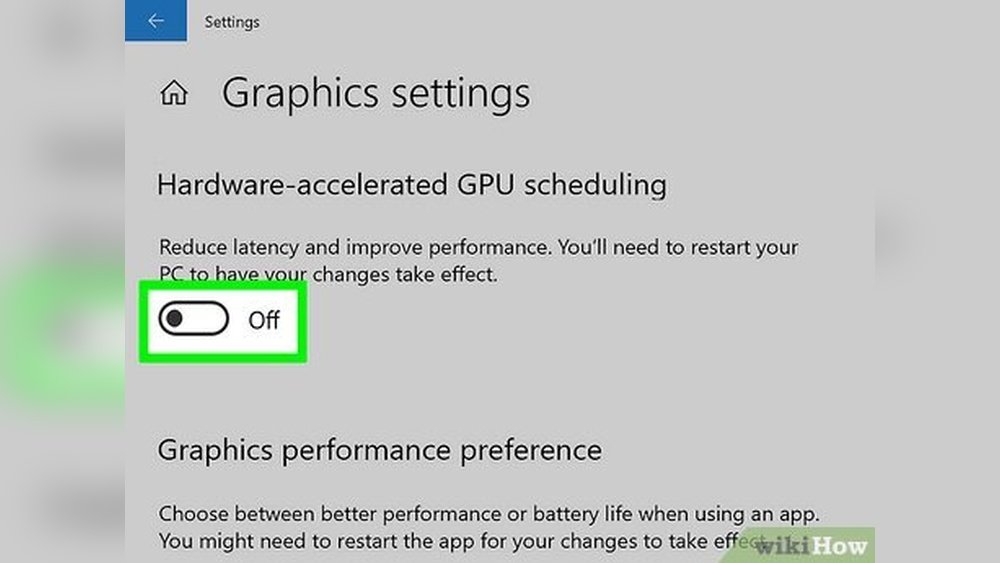
Credit: www.wikihow.com
What Is Gpu Acceleration
GPU acceleration helps your computer run certain tasks faster. It uses the graphics card (GPU) to handle work that the main processor (CPU) usually does. This makes programs like video editors, browsers, and games run more smoothly.
The GPU is designed to process many tasks at once. This is useful for graphics and data-heavy apps. It can speed up rendering, video playback, and other processes.
How Gpu Acceleration Works
The GPU takes over specific jobs from the CPU. It processes images, videos, and animations quickly. This frees the CPU to handle other tasks. Together, they make your computer more efficient.
Common Uses Of Gpu Acceleration
Many apps use GPU acceleration. Web browsers use it to show videos and graphics. Video editing software speeds up rendering with it. Some games rely on GPU acceleration for smooth gameplay.
Benefits Of Gpu Acceleration
GPU acceleration improves performance in graphics tasks. It reduces lag and speeds up video playback. It also lowers CPU load, which can help your computer run cooler.
When To Turn Off Gpu Acceleration
Some apps may have bugs with GPU acceleration. It can cause crashes or display problems. Turning it off can fix these issues. Also, older computers might run better without it.
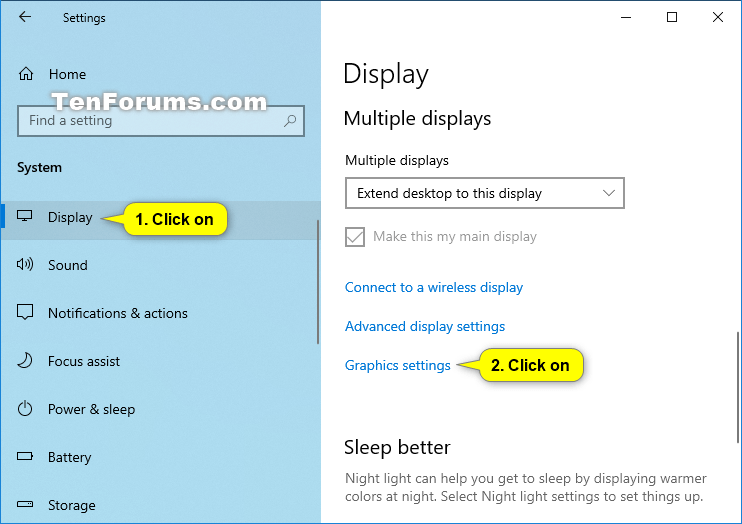
Credit: www.tenforums.com
Reasons To Disable Gpu Acceleration
GPU acceleration uses your computer’s graphics card to speed up tasks. It helps with video editing, gaming, and web browsing. But sometimes, it causes problems that slow down your work or cause errors.
Turning off GPU acceleration can fix issues like crashes, flickering screens, or slow software. It also helps if your graphics card is old or not working well. Disabling it can make some programs more stable and easier to use.
Improves Software Stability
Some apps crash or freeze because of GPU acceleration. Turning it off can stop these crashes. The software runs more smoothly without sudden stops or errors. This is helpful for work that needs focus and reliability.
Reduces Screen Flickering
Screen flickering can be annoying and hurt your eyes. It happens when GPU acceleration conflicts with your display settings. Disabling it often stops the flicker and gives a steady screen view. This makes using the computer more comfortable.
Helps Older Computers Run Faster
Older computers may struggle with GPU acceleration. It can slow down the system or cause lag. Turning off this feature can free up resources. The computer works faster and responds better without extra load.
Fixes Compatibility Issues
Some programs do not work well with GPU acceleration. This causes bugs or display errors. Disabling the GPU helps these programs run correctly. It avoids conflicts between software and hardware components.
Improves Battery Life On Laptops
GPU acceleration uses more power. This drains laptop batteries quickly. Turning it off saves battery life. Your laptop lasts longer on a single charge without the extra power use.
Disabling Gpu Acceleration On Windows
Disabling GPU acceleration on Windows can help fix app crashes and improve system stability. It reduces the load on your graphics card by turning off hardware acceleration. This can be useful if your GPU is causing issues with certain programs.
There are a few ways to disable GPU acceleration on Windows. Choose the method that fits your needs and skill level. Each option offers control over how your system uses the graphics processor.
Using Display Settings
Start by opening the Windows Settings menu. Click on “System” and then “Display.” Scroll down to find the “Graphics settings” option.
In the Graphics settings, toggle off hardware acceleration for specific apps. This stops those apps from using the GPU for faster graphics processing. It is a simple, safe way to disable acceleration.
Modifying Registry Editor
Press Win + R, type “regedit,” and hit Enter to open the Registry Editor. Navigate to HKEY_CURRENT_USERSoftwareMicrosoftAvalon.Graphics.
Create a new DWORD value named DisableHWAcceleration. Set its value to 1 to turn off GPU acceleration system-wide.
Be careful when editing the registry. Back up your registry before making changes. Incorrect edits can cause system problems.
Through Graphics Driver Control Panel
Open your graphics driver control panel, like NVIDIA Control Panel or AMD Radeon Settings. These tools manage GPU settings directly.
Look for 3D settings or performance options. Find the hardware acceleration setting and disable it. This method targets the GPU at the driver level.
Disabling acceleration here affects all applications using the GPU. It gives broad control over graphics performance.
Disabling Gpu Acceleration On Mac
Disabling GPU acceleration on a Mac can help solve some performance issues. It reduces the workload on your graphics card. This can make apps run smoother, especially on older Macs. It also saves battery life by using less power. There are simple ways to turn off GPU acceleration on your Mac.
Using System Preferences
Open System Preferences from the Apple menu. Click on “Displays” and then select “Display Settings.” Look for the option related to graphics or GPU acceleration. This setting might be under “Energy Saver” or “Battery.” Turn off the option that uses the GPU for acceleration. Restart your Mac to apply the changes. This method affects the whole system.
Adjusting App-specific Settings
Some apps allow you to disable GPU acceleration inside their settings. Open the app you want to change. Go to its Preferences or Settings menu. Find the option for hardware acceleration or GPU usage. Uncheck or turn off this option. Save the settings and restart the app. This method only changes the selected app, not the entire Mac.
Turning Off Gpu Acceleration In Browsers
Turning off GPU acceleration in browsers can help fix display issues and improve stability. It stops the browser from using the graphics card to speed up web page rendering. This option is useful when the browser crashes or behaves strangely.
Each browser has a different way to disable this feature. The process is simple and takes only a few steps.
Chrome
Open Chrome and click the three-dot menu at the top right. Select “Settings” from the dropdown. Scroll down and click “Advanced” to open more options. Find the “System” section. Turn off the switch next to “Use hardware acceleration when available.” Restart Chrome to apply the change.
Firefox
Launch Firefox and click the three-line menu in the top right corner. Choose “Settings” from the list. Scroll down to the “Performance” section. Uncheck “Use recommended performance settings.” Then, uncheck “Use hardware acceleration when available.” Restart Firefox to see the effect.
Edge
Open Edge and click the three-dot menu at the top right. Select “Settings” and then click “System and performance.” Find “Use hardware acceleration when available.” Toggle it off. Close and reopen Edge to complete the process.
Impact On Performance And Battery Life
Turning off GPU acceleration changes how your device handles tasks. It affects both performance and battery life in clear ways. Understanding these effects helps you decide if disabling GPU acceleration suits your needs.
Impact On System Performance
GPU acceleration uses the graphics card to speed up processes. Without it, the CPU does more work. This can slow down tasks like video editing and gaming. Simple tasks like browsing may not feel much difference. Slower performance may occur in graphics-heavy applications.
Effect On Battery Life
GPU acceleration often uses more power from the battery. Turning it off can save energy and extend battery life. Devices may run longer without charging. This helps especially on laptops and tablets. The trade-off is slower graphics performance.
Balancing Performance And Battery Usage
Decide based on your main use. For heavy graphics work, keep GPU acceleration on. For longer battery life, turn it off. Some apps let you switch acceleration on or off easily. Adjust settings for the best balance on your device.
Troubleshooting Common Issues
Troubleshooting common problems with GPU acceleration can be simple. This section covers usual issues and how to fix them fast. Many users face errors after turning off GPU acceleration. Knowing the right steps helps avoid frustration and saves time.
Check Software Compatibility
Some apps need GPU acceleration to work well. Turning it off can cause crashes or slow speed. Always check if your software supports running without GPU help. Visit the software website or help section for details.
Update Graphics Drivers
Old drivers often cause display problems. Keep your graphics drivers up to date for smooth performance. Visit the GPU maker’s site to download the latest drivers. Restart your computer after installation to apply changes.
Adjust Application Settings
Some programs have their own GPU acceleration options. Turn off acceleration inside app settings too. This avoids conflicts between system and app settings. Check the app’s help menu for guidance.
Clear Cache And Temporary Files
Old cache files can cause glitches after changes. Clear your app’s cache or temporary files regularly. This step helps apps run better without GPU acceleration. Use built-in tools or third-party cleaners to clear cache.
Restart Your Computer
Simple but effective. Restarting your PC refreshes system files and settings. It solves many problems after changing GPU acceleration. Save your work before restarting to avoid data loss.
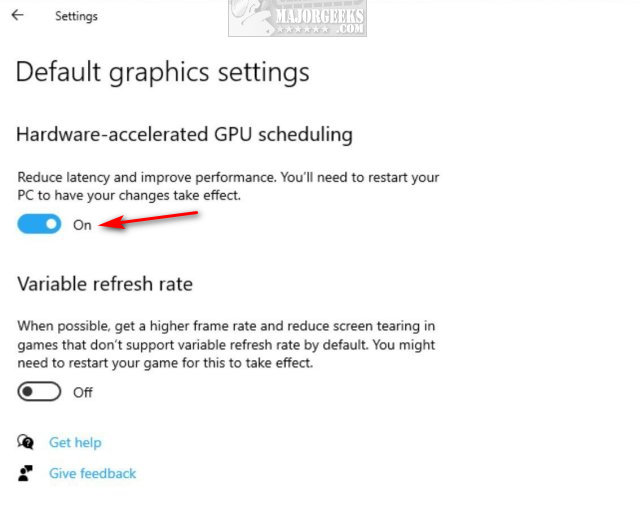
Credit: m.majorgeeks.com
Frequently Asked Questions
What Is Gpu Acceleration And Why Disable It?
GPU acceleration uses your graphics card to speed up tasks. Disabling it can fix software glitches or reduce power usage. It helps when GPU causes performance issues or compatibility problems with certain applications.
How Do I Turn Off Gpu Acceleration In Windows?
Go to Settings > System > Display > Graphics settings. Choose the app, then select “Options” and set it to “Power saving” to disable GPU acceleration. Restart the app for changes to apply.
Can Disabling Gpu Acceleration Improve System Stability?
Yes, turning off GPU acceleration can reduce crashes. It prevents conflicts between software and graphics drivers. This is useful if your system freezes or apps behave unexpectedly.
Does Turning Off Gpu Acceleration Affect Video Playback?
Disabling GPU acceleration may lower video playback quality. Videos might become less smooth or use more CPU. However, it can fix playback issues caused by faulty GPU drivers.
Conclusion
Turning off GPU acceleration can help fix some computer issues. It can improve software performance and reduce crashes. Always follow the steps carefully to avoid mistakes. Restart your device after changing settings to apply changes. Keep your system updated to prevent future problems.
Simple adjustments can make a big difference in how your computer runs. Try these tips to see if your device works better. Stay patient and check settings often for the best results.
