How to Monitor Nvidia Gpu Temperature: Easy Steps to Prevent Overheating
Are you worried that your Nvidia GPU might be running too hot? Keeping an eye on your GPU temperature is key to making sure your computer stays fast and safe.
Overheating can cause crashes, slowdowns, or even damage your hardware. But don’t worry—monitoring your Nvidia GPU temperature is easier than you think. You’ll learn simple, effective ways to check your GPU’s temperature and keep it cool, so you can get the best performance without any stress.
Ready to protect your system and boost your gaming or work experience? Let’s dive in!
Why Monitor Gpu Temperature
Monitoring your Nvidia GPU temperature is important for keeping your computer safe and fast. The GPU works hard to process graphics and video. This work creates heat. Too much heat can cause problems. Knowing the temperature helps you avoid these problems. It also helps your GPU last longer. Here is why monitoring temperature matters.
Risks Of Overheating
Overheating can damage your GPU. High heat can melt tiny parts inside the chip. This damage might stop the GPU from working. It can also harm other parts of your computer. Heat can cause your system to shut down suddenly. This protects the hardware but can cause data loss. Watching the temperature helps you catch heat issues early. It lets you cool the GPU before damage happens.
Impact On Performance And Lifespan
Heat affects how well your GPU performs. When it gets too hot, the GPU slows down. This is called thermal throttling. It prevents the chip from overheating but lowers speed. Your games and apps may lag or freeze. High temperatures shorten the GPU’s lifespan. Constant heat weakens the parts over time. Keeping the GPU cool helps it run faster and last longer.

Credit: www.shoshitamam.com
Tools For Checking Nvidia Gpu Temperature
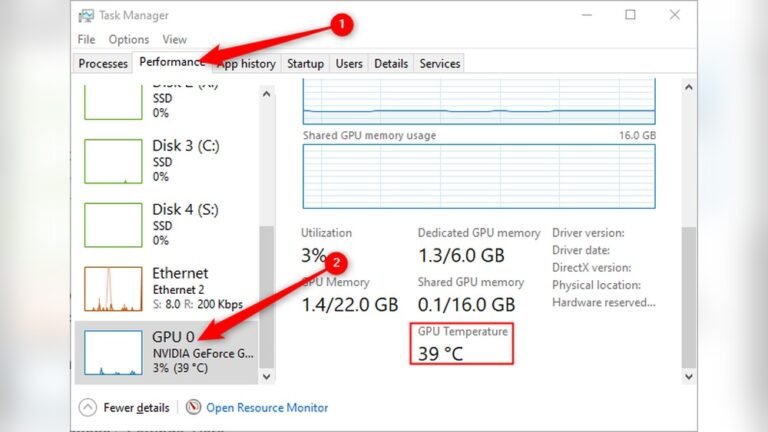
Monitoring the temperature of your Nvidia GPU is crucial for keeping your computer safe. High temperatures can cause hardware problems or reduce performance. Several tools help you check your GPU temperature easily. Some tools come with Nvidia software, while others are third-party apps. Both types give you real-time temperature data and other useful details.
Built-in Nvidia Software
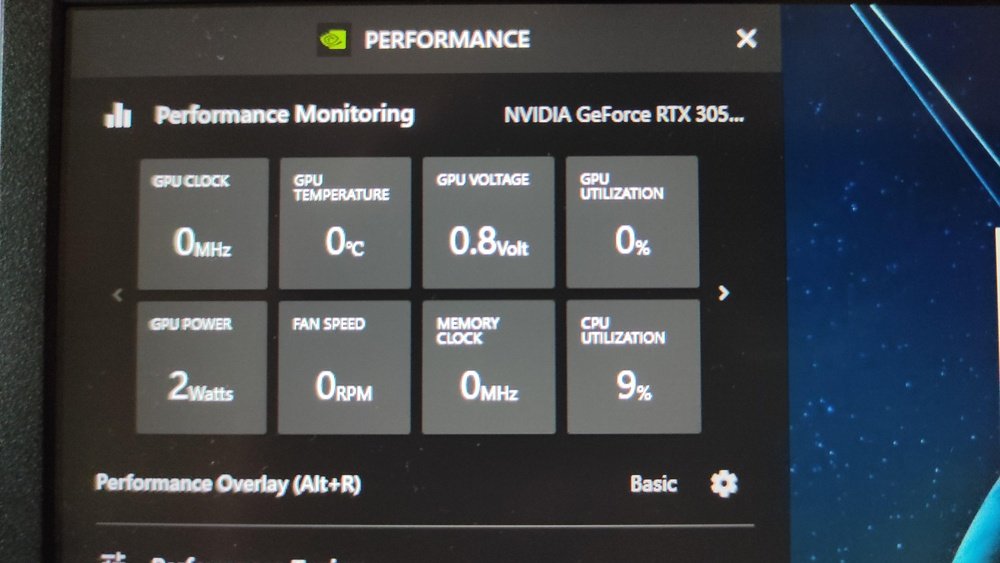
Nvidia offers software that shows your GPU temperature. The most common one is Nvidia GeForce Experience. This app provides a simple way to monitor your GPU while gaming or working. It shows temperature and usage stats in an overlay on your screen.
Another built-in tool is Nvidia Control Panel. It has a section for system information, including GPU temperature. These tools are safe and reliable since they come directly from Nvidia. You do not need to install anything extra if you already have Nvidia drivers and software.
Third-party Monitoring Apps
Many third-party apps offer detailed GPU temperature monitoring. MSI Afterburner is popular among gamers and PC users. It displays temperature, fan speed, and clock rates in a clear interface. You can also set alerts if the GPU gets too hot.
HWMonitor is another good choice. It tracks temperatures for many components, including Nvidia GPUs. It shows maximum, minimum, and current temperatures in real-time. These apps work well with most Nvidia cards and provide extra info beyond temperature.
Step-by-step Monitoring Process
Monitoring your Nvidia GPU temperature is important for keeping your computer safe. High temperatures can cause slowdowns or damage. This step-by-step guide shows simple ways to check your GPU temperature. Follow these easy methods to keep your system cool and stable.
Using Nvidia Control Panel
Open the Nvidia Control Panel by right-clicking the desktop. Select “Nvidia Control Panel” from the menu. Find the “Performance” tab on the left side. Click “Device Settings” to see your GPU details. Look for the temperature reading in this section. It updates in real-time while your GPU is active.
Using Nvidia Geforce Experience
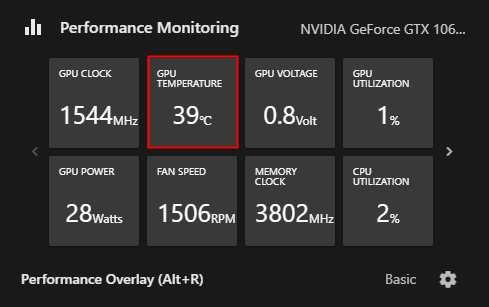
Launch the Nvidia GeForce Experience app on your PC. Sign in or create an account if needed. Click the gear icon to open Settings. Go to the “General” tab and enable the “In-game Overlay.” Press Alt + Z to open the overlay. Click “Performance” and then “Metrics.” The GPU temperature shows here during games or apps.
Using Msi Afterburner
Download and install MSI Afterburner from its official site. Open the program and go to the “Monitoring” tab. Find “GPU temperature” in the list and check the box. Enable “Show in On-Screen Display” for live monitoring. Apply the settings and watch your GPU temperature while gaming or working.

Credit: www.pcworld.com
Interpreting Temperature Readings
Understanding the temperature readings of your Nvidia GPU is important for keeping your computer healthy. Temperatures tell you if the GPU works well or if it needs attention. Watching these numbers helps avoid damage and keeps performance strong.
Temperature varies with tasks. Low numbers mean light work. High numbers show heavy use. Knowing what numbers are okay helps you act fast. Let’s look at safe ranges and warning signs.
Safe Temperature Ranges
Most Nvidia GPUs work best below 85°C. Temperatures between 30°C and 50°C are normal when idle. Under load, 60°C to 80°C is safe. Staying in this range keeps your GPU stable. If temperatures stay below 85°C, your system cools well.
Signs Of Overheating
Heat above 85°C can harm your GPU. Watch for slow computer speed or crashes. Loud fan noise may also mean high heat. Screen glitches and freezes are warning signs. Overheating shortens GPU life and lowers performance. Act quickly if you see these problems.
Tips To Prevent Gpu Overheating
Keeping your Nvidia GPU cool is important for its performance and life. Overheating can cause crashes and slowdowns. Simple steps help keep the temperature in check. These tips prevent damage and keep your GPU running smoothly.
Improving Airflow
Good airflow lowers the GPU temperature. Arrange cables to avoid blocking air. Use more case fans for better air movement. Place the computer in a cool, open space. Avoid tight spots that trap heat.
Cleaning Dust And Debris
Dust blocks air vents and fans. Clean the GPU and case regularly. Use compressed air to blow out dust. Turn off and unplug the PC before cleaning. Keep the area around your PC dust-free.
Adjusting Fan Speeds
Fans help cool the GPU by moving air. Increase fan speed using software tools. Set a custom fan curve for better cooling. Higher speeds mean more noise but cooler GPU. Find a balance that suits you.
Optimizing Workloads
Heavy tasks raise GPU temperature quickly. Close unused programs to reduce load. Lower graphics settings in games or apps. Use power-saving modes if available. Spread out work to give the GPU breaks.
Credit: www.villaginaosterlen.se
When To Seek Professional Help
Knowing when to seek professional help for your Nvidia GPU temperature issues is important. Some problems need expert attention to avoid damage. Recognizing these signs early can save you time and money.
Persistent High Temperatures
Constantly high GPU temperatures can signal a serious problem. Normal temperature spikes during heavy use are okay. But if the GPU stays hot all the time, it may cause damage. Professionals can find the root cause quickly. They can check cooling systems and thermal paste. Fixing this early prevents permanent hardware failure.
Hardware Issues
Hardware problems need expert diagnosis. Faulty fans or damaged heat sinks reduce cooling efficiency. Sometimes, the GPU itself has defects or damage. These issues are hard to fix alone. A professional technician has the right tools and skills. They can replace or repair parts safely. Ignoring hardware issues can lead to costly repairs later.
Frequently Asked Questions
How Can I Check Nvidia Gpu Temperature On Windows?
You can monitor Nvidia GPU temperature using software like Nvidia GeForce Experience, MSI Afterburner, or HWMonitor. These tools display real-time temperature and usage stats. Open the software, navigate to the monitoring tab, and check the GPU temperature while gaming or under load for accurate readings.
What Is The Safe Temperature Range For Nvidia Gpus?
Nvidia GPUs typically operate safely between 30°C and 85°C. Temperatures above 85°C may cause thermal throttling or damage if sustained. Keeping your GPU below 80°C during heavy use ensures optimal performance and longevity. Proper cooling and ventilation help maintain safe temperatures.
Does Nvidia Software Show Gpu Temperature?
Yes, Nvidia’s official software, GeForce Experience, includes an overlay that displays GPU temperature during gameplay. You can enable this feature in the settings under the “HUD Layout” section. It provides real-time monitoring without needing third-party applications.
Why Is Monitoring Nvidia Gpu Temperature Important?
Monitoring your Nvidia GPU temperature prevents overheating, which can reduce performance or damage hardware. It helps you identify cooling issues early and maintain system stability. Regular temperature checks ensure your GPU runs efficiently and extends its lifespan.
Conclusion
Monitoring your Nvidia GPU temperature helps keep your computer safe. It stops overheating and improves performance. Use simple tools to check your GPU’s heat. Regular checks avoid damage and extend your GPU’s life. Keep your system cool and running smoothly.
Stay aware of temperature changes during heavy use. Small efforts make a big difference for your device. Stay informed, stay protected, and enjoy better gaming or work sessions.