How to Clean a Gpu: Easy Steps for Optimal Performance
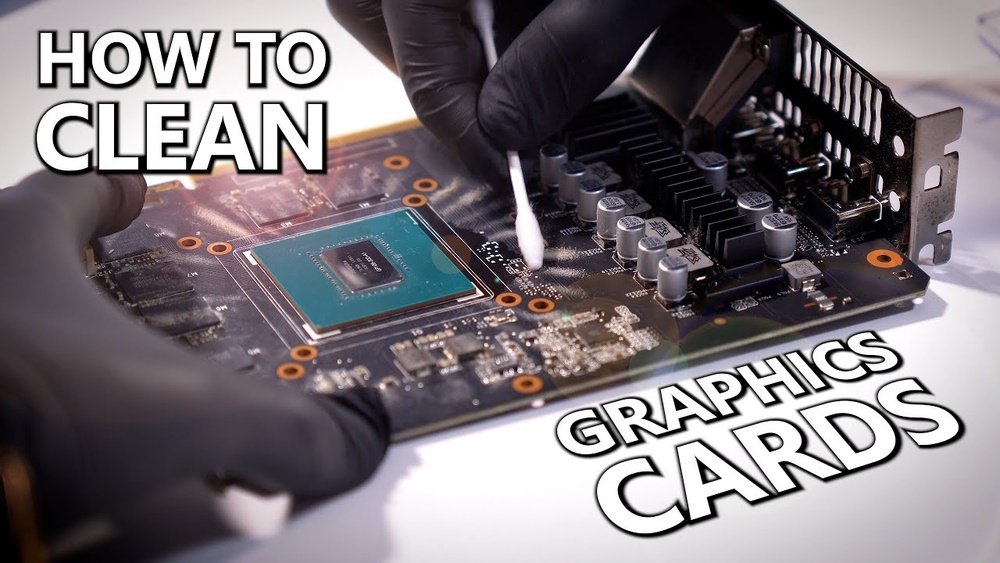
Your GPU works hard to deliver smooth gaming, fast rendering, and seamless graphics. But over time, dust and grime can build up, causing it to overheat and slow down.
Knowing how to clean your GPU the right way can save you from costly repairs and boost your computer’s performance. In this guide, you’ll discover simple, step-by-step tips to keep your GPU running cool and efficient. Ready to give your graphics card the care it deserves?
Let’s dive in.

Credit: www.reddit.com
Signs Your Gpu Needs Cleaning
Knowing the signs your GPU needs cleaning helps keep it working well. Dirt and dust can build up inside your graphics card. This buildup blocks airflow and slows down cooling. The result: your GPU heats up and may perform worse.
Watch for common signals that show your GPU needs attention. Spotting these signs early keeps your computer safe and fast.
Overheating And Performance Drops
Your GPU may run hotter than usual. Overheating happens when dust blocks the cooling system. This can cause your computer to slow down or freeze. Games and apps might lag or crash more often. High temperatures reduce the GPU’s life span too.
Visible Dust And Debris
Check your GPU for dust on the fans and vents. Dust looks like gray or brown powder. It can cover fan blades and vents. This stops air from moving freely. If you see dust, it means your GPU needs cleaning soon.
Unusual Fan Noise
Listen to your GPU’s fan sounds. Dust makes fans work harder and spin unevenly. You might hear buzzing, rattling, or loud noises. Strange sounds show the fans are struggling. Cleaning the GPU can fix this problem quickly.

Credit: www.youtube.com
Tools And Materials Needed
Cleaning a GPU needs the right tools and materials. Having these ready makes the job easier and safer. Each item plays a role in removing dust and dirt without damage.
Compressed Air Can
A compressed air can sprays strong air to blow dust off the GPU. It reaches small spaces that brushes cannot. Use short bursts to avoid moisture build-up. Hold the can upright to prevent liquid spray.
Soft Brushes And Cloths
Soft brushes remove dust from tight spots gently. Use a small paintbrush or makeup brush. Microfiber cloths wipe surfaces without scratching. Avoid rough materials that can damage delicate parts.
Thermal Paste And Isopropyl Alcohol
Thermal paste helps cool the GPU by filling gaps between the chip and cooler. Replace old paste for better heat transfer. Use isopropyl alcohol to clean off old paste safely. It evaporates quickly and leaves no residue.
Preparing Your Workspace
Preparing your workspace is the first step to safely clean your GPU. A well-organized area helps avoid damage and makes the process smooth. It keeps your parts safe and ready for cleaning. Follow these simple steps before starting.
Powering Down And Unplugging
Turn off your computer completely. Do not just put it to sleep or hibernate. Unplug the power cable from the wall socket. This stops any electricity flow to the GPU. Also, disconnect other cables attached to the computer. Safety first.
Grounding Yourself To Avoid Static
Static electricity can harm your GPU’s delicate parts. Touch a metal part of your computer case to discharge static. Use an anti-static wrist strap if you have one. This keeps your body grounded and safe. Avoid working on carpet or soft surfaces that generate static.
Setting Up A Clean Area
Choose a flat, clean surface with good lighting. Remove dust and clutter around your workspace. Have all tools ready, like a screwdriver and soft cloth. Use a tray or container to hold small screws. This keeps everything organized and prevents loss.
Credit: www.reddit.com
Removing The Gpu Safely
Removing your GPU safely is important for both your computer and the graphics card. Doing it right stops damage to parts and keeps you safe from electric shocks. Follow simple steps to remove the GPU carefully. Take your time and be gentle.
Opening The Computer Case
Start by turning off your PC and unplugging it from the wall. Move to a clean, flat surface to work on. Find the screws or clips that hold the side panel of your case. Remove them slowly and keep them safe. Slide the panel off to see the inside of your computer.
Disconnecting Power And Cables
Look inside and find the power cables connected to your GPU. These cables supply electricity to the card. Press the clip on the cable connector and pull it out carefully. Do not yank or force the cables. Also, check for any other cables or connectors attached to the GPU and remove them gently.
Taking Out The Gpu
Locate the latch or screw holding your GPU in place on the motherboard. Press or unscrew it to unlock the card. Hold the GPU by its edges and pull it out straight from the slot. Do not twist or bend the card. Place the GPU on an anti-static surface or bag to protect it from static damage.
Cleaning The Gpu Exterior
Cleaning the outside of your GPU is important to keep it cool and working well. Dust and dirt build up on the fan and heatsink. This blocks airflow and makes your GPU hotter. A clean GPU runs quieter and lasts longer. Follow these simple steps to clean the GPU exterior safely.
Using Compressed Air On Fans And Heatsinks
Use a can of compressed air to blow dust from the GPU fans and heatsinks. Hold the can upright to avoid spraying liquid. Keep the fan blades still with a finger or a small tool. Blow air in short bursts to remove dirt. This helps clear dust without damage.
Brushing Away Stubborn Dust
Use a soft brush to remove dust stuck in hard-to-reach places. A small paintbrush or makeup brush works well. Gently brush between fan blades and heatsink fins. Avoid pressing too hard to prevent damage. This step clears dust that compressed air misses.
Wiping Surfaces Carefully
Use a dry microfiber cloth to wipe the GPU’s outer surfaces. Avoid using water or cleaning liquids. Gently wipe the fan housing and the card’s body. This removes leftover dust and fingerprints. Keep the cloth clean to avoid scratching the surface.
Deep Cleaning And Maintenance
Deep cleaning and maintenance keep your GPU running cool and smooth. Dust and old thermal paste reduce performance. Cleaning inside parts helps extend GPU life. This guide explains how to do it step-by-step.
Removing The Gpu Cooler
First, unplug your PC and remove the GPU from the motherboard. Unscrew the cooler carefully. Keep screws safe for reassembly. Gently lift the cooler away from the GPU chip. Avoid pulling on cables or damaging parts.
Replacing Thermal Paste
Old thermal paste dries and stops heat transfer. Clean the old paste off the GPU chip and cooler base. Use isopropyl alcohol and a soft cloth. Apply a small drop of new thermal paste on the chip. Spread it evenly with a plastic card or let the cooler spread it when reattached.
Cleaning Fan Bearings
Fans collect dust and slow down. Remove fan blades if possible. Use a small brush or compressed air to clean dust. Apply a drop of light oil to the fan bearings. Spin the fan gently to spread oil. Reassemble the fan and cooler carefully.
Reinstalling The Gpu
Reinstalling the GPU is a key step after cleaning. It helps your computer work smoothly again. Careful handling during this step protects your hardware. Follow these clear instructions to reinstall the GPU safely and correctly.
Securing The Gpu Back In Place
Hold the GPU by its edges. Align it carefully with the PCIe slot on the motherboard. Gently push the card into the slot until it clicks. Avoid forcing it, which can cause damage. Use screws to fasten the GPU to the case. This keeps the card steady and prevents movement.
Reconnecting Power Cables
Find the power connectors on the GPU. Attach the matching power cables from the power supply. Make sure the cables fit snugly without extra force. Secure connections avoid power issues or failures. Double-check the cables are not loose or hanging.
Closing The Case
Before closing, verify all components are properly connected. Place the side panel back onto the case carefully. Screw the panel tightly to prevent dust entry. Proper closure helps keep the system cool and clean. Now, your GPU reinstall is complete and ready for use.
Testing After Cleaning
After cleaning your GPU, testing is key to ensure everything works well. This step confirms the cleaning did not cause issues. It also helps check if your GPU runs cooler and quieter. Testing keeps your system safe and stable.
Booting Up The System
Turn on your computer after cleaning the GPU. Watch the screen for any error messages. The system should start normally without crashes. If it boots fine, the GPU is likely seated correctly. A smooth start means no loose parts or damage.
Monitoring Temperatures And Performance
Use software to check GPU temperatures. Normal temps are lower after cleaning. Watch performance during simple tasks or games. No sudden drops or freezes should happen. Steady temps and smooth performance show good cleaning results.
Listening For Fan Noise
Listen carefully to the GPU fans. Fans should spin quietly and smoothly. Loud or unusual noises can mean dust or damage. A clean GPU usually has quieter fans. Fan noise is a good sign of proper cleaning.
Tips For Regular Gpu Maintenance
Keeping your GPU clean and well-maintained helps it run smoothly. It also extends the life of your graphics card. Regular care avoids overheating and performance issues. Simple steps can protect your investment and improve your PC’s stability.
Follow these tips to keep your GPU in good shape. Small efforts now prevent bigger problems later.
Scheduling Routine Cleanings
Set a regular time to clean your GPU. Every 3 to 6 months works well for most users. Cleaning too often may cause damage. Too little cleaning lets dust build up inside. Use a soft brush and compressed air to remove dust gently. Turn off and unplug your PC before cleaning. Keep track of cleaning dates in a calendar. This helps prevent forgetting and keeps your GPU fresh.
Keeping The Pc Environment Dust-free
Place your PC in a clean area with little dust. Avoid carpets or floors where dust gathers fast. Use dust filters on your PC case if possible. Clean these filters regularly to stop dust from entering. Keep pets away from your computer. Pet hair adds to dust buildup. Good airflow around your PC also lowers dust accumulation. This reduces the need for frequent internal cleanings.
Using Software To Monitor Gpu Health
Use software tools to check your GPU’s status. Programs like GPU-Z or MSI Afterburner show temperature and usage. Monitor these numbers regularly. High temperatures mean your GPU might need cleaning or better cooling. Some software can alert you to unusual activity. Catching problems early helps you avoid hardware failure. Keep your GPU drivers updated for best performance. Regular checks make your GPU last longer and work better.
Frequently Asked Questions
How Often Should I Clean My Gpu?
Clean your GPU every 3 to 6 months. Frequent cleaning prevents dust buildup and overheating. Adjust frequency based on your environment and usage.
What Tools Do I Need To Clean A Gpu?
Use compressed air, a soft brush, and microfiber cloth. Avoid liquids unless using isopropyl alcohol for thermal paste cleaning. Handle components carefully to avoid damage.
Can I Use Water To Clean My Gpu?
No, never use water directly on your GPU. Water can damage electronic components and cause short circuits. Use compressed air or isopropyl alcohol instead.
How Do I Remove Thermal Paste Safely?
Gently wipe off old thermal paste with isopropyl alcohol and a lint-free cloth. Avoid damaging the GPU chip. Reapply new thermal paste for better cooling.
Conclusion
Cleaning your GPU keeps it cool and working well. Dust and dirt can slow it down. Regular cleaning helps avoid overheating and damage. Use soft brushes and gentle tools for safety. Stay careful with delicate parts to prevent harm. A clean GPU lasts longer and performs better.
Take time to clean it every few months. Small steps make a big difference in your computer’s health. Simple care keeps your system running smoothly and quietly.


