How to Enable Hardware Accelerated Gpu Scheduling Windows 11: Boost Performance Fast
Are you looking to boost your Windows 11 PC’s performance? Enabling Hardware Accelerated GPU Scheduling can help your system run smoother and faster, especially during gaming and heavy graphics tasks.
This feature reduces latency and improves how your graphics card handles workloads. If you want to get the most out of your computer without complicated steps, this guide will show you exactly how to enable Hardware Accelerated GPU Scheduling in Windows 11.
Keep reading to unlock better speed and responsiveness with just a few clicks!
Hardware Accelerated Gpu Scheduling Basics
Hardware Accelerated GPU Scheduling is a feature in Windows 11 that improves how your computer handles graphics. It allows the graphics card to manage its own memory and tasks. This can lead to smoother performance and lower latency in games and apps.
The feature works by reducing the delay between the CPU and GPU. It helps the system run more efficiently, especially for graphics-heavy tasks. Activating this setting can enhance your overall experience on Windows 11.
What It Does
This feature lets the GPU handle its own scheduling. It reduces the workload on the CPU. This means less lag and faster response times during gaming or video playback. The GPU can manage tasks more directly, which improves speed and efficiency.
It can also help reduce stuttering and improve frame rates. This is useful for gamers and users who run graphic-intensive programs. The feature can make the system feel more responsive.
Compatibility Requirements
Hardware Accelerated GPU Scheduling needs certain hardware and software. Your PC must run Windows 11 with the latest updates installed. The graphics card should support this feature, usually newer models from NVIDIA and AMD.
Updated graphics drivers are essential. Without the right driver version, the feature may not work properly. Check your GPU manufacturer’s website for the latest drivers. Some older hardware might not support this feature at all.
Credit: m.majorgeeks.com
Checking Gpu And Driver Support
Before enabling Hardware Accelerated GPU Scheduling on Windows 11, check your GPU and driver support. This step ensures compatibility and smooth performance. Not all GPUs support this feature. Outdated drivers can cause issues. Follow simple steps to find your GPU model and update drivers.
Finding Your Gpu Model
Press Windows + X and select Device Manager. Expand the Display adapters section. You will see your GPU name listed here. Note the exact model for driver updates. This information helps confirm support for GPU scheduling.
Updating Graphics Drivers
Visit your GPU manufacturer’s website. Search using your GPU model. Download the latest driver version available. Install the driver following the on-screen instructions. Restart your computer after installation. Updated drivers improve compatibility and performance for GPU scheduling.
Enabling Gpu Scheduling In Windows 11
Enabling GPU scheduling in Windows 11 helps improve graphics performance. It lets the GPU manage its own memory. This reduces latency and can make your system run smoother during heavy tasks like gaming or video editing. The process is simple and can be done through the system settings.
Accessing Graphics Settings
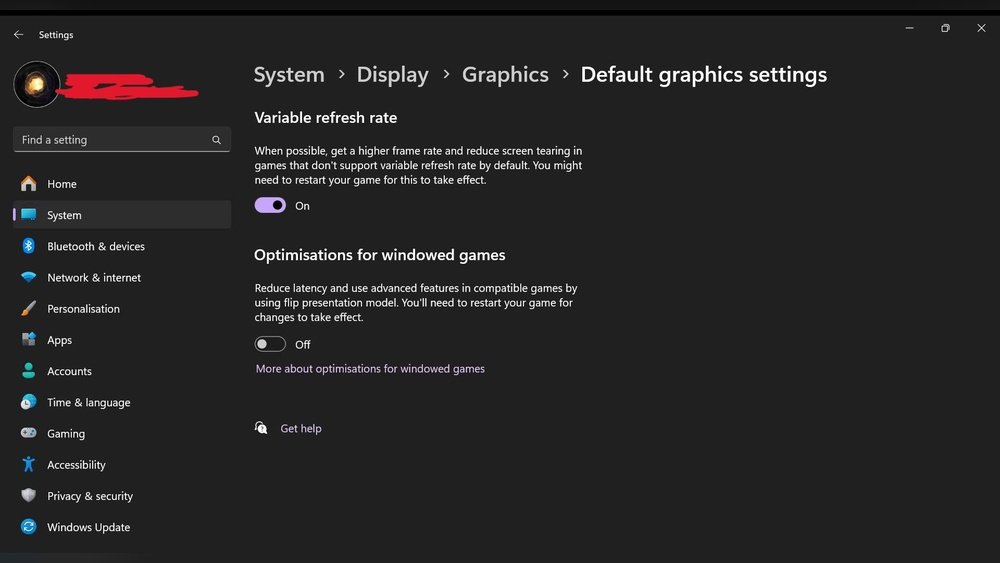
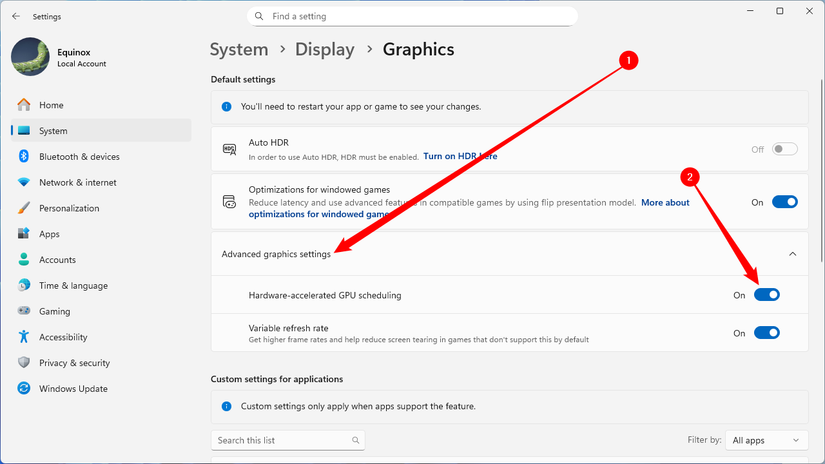
Start by opening the Windows Settings app. Click on the “System” category. Then select “Display” from the left menu. Scroll down and find the “Graphics” option. Click it to open the graphics performance settings. Here, you can control GPU preferences and enable GPU scheduling.
Turning On Hardware Accelerated Gpu Scheduling
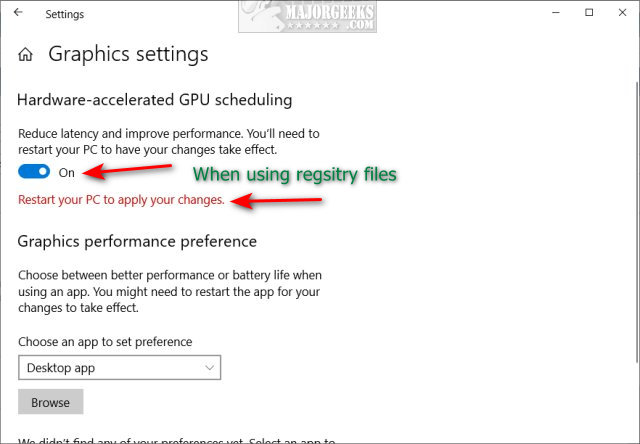
Inside the Graphics settings, look for the “Hardware-accelerated GPU scheduling” toggle. Switch it to the “On” position. You might need to restart your computer for changes to apply. After rebooting, the GPU will handle its memory scheduling. This can help reduce lag and improve overall system responsiveness.
Verifying The Feature Activation
After enabling Hardware Accelerated GPU Scheduling on Windows 11, it is important to verify that the feature is active. Checking the activation helps ensure your system uses GPU scheduling correctly. This can improve graphics performance and reduce latency.
There are simple ways to confirm the feature status. You can use the Task Manager or check the system settings. Both methods give clear information about the feature’s activation.
Using Task Manager
Open Task Manager by pressing Ctrl + Shift + Esc. Click on the “Performance” tab. Select “GPU” from the left sidebar. Look for “Hardware Accelerated GPU Scheduling” at the bottom right. It should say “On” if the feature is active.
This method gives a quick visual confirmation. No need for extra tools or settings changes.
Confirming In System Settings
Open Windows Settings with Win + I keys. Click “System,” then select “Display.” Scroll down and click “Graphics.” Find the option “Hardware-accelerated GPU scheduling.” It should be toggled on. If not, turn it on and restart your PC.
This path shows the feature status and allows easy control over it.
Performance Benefits And Expectations
Enabling Hardware Accelerated GPU Scheduling in Windows 11 can improve your computer’s performance. This feature helps the GPU manage its tasks better. It reduces the workload on the CPU and can lead to smoother graphics and faster processing. The benefits show up differently depending on your activities, like gaming or video editing.
Impact On Gaming
Hardware Accelerated GPU Scheduling can reduce lag and improve frame rates. Games may run smoother, especially on mid-range systems. It helps the GPU respond faster to game commands. This can lead to better gameplay and less stuttering. Not every game will show big changes, but many popular titles benefit from it.
Effect On Video Editing And Rendering
Video editing software can use GPU scheduling to speed up rendering times. Tasks like applying effects and exporting videos become quicker. This feature reduces delays and makes previews smoother. It helps when working with high-resolution videos or complex projects. Overall, it supports a more efficient editing process with less waiting.

Credit: www.youtube.com
Troubleshooting Common Issues
Troubleshooting common issues with Hardware Accelerated GPU Scheduling in Windows 11 helps keep your system stable. Problems can occur due to software conflicts or hardware limits. Knowing how to fix these issues prevents frustration and downtime.
This section covers key steps to solve common problems. Follow these tips to ensure smooth GPU scheduling on your PC.
Reverting Changes Safely
Sometimes, new settings cause performance drops or errors. Reverting changes helps restore your system quickly. Open Settings, go to Display, then Graphics settings.
Turn off Hardware Accelerated GPU Scheduling by toggling the switch. Restart your computer to apply the change. This step returns your system to the previous state without harm.
Addressing Compatibility Problems
Not all hardware supports GPU scheduling well. Check your graphics driver version in Device Manager. Outdated drivers often cause issues.
Visit your GPU manufacturer’s website for the latest updates. Install the newest driver and restart your PC. This step fixes many compatibility problems.
Also, verify Windows updates are current. Microsoft often releases fixes for GPU scheduling in system updates.
Tips For Maximizing Gpu Performance
Maximizing your GPU performance ensures smoother graphics and faster processing. Simple steps can help your GPU run at its best. These tips focus on power and software settings that improve efficiency and speed. Follow these easy methods to enhance your Windows 11 experience with Hardware Accelerated GPU Scheduling.
Optimizing Power Settings
Set your PC to high-performance mode for better GPU output. This mode allows the GPU to use more power when needed. Open the Power & Sleep settings and select Additional power settings. Choose the High performance plan or create a custom one. Avoid power-saving modes during gaming or heavy tasks. This keeps the GPU running smoothly without throttling.
Keeping Drivers Updated
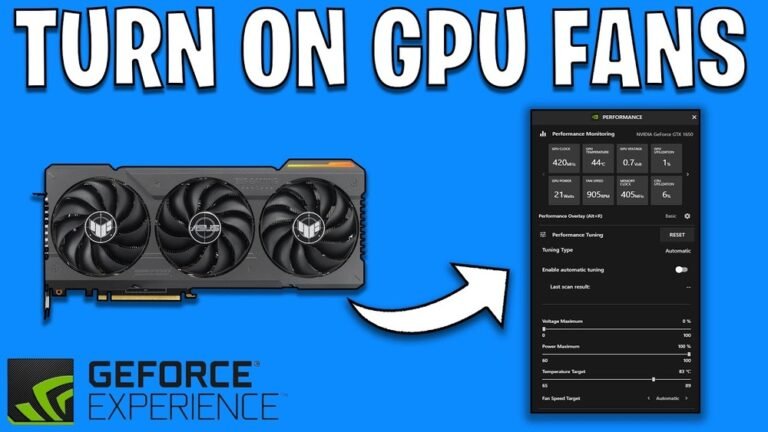
GPU drivers control how your hardware communicates with software. Updated drivers fix bugs and add new features. Visit your GPU manufacturer’s website for the latest versions. Use tools like GeForce Experience or Radeon Software for easy updates. Regular updates ensure your GPU works well with Windows 11 and new games. Outdated drivers can cause crashes and poor performance.
Credit: www.howtogeek.com
Frequently Asked Questions
What Is Hardware Accelerated Gpu Scheduling In Windows 11?
Hardware Accelerated GPU Scheduling lets your GPU manage its own memory. This reduces latency and improves graphics performance in Windows 11.
How Do I Enable Hardware Accelerated Gpu Scheduling?
Go to Settings > System > Display > Graphics Settings. Turn on “Hardware-accelerated GPU scheduling” and restart your PC to apply changes.
Does Hardware Accelerated Gpu Scheduling Improve Gaming Performance?
Yes, it can reduce input lag and improve frame rates. However, the impact varies depending on your hardware and game.
Can Hardware Accelerated Gpu Scheduling Cause Problems?
Rarely, but some users report crashes or stuttering. If issues arise, simply disable the feature to restore stability.
Conclusion
Enabling Hardware Accelerated GPU Scheduling in Windows 11 can improve your PC’s performance. It helps your system run smoother and faster. The steps are simple and quick to follow. Make sure your graphics drivers are updated first. After enabling, you may notice better video and game quality.
Keep your system updated to enjoy the best experience. Try this feature to see if it fits your needs. Small changes like this can make a difference. Give it a shot and watch your PC work better.