How to Test Gpu: Ultimate Guide to Benchmark and Diagnose Performance
Are you worried your GPU might not be working right? Whether you’re a gamer, designer, or just someone who wants their computer to run smoothly, knowing how to test your GPU is crucial.
Your graphics card handles everything from visuals to heavy processing, and a small problem can cause big headaches. You’ll learn simple and effective ways to check your GPU’s health. By the end, you’ll feel confident spotting issues early and keeping your system running at its best.
Ready to take control of your GPU’s performance? Let’s dive in.
Preparing For Gpu Testing
Preparing your computer before testing your GPU is a crucial step. It helps avoid errors and ensures accurate results. Taking time to get ready protects your system and saves effort later. Here’s how to start.
Checking System Requirements
Check your computer’s hardware and software. Make sure your CPU, RAM, and storage meet the test needs. Verify your operating system supports the testing tools. Without the right setup, tests may fail or show wrong data.
Installing Necessary Software
Download and install GPU testing programs. Choose reliable and well-known tools for best results. Keep software updated to avoid bugs and errors. Some tests need drivers or specific libraries. Install those before starting any test.
Backing Up Important Data
Save your important files and documents. Testing can sometimes cause crashes or data loss. Use an external drive or cloud service to keep data safe. This step protects your work and personal files.
Credit: www.liftingitalia.com
Benchmarking Gpu Performance
Benchmarking GPU performance helps measure the power of your graphics card. It shows how well your GPU handles games, videos, and other tasks. Testing with benchmarks gives clear numbers to compare GPUs. This data helps you decide if your GPU meets your needs or needs an upgrade.
Choosing The Right Benchmark Tools
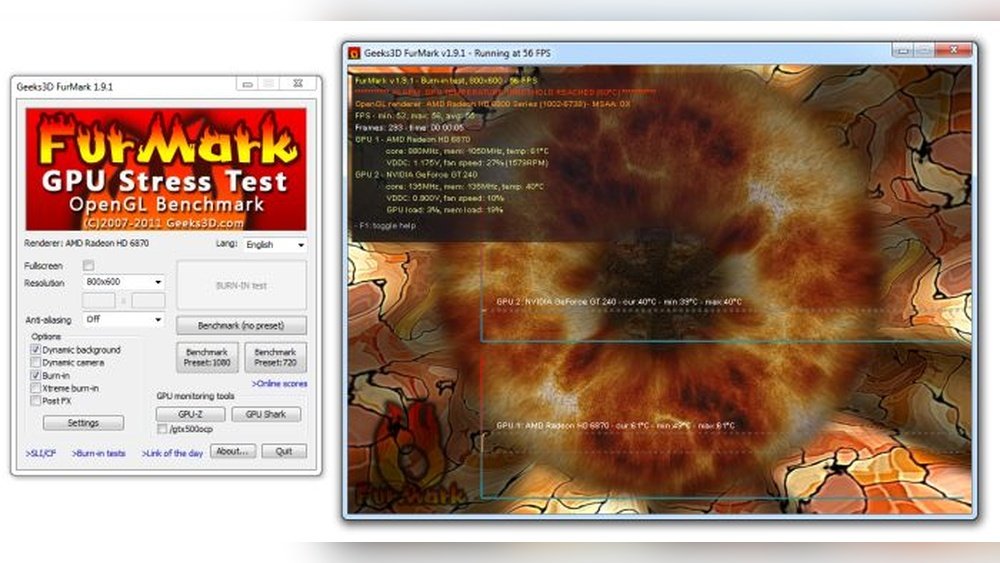
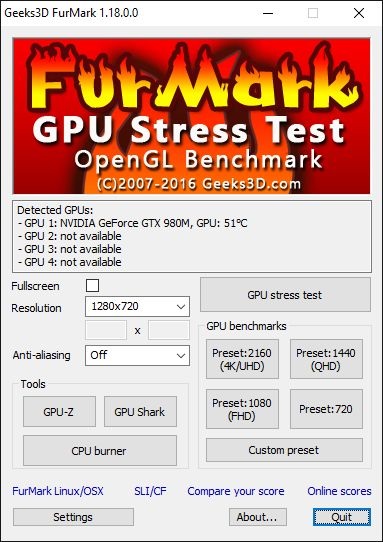
Pick tools that match your GPU and goals. Some benchmarks focus on gaming, others on general graphics or compute tasks. Popular tools include 3DMark, Unigine Heaven, and FurMark. Choose tools that are easy to use and trusted by many users. Make sure the tool supports your GPU model.
Running Synthetic Benchmarks
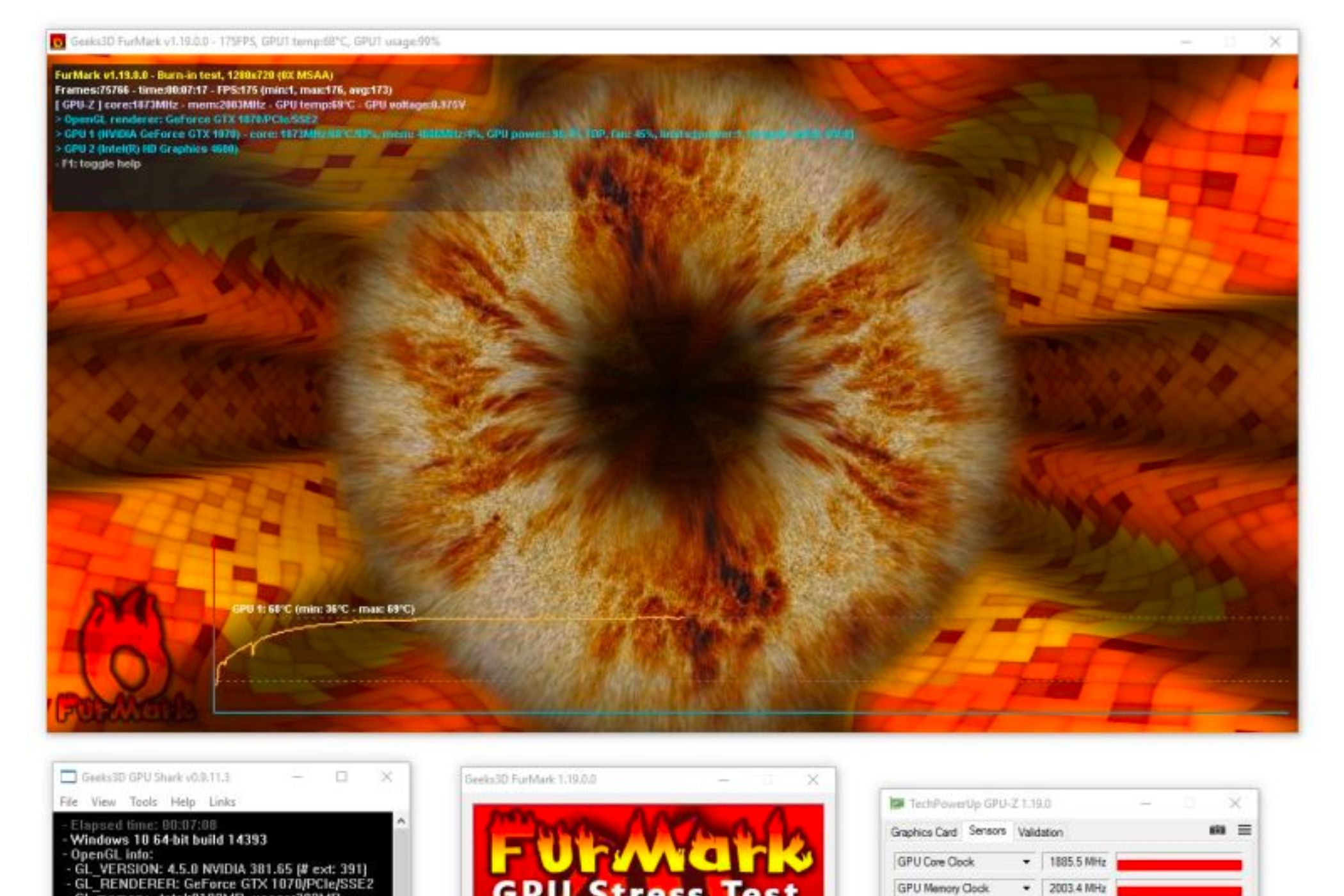
Synthetic benchmarks simulate heavy GPU tasks. They push your GPU to its limits and measure maximum performance. Run these tests in a controlled environment for consistent results. Note your GPU temperature and clock speed during tests. These benchmarks give a good baseline for GPU speed and stability.
Testing With Real-world Applications
Run games or software that you use daily. Real-world tests show how your GPU performs in actual scenarios. Use settings that match your usual experience. Check frame rates, loading times, and smoothness. This helps understand how your GPU handles real tasks, not just numbers.
Interpreting Benchmark Scores
Benchmark scores show your GPU’s strength. Higher scores mean better performance. Compare your scores with other GPUs to see where yours stands. Look for big score drops that may indicate problems. Use these results to decide on upgrades or tweaks for better performance.
Diagnosing Gpu Issues
Diagnosing GPU issues helps find problems early. It keeps your system running smoothly. Many common GPU problems show clear signs. Checking these signs guides you to the right fix. This section explains how to spot and test for GPU issues.
Monitoring Temperature And Power Usage
High GPU temperature causes crashes and slowdowns. Use software tools to check temperature regularly. Keep GPU temperature below 85°C for safety. Watch power usage to ensure the GPU gets enough power. Power drops can cause instability and errors.
Identifying Artifacts And Visual Glitches
Artifacts are strange shapes or colors on the screen. Visual glitches include flickering or missing textures. These signs often point to GPU problems. Run graphic tests to spot these errors. Note when and where glitches appear to help diagnosis.
Detecting Driver And Software Conflicts
Outdated or corrupt drivers cause GPU issues. Use the latest drivers from the GPU maker’s website. Conflicts with other software can also cause problems. Test by running the GPU with minimal programs active. Check for errors or crashes during this test.
Checking For Hardware Failures
Physical damage or aging can harm the GPU. Listen for unusual fan noise or check for overheating. Use hardware diagnostic tools to test GPU parts. Swap the GPU with a known working one if possible. This helps confirm if the GPU itself is faulty.
Optimizing Gpu Performance
Optimizing GPU performance helps your graphics card work better and faster. It improves gaming, video editing, and other heavy tasks. Small changes can make a big difference in how your GPU performs. Follow these steps to get the most from your graphics card.
Updating Drivers And Firmware
Keep your GPU drivers up to date. New drivers fix bugs and improve speed. Visit the manufacturer’s website to download the latest version. Firmware updates also enhance hardware stability and performance. Regular updates keep your GPU running smoothly.
Adjusting Graphics Settings
Change graphics settings to balance quality and speed. Lower resolution or turn off shadows to boost frame rates. Use presets like “Medium” or “High” for good results. Custom settings help your GPU run without lag or overheating.
Overclocking Safely
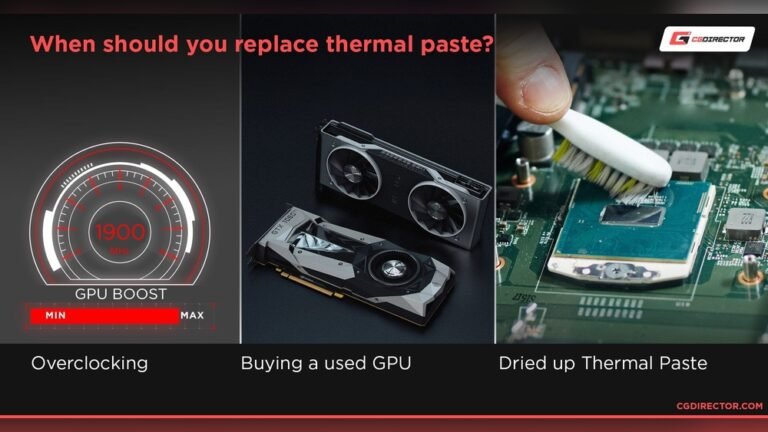
Overclocking makes your GPU run faster than its base speed. Increase clock speeds carefully and in small steps. Watch the temperature and performance during tests. Use trusted software to avoid damage. Safe overclocking can improve speed without risks.
Improving Cooling Solutions
Good cooling prevents your GPU from overheating. Clean dust from fans and vents regularly. Consider adding extra fans or upgrading your cooler. Better airflow keeps temperatures low and improves performance. Cool GPUs last longer and run better.
Advanced Gpu Testing Techniques
Advanced GPU testing techniques help check the true power and reliability of your graphics card. These methods go beyond basic checks. They reveal how your GPU handles stress, finds hidden errors, and keeps running smoothly over time. Using these techniques ensures your GPU performs well in heavy tasks or gaming sessions.
Stress Testing For Stability
Stress testing pushes your GPU to its limits. It shows how the card behaves under heavy load. Tools like FurMark or Unigine Heaven are popular for this. Run the test for 30 minutes or longer. Watch for crashes, freezes, or overheating. A stable GPU will keep working without errors or slowdowns.
Using Diagnostic Utilities
Diagnostic tools scan your GPU for issues. They check temperature, clock speeds, and voltage. Programs like GPU-Z or MSI Afterburner provide detailed stats. Some tools also test memory and shader units. Use these utilities to spot problems early. They give clear data to fix or improve your GPU.
Analyzing Logs And Error Reports
Logs record your GPU’s performance and errors. Review these files after testing or heavy use. Look for repeated errors or warnings. This helps find hardware faults or driver conflicts. Many diagnostic tools create logs automatically. Careful analysis of these reports can save your GPU from damage.

Credit: softwareg.com.au
Maintaining Gpu Health
Maintaining your GPU’s health is key to keeping your computer running well. A healthy GPU works faster and lasts longer. It also avoids crashes and other issues during use.
Simple steps can protect your GPU from damage and poor performance. Regular care helps prevent dust buildup, overheating, and outdated software problems. These small actions save money on repairs and replacements.
Regular Cleaning And Maintenance
Dust and dirt can block your GPU’s fans and vents. This causes overheating and slows down your system. Clean your GPU every few months using a soft brush or compressed air. Do not use water or harsh chemicals. Keep the computer in a clean, dust-free place. This prevents buildup and keeps airflow smooth.
Keeping Software Up To Date
GPU drivers control how your hardware works with your computer. Old drivers cause bugs and poor game or app performance. Check for driver updates regularly from your GPU maker’s website. Install updates as soon as possible. Updated drivers improve speed and fix errors.
Scheduling Periodic Performance Checks
Run tests on your GPU to spot problems early. Use free tools to measure speed and temperature. Check for unusual noises or crashes during use. Testing every few months helps catch issues before they get worse. Keep a log of results to track your GPU’s health over time.
Credit: acquetech.com
Frequently Asked Questions
How Can I Test My Gpu Performance Effectively?
You can test GPU performance using benchmarking tools like 3DMark or Unigine Heaven. These tools measure frame rates and stability under load, giving accurate performance metrics. Regular testing helps identify issues and compare upgrades.
What Software Is Best For Gpu Stress Testing?
Popular GPU stress test software includes FurMark, MSI Kombustor, and OCCT. These tools push your GPU to its limits to check stability and cooling efficiency. Use them to detect overheating and hardware faults.
How Do I Check If My Gpu Is Overheating?
Use monitoring software like GPU-Z or HWMonitor to track GPU temperature in real-time. Temperatures above 85°C under load may indicate overheating. Proper cooling and dust cleaning can prevent damage.
Can I Test Gpu Without Installing Extra Software?
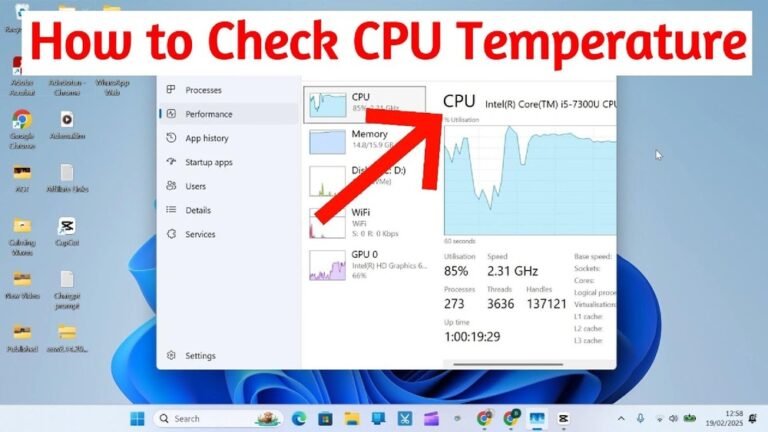
Yes, you can use built-in Windows tools like Task Manager or DirectX Diagnostic Tool (dxdiag) to monitor basic GPU stats. However, these tools provide limited testing compared to dedicated benchmarking software.
Conclusion
Testing your GPU helps find problems early and keeps it running well. Use simple tools and follow easy steps for accurate results. Regular tests show if your GPU handles games or work smoothly. Don’t wait for crashes or slowdowns to check your card.
Stay proactive to save time and avoid bigger issues. A good GPU test gives you peace of mind and better performance. Try these methods today and keep your computer strong and fast.