How to Check Temperature of Cpu Mac: Easy Steps to Prevent Overheating
Are you worried that your Mac might be overheating? Knowing how to check the temperature of your CPU is key to keeping your computer running smoothly.
If your Mac gets too hot, it can slow down, crash, or even suffer permanent damage. But don’t worry—checking your CPU temperature is easier than you think. You’ll discover simple, effective ways to monitor your Mac’s temperature. By the end, you’ll have the tools to protect your device and boost its performance.
Keep reading to find out how to keep your Mac cool and healthy.
Why Monitor Mac Cpu Temperature
Monitoring your Mac’s CPU temperature is important. It helps you keep your computer safe and running well. Knowing the temperature can prevent damage and slowdowns.
Risks Of Overheating
High CPU heat can cause serious problems. Overheating may lead to sudden shutdowns. Your Mac could lose unsaved work. It might also damage internal parts over time.
Impact On Performance
Heat affects how fast your Mac works. The CPU slows down to cool itself. This makes apps run slower and less smooth. Watching the temperature helps keep speed steady.
Extending Hardware Lifespan
Keeping the CPU cool helps your Mac last longer. Heat wears out parts faster. Lower temperatures reduce wear and tear. This saves money on repairs and replacements.
Credit: osxdaily.com
Signs Of Cpu Overheating
CPU overheating can harm your Mac’s performance and hardware. Spotting early signs helps protect your device. Knowing these signs lets you act before damage occurs.
Unexpected Shutdowns
Your Mac may turn off without warning. This happens when the CPU gets too hot. The system shuts down to avoid damage. Frequent shutdowns indicate a serious overheating problem.
Slow System Response
Overheating causes your Mac to slow down. Programs take longer to open and run. The CPU reduces speed to cool down. This lag affects work and daily tasks.
Fan Noise Increase
The Mac’s fans spin faster with heat rise. Loud, constant fan noise means the CPU is hot. Fans try to cool the system quickly. Persistent noise shows overheating is ongoing.
Built-in Tools To Check Cpu Temperature
Checking your Mac’s CPU temperature helps keep it running smoothly. Too much heat can slow down your computer or cause damage. MacOS does not show CPU temperature directly. But some built-in tools give clues about CPU activity and performance. These tools are easy to use and do not need extra apps.
Activity Monitor Insights
Activity Monitor shows how much CPU your Mac uses. It tracks processes and their energy impact. High CPU use often means higher temperature. You can open Activity Monitor from the Utilities folder. Look at the CPU tab to see percent usage. If many processes use much CPU, the Mac may be hot.
Activity Monitor does not show exact temperature. But it helps guess if the CPU is working hard. More CPU usage usually means more heat. Use this tool to find apps that drain CPU. Closing those apps can cool down your Mac.
Terminal Commands
Terminal offers command-line access to system info. Some commands show CPU and system status. One useful command is “powermetrics”. It gives detailed power and thermal data. Open Terminal from Utilities and type:
sudo powermetrics --samplers smcYou must enter your password. Look for “CPU die temperature” in the output. This shows the current temperature in Celsius. This method gives a direct CPU temperature reading. The data updates only when you run the command again.
Terminal commands require some patience. The information can be technical. But this tool helps track CPU heat without extra software.
Credit: osxdaily.com
Third-party Apps For Temperature Monitoring
Third-party apps help you check your Mac’s CPU temperature easily. They provide real-time data and clear visuals. These apps give more details than the built-in tools. You can monitor temperature trends and spot issues early.
Popular Temperature Apps
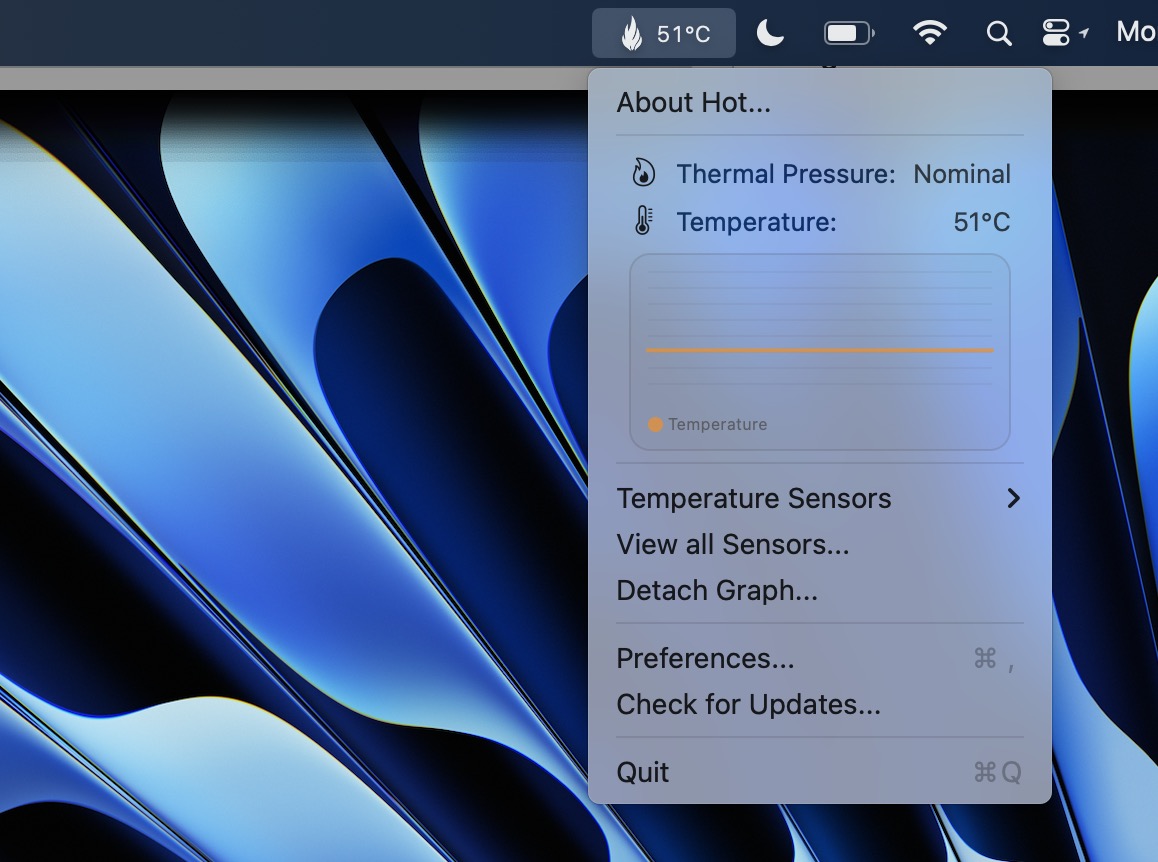
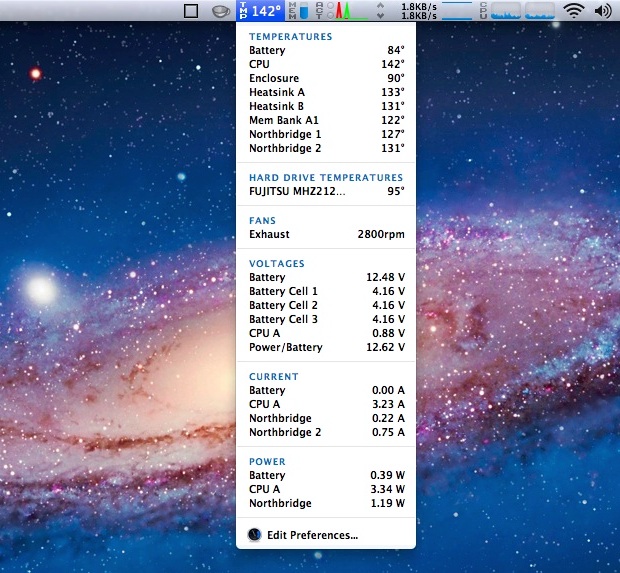
Apps like iStat Menus, Macs Fan Control, and Intel Power Gadget are popular choices. They show CPU temperature and other system info. Many offer free versions with basic features. Some also monitor GPU and battery temperature.
Features To Look For
Choose apps with clear temperature displays. Real-time updates and easy-to-understand graphs help. Alerts for high temperatures are useful. Check if the app supports your Mac model. User-friendly design makes monitoring simple.
Installation Tips
Download apps only from official websites or trusted sources. Follow the installation instructions carefully. Grant necessary permissions for accurate readings. Restart your Mac after installation for best results. Keep the app updated to avoid bugs.
Steps To Check Cpu Temperature On Mac
Checking your Mac’s CPU temperature helps keep the computer safe and fast. High temperatures can slow your Mac down or cause damage. Knowing the CPU temperature lets you act before problems start. You can check the temperature using built-in tools or third-party apps. Both methods are easy and quick.
Using System Utilities
Mac does not show CPU temperature directly in its system utilities. But you can check overall system status through Activity Monitor. Open Activity Monitor from the Applications folder. It shows CPU usage and processes but not temperature. For basic checks, keep an eye on CPU load here.
To get temperature info, open Terminal. Use commands like powermetrics to view thermal data. Type sudo powermetrics --samplers smc and enter your password. This shows CPU temperature and sensor data. It needs some technical knowledge but is reliable.
Using Third-party Software
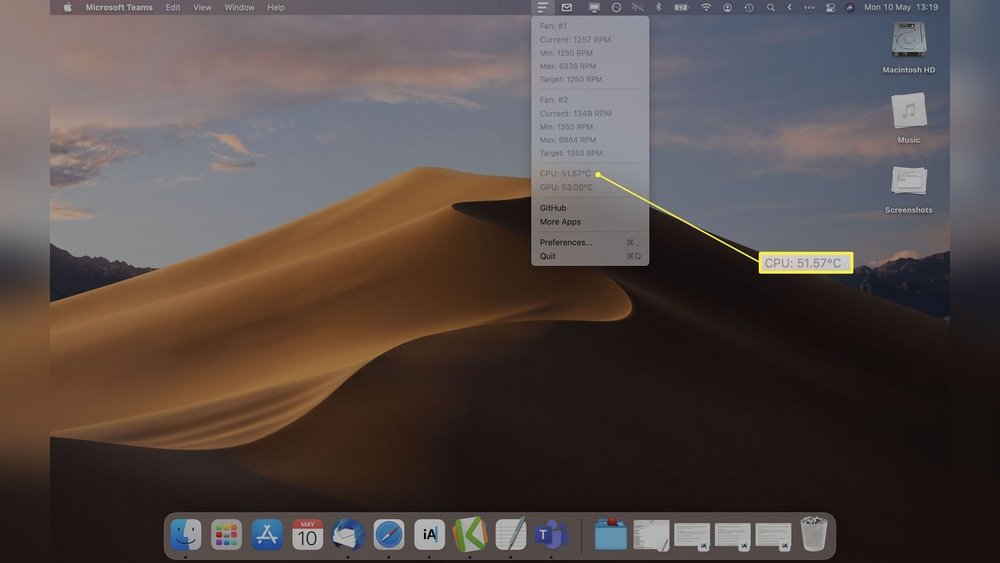
Third-party apps make checking CPU temperature easier. These tools show clear temperature readings and alerts. Popular apps include iStat Menus, Macs Fan Control, and Intel Power Gadget. Download and install from their official websites.
Open the app to see CPU temperature in real time. Some apps also let you control fan speed. This helps cool your Mac if temperatures rise. Most apps have simple interfaces suitable for beginners. They provide detailed info without complex commands.
Preventing Cpu Overheating
Keeping your Mac’s CPU cool is important. Overheating can slow your computer or cause damage. Checking the CPU temperature helps spot problems early. Preventing overheating keeps your Mac running smoothly and lasts longer.
Cleaning Dust And Debris
Dust blocks airflow inside your Mac. It builds up over time on fans and vents. Use a soft brush or compressed air to remove dust. Clean vents gently to avoid damage. Regular cleaning helps cool air move freely.
Optimizing Software Usage
Running many apps can heat your CPU. Close unused programs to reduce load. Check Activity Monitor for heavy processes. Restart your Mac to clear temporary files. Keeping software light helps keep the CPU cool.
Ensuring Proper Ventilation
Place your Mac on a hard, flat surface. Avoid soft surfaces like beds or couches. These block air vents and trap heat. Keep the area around your Mac clear. Good airflow helps heat escape and cools the CPU.
When To Seek Professional Help
Knowing when to seek professional help is important for your Mac’s health. Some temperature problems need expert care. Ignoring these signs can cause more damage. It saves time and money to get help early.
Persistent Overheating Issues
If your Mac keeps overheating after basic checks, get help. Persistent heat can harm internal parts. Experts can find hidden problems. They use tools to check cooling systems and temperature sensors. This ensures your Mac runs safely and smoothly.
Hardware Repairs And Upgrades
Temperature problems sometimes need hardware fixes or upgrades. A professional can clean dust inside your Mac. They can replace faulty fans or thermal paste. Upgrading hardware may improve cooling and performance. Trust experts to handle these tasks carefully.

Credit: beebom.com
Frequently Asked Questions
How Can I Check Cpu Temperature On A Mac?
You can check Mac CPU temperature using third-party apps like iStat Menus or Macs Fan Control. These tools provide real-time temperature monitoring and detailed system stats, helping you track your Mac’s CPU heat efficiently.
Is There A Built-in Mac Feature For Cpu Temperature?
MacOS does not offer a native feature to display CPU temperature. To monitor CPU heat, you must rely on trusted third-party applications designed for hardware monitoring.
Why Is Monitoring Cpu Temperature Important On Mac?
Monitoring CPU temperature helps prevent overheating, which can damage hardware and reduce performance. Keeping the CPU cool ensures your Mac runs smoothly and prolongs its lifespan.
Can High Cpu Temperature Affect Mac Performance?
Yes, high CPU temperature can cause your Mac to slow down or shut down unexpectedly. Proper temperature monitoring allows you to avoid thermal throttling and maintain optimal performance.
Conclusion
Checking your Mac’s CPU temperature helps keep it running well. Use simple apps or built-in tools to see the heat level. Watch for high temperatures to avoid slowdowns or damage. Regular checks protect your Mac and improve its life. Stay aware of your CPU’s heat.
It’s an easy way to care for your computer every day.