How to Lower Gpu Temp: Proven Tips to Boost Performance
Is your GPU running hotter than it should? High temperatures can slow down your computer, cause crashes, and even shorten the life of your graphics card.
But don’t worry—you don’t need to be a tech expert to fix this. You’ll discover simple and effective ways to lower your GPU temp and keep your system running smoothly. Ready to protect your investment and boost performance? Let’s dive in and cool things down!
Credit: www.youtube.com
Causes Of High Gpu Temperature
High GPU temperature can cause serious problems for your computer. Understanding what causes this heat is the first step to controlling it. Several factors inside and outside the GPU can raise its temperature. Knowing these causes helps you prevent damage and keep your system running smoothly.
Heat Generation In Gpus
GPUs work hard to process images and videos. This work creates heat as a natural byproduct. The more complex the tasks, the hotter the GPU gets. High clock speeds and heavy workloads increase heat quickly.
Common Heat Traps
Poor airflow inside the computer case traps heat around the GPU. Dust buildup blocks fans and vents, stopping cool air from entering. Using the wrong type of thermal paste also reduces heat transfer from the GPU chip. Small cases with little space add to heat problems.
Impact On Performance
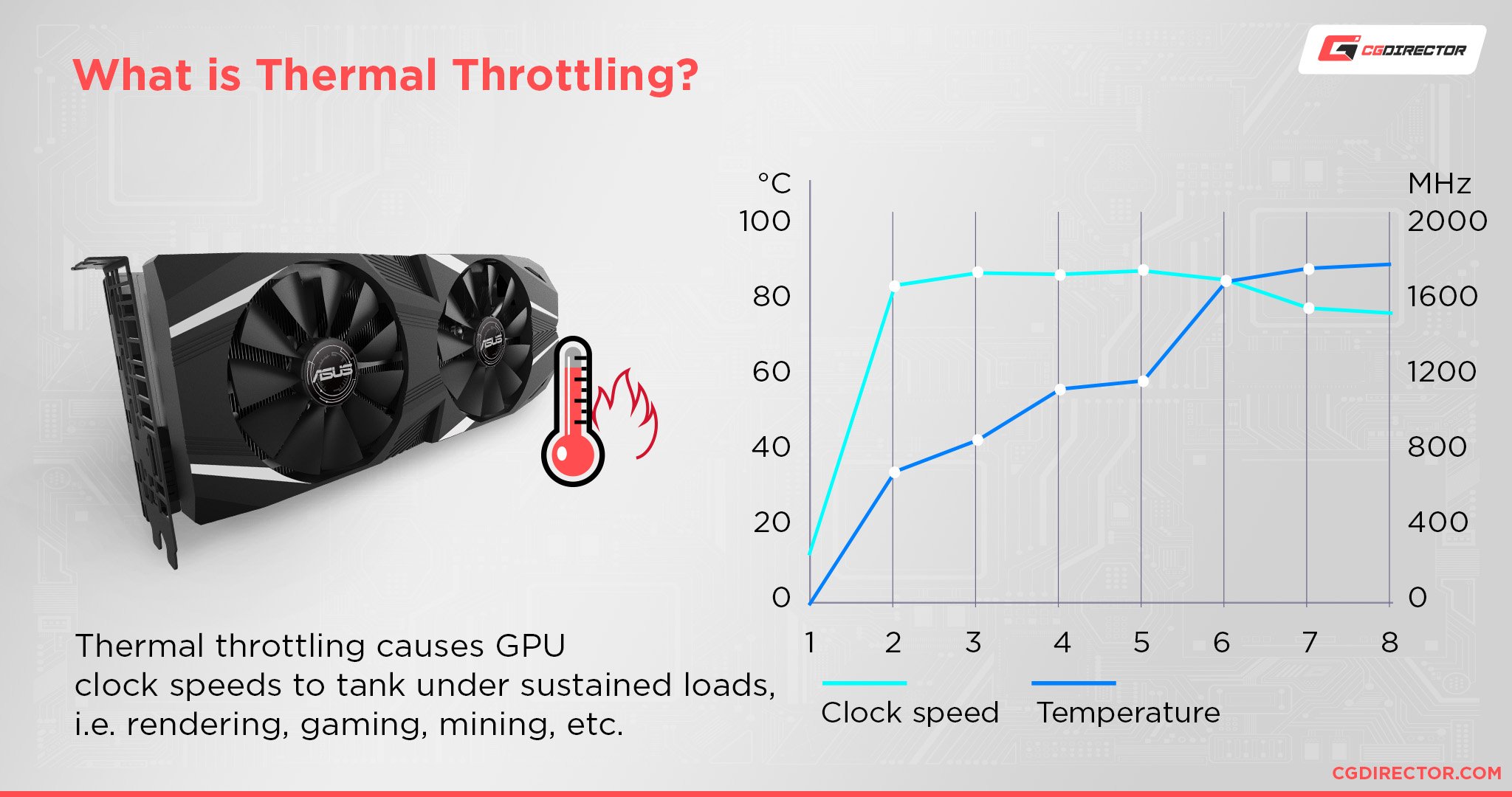
High GPU temperature lowers performance. The GPU slows down to protect itself, causing lag and lower frame rates. Overheating can also shorten the GPU’s life span. Keeping the temperature low helps maintain speed and reliability.
Optimizing Airflow In Your Pc
Optimizing airflow in your PC helps keep your GPU cool. Good airflow moves hot air out and brings cool air in. This reduces GPU temperature and improves performance. You can do simple changes inside your PC case for better airflow.
Case Ventilation Tips
Choose a PC case with good ventilation. Cases with mesh panels allow air to flow freely. Make sure there are enough vents for air intake and exhaust. Keep side panels open or use cases with extra fan mounts. Proper case ventilation prevents hot air from building up inside.
Fan Placement And Configuration
Place fans to create a clear airflow path. Usually, front and bottom fans bring cool air in. Top and rear fans push hot air out. Use more intake fans than exhaust for positive air pressure. This helps keep dust out and cools components better.
Cleaning Dust And Debris
Dust blocks airflow and traps heat. Clean your PC regularly with compressed air or a soft brush. Focus on fans, vents, and filters. Removing dust improves airflow and lowers GPU temperature. A clean PC runs cooler and lasts longer.
Upgrading Cooling Solutions
Upgrading cooling solutions is a smart way to lower your GPU temperature. Better cooling parts keep your graphics card cooler. Cooler GPUs work faster and last longer. Changing your GPU’s cooling system can make a big difference in heat management.
Aftermarket Gpu Coolers
Aftermarket GPU coolers replace the stock cooler. They usually offer better fans and heat sinks. These coolers move heat away more efficiently. Many come with larger fans or more heat pipes. Installing one can drop your GPU temperature by several degrees.
Liquid Cooling Options
Liquid cooling uses water to cool your GPU. Water absorbs heat faster than air. This system includes a pump, radiator, and water block. Liquid cooling lowers temperatures much more than air coolers. It also makes your PC quieter during use.
Thermal Paste Replacement
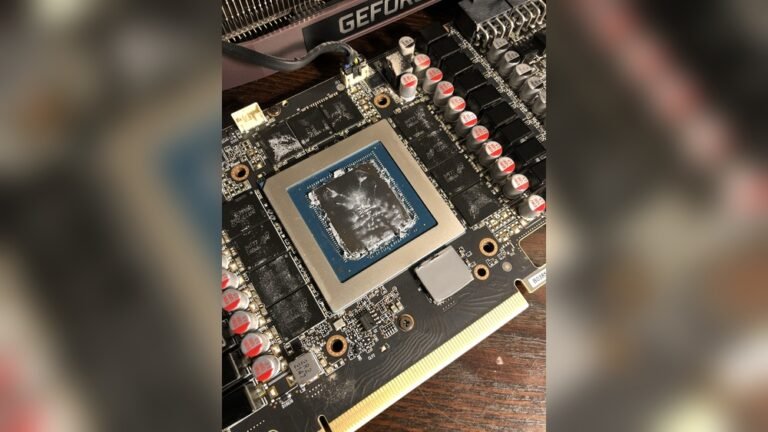
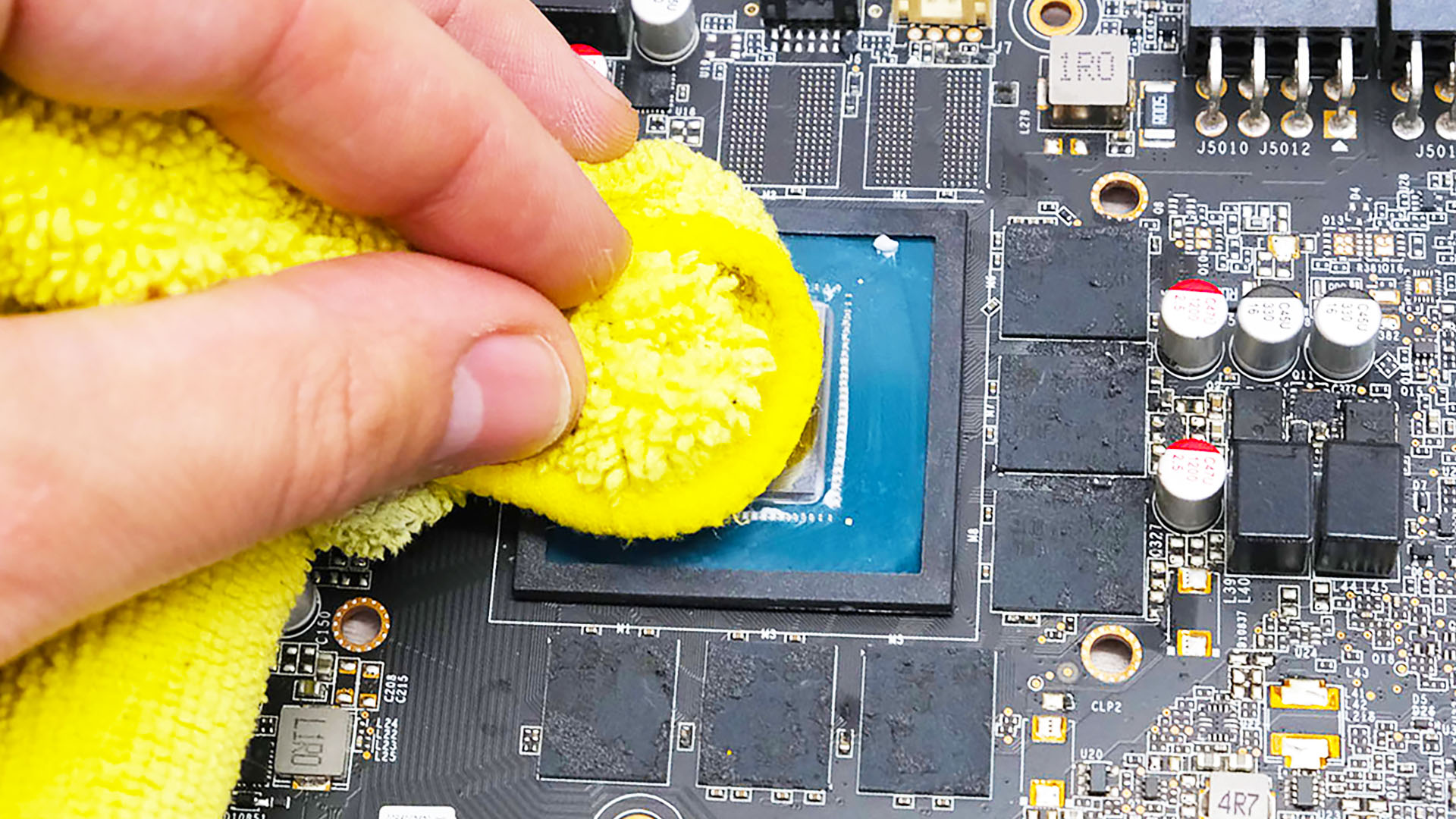
Thermal paste sits between the GPU chip and cooler. It helps transfer heat from the chip to the cooler. Old or dry thermal paste reduces cooling efficiency. Replacing it can lower the GPU temperature by 5 to 10 degrees. Use a good quality thermal paste for best results.
Credit: www.pcgamesn.com
Adjusting Gpu Settings
Adjusting your GPU settings can help reduce its temperature effectively. Small changes in how your graphics card works can make a big difference. These changes improve cooling and keep your GPU running smoothly. Below are key ways to adjust GPU settings safely.
Underclocking And Undervolting
Underclocking means lowering the GPU’s clock speed. This reduces heat because the GPU works less hard. Undervolting cuts down the voltage the GPU uses. It helps save power and lowers temperature too. Both methods reduce heat without much loss in performance. Use software like MSI Afterburner to change these settings. Test stability after each change to avoid crashes.
Custom Fan Curves
Custom fan curves let you control how fast GPU fans spin. Fans run faster as temperature rises. This cools the GPU better and stops it from overheating. You can set fan speed to increase early at lower temperatures. This keeps the GPU cooler during light use. Find the right balance to avoid noisy fans. Many tools, including GPU manufacturers’ software, allow custom fan settings.
Power Limit Adjustments
Reducing the GPU’s power limit lowers its maximum power use. Less power means less heat generated. It can help keep temperatures down during heavy tasks. Adjust power limits carefully to avoid affecting performance too much. Use tuning software to set a safe limit. Monitor temperatures and performance after changes to ensure a smooth experience.
Monitoring Gpu Temperature
Monitoring your GPU temperature helps keep your graphics card safe. It shows how hot your GPU gets during work or play. Watching these numbers helps prevent damage and keeps your system stable. Small changes in temperature can tell you if cooling is enough.
Best Software Tools
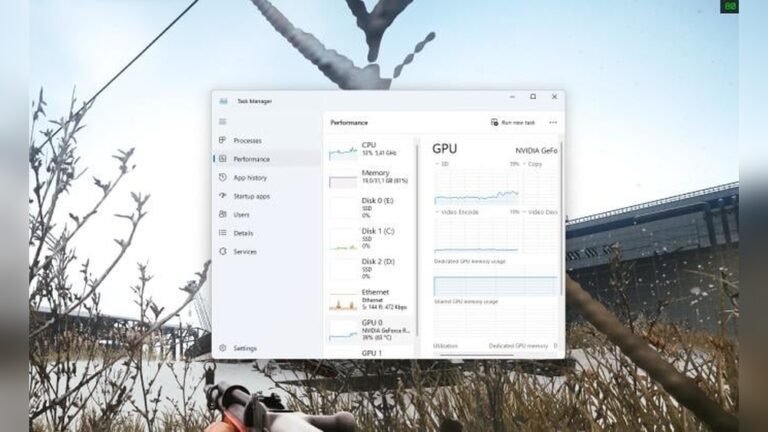
Many tools show your GPU temperature clearly. Popular options include MSI Afterburner and HWMonitor. These programs display real-time temperature and fan speed. They also work with many graphics cards. Choose one that is easy for you to use.
Setting Alerts And Thresholds
Setting alerts warns you if the GPU gets too hot. You can pick a temperature limit, like 80°C. The software will notify you if the GPU passes this limit. This helps you act fast and cool down your GPU.
Interpreting Temperature Data
Normal GPU temps usually stay below 85°C during heavy use. If temps rise above this, it could mean poor airflow or dust buildup. Sudden spikes might signal a problem with the cooling system. Use the data to adjust fan speed or clean your PC.
Credit: www.cgdirector.com
Environmental Factors To Consider
Environmental factors play a big role in keeping your GPU cool. The space around your PC affects how well heat moves away. Small changes in the environment can lower your GPU temperature a lot. Focus on room temperature, PC placement, and avoiding heat sources to keep your GPU safe.
Room Temperature Control
Cool air helps your GPU run better. Keep the room temperature low, ideally below 24°C (75°F). Use fans or air conditioning to move hot air out. Avoid closed rooms with no airflow. Open windows can help if outside air is cool.
Pc Placement Tips
Place your PC in a spot with good airflow. Keep it away from walls and corners. Leave space around the case for air to flow in and out. Avoid putting the PC on carpets or soft surfaces that block vents. A desk or hard floor is best.
Avoiding Heat Sources
Keep your PC away from direct sunlight. Do not place it near heaters or radiators. Avoid placing it close to other hot devices like TVs or other computers. Heat from these sources adds to your GPU temperature. Choose a cool, shaded spot for your PC.
Frequently Asked Questions
How Can I Check My Gpu Temperature Easily?
You can monitor GPU temperature using software like MSI Afterburner or HWMonitor. These tools display real-time temperature and performance stats. Regular monitoring helps prevent overheating and maintains GPU health.
What Are Simple Ways To Lower Gpu Temperature?
Improve airflow by cleaning dust from fans and vents. Use additional case fans or reposition your PC for better ventilation. Lowering in-game graphics settings also reduces GPU load and heat.
Does Applying New Thermal Paste Help Reduce Gpu Heat?
Yes, applying high-quality thermal paste improves heat transfer between the GPU chip and cooler. This reduces temperature significantly, especially if the old paste is dried or degraded.
Can Undervolting My Gpu Lower Its Temperature?
Undervolting reduces the GPU voltage without sacrificing performance. This decreases power consumption and heat output, effectively lowering the GPU temperature during intensive tasks.
Conclusion
Keeping your GPU cool helps it run better and last longer. Clean dust from fans and vents often. Use good airflow inside your computer case. Adjust fan speeds to keep temperatures low. Avoid running heavy programs all at once. Watch your GPU temperature regularly to catch problems early.
Small steps can make a big difference. Stay patient and consistent with these tips. Your GPU will thank you with smoother performance.