How to Use External Gpu in Laptop: Ultimate Guide for Boosted Performance
Are you tired of your laptop struggling with heavy graphics tasks? Whether you want smoother gaming, faster video editing, or better design work, using an external GPU can be a game-changer for your device.
But how do you set it up? How do you make sure it works perfectly with your laptop? You’ll discover simple, step-by-step tips to connect and use an external GPU with your laptop. By the end, you’ll know exactly how to boost your laptop’s power and get the most out of your graphics performance.
Keep reading—you won’t want to miss these easy tricks!
Benefits Of External Gpus
External GPUs offer several advantages for laptop users. They improve performance beyond the laptop’s built-in graphics. This upgrade helps with gaming, video editing, and other graphic-heavy tasks. Using an external GPU can also extend your laptop’s useful life. Many users enjoy smoother visuals and faster processing with this setup.
Enhanced Graphics Performance
External GPUs provide more powerful graphics than most laptops have inside. They handle complex images and videos with ease. This means better frame rates and clearer visuals. Your laptop can run demanding applications without slowing down. It is a simple way to boost your device’s graphic power.
Extended Laptop Lifespan
Using an external GPU reduces the load on your laptop’s internal parts. This can lower heat buildup and prevent wear over time. Your laptop stays cooler and runs more efficiently. It may avoid the need to buy a new device soon. External GPUs help keep laptops useful longer.
Improved Gaming Experience
Games run smoother and look better with an external GPU. You get higher resolutions and faster frame rates. This creates a more immersive and enjoyable playtime. Older laptops become capable of running new games. Gamers can enjoy quality graphics without upgrading the whole laptop.
Boost For Creative Workloads
Creative tasks like video editing and 3D modeling get faster with an external GPU. Rendering times drop and previews appear in real time. This helps artists and designers work more efficiently. High-resolution projects become easier to manage. External GPUs give creative professionals a helpful performance boost.

Credit: www.youtube.com
Choosing The Right External Gpu
Choosing the right external GPU (eGPU) is key to improving your laptop’s graphics power. The right choice depends on several factors like compatibility, budget, and performance needs. Picking an eGPU that matches your laptop and tasks will give you the best results without wasting money. This guide helps you understand what to look for when selecting an external GPU.
Compatibility With Your Laptop
Check if your laptop supports an external GPU. Most modern laptops use Thunderbolt 3 or Thunderbolt 4 ports. These ports allow fast data transfer needed for eGPUs. Make sure your laptop has the right port and supports external graphics cards. Also, check your laptop’s BIOS and drivers for eGPU support. Without compatibility, the eGPU will not work properly or at all.
Performance Vs Budget
External GPUs come in many price ranges. Higher-priced models offer better performance but cost more. Decide what you need the eGPU for, like gaming, video editing, or 3D work. Balance your budget with the performance you require. Buying a very powerful eGPU may not always be necessary. Choose one that fits your tasks and wallet.
Port Types And Bandwidth
Port type affects eGPU speed. Thunderbolt 3 is the most common and offers good bandwidth. Thunderbolt 4 is newer and slightly faster. USB-C ports without Thunderbolt do not support eGPUs. Bandwidth limits how fast data moves between laptop and GPU. Higher bandwidth means better performance. Always pick an eGPU enclosure that matches your laptop’s port type for best speed.
Popular External Gpu Models
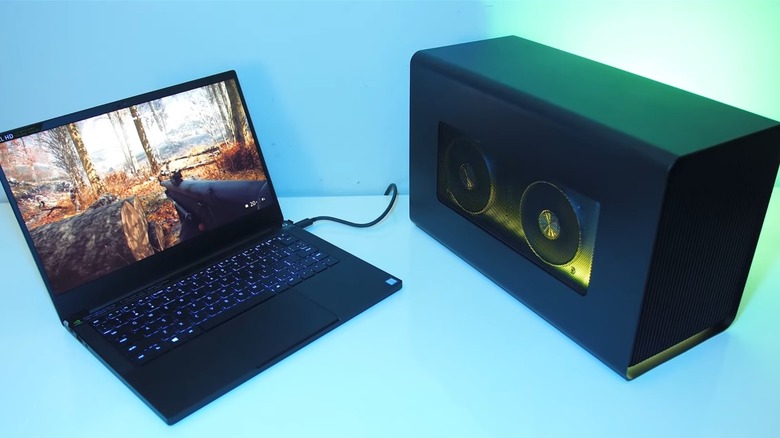
Some eGPU models are trusted by many users. The Razer Core X is known for wide compatibility and strong power supply. The Sonnet eGFX Breakaway Box offers good value and solid performance. The Akitio Node is a budget-friendly choice with decent features. These models support various GPUs and work well with many laptops. Choose a popular model to ensure reliable support and quality.
Setting Up Your External Gpu
Setting up an external GPU (eGPU) for your laptop enhances graphics power without buying a new machine. The process is straightforward and requires some basic hardware and software steps. This guide helps you connect and configure your eGPU quickly.
Required Hardware And Cables
You need a compatible eGPU enclosure and a powerful graphics card. Choose a card that fits your needs and budget. A laptop with a Thunderbolt 3 or 4 port is essential for fast data transfer.
Use a high-quality Thunderbolt cable to connect the eGPU enclosure to your laptop. Check the cable length to fit your setup comfortably. Also, ensure your power supply matches the eGPU requirements for stable operation.
Connecting The Egpu To Your Laptop
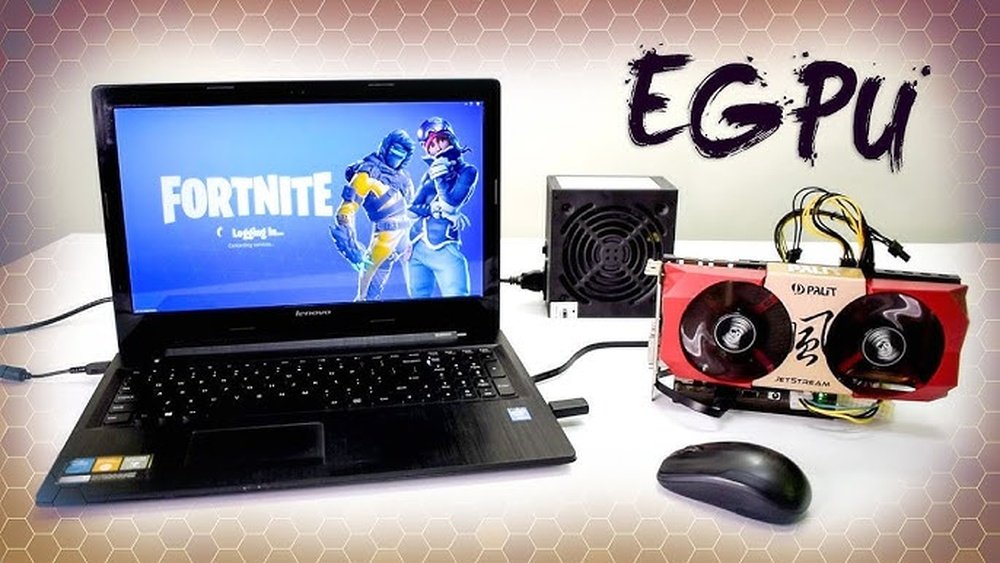
First, turn off your laptop and eGPU enclosure. Connect the graphics card to the eGPU enclosure if not pre-installed. Plug the power cable into the enclosure and switch it on.
Use the Thunderbolt cable to link the eGPU to your laptop’s port. Power on your laptop after the connection. Some laptops may detect the eGPU automatically; others might need manual setup.
Installing Necessary Drivers
Download the latest drivers from the GPU manufacturer’s website. Use the official site of NVIDIA, AMD, or Intel depending on your card. Install the drivers following the on-screen instructions carefully.
Restart your laptop to complete the driver installation. The system should now recognize the external GPU properly. Check the device manager or system settings to confirm the eGPU status.
Configuring Display Settings
Open your laptop’s display settings or graphics control panel. Choose the external GPU as the preferred device for graphics processing. Adjust the resolution and refresh rate for optimal performance.
Set your external monitor or laptop screen to use the eGPU. Test with a game or graphics-heavy application to verify the setup. Fine-tune settings as needed for the best experience.
Optimizing Performance
Optimizing the performance of an external GPU (eGPU) on your laptop is essential for smooth and efficient operation. Proper settings and maintenance ensure your laptop and eGPU work together effectively. Small adjustments can make a big difference in speed and reliability.
This section covers key ways to enhance your eGPU’s performance. Focus on updating drivers, managing power, controlling heat, and using software tools. These steps help keep your system stable and responsive.
Updating Graphics Drivers
Keep your graphics drivers up to date. Manufacturers release updates to fix bugs and improve speed. Check the GPU maker’s website regularly for new drivers. Use the official software to install updates safely. Updated drivers help your eGPU run at its best.
Adjusting Power Settings
Change your laptop’s power settings for better GPU output. Select high-performance mode in your system’s power options. This setting allows the eGPU to get enough power. Avoid battery saver modes that limit GPU performance. Plug in your laptop for consistent power supply.
Managing Thermal Conditions
Heat affects GPU speed and longevity. Make sure your laptop and eGPU have good airflow. Use cooling pads or external fans if needed. Clean dust from vents and fans regularly. Cooler hardware runs faster and lasts longer.
Using Software For Better Performance
Some software can optimize your eGPU’s work. GPU management tools help monitor temperature and usage. They can also adjust fan speeds or power limits. Use these tools to keep your system balanced. This helps avoid crashes and slowdowns.
Troubleshooting Common Issues
Using an external GPU (eGPU) with your laptop can greatly improve graphics performance. Still, some common issues may arise during setup or use. Troubleshooting these problems helps ensure smooth operation and better experience. This section covers typical challenges and easy fixes for your eGPU setup.
Connection Problems
Check the cable and port for damage or dirt. Use a Thunderbolt 3 or compatible cable for best results. Make sure the eGPU is properly plugged into the laptop. Restart the laptop and eGPU enclosure if it is not detected. Try different ports if available. Avoid using USB hubs or adapters that may block signals.
Driver Conflicts
Install the latest drivers from the GPU manufacturer’s website. Remove old or conflicting drivers before installation. Use Device Manager to check for driver errors. Update your laptop’s chipset and Thunderbolt drivers too. Disable antivirus temporarily during driver updates if needed. Restart the system after installing drivers for changes to take effect.
Performance Bottlenecks
Verify that your laptop supports the bandwidth needed for eGPU. Close unnecessary background apps to free system resources. Keep the eGPU firmware and drivers updated. Use performance monitoring tools to check for CPU or memory limits. Avoid running heavy tasks on the laptop’s internal GPU simultaneously. Adjust graphics settings to balance quality and speed.
Display Recognition Issues
Confirm that the external monitor is properly connected to the eGPU. Set the correct input source on the monitor. Check display settings in your operating system for multiple displays. Restart the laptop and eGPU to refresh display detection. Update graphics drivers to fix recognition bugs. Use the built-in display as the main screen if the external one fails to show.
Use Cases For External Gpus
External GPUs (eGPUs) help boost laptop graphics power. They connect via Thunderbolt ports and bring desktop-level performance. Many users find eGPUs useful for tasks needing strong graphics. Below are common use cases for external GPUs.
Gaming And Vr
eGPUs improve game graphics and frame rates on laptops. They allow playing newer games smoothly. Virtual reality (VR) also benefits from extra graphics power. Laptops can handle VR headsets better with eGPUs.
Video Editing And Rendering
Video editors need fast graphics for smooth playback and quick renders. eGPUs speed up editing software and reduce waiting times. They help with 4K and higher resolution video projects.
3d Modeling And Cad
3D design and CAD applications require strong graphics cards. eGPUs offer better rendering of complex models. This allows faster work and more detailed designs on laptops.
Machine Learning Tasks
Machine learning uses powerful GPUs for training models. eGPUs can accelerate this process on laptops. They support faster data processing and model testing.
Future Trends In External Gpu Technology
External GPU technology is evolving fast. It helps laptops perform better with heavy graphics tasks. This growth opens new possibilities for users who need more power. The future holds many exciting changes that make external GPUs easier and faster to use.
Advancements In Thunderbolt And Usb-c
Thunderbolt and USB-C ports are getting faster and more reliable. New versions offer higher data transfer speeds. This means smoother graphics and less lag. Laptops will connect to external GPUs with simpler cables. These improvements reduce delays and improve overall performance.
Increasing Portability
External GPUs are becoming smaller and lighter. Manufacturers focus on compact designs without losing power. Portable external GPUs allow users to carry them easily. This makes it possible to have desktop-level graphics on the go. Users can enjoy powerful graphics anywhere without heavy equipment.
Cloud And Virtual Gpu Solutions
Cloud-based GPU services are gaining popularity. Users can access powerful GPUs remotely through the internet. This removes the need for physical external GPUs. Virtual GPUs provide flexible options for graphic-intensive tasks. This trend helps users save money and space while still getting high performance.
Credit: vixencomposites.com

Credit: www.pcworld.com
Frequently Asked Questions
What Is An External Gpu For Laptops?
An external GPU (eGPU) is a device that boosts a laptop’s graphics power. It connects via Thunderbolt 3 or USB-C ports. This enhances gaming, video editing, and 3D rendering performance significantly.
How Do I Connect An External Gpu To My Laptop?
To connect, use a compatible Thunderbolt 3 or USB-C port. Plug the eGPU into the port, then install necessary drivers. Restart your laptop to enable the external GPU functionality.
Can All Laptops Support External Gpus?
Not all laptops support eGPUs. Your laptop must have a Thunderbolt 3 or higher port. Also, check for BIOS and driver compatibility with eGPU technology before purchasing.
Does Using An External Gpu Improve Gaming Performance?
Yes, an external GPU greatly improves gaming performance. It allows laptops to run high-end games smoothly at better graphics settings. However, performance depends on the eGPU model and connection speed.
Conclusion
Using an external GPU can boost your laptop’s graphics power. It helps with gaming, design, and video work. Set it up carefully to avoid issues. Choose the right GPU and connection for your laptop. Keep your drivers updated for best results.
This setup offers a flexible way to improve performance. Try it out and see the difference yourself.