How to Know If Gpu is Failing: Warning Signs You Can’t Ignore
Is your computer acting up when you play games or run heavy programs? You might be wondering if your GPU is failing.
Knowing the signs early can save you from bigger problems and costly repairs. You’ll learn the clear warning signals that show your graphics card could be on its way out. Keep reading to protect your device and avoid unexpected crashes.
Your GPU’s health matters, and it’s easier than you think to spot the trouble before it’s too late.

Credit: www.reddit.com
Common Symptoms Of Gpu Failure
Detecting GPU failure early helps save your computer and data. The graphics card shows signs before it stops working completely. Knowing these signs helps you act fast. Watch for changes in your computer’s display and performance. Pay attention to unexpected problems during normal use.
Screen Artifacts And Glitches
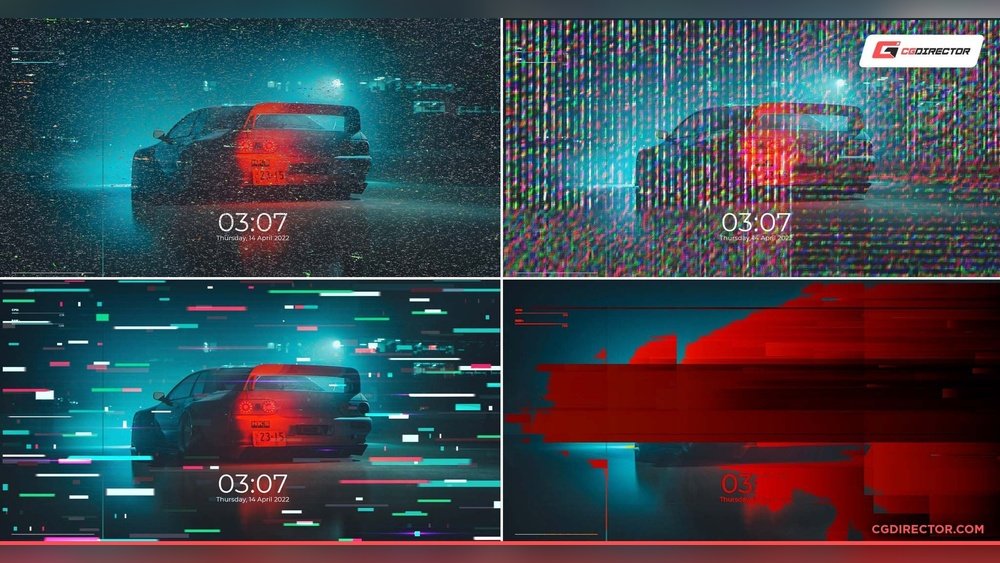
Artifacts are strange colors or shapes on the screen. They appear during games or video playback. Lines, dots, or blocks may show randomly. These glitches mean the GPU struggles to process images. Persistent screen issues often point to hardware problems.
Unexpected Crashes And Freezes
Your computer may crash or freeze without warning. This happens more when using graphic-heavy programs. Crashes can occur during gaming, video editing, or streaming. Such instability signals the GPU might be failing. Frequent restarts or blue screens also raise concern.
Performance Drops In Games
Games run slower or lag more than before. Frame rates drop even on low settings. Visuals may stutter or freeze briefly during play. These slowdowns show the GPU cannot keep up. Performance loss without software changes hints at damage.
Overheating Issues
The GPU gets very hot and fans run loudly. Overheating causes shutdowns to protect the hardware. Dust or poor cooling can worsen this problem. Constant heat damages the GPU over time. Monitor temperatures and listen for unusual fan noise.
Credit: www.youtube.com
Diagnosing Gpu Problems
Diagnosing GPU problems can help identify if your graphics card is failing. It involves checking software and hardware to find errors. Early diagnosis prevents bigger issues and saves repair costs. Follow these steps to understand your GPU’s health clearly.
Using Diagnostic Software
Use tools like GPU-Z, MSI Afterburner, or FurMark to check your GPU’s status. These programs show real-time data like clock speeds and memory use. Run stress tests to see if the GPU handles heavy loads. Watch for crashes or error messages during tests.
Checking Temperature And Fan Speed
High temperatures can damage your GPU quickly. Monitor the temperature using software or BIOS settings. Normal GPU temperature is usually below 85°C under load. Check if the fans spin correctly and adjust speed as needed. Poor cooling often causes overheating and failure.
Testing With Different Games And Applications
Run various games and programs to spot GPU issues. Different software stresses the GPU in unique ways. Note any crashes, glitches, or slowdowns during use. Consistent problems across apps suggest GPU hardware trouble. This method helps confirm if the GPU is the real cause.
Inspecting Physical Gpu Condition
Turn off your PC and unplug it before inspection. Look for dust buildup on fans and heat sinks. Dust blocks airflow and raises temperature. Check for damaged or swollen capacitors on the GPU board. Loose or damaged cables can also cause issues. A clean, intact GPU usually works better.
Troubleshooting Steps
When a GPU shows signs of trouble, follow clear steps to find the problem. These steps help you check if the GPU is failing or if something else causes the issue. You can try simple fixes before considering replacement. Start with the basics and move to advanced checks.
These troubleshooting steps are easy to do at home. No special tools are needed for most of them. Take your time and follow each step carefully to avoid damage.
Updating Or Reinstalling Drivers
Drivers connect your GPU to the computer system. Old or corrupted drivers cause many problems. Visit the GPU maker’s website to download the latest driver. Remove the current driver first using software like Display Driver Uninstaller. Then install the new driver cleanly. This step often solves display issues and crashes.
Reseating The Gpu
Turn off your PC and unplug it from power. Open the case to access the GPU slot. Gently remove the GPU from its slot. Check for any visible damage or dirt. Place the GPU back firmly and evenly into the slot. A loose connection can cause errors or no display. Reseating the GPU restores good contact with the motherboard.
Cleaning Dust And Improving Cooling
Dust blocks fans and heatsinks, raising GPU temperature. High heat reduces GPU performance and lifespan. Use compressed air to clean dust from the GPU and case. Clean the fans and vents carefully. Check if the GPU fans spin properly. Improving airflow inside the case helps keep the GPU cool. Better cooling prevents overheating problems.
Testing With Another System
Move the GPU to a different computer to test it. This step helps confirm if the GPU is faulty. If the issues continue on another system, the GPU likely has a problem. If it works fine, the original computer may have other faults. Testing with another system gives a clear diagnosis.

Credit: www.reddit.com
When To Replace Your Gpu
Knowing the right time to replace your GPU is important. A failing GPU can cause many problems. These problems affect your computer’s performance and your experience. Replacing it at the right moment can save time and money. It helps keep your system running smoothly and without interruptions.
Persistent Issues After Troubleshooting
Sometimes, problems do not go away after fixing steps. Crashes, artifacts, and freezes still happen. Drivers updated? Checked cables? Cleaned dust? If issues stay, the GPU may be faulty. Persistent errors signal hardware failure more than software bugs. This is a clear sign to consider replacement. Continuing to use a bad GPU can harm other parts.
Age And Warranty Considerations
Old GPUs often lose performance and stability. Most last between 3 to 5 years. After this, failures become more common. Check if your GPU is still under warranty. A valid warranty might cover repair or replacement. If the warranty expired, replacement cost is your choice. Age matters. A very old GPU may not work well with new games or software.
Evaluating Upgrade Benefits
Sometimes, replacing your GPU brings more than fixing problems. New GPUs offer better speed and features. They use less power and run cooler. Think about your needs. A new GPU can improve gaming, video editing, and streaming. Compare the cost of repair versus a new card. Upgrading might give a better experience and longer use.
Frequently Asked Questions
How Can I Tell If My Gpu Is Failing?
Signs of a failing GPU include screen glitches, crashes, and overheating. You may also see driver errors or poor gaming performance. Monitoring temperatures and running diagnostic tests can help confirm issues early.
What Causes A Gpu To Fail Prematurely?
Common causes include overheating, dust buildup, faulty drivers, power surges, and physical damage. Overclocking without proper cooling also stresses the GPU, leading to failure. Regular maintenance can prevent many of these issues.
Is Artifacting A Sign Of Gpu Failure?
Yes, artifacting is a key symptom of GPU failure. It appears as strange colors, lines, or shapes on your screen. This happens when the GPU’s memory or core malfunctions, indicating hardware problems.
Can Software Issues Mimic Gpu Failure Symptoms?
Sometimes, yes. Corrupt drivers or incompatible software can cause crashes and glitches similar to hardware failure. Updating drivers or reinstalling software often resolves these problems before hardware replacement is needed.
Conclusion
A failing GPU shows clear signs you should not ignore. Strange screen glitches, crashes, or slow performance often signal problems. Checking your GPU regularly helps catch issues early. Simple tests and monitoring tools give quick answers. Acting fast can save your computer from bigger trouble.
Stay alert to keep your system running smoothly.