How to Stop Gpu from Overheating: Expert Tips to Cool It Fast
Is your GPU heating up too fast and slowing down your gaming or work? You’re not alone.
When your graphics card gets too hot, it can cause crashes, reduce performance, and even damage your hardware. But don’t worry—there are simple and effective ways to keep your GPU cool and running smoothly. You’ll discover easy tips and tricks that anyone can use to stop GPU overheating.
Keep reading, and you’ll protect your investment and enjoy better performance without frustration.
Causes Of Gpu Overheating
Understanding what causes a GPU to overheat is key to preventing damage and improving performance. Overheating can happen for several reasons. Identifying these causes helps in taking the right steps to cool your GPU effectively.
High Workload And Intensive Gaming
Running heavy programs or playing games at high settings pushes your GPU hard. This causes it to produce more heat than usual. Long gaming sessions without breaks increase the heat build-up. The GPU works harder to render graphics, raising its temperature quickly.
Poor Airflow In The Pc Case
Airflow inside the PC case moves hot air away from components. When airflow is blocked or weak, heat stays trapped inside. This makes the GPU temperature rise. Cases with few fans or closed designs often have poor airflow. Proper airflow is necessary to keep the GPU cool.
Dust Buildup On Components
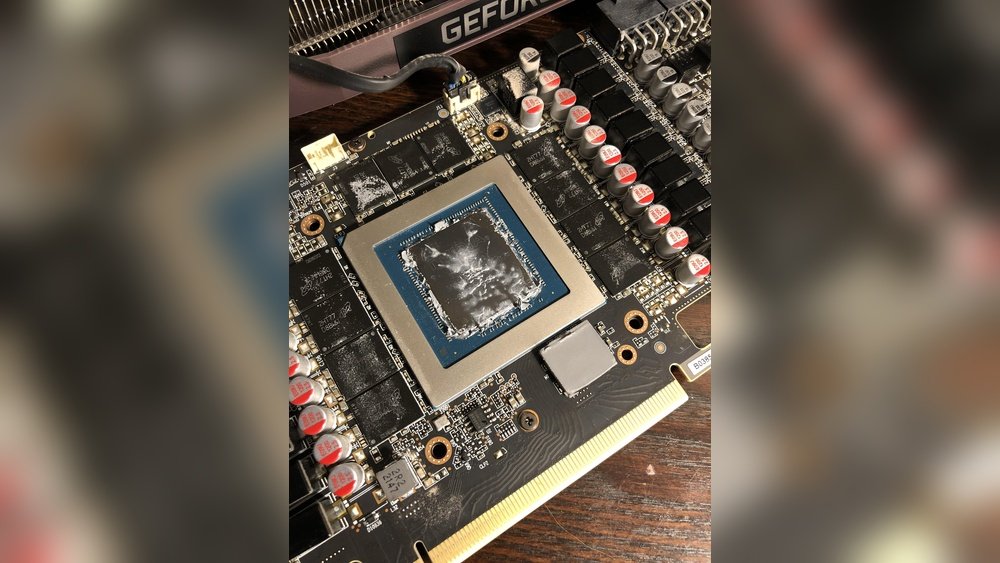
Dust can cover your GPU and other parts over time. It blocks vents and fans, reducing cooling efficiency. Dust buildup traps heat around the GPU. This causes the GPU to run hotter than it should. Cleaning dust regularly helps maintain good cooling.
Faulty Or Insufficient Cooling System
Cooling systems include fans, heat sinks, and liquid coolers. If any part fails or is not enough, the GPU overheats. Fans might stop spinning or run slowly. Thermal paste between the GPU and cooler can dry out. A weak cooling system cannot remove heat effectively.

Credit: www.youtube.com
Signs Of An Overheating Gpu
Knowing the signs of an overheating GPU helps protect your computer. It stops damage before it gets worse. Watch for changes in your system’s behavior. These signs show your GPU is too hot and needs attention.
Frequent System Crashes
Your computer may crash often when the GPU overheats. Crashes happen without warning and may occur during simple tasks. Overheating causes the GPU to fail in processing graphics correctly. This leads to sudden errors and system instability.
Unexpected Shutdowns
The computer may shut down by itself to protect hardware. Overheating triggers automatic shutdowns to avoid permanent damage. These shutdowns happen without saving your work. It is a clear sign the GPU is too hot.
Reduced Performance And Fps Drops
Games and apps run slower with an overheating GPU. You may notice lower frames per second (FPS) in games. Graphics look choppy and lag more than usual. The GPU reduces its speed to cool down, hurting performance.
Loud Fan Noise
Fans spin faster to cool an overheating GPU. This causes louder noise from your computer. The sound may become constant or increase during use. Loud fans signal the GPU is working too hard to stay cool.
Immediate Steps To Cool Gpu
Overheating can damage your GPU and reduce its performance. Acting fast helps protect your hardware. You can cool your GPU by taking some simple steps immediately. These steps reduce the heat and help your GPU run smoothly again.
Lowering Graphics Settings
Reducing graphics settings lowers the load on your GPU. Turn off high-quality shadows and effects. Use lower resolution if possible. This change makes the GPU work less, producing less heat. You will still enjoy good visuals without stressing the card.
Pausing Intensive Tasks
Stop any heavy tasks using your GPU right away. Close games, video editors, or mining software. This pause lets the GPU cool down quickly. It also prevents further damage from heat. After cooling, you can resume tasks with less risk.
Improving Room Ventilation
Better airflow around your computer helps reduce heat. Open windows or doors to let fresh air in. Use a fan to move air near your PC. Avoid placing your computer in tight spaces. Good ventilation keeps your GPU temperature lower for longer.
Cleaning And Maintenance Tips
Keeping your GPU clean and well-maintained helps prevent overheating. Dust and dirt block airflow and raise temperatures. Regular cleaning improves cooling and extends GPU life.
Simple maintenance steps keep your GPU running cool and smooth. Follow these tips to clean and check your GPU properly.
Removing Dust From Fans And Heatsinks
Turn off your computer and unplug it. Open the case to access the GPU. Use a soft brush or compressed air to remove dust from fans and heatsinks. Avoid spinning the fans too fast with air. Clean gently to protect delicate parts. Dust buildup limits airflow and causes heat.
Reapplying Thermal Paste
Thermal paste helps transfer heat from the GPU chip to the heatsink. Over time, it dries out and becomes less effective. Remove the old thermal paste carefully with isopropyl alcohol and a lint-free cloth. Apply a small amount of new thermal paste evenly on the chip. This improves heat transfer and lowers GPU temperature.
Checking Fan Functionality
Fans must spin freely to cool the GPU. Check if fans spin smoothly without noise or resistance. Use software tools to monitor fan speed during use. Replace faulty or noisy fans quickly. Good fan function keeps air moving and reduces overheating risk.
Upgrading Cooling Solutions
Upgrading your GPU’s cooling system helps keep temperatures low and improves performance. Overheating can cause crashes and shorten hardware life. Better cooling means your GPU runs cooler and lasts longer. Several options exist to enhance cooling, from simple fan upgrades to advanced liquid cooling.
Installing Additional Case Fans
Adding more fans to your computer case improves airflow. Good airflow moves hot air out and brings cool air in. Place intake fans at the front and exhaust fans at the back or top. This setup helps reduce heat buildup around the GPU. Choose fans with high airflow and low noise levels for best results.
Using Aftermarket Gpu Coolers
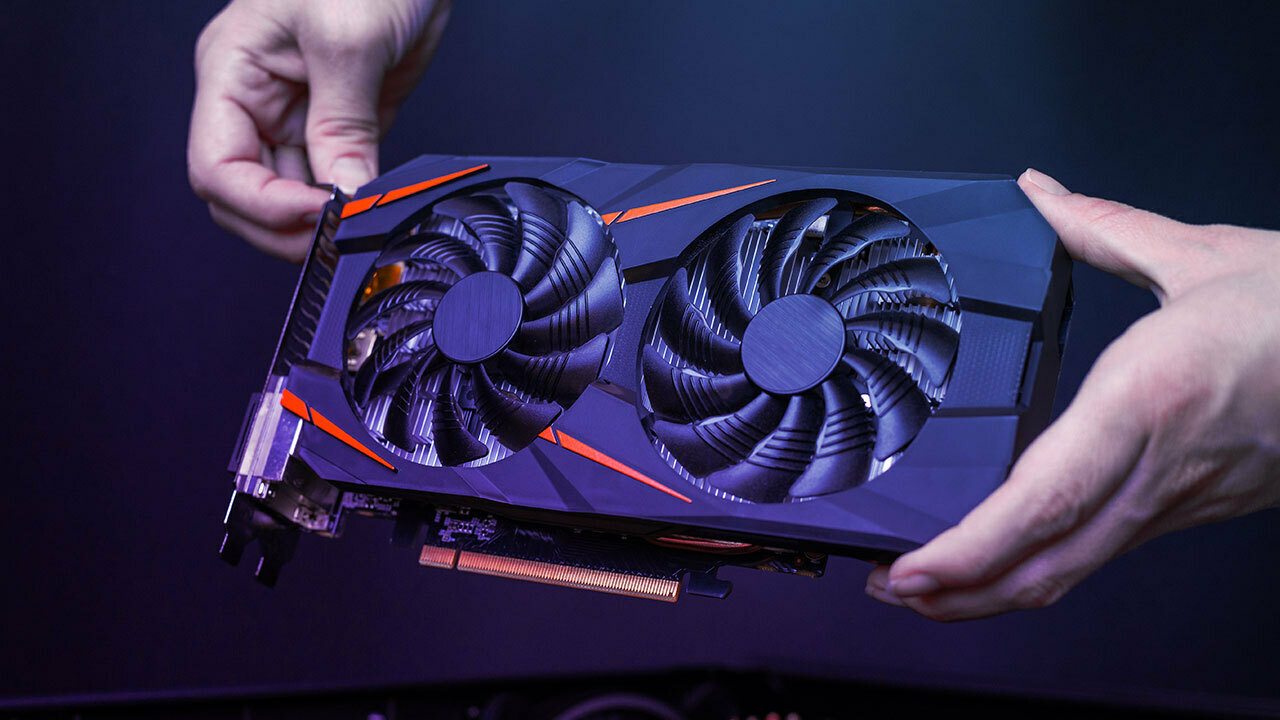
Aftermarket GPU coolers replace the stock cooler on your graphics card. These coolers often have bigger fans or more heat pipes. They provide better heat dissipation and lower GPU temperatures. Make sure the cooler fits your GPU model before buying. Installing one requires some technical skill but offers significant cooling improvement.
Considering Liquid Cooling Options
Liquid cooling uses water or coolant to remove heat from your GPU. It is more efficient than air cooling and quieter. You can choose between all-in-one (AIO) kits or custom loops. AIO kits are easier to install and maintain. Custom loops offer the best performance but need more work and knowledge.
Credit: www.cyberpowerpc.com
Optimizing Software Settings
Optimizing software settings is a simple way to help stop your GPU from overheating. Changing how your GPU works through software controls can lower heat and improve performance. These adjustments do not require hardware changes but can make a big difference.
Adjusting Fan Curves With Software
Fan curves control how fast your GPU fans spin at different temperatures. Setting a more aggressive fan curve makes fans run faster earlier. This helps cool your GPU before it gets too hot. Most GPUs come with software that lets you change fan speeds. Try increasing fan speed at lower temperatures to keep the GPU cool.
Underclocking And Undervolting The Gpu
Underclocking means lowering the GPU’s clock speed. Undervolting reduces the power the GPU uses. Both actions lower heat output and power consumption. They can reduce performance slightly but greatly reduce overheating risk. Use tools like MSI Afterburner to safely adjust these settings. Make small changes and test stability before going further.
Monitoring Temperatures Regularly
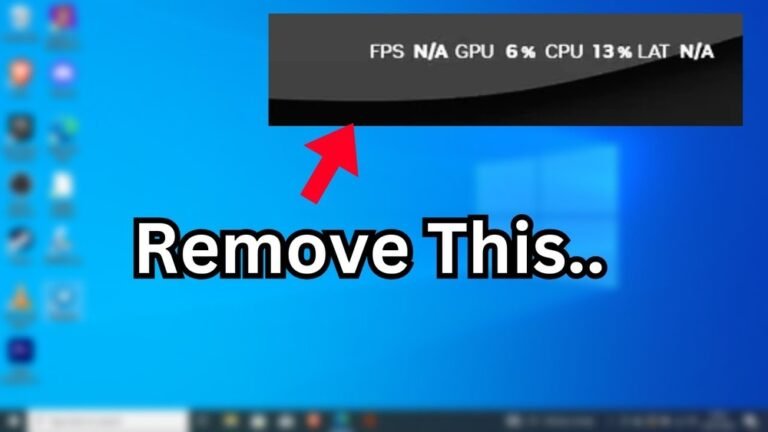
Keep an eye on your GPU temperature using monitoring software. Programs like HWMonitor or GPU-Z show real-time temperature data. Checking temperatures helps you know if your adjustments work. Watch for temperatures above 80°C as a warning sign. Regular monitoring allows fast action to prevent damage or crashes.
Improving Pc Case Airflow
Improving your PC case airflow is a key step to stop your GPU from overheating. Good airflow moves hot air out and brings cool air in. It helps keep all parts, especially the GPU, at safe temperatures. Small changes inside your case can make a big difference.
Organizing Internal Cables
Messy cables block airflow and trap heat. Arrange cables neatly along the sides or behind the motherboard tray. Use cable ties or Velcro straps to bundle cables together. Clear space inside the case lets air flow smoothly. This reduces hot spots near the GPU and other parts.
Choosing The Right Case For Cooling
Not all cases cool equally. Look for cases with good ventilation and mesh panels. Cases with multiple fan mounts let you add more fans. Bigger cases often have better airflow because parts are spaced out. Choose a case designed for airflow over looks or size.
Positioning The Pc For Better Air Intake
Place your PC where it can get fresh air easily. Avoid tight spots like inside a desk cabinet. Keep the case away from walls and obstacles that block vents. Elevate the case slightly to help bottom fans pull in air. This simple move improves cooling for your GPU and other components.

Credit: www.reddit.com
Frequently Asked Questions
How Can I Prevent My Gpu From Overheating?
To prevent GPU overheating, ensure proper airflow in your PC case. Clean dust regularly and use quality thermal paste. Also, keep fan speeds optimized and avoid overclocking beyond safe limits to maintain stable temperatures.
What Are The Signs Of Gpu Overheating?
Signs include sudden crashes, screen artifacts, reduced performance, and loud fan noise. High GPU temperature readings in monitoring software also indicate overheating risks. Address these early to avoid hardware damage.
Does Cleaning Dust Help Reduce Gpu Temperature?
Yes, dust blocks airflow and insulates heat. Cleaning dust from GPU fans and heatsinks improves cooling efficiency, reducing temperatures and preventing overheating.
Can Updating Gpu Drivers Prevent Overheating?
Updating GPU drivers can optimize performance and fix bugs. While it may not directly reduce heat, it ensures your GPU runs efficiently, which can help maintain stable temperatures.
Conclusion
Keeping your GPU cool helps it run better and last longer. Clean dust often and check your fans. Use good airflow in your computer case. Avoid heavy workloads for too long without breaks. Monitor temperatures with simple tools. Small steps protect your hardware and improve performance.
Stay mindful of heat to avoid damage and crashes. A cool GPU means smoother gaming and faster work. Take care of your system; it will thank you.