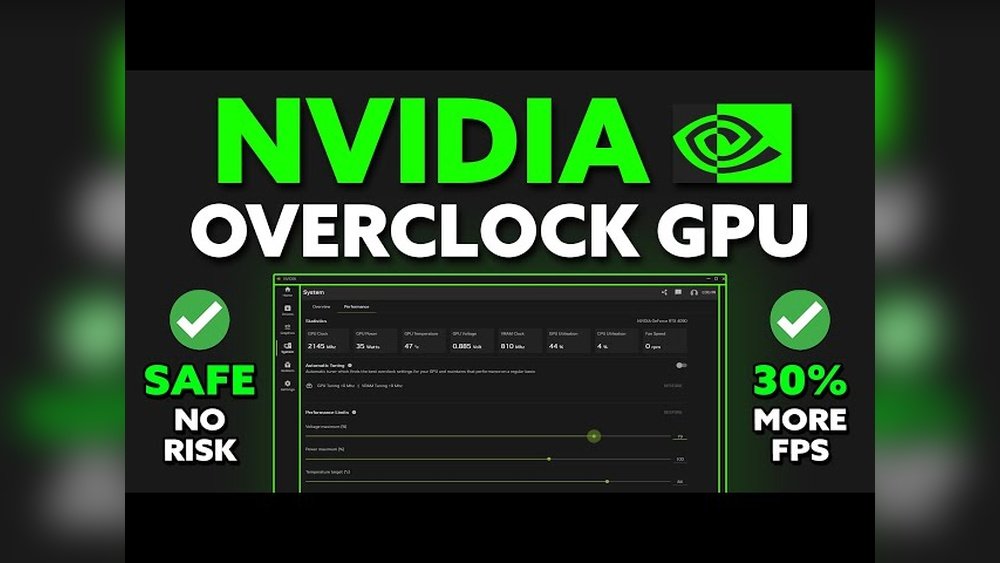
How to Overclock Gpu Nvidia: Ultimate Guide for Maximum Performance
Are you ready to unlock the full power of your Nvidia GPU? Overclocking can boost your graphics card’s performance, making games smoother and applications run faster.
But if you’re worried about complicated settings or damaging your hardware, don’t be. This guide will walk you through simple, step-by-step instructions to safely overclock your Nvidia GPU. By the end, you’ll know exactly how to get more speed and better visuals without the guesswork.
Keep reading, and take control of your gaming experience like never before.
Preparing For Gpu Overclocking
Preparing for GPU overclocking is a crucial step for better results and system safety. It helps avoid damage and ensures smooth performance. Start with checking your system and making necessary updates. Then, install the right tools for overclocking.
Check System Compatibility
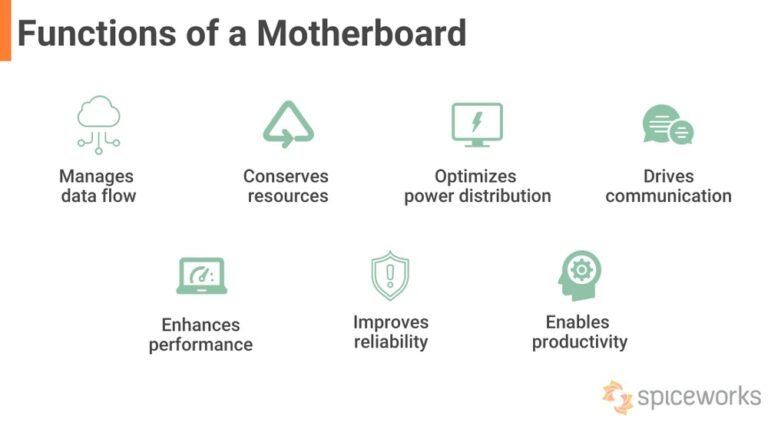
Ensure your PC hardware supports GPU overclocking. Check the power supply wattage and cooling system. A strong power supply and good cooling prevent overheating and crashes. Verify your motherboard and GPU model allow overclocking. Some models have locked settings.
Update Drivers
Install the latest Nvidia drivers for your GPU. Updated drivers improve performance and fix bugs. Visit the official Nvidia website or use GeForce Experience software. Running outdated drivers can cause errors during overclocking.
Install Overclocking Software
Choose trusted software for GPU overclocking. Nvidia’s official tool, NVIDIA Inspector, or MSI Afterburner are popular choices. These apps offer easy controls for clock speeds and fan settings. Avoid unknown or unsafe programs to protect your system.
Key Concepts Of Overclocking
Understanding the key concepts of overclocking is important before changing any settings. Overclocking a Nvidia GPU means running it faster than the factory speed. This helps improve performance but can cause heat and power issues. Knowing the basics helps keep the GPU safe and stable.
Clock Speeds And Boost Clocks
Clock speeds show how fast the GPU core runs. Higher clock speeds mean more calculations per second. Nvidia GPUs also have boost clocks. These are temporary speed increases under light load. Overclocking raises both base and boost clocks. This improves frame rates but must be done carefully to avoid crashes.
Voltage And Power Limits
Voltage controls the power sent to the GPU chip. Increasing voltage can help keep higher clock speeds stable. Power limits set the maximum energy the GPU can use. Raising power limits allows the card to run faster for longer. Too much voltage or power causes damage. Adjust settings slowly and watch for signs of stress.
Temperature Management
Heat is the biggest enemy of overclocking. Higher speeds and voltage produce more heat. Good cooling keeps the GPU safe and stable. Use quality fans or liquid cooling systems. Monitor temperature regularly to avoid overheating. Stop if temperatures get too high to protect your GPU.
Step-by-step Overclocking Process
Overclocking your Nvidia GPU can boost performance in games and applications. Follow a clear process to avoid damage and get steady results. Take it slow and test often. This step-by-step guide helps you do it right.
Baseline Performance Testing
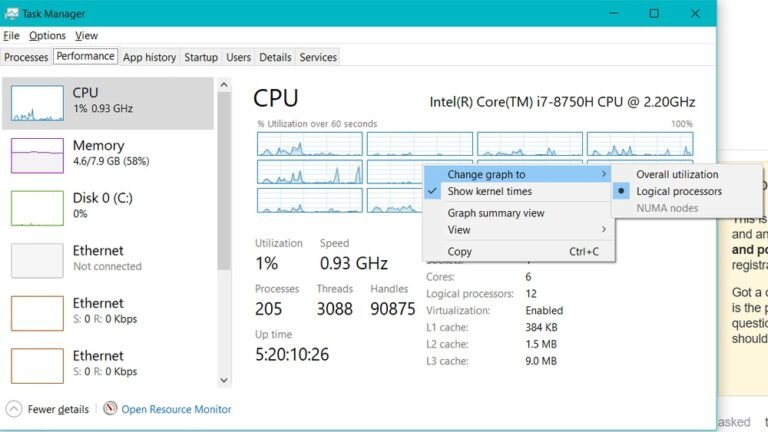
Start by checking your GPU’s current speed and temperature. Use software like MSI Afterburner or GPU-Z. Run a benchmark or game to see how your GPU performs at stock settings. Record these numbers. They help track improvements and spot problems later.
Adjusting Core Clock
Increase the core clock speed in small steps, about 10-20 MHz. After each increase, test your GPU’s stability with a benchmark. Watch the temperature carefully. Stop if the system crashes or shows glitches. Find the highest stable clock without overheating.
Tweaking Memory Clock
Raise the memory clock speed next, again in small steps. Memory speed affects texture loading and frame rates. Test after each change. Look for artifacts or crashes. Keep the memory clock at a stable level for best results.
Managing Voltage And Power
Adjust voltage and power limits to support higher clocks. Increase power limit gradually to avoid overheating. Voltage tweaks can improve stability but raise heat output. Use small increments and monitor temperatures closely. Do not exceed safe voltage limits.
Stress Testing Stability
Run long stress tests using tools like FurMark or 3DMark. Check for crashes, artifacts, or overheating. If problems occur, lower clocks or increase cooling. Repeat tests until your GPU runs smoothly for hours. Stability is key for safe overclocking.

Credit: www.pwmachineservices.com
Optimizing Cooling Solutions
Optimizing cooling solutions is key to safe and effective GPU overclocking. Keeping your Nvidia GPU cool helps maintain stable performance and avoids damage. Overclocking pushes the GPU harder, creating more heat. Without good cooling, your system may slow down or shut off to protect itself.
Focus on improving airflow, using better cooling hardware, and monitoring temperatures closely. These steps help your GPU run cooler and last longer during overclocking.
Improving Airflow
Good airflow inside the PC case moves hot air away from the GPU. Arrange fans to bring in cool air from the front and push hot air out the back. Avoid cables blocking the airflow paths. Clean dust from fans and vents regularly. Cooler air means lower GPU temperatures during overclocking.
Using Aftermarket Cooling
Stock GPU coolers may not handle extra heat from overclocking well. Consider aftermarket coolers like larger air coolers or liquid cooling systems. These coolers provide stronger and quieter cooling. They help keep GPU temperatures in a safe range. Installing a better cooler can improve overclocking potential.
Monitoring Temperatures
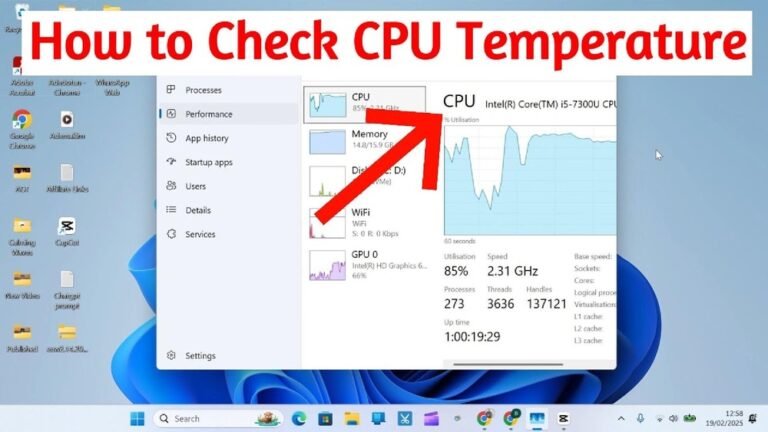
Check your GPU temperature often during overclocking tests. Use software tools like MSI Afterburner or HWMonitor. Watch for temperatures above 85°C, which can cause throttling or damage. Stop overclocking if temperatures get too high. Staying aware of heat protects your GPU and keeps performance steady.
Troubleshooting Common Issues
Troubleshooting is key when overclocking your Nvidia GPU. Small errors can cause big problems. Knowing how to fix these issues helps keep your system stable and fast. This section covers common problems and simple fixes.
Handling System Crashes
System crashes often occur due to unstable overclock settings. Lower the core clock speed in small steps. Test the system after each change. Use stress test software to check stability. Make sure your GPU temperature stays below safe limits. Avoid running other heavy programs during tests.
Fixing Artifacts And Glitches
Artifacts appear as strange colors or shapes on the screen. They usually mean the GPU is pushed too hard. Reduce the memory clock speed slightly. Check your GPU drivers and update them if needed. Clean your GPU fan and ensure good airflow. Artifacts may disappear after these steps.
Reverting To Stable Settings
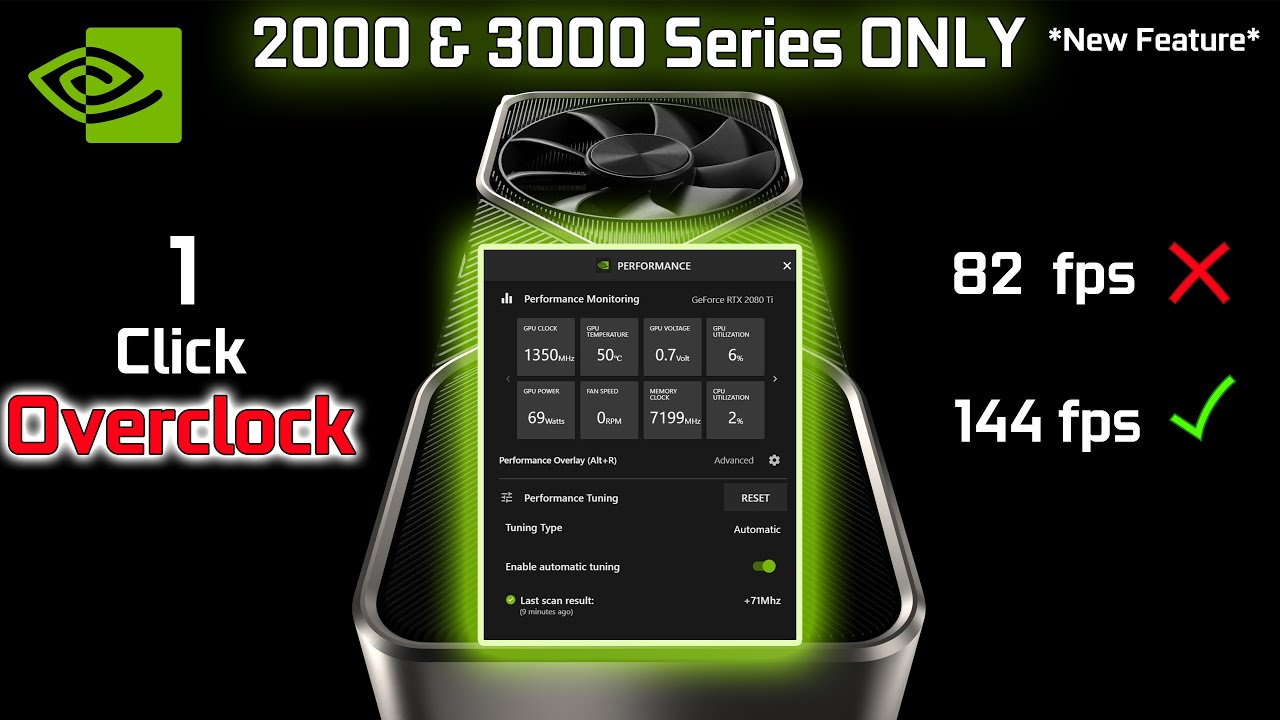
If problems continue, revert to default settings. Use your overclocking software to reset to factory values. Save your current settings before resetting. Gradually increase clock speeds again, testing after each step. This method helps find safe, stable overclock levels for your GPU.
Credit: www.youtube.com
Maximizing Performance Safely
Maximizing performance safely is key when overclocking your Nvidia GPU. Boosting speed can improve gaming and work tasks. Yet, pushing too hard risks damage or shorter hardware life. Careful steps help balance speed and safety. This keeps your GPU running strong for longer.
Balancing Performance And Longevity
Overclocking raises your GPU’s clock speed for better performance. But high speeds create more heat and stress. This can wear out parts faster. Find a balance by increasing clock speed in small steps. Test stability and temperature after each change. Stop before temperatures reach unsafe levels, usually 85°C or higher.
Use software tools to monitor GPU stats. Good cooling helps maintain lower temperatures. Invest in quality fans or liquid cooling. Cooler hardware lasts longer and stays stable under load.
Regular Maintenance Tips
Keep your GPU clean for best performance. Dust blocks airflow and raises temperature. Clean fans and vents often with compressed air. Update GPU drivers to fix bugs and improve efficiency. Check your system for virus or malware that may cause extra load. Regularly monitor GPU health with apps like MSI Afterburner or GPU-Z.
When To Stop Overclocking
Stop if your GPU crashes or shows artifacts on screen. These signs mean instability or damage risk. If temperatures stay above safe limits despite cooling, reduce clock speeds. Avoid pushing your GPU beyond what it can handle. Stability and safety protect your investment. Overclocking is about smart gains, not maximum numbers.

Credit: www.reddit.com
Frequently Asked Questions
What Is Gpu Overclocking For Nvidia Cards?
GPU overclocking increases Nvidia GPU clock speeds beyond factory settings. This boosts gaming and rendering performance. It involves adjusting core and memory clocks safely to avoid damage or crashes.
How Do I Safely Overclock My Nvidia Gpu?
Use software like MSI Afterburner or Nvidia Inspector. Increase clock speeds gradually by 10-20 MHz. Test stability with benchmarking tools after each change. Monitor temperatures to keep them below 85°C for safety.
Will Overclocking Nvidia Gpus Void The Warranty?
Yes, overclocking can void your Nvidia GPU warranty. Manufacturers often consider it as operating outside recommended specifications. Always check the warranty terms before proceeding.
How Much Performance Gain Can I Expect From Overclocking?
Performance gains vary by GPU model and cooling. Typical improvements range from 5% to 15% in frame rates. Proper tuning and cooling maximize these benefits without risking hardware damage.
Conclusion
Overclocking your Nvidia GPU can boost your computer’s speed. Start slow and watch your system’s temperature closely. Small changes make a big difference in performance and safety. Remember to test stability after each step. Avoid pushing your hardware too hard to prevent damage.
With patience, your GPU can run smoother and faster. Keep learning and practicing for better results. Enjoy the improved experience without risking your device.