How to Flash Bios Gpu: Easy Steps to Boost Performance Safely
If you want to unlock the full potential of your GPU or fix annoying issues, flashing your GPU BIOS might be the key. But the idea of flashing BIOS can feel intimidating and risky.
Don’t worry—this guide will walk you through the entire process step-by-step, making it simple and safe for you. By the end, you’ll know exactly how to flash your GPU BIOS with confidence, unlocking better performance or solving problems you didn’t think were fixable.
Ready to take control of your graphics card? Let’s dive in.
Credit: www.shoshitamam.com
Why Flash Gpu Bios
Flashing your GPU BIOS can improve your graphics card in several ways. It updates the software that controls the hardware. This update can help your GPU run better and fix some problems. Many users flash their GPU BIOS to get better performance or solve issues.
Here are some main reasons why flashing GPU BIOS is useful.
Performance Improvements
New BIOS versions often improve GPU speed and efficiency. This means your graphics card can handle games and apps smoother. Some BIOS updates optimize power use, allowing better performance without overheating. Small changes in BIOS can make a noticeable difference in frame rates.
Fixing Compatibility Issues
Some GPUs face problems with certain software or hardware. BIOS updates can fix bugs that cause crashes or freezes. Updates help the GPU work better with new operating systems or motherboards. This means fewer errors and more stable performance during use.
Unlocking Additional Features
Manufacturers sometimes add new options through BIOS updates. These can include better fan control or support for higher memory speeds. Some updates enable new display outputs or advanced settings. Flashing BIOS lets users access these extra features safely.
Preparing For Bios Flash
Preparing for a BIOS flash on your GPU is a critical step. It ensures the process goes smoothly and safely. Skipping preparation can cause serious problems. Follow each step carefully to avoid issues.
Backup Current Bios
Backing up your current BIOS is essential. It allows you to restore the original settings if something goes wrong. Use reliable software designed for BIOS backup. Save the backup file in a safe location on your computer or an external drive.
Gathering Necessary Tools
Collect all tools needed before starting. This includes BIOS flashing software, a USB drive, and your GPU’s BIOS file. Make sure your PC has a stable power supply to prevent interruptions during flashing. Having everything ready reduces risks and saves time.
Checking Gpu Model And Bios Version
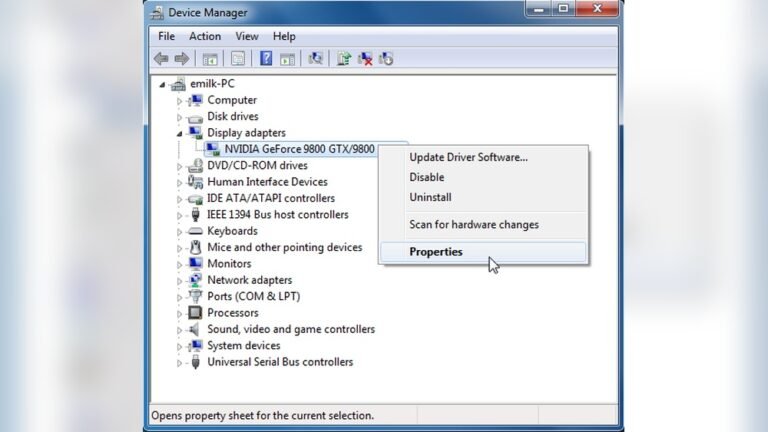
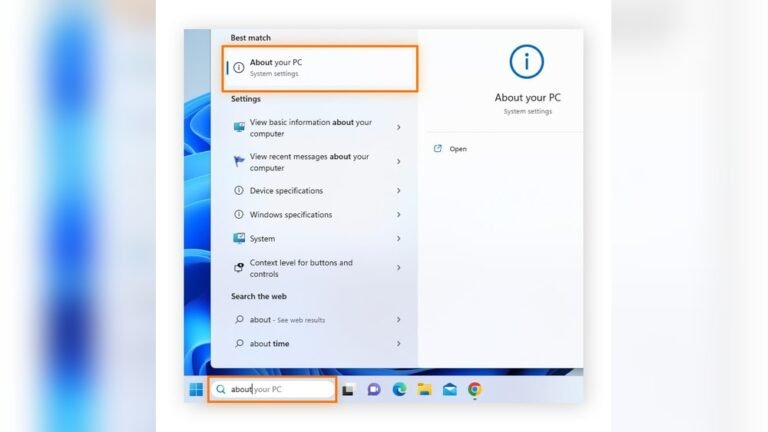
Identify your GPU model and current BIOS version accurately. Use GPU utilities or device manager to find this information. Confirm that the BIOS file matches your exact GPU model. Flashing the wrong BIOS can damage your graphics card permanently.
Choosing The Right Bios Firmware
Choosing the right BIOS firmware is a key step before flashing your GPU. The BIOS controls how your graphics card works. Using the wrong firmware can cause serious problems. It may stop your GPU from working or even damage it permanently. Selecting the correct BIOS ensures stability and better performance. This section explains how to pick the right firmware safely.
Official Vs Custom Bios
Official BIOS comes from the GPU maker. It is tested and verified for your card. This firmware is safer and more stable. Custom BIOS is made by users or third parties. It may offer extra features or higher speeds. But it can be risky. Custom BIOS might not work well with your GPU. Choose official BIOS for safety. Use custom BIOS only if you understand the risks.
Verifying Firmware Source
Always download BIOS files from trusted sources. Check the website’s reputation before downloading. Avoid random forums or unverified links. Official manufacturer sites are the safest. Some trusted communities offer custom BIOS too. Read user reviews and feedback carefully. Verify file checksums if available. This step reduces the chance of corrupted or fake firmware.
Matching Bios To Gpu Model
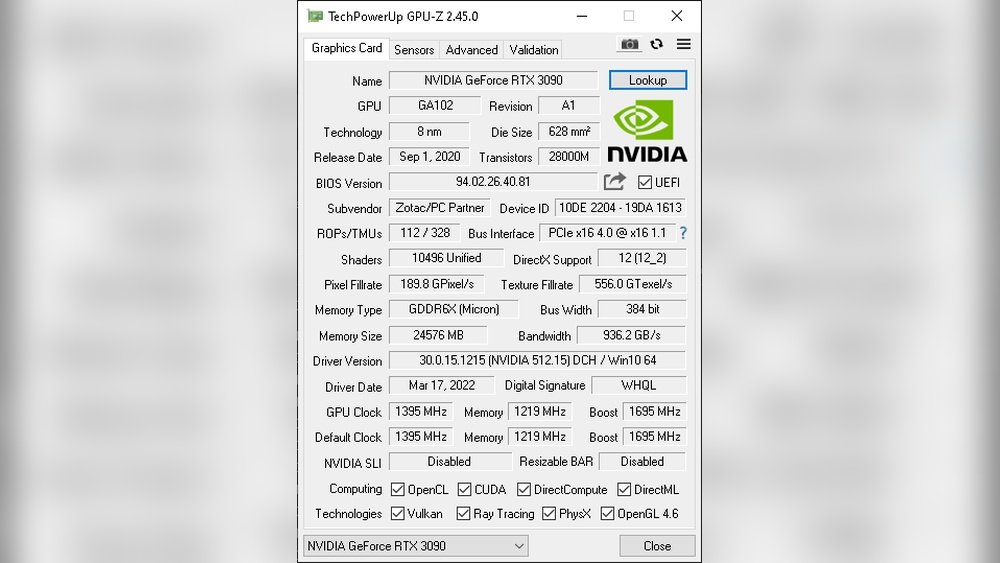
Check your exact GPU model before flashing BIOS. Different models use different firmware versions. Even small variations in hardware matter. Use tools like GPU-Z to identify your card. Match the BIOS version to the same model and revision. Flashing BIOS meant for another model can brick your GPU. Double-check details to avoid mistakes.
Credit: www.eteknix.com
Step-by-step Flashing Process
Flashing your GPU BIOS can improve performance or fix issues. It must be done carefully to avoid damage. Follow these clear steps for a safe flashing process. Each step guides you through the task clearly.
Creating A Bootable Usb Drive
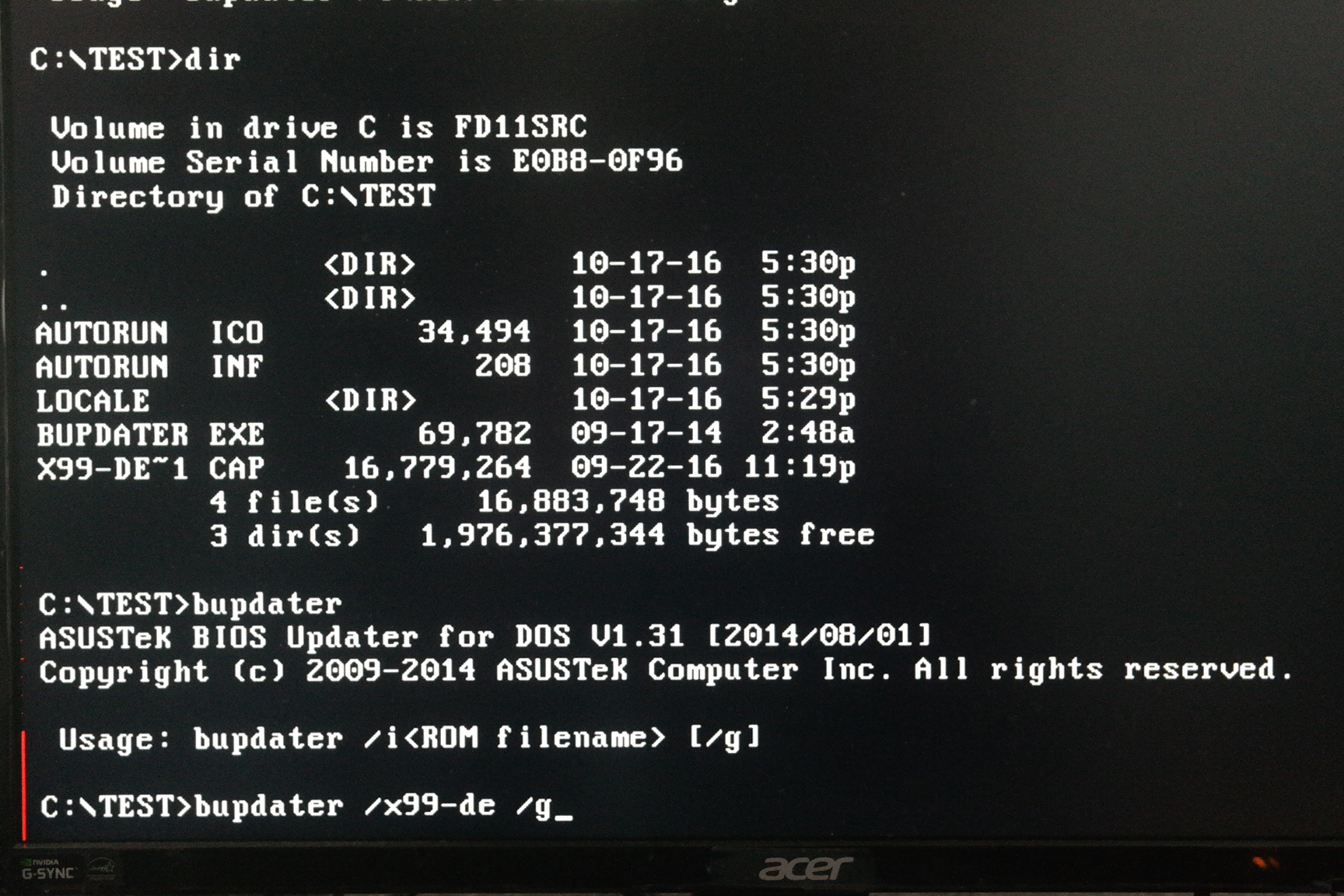
First, prepare a USB drive to hold the flashing files. Use a tool like Rufus to make the USB bootable. Choose the correct file system, usually FAT32. Copy the BIOS file and flashing utility to the USB. This setup allows the computer to start from the USB.
Running Flashing Utilities
Restart your PC and enter the boot menu. Select the USB drive as the boot device. Once booted, run the flashing tool from the USB. Follow the tool’s instructions carefully. Avoid turning off your PC during this step.
Verifying Flash Success
After flashing, reboot your system normally. Check the BIOS version to confirm the update. Use GPU software to verify the new BIOS is active. Test your GPU for stability and performance. This ensures the flash worked without issues.
Troubleshooting Common Issues
Troubleshooting common issues is a key step when flashing your GPU BIOS. Problems can occur during or after the process. Knowing how to handle these issues saves time and stress. Below are ways to fix frequent problems quickly and safely.
Handling Flash Failures
Flash failures happen if the process stops or errors appear. Check your power connection first. A sudden power loss can cause failure. Use the correct BIOS file for your GPU model. Double-check the file name and source. Run the flashing tool as an administrator. This ensures it has the right permissions. If the flash fails, try restarting your computer. Then, run the flash tool again.
Recovering From A Corrupted Bios
A corrupted BIOS may stop your GPU from working. Some GPUs have a dual BIOS switch. Use it to switch to a backup BIOS. If no switch exists, use a recovery tool from the GPU maker. Prepare a USB drive with the correct BIOS file. Follow the recovery instructions step by step. Avoid interrupting the recovery process. This helps restore your GPU safely.
Dealing With Performance Drops
Performance drops can happen after flashing the BIOS. Check if the BIOS version is compatible with your GPU. Incorrect BIOS can reduce speed or cause crashes. Reset your GPU settings to default in the control panel. Update your GPU drivers to the latest version. Test your GPU with different games or programs. This confirms if the issue is fixed. If problems continue, consider reflashing the previous BIOS version.
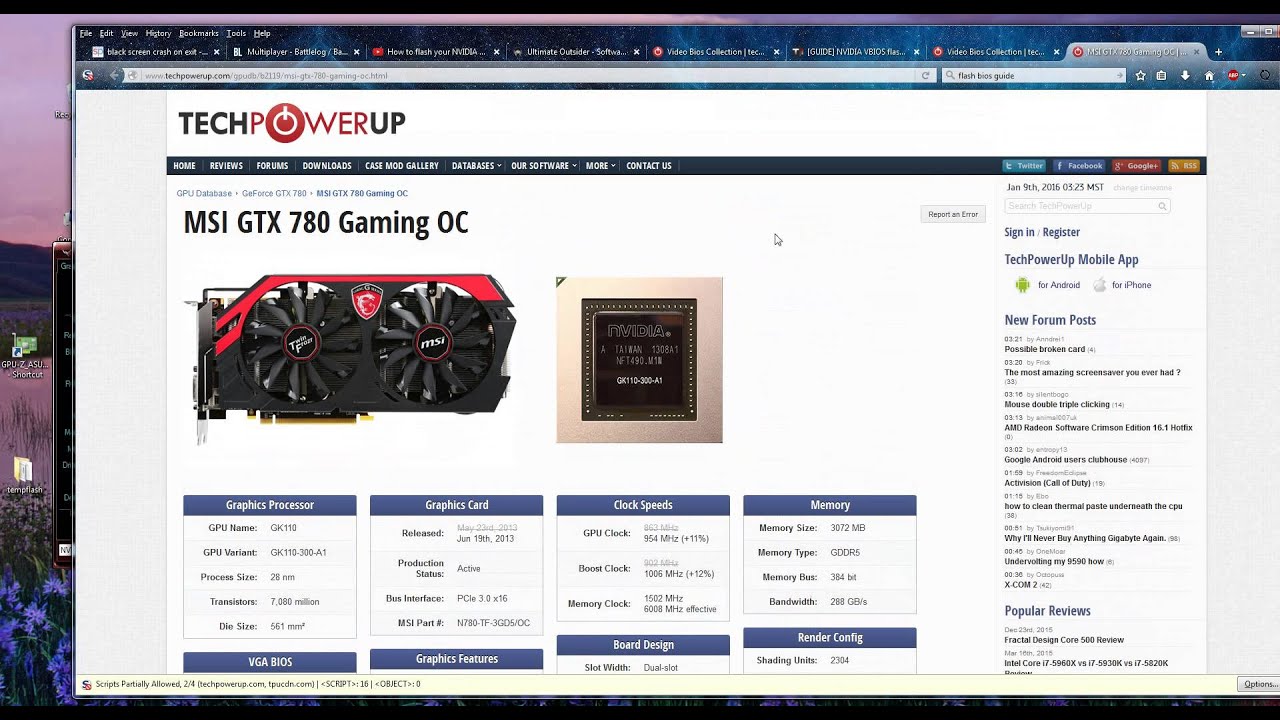
Credit: www.youtube.com
Safety Tips And Best Practices
Flashing your GPU BIOS can improve performance and fix issues. It is a delicate process. Following safety tips and best practices helps avoid damage. This section covers key steps to keep your device safe.
Ensuring Stable Power Supply
Use a reliable power source during the BIOS flash. Power cuts can cause serious damage. Avoid using battery power alone. Connect your PC to a surge protector. This reduces the risk of power spikes. Stable power keeps the process smooth and secure.
Avoiding Interruptions
Close all programs before starting the flash. Interruptions can corrupt the BIOS file. Disable automatic updates and antivirus temporarily. Do not turn off your computer during the flash. Wait until the process finishes completely. Interruptions may brick your GPU, making it unusable.
Keeping Firmware Updated
Check the manufacturer’s website for the latest BIOS version. Using outdated firmware can cause issues. Download the exact BIOS file for your GPU model. Regular updates improve stability and fix bugs. Always follow official instructions for flashing your BIOS.
Frequently Asked Questions
What Is Gpu Bios Flashing And Why Is It Needed?
GPU BIOS flashing updates your graphics card firmware. It improves compatibility, fixes bugs, and can boost performance. However, it carries risks like bricking the card if done incorrectly. Always back up the current BIOS before flashing for safety.
How Do I Prepare My Pc For Gpu Bios Flashing?
To prepare, fully charge your laptop or use a stable power supply. Download the correct BIOS and flashing tools from trusted sources. Disable antivirus and close unnecessary programs to prevent interruptions during flashing.
Can Gpu Bios Flashing Improve Gaming Performance?
Yes, flashing GPU BIOS can optimize clock speeds and power limits. This may result in better gaming performance and stability. However, gains depend on the specific card and BIOS version used.
What Are The Risks Of Flashing Gpu Bios Incorrectly?
Incorrect flashing can permanently damage your GPU, causing it to fail. You may lose warranty coverage and face system instability. Always follow detailed guides and verify BIOS compatibility to minimize risks.
Conclusion
Flashing your GPU BIOS can improve performance and fix bugs. Always back up your current BIOS before starting. Use trusted tools and follow steps carefully to avoid damage. Take your time and do not rush the process. After flashing, check if your GPU works properly.
This simple guide helps you flash your GPU BIOS safely. Stay patient and cautious for the best results.