How to Change Cpu Name in Windows 10: Easy Steps to Customize
Have you ever wondered if you can change your CPU name in Windows 10? Whether you want to personalize your computer or make it easier to identify on a network, renaming your CPU can be surprisingly simple.
In this guide, you’ll learn exactly how to change your CPU name step-by-step, without any confusion or tech jargon. Stick with me, and by the end, you’ll have a computer name that fits you perfectly. Ready to get started? Let’s dive in!

Credit: softwareg.com.au
Why Change Cpu Name
Changing your CPU name in Windows 10 can help you organize your devices better. The default CPU name is often generic and not very descriptive. Giving it a custom name makes it easier to identify your computer on a network or in a list of devices.
Custom names add a personal touch and improve device management. This small change can save time and reduce confusion, especially in homes or offices with many computers.
Benefits Of Customizing Cpu Name
Custom CPU names help you find your computer quickly in a network. They make remote access simpler and reduce mistakes when managing multiple devices. A clear name helps IT staff or family members know which device they are working on.
It also improves security by making your device easier to spot in network scans. Renaming your CPU adds a layer of clarity and professionalism in work environments.
Common Use Cases
Many users rename their CPUs to show the device’s owner or purpose. For example, “Johns-Desktop” or “Office-PC.” This helps in shared spaces like schools or offices.
Gamers or streamers might use custom names to identify their gaming rigs. Small businesses often rename CPUs to track which machine belongs to which employee. This practice helps with maintenance and updates.
Check Current Cpu Name
Knowing your current CPU name helps identify your computer’s processor. It shows the model and brand. This info is useful before making changes or upgrades. Windows 10 offers simple ways to find this information. You can check the CPU name using built-in tools. Below are two easy methods to see your CPU details quickly.
Using System Settings
Open the Start menu and click on Settings.
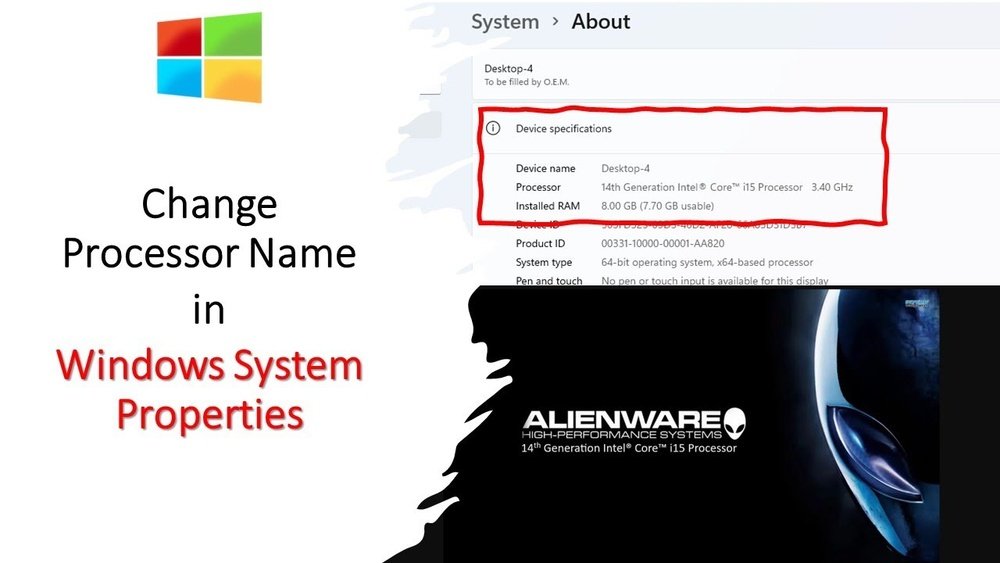
Choose System, then select About at the bottom of the list.
Look under Device specifications for Processor details.
The CPU name will appear here with its model number.
Using Command Prompt
Press Windows key + R to open Run.
Type cmd and press Enter to open Command Prompt.
Type wmic cpu get name and press Enter.
The system will display the CPU name immediately below.
Rename Cpu Via Registry Editor
Renaming your CPU in Windows 10 via the Registry Editor can personalize your system. This method changes the name displayed in system information. It requires careful steps to avoid system issues. Editing the registry allows a direct change of the processor name string.
Backing Up The Registry
Backing up the registry is important before making changes. Open the Registry Editor by typing regedit in the Start menu. Click File, then Export. Save the backup with a clear name. This step protects your system from errors.
Navigating To Processor Key
In the Registry Editor, use the left pane to find the processor key. Follow this path: HKEY_LOCAL_MACHINEHARDWAREDESCRIPTIONSystemCentralProcessor. The 0 folder represents the first CPU core. This location stores CPU details, including the name string.
Editing Processor Name String
Inside the processor key, look for the ProcessorNameString entry. Double-click it to open the edit window. Replace the current name with your preferred CPU name. Click OK to save. Restart your computer to apply the change.
Rename Cpu Using Third-party Tools
Renaming your CPU in Windows 10 can be done easily using third-party tools. These tools offer a simple way to change the CPU name shown in your system information. It helps personalize your PC or organize multiple devices better. These apps usually come with user-friendly interfaces and clear instructions.
Third-party tools often provide features beyond just renaming the CPU. They may allow detailed system info editing or hardware monitoring. Using such software reduces the risk of making mistakes in manual changes. It also saves time compared to using command lines or registry edits.
Popular Software Options
Several third-party tools are trusted by users for renaming CPU names. “CPU-Z” is one popular tool that shows detailed CPU info but does not rename. For renaming, “NameChg” or “SysInfoTool” are good options. These apps allow you to edit system properties safely.
Always download tools from official sites to avoid malware. Check user reviews to confirm reliability. Lightweight programs work better on older or slower PCs.
Step-by-step Guide
First, download and install your chosen tool. Run the program with administrator rights to allow system changes. Look for the CPU or system info section within the app.
Find the CPU name field and enter your desired name. Save the changes and restart your computer. After reboot, check system properties to confirm the new CPU name appears.
If the name does not update, repeat the steps or try a different tool. Always back up your system before making changes with third-party software.
Verify The Changes
After changing your CPU name in Windows 10, it is important to verify the changes. This step confirms your new CPU name is active and recognized by your system. It helps avoid confusion and ensures your computer shows the correct name in different places.
There are simple ways to check your CPU name. These methods use built-in Windows tools that anyone can access. Let’s explore two easy options to verify your CPU name change.
Checking Through System Information
Open the Start menu and type “System Information”. Click on the app to open it. In the System Summary section, look for the “Processor” entry. Here, you can see your CPU name as Windows recognizes it. This tool shows detailed hardware information, making it reliable for verification.
Using Task Manager
Press Ctrl + Shift + Esc to open Task Manager. Click on the “Performance” tab. Select “CPU” from the left menu. The top right corner displays your CPU name. Task Manager updates quickly and shows real-time information. This is a fast way to check your CPU name without extra steps.
Troubleshooting Common Issues
Changing your CPU name in Windows 10 is simple, but some problems may arise. Troubleshooting helps fix these issues quickly. Understanding common problems saves time and stress.
Registry Access Errors
Accessing the Windows Registry can cause errors. You might see a message about permission denial. This happens if you do not run the editor as an administrator. Make sure to open Registry Editor with admin rights. Also, some antivirus programs block registry changes. Temporarily disable antivirus if changes do not work.
Changes Not Reflected
Sometimes the new CPU name does not show up immediately. This happens because Windows caches old information. Restart your computer to update the name. You can also sign out and sign back in. Check the System Properties again to confirm the new name.
System Stability Concerns
Editing system settings can cause stability issues. Be careful when changing the CPU name in the registry. Always create a backup before making changes. If your system becomes unstable, restore the backup. Avoid changing other unrelated registry keys to keep the system safe.
Tips For Safe Customization
Changing your CPU name in Windows 10 can personalize your computer. It is important to customize safely to avoid problems. Follow simple tips to keep your system secure and stable.
Creating System Restore Points
System restore points save your current settings. They help you undo changes if something goes wrong. Create a restore point before you change your CPU name. This step protects your system from errors. You can restore your PC to its previous state easily.
To create a restore point, open the Control Panel. Go to System and Security, then System. Click on System Protection and select Create. Name your restore point and save it. This process takes only a few minutes but is very helpful.
Avoiding Common Mistakes
Use simple and clear names for your CPU. Avoid special characters and long names. These can cause errors or make your system unstable. Do not change other system settings at the same time. Focus only on the CPU name to reduce risks.
Double-check the spelling before saving the new name. Restart your computer after changing the name to apply it. Avoid frequent changes to prevent system confusion. Following these steps helps keep your computer safe and working well.

Credit: softwareg.com.au

Credit: www.youtube.com
Frequently Asked Questions
How Do I Rename My Cpu In Windows 10?
To rename your CPU, change the computer name in System Settings. Go to Settings > System > About > Rename this PC. Enter a new name and restart your computer to apply changes.
Can Changing Cpu Name Affect System Performance?
No, changing the CPU name does not affect system performance. It only changes the computer’s network identity and display name in Windows.
Is Admin Permission Needed To Change Cpu Name?
Yes, you need administrator rights to rename your CPU. Without admin access, Windows will not allow changes to the computer name.
Will Changing Cpu Name Affect Network Connections?
Changing the CPU name may temporarily disrupt network connections. After renaming, restart your PC to restore network functionality smoothly.
Conclusion
Changing your CPU name in Windows 10 is simple and quick. This small step helps you organize your devices better. You can follow the easy steps anytime without trouble. Keep your system information clear and easy to find. Try it now to keep your computer settings neat.
It only takes a few minutes to complete. You have full control over your PC’s identity. Stay confident managing your Windows 10 system.