How to Increase Fan Speed on Gpu: Easy Steps for Better Cooling
Is your GPU running hotter than you’d like? Increasing your GPU fan speed can help keep your graphics card cool and boost its performance.
If you’ve noticed your computer slowing down or your games lagging, adjusting your fan settings might be the simple fix you need. You’ll discover easy and effective ways to increase your GPU fan speed safely. Keep reading to learn how to protect your hardware and get the most out of your graphics card.

Credit: softwareg.com.au
Why Boost Fan Speed Matters
Boosting your GPU fan speed plays a key role in keeping your graphics card cool. A cooler GPU runs better and lasts longer. This simple step can prevent overheating and reduce the risk of damage. Many users overlook the importance of fan speed control. Yet, it is vital for maintaining the health and performance of your GPU.
Impact On Gpu Temperature
Higher fan speeds help move hot air away from the GPU faster. This lowers the temperature inside the graphics card. Cooler temperatures stop the GPU from reaching unsafe heat levels. Running at lower temperatures prevents thermal throttling. Thermal throttling slows down your GPU to avoid damage. Keeping the GPU cool means it can work at full power.
Effects On Performance And Longevity
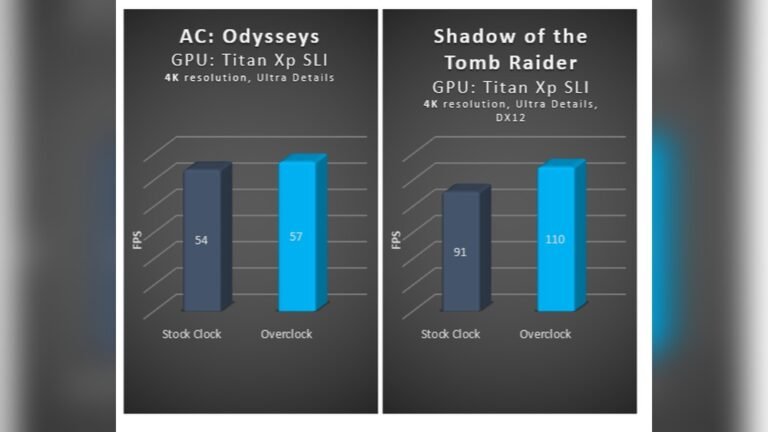
Boosting fan speed improves GPU performance by avoiding heat limits. A cooler GPU runs smoother and faster during heavy tasks. It also helps maintain stable frame rates in games and software. Lower temperatures reduce wear on GPU components. This can extend the life of your graphics card. Proper cooling lowers the risk of permanent damage caused by heat.
Check Your Gpu Fan Settings
Checking your GPU fan settings is the first step to increase fan speed safely. The fan controls the temperature of your graphics card. If your GPU gets too hot, it can slow down or get damaged. Adjusting fan speed helps keep it cool during heavy tasks.
Many GPUs have software that lets you manage fan speed easily. You can set a custom fan curve or use presets for better cooling. This way, your GPU runs cooler and lasts longer.
Using Manufacturer Software
Most GPU makers offer free software to adjust fan settings. Examples include NVIDIA’s GeForce Experience and AMD’s Radeon Software. These tools show real-time temperature and fan speed. You can change the fan speed manually or use automatic modes.
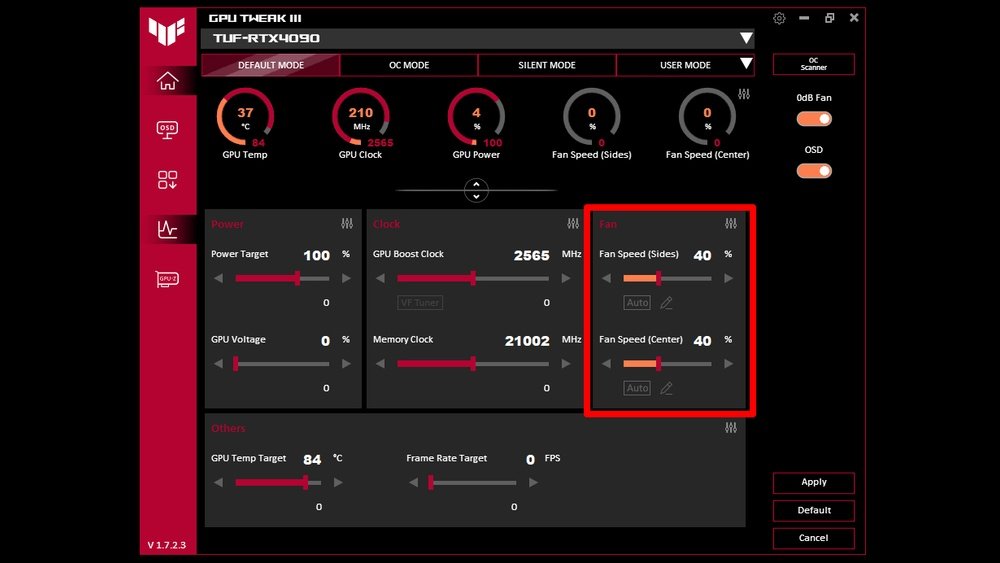
Open the software and find the fan control section. Use sliders or preset options to increase fan speed. Save your settings and monitor the GPU temperature. Adjust as needed to keep the GPU cool without making too much noise.
Exploring Third-party Tools
Some users prefer third-party apps for more control over GPU fans. Popular tools include MSI Afterburner and SpeedFan. These programs often offer advanced fan curves and monitoring features.
Download and install the tool compatible with your GPU. Open the fan control section and increase fan speed gradually. Watch your GPU temperature to avoid overheating. Third-party tools can provide more options than manufacturer software.
Manual Fan Speed Adjustment
Manual fan speed adjustment lets you control your GPU’s cooling. This helps keep your graphics card cooler and quieter. You can change fan speed yourself using software tools. This method gives you more control than automatic settings.
Adjusting fan speed manually can improve performance and extend GPU life. It also helps reduce noise during light tasks. Understanding how to set fan speed is important for all PC users.
Step-by-step Guide With Software
Download GPU fan control software like MSI Afterburner or SpeedFan. Open the program and find the fan control section. Enable manual fan control mode. Use the slider or input box to set fan speed. Start with a moderate speed, around 50%. Watch GPU temperature and noise. Adjust speed higher if the card gets too hot. Save your settings before closing the program.
Setting Custom Fan Curves
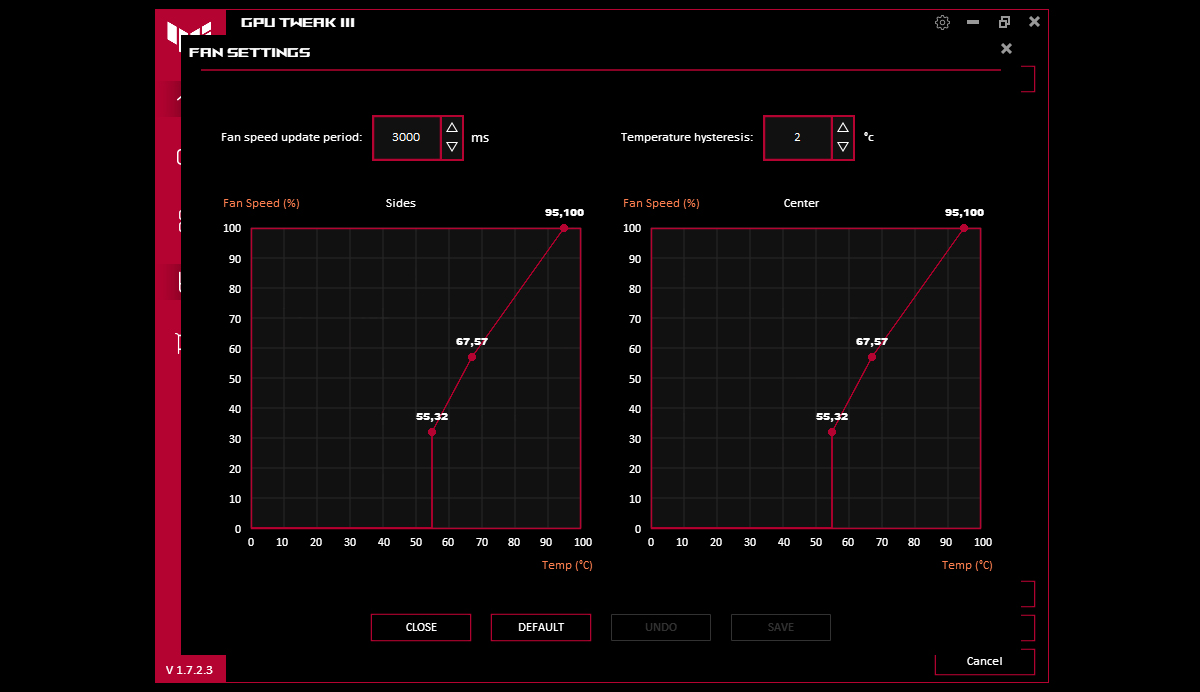
Custom fan curves change fan speed based on temperature. In fan control software, open the curve editor. Add points at different temperatures. For example, set low speed at 30°C and high speed at 70°C. This makes fans run slower when cool and faster when hot. Adjust points to balance noise and cooling. Save the curve and apply it. Monitor GPU temperature to ensure proper cooling.
Credit: rog.asus.com
Bios And Firmware Tweaks
BIOS and firmware tweaks offer a direct way to control GPU fan speed. Adjusting these settings can improve cooling and performance. This method requires careful steps and some technical knowledge. Changing BIOS settings affects how your GPU runs at the hardware level. It lets you set fan curves or increase maximum fan speed beyond default limits.
These tweaks are not for everyone. They carry certain risks but can help advanced users manage heat better. Understanding the process and precautions is important before making any changes.
Accessing Gpu Bios
Accessing the GPU BIOS needs special tools and software. Most users use GPU BIOS editors or flashing tools. The first step is to back up the original BIOS. This helps restore settings if something goes wrong. You can extract the BIOS using programs like GPU-Z. Then, use a BIOS editor to change fan speed limits or fan curves. Save the modified BIOS and flash it back to the GPU. This process may require booting into safe mode or using command-line tools.
Risks And Precautions
Changing GPU BIOS carries risks. A wrong tweak can cause hardware failure or system instability. Flashing an incorrect BIOS version may brick your GPU. Always back up your original BIOS before making changes. Use reliable software from trusted sources. Avoid extreme fan speeds that can damage the fan or GPU. Monitor temperatures carefully after tweaking. If the GPU shows errors or crashes, restore the original BIOS immediately. Proceed only if you understand these risks fully.
Physical Fan Maintenance
Physical fan maintenance is a key step to improve your GPU’s fan speed. Dust and dirt block airflow, making the fan work harder. Cleaning the fan helps it spin smoothly and cool better. Checking connections makes sure the fan gets power and signals to run fast. Simple care can keep your GPU cool and extend its life.
Cleaning Dust And Debris
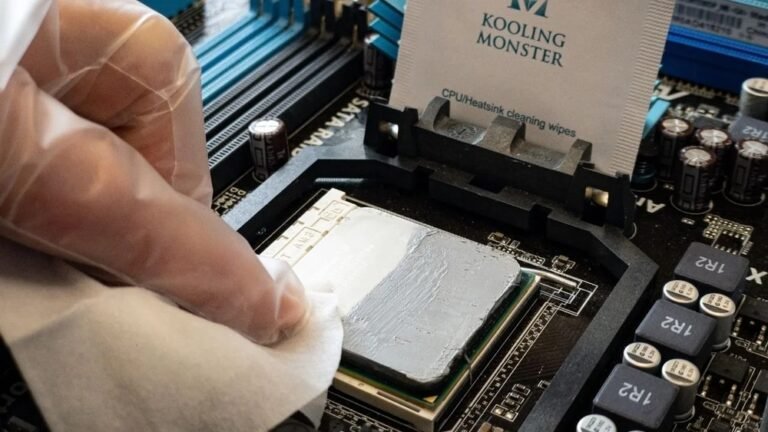
Turn off your computer and unplug it. Open the case carefully to access the GPU fan. Use a soft brush or compressed air to remove dust. Blow air gently to avoid damage. Clean between the fan blades and the heatsink. Dust buildup slows the fan and raises GPU temperature. Clean fans run faster and quieter.
Checking Fan Connections
Check the cables connecting the fan to the GPU board. Make sure the wires are firmly plugged in. Loose or disconnected wires stop the fan from working well. Look for bent pins or damaged cables. Secure all connections before closing the case. Proper connection helps the fan respond to temperature changes.

Credit: forums.developer.nvidia.com
When To Replace Or Upgrade Fans
Knowing when to replace or upgrade your GPU fans is key for good performance. Fans keep your graphics card cool and stop it from overheating. Over time, fans can wear out or stop working well. This may cause your GPU to get too hot and slow down. Replacing or upgrading fans can fix these problems and keep your system running smoothly.
Signs Of Fan Wear
Listen for unusual noises like grinding or rattling sounds. These often mean the fan bearings are worn out. Check if your fan spins slower than before or stops sometimes. Look for dust buildup or broken fan blades. These can reduce cooling power. If your GPU runs hotter than usual, fan wear might be the cause. Notice if your computer crashes or slows down during heavy use. This could link to fan failure.
Choosing Compatible Replacement Fans
Pick fans made for your GPU model or brand. Check the size, connector type, and power requirements. Use original or high-quality fans to avoid damage. Fans must fit well inside the GPU housing. Consider fan speed and noise levels too. Quiet fans improve comfort while gaming or working. Read reviews to ensure reliability and good airflow. Proper compatibility prevents installation problems and keeps your GPU safe.
Balancing Noise And Cooling
Balancing noise and cooling is key to getting the best from your GPU. Fans help keep your graphics card cool. But fast fans can be very loud. Quiet fans may not cool well enough. Finding the right balance keeps your GPU safe and your space peaceful.
You can control fan speed to lower noise without losing too much cooling. Small changes in fan settings make a big difference. Let’s explore easy ways to adjust fan profiles and manage noise with software.
Adjusting Fan Profiles For Quiet Operation
Fan profiles control how fast your GPU fans spin at different temperatures. You can set profiles for quiet use or strong cooling. Most GPUs let you change these settings in the BIOS or through software.
Create a custom fan curve that starts slow and speeds up only when needed. This reduces noise during light tasks. Increase fan speed gradually as temperature rises to avoid sudden loud noises.
Test different profiles to find one that keeps temps safe but stays quiet. Remember, every GPU is different. Adjusting profiles helps balance noise and cooling better than fixed speeds.
Using Software To Manage Noise Levels
Many tools let you control GPU fan speeds easily. Software like MSI Afterburner or EVGA Precision X1 offers user-friendly controls. You can monitor temperature and adjust fans in real time.
Use these programs to set limits on fan speed or noise level. Some software can even pause fans when the GPU is cool enough. This saves energy and cuts noise during light use.
Software control is flexible. It lets you switch between quiet and performance modes fast. This way, you keep your GPU cool and noise low during daily use.
Frequently Asked Questions
How Can I Manually Increase Gpu Fan Speed?
You can increase GPU fan speed using software like MSI Afterburner or EVGA Precision X1. These tools allow custom fan curves and manual speed control to improve cooling performance.
Does Increasing Gpu Fan Speed Affect Performance?
Increasing fan speed helps reduce GPU temperature, preventing thermal throttling. Cooler GPUs maintain better performance and stability during intense tasks or gaming sessions.
Is It Safe To Increase Gpu Fan Speed?
Yes, it is safe if done moderately. Avoid setting fan speed to maximum constantly to prevent excess noise and wear on the fan motor.
Can I Automate Gpu Fan Speed Adjustment?
Yes, most GPU software supports automatic fan curve settings. Fans adjust speed based on temperature, optimizing cooling and minimizing noise without manual intervention.
Conclusion
Increasing your GPU fan speed helps keep your graphics card cool. Cooler temperatures improve performance and extend hardware life. Adjust fan settings carefully to avoid noise and wear. Use reliable software or BIOS tools for safe changes. Monitor your GPU temperature regularly after adjustments.
Simple steps can make a big difference in cooling. Stay patient and tweak settings slowly. Your GPU will thank you with better stability and speed.