How to Connect a Gpu to a Laptop: Easy Steps for Ultimate Speed
Are you frustrated with your laptop’s slow graphics performance? Want to boost your gaming, video editing, or design work without buying a whole new computer?
Connecting an external GPU to your laptop might be the simple upgrade you need. You’ll learn exactly how to connect a GPU to your laptop step-by-step. By the end, you’ll have the power to run demanding applications smoothly and enjoy a whole new level of speed.
Keep reading to discover how easy it can be to unlock your laptop’s hidden potential.
Credit: www.tapscape.com
Choosing The Right External Gpu
Choosing the right external GPU is key to boosting your laptop’s graphics power. Not all external GPUs fit every laptop or budget. Selecting the right one ensures smooth performance and value for money. Understanding types, compatibility, and costs helps make the best choice.
Types Of External Gpus
External GPUs come in different forms. Some are standalone units with their own power supply. Others are compact and portable. Desktop-style eGPUs offer more power but take up space. Portable versions suit travel and small desks. Pick one that fits your needs and space.
Compatibility With Your Laptop
Check if your laptop supports an external GPU. Most use Thunderbolt 3 or 4 ports. Some older laptops lack the right ports. Your laptop’s BIOS and drivers must allow eGPU connections. Research your model before buying to avoid issues.
Budget Considerations
External GPUs vary in price. High-end models cost more but deliver better speed. Budget options may limit gaming or editing power. Include cost of the GPU and the enclosure if separate. Balance price with performance to fit your budget.
Required Hardware And Accessories
Connecting a GPU to a laptop needs specific hardware and accessories. Each part plays a key role in making the setup work smoothly. Understanding these tools helps avoid errors and saves time.
Choosing the right gear ensures your GPU runs well and fits your laptop. It also keeps your system stable and safe.
External Gpu Enclosures
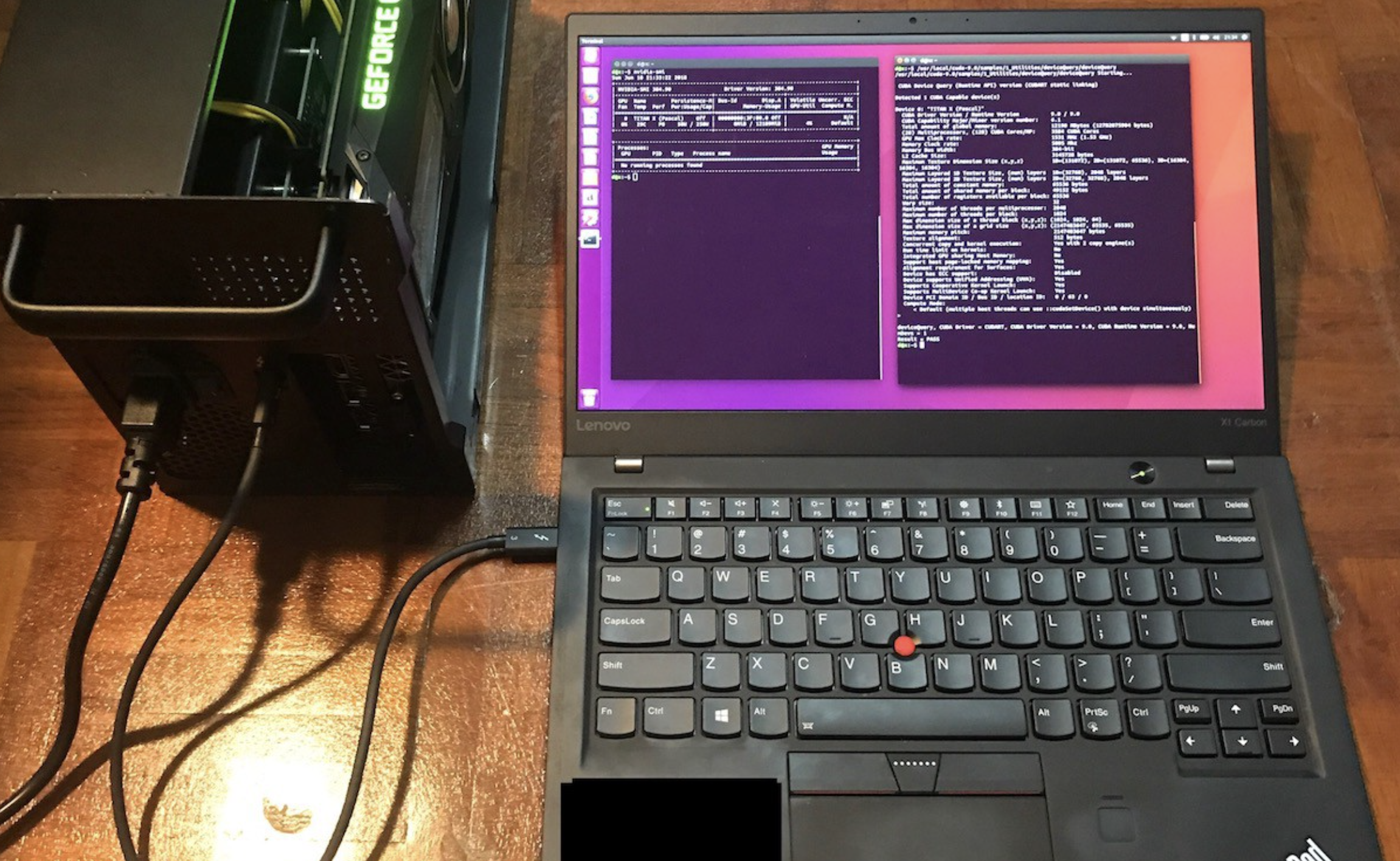
An external GPU enclosure holds the graphics card outside your laptop. It has a case and cooling system to keep the GPU safe and cool.
This enclosure links the GPU to your laptop using a fast connection port. Most enclosures support popular GPU models and offer easy setup.
Necessary Cables And Adapters
Proper cables connect the enclosure to your laptop. The most common cable is the Thunderbolt 3 or 4, known for high speed.
You may need adapters if your laptop has different ports. Using correct cables and adapters avoids connection problems and lag.
Power Supply Needs
GPUs need extra power that laptops cannot provide alone. The external enclosure usually includes a power supply unit (PSU).
This PSU delivers enough electricity for the GPU to run smoothly. Check the wattage to match your GPU’s requirements.
Preparing Your Laptop
Preparing your laptop is a key step before connecting a GPU. This process helps ensure your device works well with the new hardware. Proper preparation prevents common problems and improves performance. Follow the steps below to get your laptop ready.
Checking Ports And Connections
Start by identifying the ports on your laptop. Most external GPUs use Thunderbolt 3 or USB-C ports. Confirm your laptop has the right ports for connection. Check for any dust or damage in the ports. Clean them gently if needed. Also, verify the cable you plan to use is compatible and in good condition.
Updating Drivers And Bios
Next, update your laptop’s drivers and BIOS. Outdated software can cause connection issues. Visit your laptop manufacturer’s website to find the latest updates. Download and install the newest graphics drivers. Also, check for BIOS updates that support external GPUs. Restart your laptop after updates to apply changes properly.
Configuring Laptop Settings
Finally, adjust your laptop settings for optimal GPU use. Open the device manager to confirm the laptop recognizes the external GPU. Set the external GPU as the preferred graphics processor in the settings. Disable integrated graphics if necessary to improve performance. Adjust power settings to allow full GPU power during use.
Credit: www.reddit.com
Step-by-step Connection Process
Connecting a GPU to a laptop requires a few clear steps. Follow this guide to set up your external GPU smoothly. Each step focuses on simple actions to avoid confusion. Let’s break down the process into easy parts.
Connecting The External Gpu
Start by turning off your laptop. Plug the external GPU into your laptop’s Thunderbolt 3 or USB-C port. Make sure the connection is secure. Next, connect the GPU to its power source. Turn on the GPU if it has a power button. Then, power on your laptop. Wait for the system to recognize the new hardware.
Installing Software And Drivers
Download the latest drivers from the GPU manufacturer’s website. Choose drivers that match your GPU model and operating system. Install the drivers by following the on-screen instructions. Restart your laptop after the installation completes. This step ensures the GPU works correctly with your system.
Testing The Setup
Open a graphics-intensive application or game. Check if the laptop uses the external GPU instead of the built-in one. You can also use GPU monitoring software to see the activity. If the GPU runs smoothly, your setup is ready. If issues occur, recheck connections and driver installation.
Optimizing Performance
Connecting a GPU to a laptop can boost its power. Optimizing performance ensures smooth and fast operation. Small changes can make a big difference. Focus on settings, usage, and fixing issues.
Adjusting Graphics Settings
Start by opening your laptop’s graphics control panel. Lower resolution and turn off extra effects. This helps the GPU run faster. Choose performance mode instead of quality mode. Update your graphics drivers regularly to get the best results.
Monitoring Gpu Usage
Use tools like Task Manager or GPU-Z to check usage. Watch for high temperatures or constant full load. These signs show the GPU is working hard. If it runs too hot, clean the laptop vents. Keep an eye on performance during heavy tasks.
Troubleshooting Common Issues
Sometimes the GPU may not work as expected. Check the cable connections first. Restart your laptop to refresh settings. Reinstall drivers if the GPU is not detected. Look for software conflicts or power settings that limit performance.
Benefits Of Using An External Gpu
Using an external GPU with your laptop offers many benefits. It boosts your laptop’s graphics power without changing its core parts. This upgrade helps with tasks that need strong graphics performance. You can enjoy better visuals and faster processing for various uses.
Enhanced Gaming Experience
An external GPU improves game graphics significantly. It allows higher frame rates and better detail. Games run smoother and look more realistic. You can play newer games that need more power. It brings desktop-level gaming to your portable laptop.
Improved Rendering Speeds
Rendering videos and 3D models becomes faster with an external GPU. It reduces the time needed to finish projects. Creative software runs more efficiently without lag. This helps professionals meet deadlines with ease. The extra power supports complex and detailed work.
Extended Laptop Lifespan
Using an external GPU reduces stress on your laptop’s internal parts. It keeps the laptop cooler and less busy. This lowers the chance of overheating and damage. Your laptop can work well for a longer time. It delays the need to buy a new machine.

Credit: www.youtube.com
Frequently Asked Questions
How Can I Connect An External Gpu To My Laptop?
You can connect an external GPU using a Thunderbolt 3 or 4 port. Ensure your laptop supports this. Then, use an eGPU enclosure to house the GPU. Connect the enclosure via Thunderbolt cable and install necessary drivers for optimal performance.
What Laptops Support External Gpu Connections?
Laptops with Thunderbolt 3 or 4 ports generally support external GPUs. Check your laptop’s specifications to confirm. Gaming and professional laptops often include this feature. Older models without Thunderbolt ports typically cannot connect to external GPUs.
Do I Need Special Software To Use An External Gpu?
Yes, you need to install the GPU manufacturer’s drivers. Additionally, your laptop’s OS should support external GPUs. Windows 10 and later versions have built-in support. Some laptops may require specific software for eGPU management.
Can An External Gpu Improve Laptop Gaming Performance?
Yes, an external GPU can significantly boost gaming performance. It offloads graphics processing from the laptop’s integrated GPU. This allows higher frame rates and better graphics quality. Performance depends on the GPU model and connection speed.
Conclusion
Connecting a GPU to a laptop can improve graphics performance a lot. It takes some patience and the right tools. Follow the steps carefully and check compatibility first. External GPUs work well for gaming and heavy tasks. Keep your drivers updated for smooth use.
With the right setup, your laptop will run faster and handle more. Take your time and enjoy the boost in power.