How to Fix Gpu No Display But Fan Spinning: Easy Expert Solutions
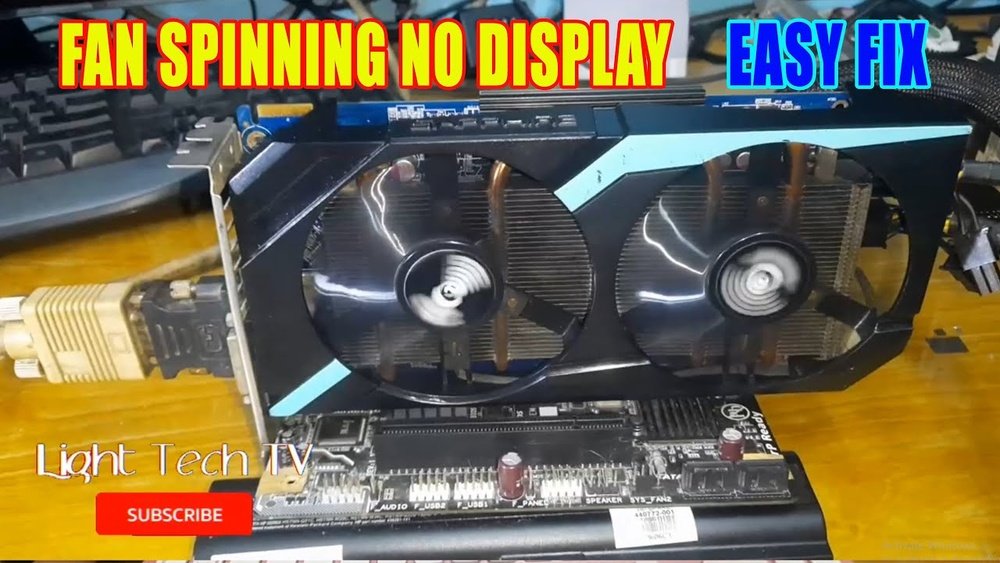
Is your GPU fan spinning, but your screen stays black? It’s a frustrating problem that leaves you wondering what went wrong.
You’ve checked your connections, but still no display. Don’t worry—you’re not alone, and this issue can often be fixed with simple steps. You’ll discover easy and effective ways to get your GPU back to work and your screen showing again.
Keep reading, because the solution might be simpler than you think.

Credit: www.youtube.com
Check Power Connections
Power connections are a common cause of GPU issues. Even if the fan spins, your GPU may not show any display. Checking power cables and compatibility is a good first step. It ensures the GPU receives enough power to work properly.
Loose or faulty cables can stop the GPU from working. Sometimes the power supply unit (PSU) may not match the GPU’s needs. Both parts must connect well and provide enough power for the GPU to run.
Inspect Gpu Power Cables
Start by turning off your computer and unplugging it. Open your PC case carefully. Look at the power cables connected to your GPU. Make sure all cables are firmly plugged in. Loose cables cause power problems and no display.
Check for any signs of damage on the cables. Broken or bent pins can stop power flow. Try unplugging and plugging the cables back in. This simple step can fix connection issues. Use only the cables that came with your PSU or GPU.
Verify Psu Compatibility
Not all power supply units support every GPU. Check your GPU’s power needs in its manual or online. Look for the required wattage and connector types. Your PSU should match or exceed these requirements.
Older or weak PSUs might not supply enough power. This causes the GPU fan to spin but no display appears. If your PSU lacks the right connectors, use adapters carefully. A poor connection can cause damage or failure.
Consider upgrading your PSU if it does not meet your GPU’s power needs. A compatible PSU helps your GPU work without issues.
Credit: www.reddit.com
Reseat And Clean The Gpu
Reseating and cleaning the GPU often fixes display issues with the fan spinning. Dust and loose connections can stop the card from sending video signals. This process helps restore proper contact and removes dirt that blocks airflow. Follow these steps carefully for better results.
Remove And Reinstall The Card
First, turn off your computer and unplug it. Open the case to access the GPU. Unscrew the card from its slot. Gently pull the GPU out, avoiding any force. Check the slot for damage or dirt. Align the card properly and push it back in. Make sure it clicks into place. Screw the card securely back to the case.
Clean Dust And Debris
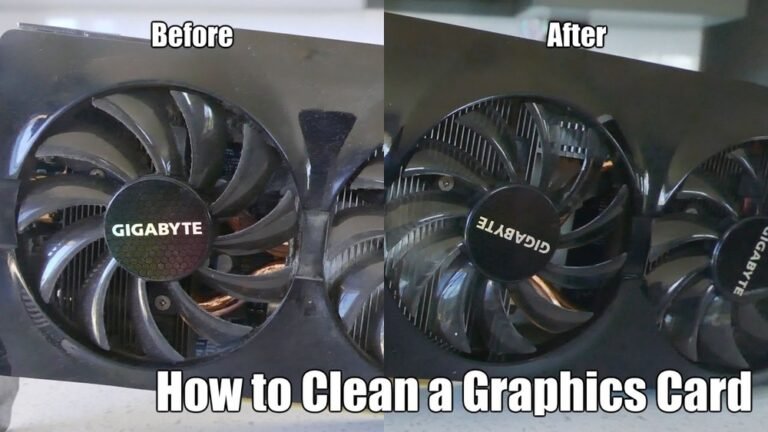
Use a soft brush or compressed air to clean the GPU. Remove dust from the fans and heat sink carefully. Avoid touching sensitive parts with your fingers. Clean the PCIe slot lightly with compressed air. Dust blocks cooling and can cause display problems. Keeping the GPU clean improves performance and prevents overheating.
Test With Another Monitor Or Cable
Testing your GPU with another monitor or cable helps find the cause of no display. The GPU fan spinning means power is on, but the image might not show due to connection problems. This test removes doubts about cables or monitor issues. It saves time and prevents unnecessary repairs.
Swap Display Cables
Start by changing the cable that connects your GPU to the monitor. A broken or loose cable often causes no display problems. Use a new or known working cable to test. Make sure the cable fits tightly into both the GPU and monitor ports. Check for bent pins or damage on the connectors. Try different cable types like HDMI, DisplayPort, or DVI to see if one works better.
Try Different Monitor Or Port
Next, connect your GPU to another monitor. This step shows if the original monitor is the problem. Use a monitor that you know works well. Also, try plugging the cable into a different port on the GPU. Some GPUs have multiple outputs. Testing different ports helps find a faulty port issue. If the display works on another monitor or port, the problem lies there, not the GPU.
Update Or Reinstall Gpu Drivers
Updating or reinstalling GPU drivers can often solve the problem of no display while the GPU fan spins. Drivers are the software that helps your computer communicate with the graphics card. Outdated or corrupted drivers can cause display issues. Fixing this can bring your screen back to life quickly.
Start by safely accessing your system to avoid further problems. Then, download the correct driver version for your GPU model. This ensures compatibility and smooth performance. Follow each step carefully for the best results.
Boot Into Safe Mode
Safe Mode starts your computer with only essential drivers. This helps avoid conflicts during driver updates. To enter Safe Mode, restart your computer and press the correct key (often F8 or Shift+F8). Choose “Safe Mode with Networking” to have internet access. This way, you can download new drivers easily.
Download Latest Drivers
Visit the official GPU manufacturer’s website to find the latest drivers. Select your GPU model and operating system carefully. Download the newest version available. After downloading, run the installer and follow the instructions. Restart your computer to apply changes and check if the display works.
Check Bios And Firmware Settings
Checking BIOS and firmware settings is key to fixing a GPU that shows no display but has a spinning fan. BIOS controls how your computer hardware works together. Sometimes, incorrect BIOS settings cause the GPU not to display output. Firmware updates also improve hardware compatibility and fix bugs.
Start by resetting BIOS settings. This step clears any wrong configurations that block the GPU from working. Updating the motherboard BIOS can also help. It ensures your system supports the latest GPUs and hardware changes.
Reset Bios To Default
Resetting BIOS to default removes custom settings that may cause problems. To do this, restart your PC and enter BIOS setup. Usually, press Delete or F2 key during startup. Find the option labeled “Load Setup Defaults” or “Reset to Default.” Select it and save changes. After this, restart your computer. This simple step can fix the no display issue.
Update Motherboard Bios
Updating the motherboard BIOS can fix compatibility issues with newer GPUs. Visit your motherboard manufacturer’s website. Download the latest BIOS version for your model. Follow the instructions carefully to update BIOS. This process varies by brand but usually involves a USB drive. Keep your PC on and do not interrupt the update. A successful update can solve display problems caused by outdated firmware.
Diagnose Hardware Issues
Diagnosing hardware issues is the first step to fix a GPU with no display but a spinning fan. The problem often lies in the physical components or connection. Checking the hardware helps find the exact cause. This saves time and prevents unnecessary expenses.
Test Gpu In Another System
Remove the GPU from your computer. Install it in a different, working system. This test shows if the card works properly. If the GPU still has no display, the card may be faulty. If it works well, the problem might be in your original system. Testing in another system isolates the problem clearly.
Look For Physical Damage
Inspect the GPU carefully. Check for burnt marks or scratches. Look at the connectors and pins for any damage. Dust or debris can also cause issues. Clean the GPU gently with compressed air. Physical damage can stop the card from sending video signals. Spotting visible problems helps decide if repair or replacement is needed.
Adjust Power Settings And Configurations
Adjusting power settings and configurations can help fix the issue of a GPU showing no display while the fan spins. Power settings affect how your computer uses the graphics card. Incorrect settings may stop the GPU from working properly. Changing these settings can restore the display and improve performance.
Disable Integrated Graphics
Integrated graphics can interfere with your dedicated GPU. Disabling the integrated graphics ensures the system uses the dedicated GPU only. To do this, open the Device Manager on your PC. Find “Display adapters” and right-click the integrated graphics device. Select “Disable device” from the menu. This forces the computer to use the dedicated GPU for display output.
Modify Power Management Settings
Power management settings can limit the GPU’s performance. Open the Control Panel and go to “Power Options.” Choose the “High Performance” plan. This plan provides full power to your GPU. Next, click on “Change plan settings” and then “Change advanced power settings.” Find “PCI Express” and set the “Link State Power Management” to “Off.” This stops the system from lowering power to the GPU, ensuring stable performance.
Credit: www.thewindowsclub.com
Use Software Tools For Monitoring
Software tools help track GPU health and performance. They give clear data about temperature and fan speed. This info can spot problems causing no display issues.
Using these tools is simple. They work in the background and show real-time stats. Watching these numbers helps decide the next fix step.
Check Gpu Temperature
High GPU temperature can cause display failures. Software tools like MSI Afterburner or HWMonitor show exact GPU heat levels. Keep the temperature below 85°C for safety. If it’s higher, the card might shut down the display to cool off.
Watch temperature during startup and normal use. Sudden spikes or constant high heat hint at cooling issues. Clean dust from fans and heatsinks if temperature is too high.
Monitor Fan Speeds
Fans spinning doesn’t always mean they run correctly. Software tools show fan RPM (revolutions per minute). Check if fan speeds match GPU load and temperature.
Low or zero RPM at high temperatures means fan failure. Fans stuck or running too slow cause overheating. Adjust fan curves or replace fans based on software readings.
Frequently Asked Questions
Why Is My Gpu Fan Spinning But No Display?
This often means the GPU is powered but not outputting video. It could be due to loose cables, faulty connections, or driver issues. Check the GPU seating, video cable, and update or reinstall graphics drivers to fix this problem.
How To Check If Gpu Is Properly Seated?
Turn off your PC and unplug it. Remove the GPU and firmly reinsert it into the PCIe slot. Ensure it clicks into place and the locking mechanism is secure. A poorly seated GPU can cause no display despite the fan spinning.
Can Faulty Power Supply Cause No Display But Fan Spin?
Yes, insufficient or unstable power can power the GPU fan but fail to run the GPU fully. Test with a known good power supply or check voltages. Ensure all power connectors to the GPU are properly plugged in.
Does Updating Graphics Drivers Fix No Display Issues?
Updating or reinstalling graphics drivers can resolve compatibility or corruption issues causing no display. Use the GPU manufacturer’s website to download the latest drivers. This can restore video output if the fan spins but no image appears.
Conclusion
Fixing a GPU with no display but fan spinning takes patience. Check all connections carefully. Clean dust from the GPU and slots. Try reseating the card or testing another monitor. Update your drivers and BIOS if needed. Power supply issues can also cause problems.
Small steps can solve the issue without extra cost. Keep troubleshooting calmly and avoid rushing. Your GPU may work perfectly again soon.