Is My Mobo Compatible With Gpu: Ultimate Compatibility Guide 2025
Wondering if your motherboard (mobo) can handle a new GPU? This question is more important than you might think.
Picking the right graphics card isn’t just about power or price—it’s about making sure your system works smoothly together. If your mobo and GPU don’t match, you could face slow performance, crashes, or even hardware damage. Keep reading, and you’ll learn exactly how to check compatibility, avoid costly mistakes, and get the best gaming or work setup possible.
Your next upgrade depends on it!
Credit: vixencomposites.com
Motherboard And Gpu Basics
Understanding the basics of motherboards and GPUs helps choose compatible parts. The motherboard is the main circuit board inside a computer. It connects all components, including the CPU, memory, and GPU. The GPU, or graphics processing unit, handles images and video output. Compatibility depends on the motherboard’s slots and supported interfaces.
Knowing key components and GPU types ensures the right fit. This knowledge prevents wasted money and effort. It also improves computer performance and stability.
Key Motherboard Components
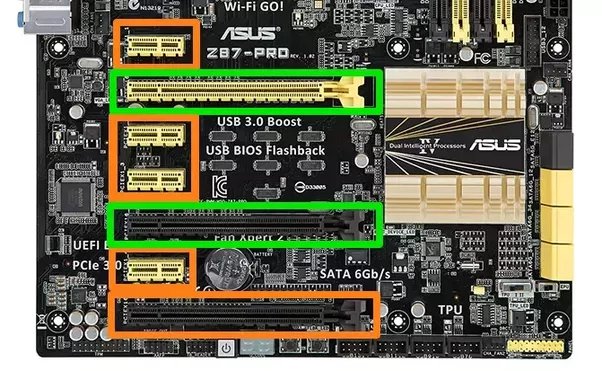
The motherboard has several important parts. The CPU socket holds the processor. RAM slots fit memory modules. Expansion slots accept add-on cards like GPUs. The most common expansion slot for GPUs is PCI Express (PCIe).
Power connectors supply electricity to the motherboard and GPU. Chipsets control data flow between components. BIOS stores settings and helps start the computer. These parts must work well together for a smooth system.
Gpu Types And Interfaces
GPUs come in different types and sizes. Most desktop GPUs use PCIe slots. PCIe versions vary, such as PCIe 3.0 and PCIe 4.0. Newer versions offer faster data transfer. The GPU must match the motherboard’s PCIe slot type.
Some GPUs need extra power connectors. The motherboard and power supply must support this. There are also integrated GPUs built into CPUs. These do not need a separate slot but have lower power.

Credit: www.youtube.com
Checking Physical Compatibility
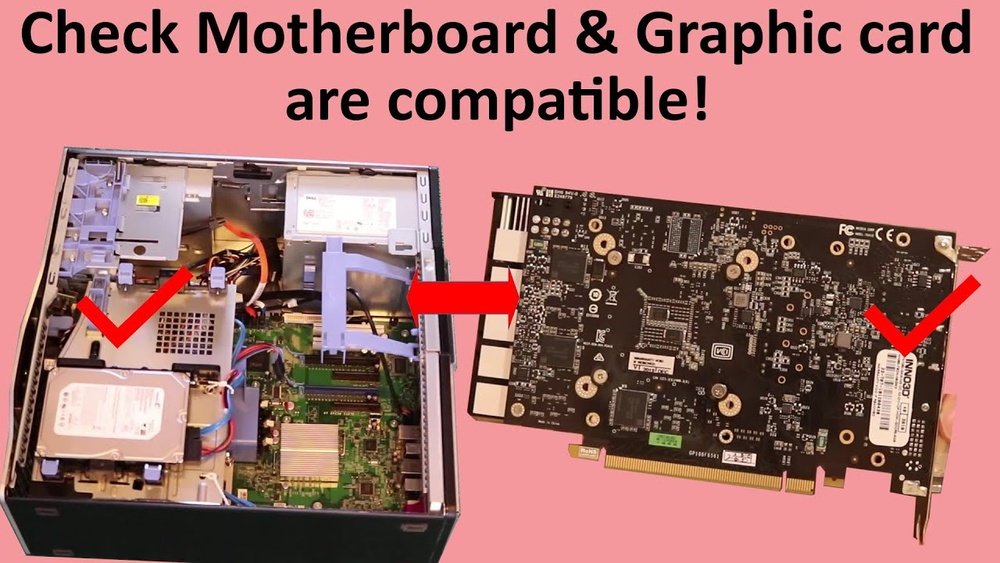
Checking physical compatibility is a key step before installing a new GPU. It ensures the graphics card fits well and works properly with your motherboard. This avoids problems like poor connections or damage to parts.
Several factors affect physical compatibility. These include the type of PCIe slot, the size of the GPU, and power needs. Understanding these helps you choose the right GPU for your setup.
Pcie Slot Types And Sizes
Motherboards have different PCIe slot types and sizes. Most GPUs use a PCIe x16 slot. Check your motherboard for this slot to fit your GPU.
Slots vary by generation, like PCIe 3.0 or 4.0. Newer GPUs work best with newer slots but often fit older ones too. Speed differences matter for performance.
Gpu Length And Clearance
GPU size matters. Some cards are very long and wide. Measure the space inside your case before buying.
Check for clearance around the PCIe slot and near other components. A large GPU might block other parts or not fit at all.
Power Connector Requirements
GPUs need power connectors from the PSU. Common types are 6-pin and 8-pin connectors.
Verify your power supply has enough connectors and wattage for the GPU. Without proper power, the GPU will not run correctly.
Matching Performance And Features
Choosing the right GPU for your motherboard is more than just fitting the card in the slot. The performance and features of both parts must work well together. This match ensures your computer runs smoothly without slowdowns or errors.
Understanding how your motherboard and GPU interact helps you avoid costly mistakes. It also makes sure you get the best speed and visuals from your system.
Pcie Version Impact
The PCIe slot on your motherboard must support the GPU’s PCIe version. Newer GPUs use PCIe 4.0 or 5.0, which offer faster data transfer than older PCIe 3.0 slots. Using a newer GPU on an older slot can lower performance.
Still, PCIe versions are backward compatible. The GPU will work but may run slower. Check your motherboard’s specs to see which PCIe version it supports.
Cpu And Gpu Bottlenecks
Your CPU can limit how well your GPU performs. A slow CPU may cause a bottleneck, where it cannot keep up with the GPU’s speed. This reduces overall system performance.
Match the GPU with a CPU that can handle its power. Balance between these parts avoids wasted potential and gives smoother gameplay or work.
Bios And Firmware Considerations
Your motherboard’s BIOS must support the GPU you want to use. Sometimes, a BIOS update is needed for newer GPUs. Without this update, the system may fail to recognize the card.
Check the motherboard manufacturer’s website for BIOS updates. Installing the latest firmware ensures compatibility and fixes bugs.
Compatibility Tools And Resources
Checking if your motherboard works with a new GPU can feel tricky. Several tools and resources help make this process easier. These tools show clear information about compatibility. They save time and avoid costly mistakes.
Manufacturer Compatibility Lists
Motherboard and GPU makers often publish compatibility lists. These lists show which GPUs work with specific motherboards. Check the official website of your motherboard brand. Find the support or product page. Here, you can see tested GPUs and their compatibility status. This list is the best place to start. It gives reliable and verified information straight from the source.
Online Forums And Communities
Forums and online groups are great for real user experiences. People share their builds and compatibility results. You can ask questions and get answers quickly. Sites like Reddit, Tom’s Hardware, or Linus Tech Tips have active tech communities. Browsing these forums helps find advice and tips beyond official lists. Users often explain issues or fixes in simple words.
System Compatibility Checkers
Several websites and apps check your system’s parts automatically. These tools scan your motherboard model and suggest compatible GPUs. They also warn about power or size issues. Examples include PCPartPicker and GPUCheck. These checkers simplify the process. They reduce guesswork and help you pick the right GPU fast.
Troubleshooting Compatibility Issues
Troubleshooting compatibility issues between your motherboard and GPU can be tricky. Problems may stop your PC from working properly. Knowing common issues helps you fix them fast. Sometimes, a simple update or change solves the problem. This section guides you through easy steps to check and fix compatibility problems.
Common Compatibility Problems
Some GPUs do not fit in certain motherboards. The slot type must match. Most modern GPUs use PCIe x16 slots. Older motherboards may have different slots or fewer lanes. Power supply issues also cause problems. Your PSU must provide enough power for the GPU. Another common issue is BIOS not recognizing the GPU. This can block your system from starting.
Updating Bios And Drivers
Outdated BIOS can prevent your motherboard from working with a new GPU. Check your motherboard manufacturer’s website for the latest BIOS updates. Follow their instructions carefully to update it. Also, install the latest GPU drivers from the GPU maker’s site. Updated drivers improve performance and fix bugs. Keep both BIOS and drivers current to avoid many issues.
Alternative Solutions
If your GPU still does not work, try alternative fixes. Test the GPU in another PC to rule out hardware failure. Use a different PCIe slot if available. Check for physical damage or dust in slots. Consider using a PCIe riser cable if space is tight. Sometimes, upgrading the power supply or motherboard is necessary for full compatibility.

Credit: vixencomposites.com
Future-proofing Your Build
Future-proofing your PC build helps avoid early upgrades and saves money. Choosing the right motherboard and planning for GPU upgrades ensure your system stays current longer. This approach keeps your setup ready for new hardware without hassle.
Choosing Scalable Motherboards
Select motherboards with multiple PCIe slots and good power delivery. These allow adding or upgrading GPUs easily. Look for support of newer PCIe standards like PCIe 4.0 or 5.0. This ensures faster data transfer for future GPUs. Check BIOS update support to keep compatibility with new parts.
Anticipating Gpu Upgrades
Plan for GPU sizes and power needs beyond your current card. Ensure the motherboard and case can fit larger GPUs. Confirm the power supply can handle higher wattage in the future. Think about cooling options to maintain performance and avoid overheating. This readiness extends your system’s life and saves time later.
Frequently Asked Questions
How To Check If My Motherboard Supports A Gpu?
Check your motherboard’s PCIe slot type and version. Most modern GPUs require PCIe x16 slots. Verify slot compatibility and physical space before installation.
Can An Older Motherboard Limit Gpu Performance?
Yes, older motherboards may use slower PCIe versions. This can bottleneck newer GPUs, reducing their performance potential.
Does Bios Affect Gpu Compatibility With Motherboard?
Yes, outdated BIOS can cause GPU recognition issues. Updating BIOS often resolves compatibility problems with newer graphics cards.
What Power Requirements Affect Gpu And Motherboard Compatibility?
Ensure your PSU and motherboard power connectors match GPU needs. Insufficient power can cause system instability or failure to boot.
Conclusion
Checking your motherboard’s compatibility with a GPU saves time and money. Ensure the slot type matches your graphics card’s connection. Also, confirm your power supply supports the GPU’s needs. Don’t forget to look at the physical size inside your case.
Compatibility affects performance and avoids hardware problems. Take these steps before buying your new GPU. This way, you get the best experience from your setup. Simple checks can prevent frustration later. Stay informed and build your PC with confidence.