How to Check for Gpu: Easy Steps to Identify Your Graphics Card
Are you curious about how to check for a GPU in your computer? Whether you want to upgrade your gaming setup, troubleshoot performance issues, or simply know what powers your device, understanding your GPU is key.
In this guide, you’ll discover simple and effective ways to find out exactly what graphics card you have. Keep reading, and you’ll be able to unlock your system’s full potential with just a few easy steps.
Credit: vixencomposites.com
Why Knowing Your Gpu Matters
Knowing your GPU is important for many reasons. It helps you understand your computer’s power. A GPU affects how well your system runs games, videos, and apps. It also impacts your computer’s speed and performance.
Without this knowledge, you might buy software or games that your GPU cannot handle. It also helps with troubleshooting problems. You can decide if you need an upgrade to get better results.
Understanding Your Computer’s Performance
The GPU controls how fast and smooth graphics show on your screen. It handles images, videos, and 3D models. Knowing your GPU helps you see if your computer meets the needs of new programs or games.
Choosing The Right Software And Games
Many programs need specific GPU power. Knowing your GPU lets you pick software that works well on your system. This avoids crashes and slow loading times.
Improving Troubleshooting And Support
When your computer slows down or freezes, the GPU might be the cause. Knowing your GPU helps you find solutions faster. It also makes it easier to get help from support teams.
Planning For Future Upgrades
Knowing your GPU lets you plan upgrades smartly. You can find which new GPUs are better and compatible with your PC. This saves money and improves your computer’s life.

Credit: www.youtube.com
Check Gpu On Windows
Checking the GPU on a Windows computer helps you understand your system’s graphics power. It shows the graphics card model and its capabilities. This information helps with gaming, video editing, or troubleshooting display issues.
Windows offers simple ways to find your GPU details. You can use built-in tools like Device Manager, Display Settings, or the DirectX Diagnostic Tool. Each method gives clear information about your graphics card.
Using Device Manager
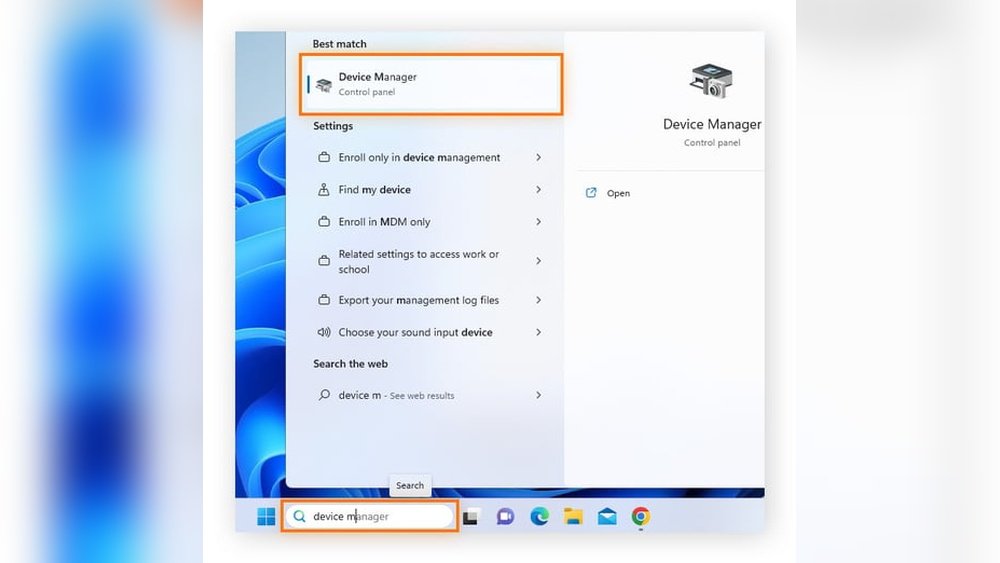
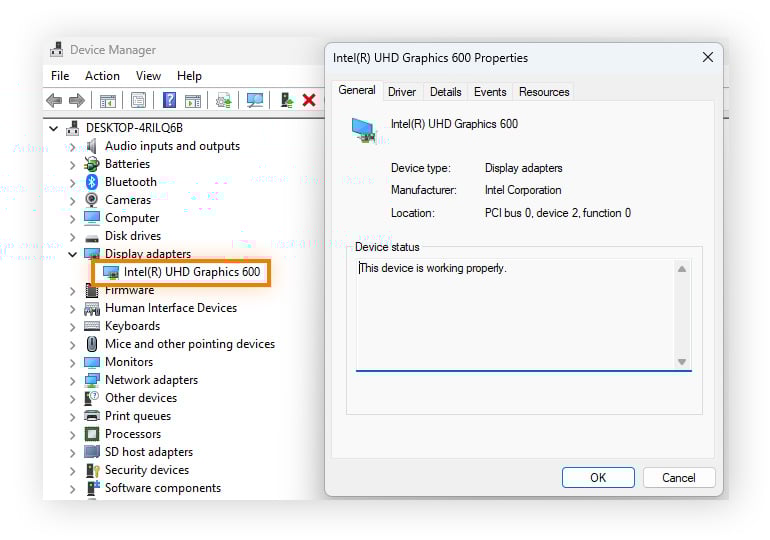
Open Device Manager by pressing Windows + X and selecting it. Expand the “Display adapters” section. You will see your GPU listed here. This name shows the brand and model of your graphics card. Right-click and choose “Properties” for more details.
Via Display Settings
Right-click on the desktop and select “Display settings.” Scroll down and click on “Advanced display settings.” Here, you will find the name of your GPU under “Display information.” This method quickly shows which graphics card is active.
Through Directx Diagnostic Tool
Press Windows + R to open the Run box. Type “dxdiag” and hit Enter. This opens the DirectX Diagnostic Tool. Click the “Display” tab to see your GPU details. It shows the name, manufacturer, and driver version clearly.
Check Gpu On Mac
Checking the GPU on a Mac is simple. Knowing your GPU helps with tasks like gaming, video editing, or software installation. Macs show detailed information about your graphics card in just a few steps. This guide explains two easy ways to check your Mac’s GPU.
Using About This Mac
Click the Apple logo at the top left corner of your screen. Select “About This Mac” from the menu. A window appears with an overview of your Mac. The “Overview” tab shows your Mac’s main specs.
Look for the “Graphics” section. It lists the GPU model and memory. This quick check shows the basic details of your Mac’s graphics card.
Through System Report
Open “About This Mac” again. Click the “System Report” button. This opens a detailed system information window. In the sidebar, find and click “Graphics/Displays.”
Here, you get complete details about the GPU. It shows the model, VRAM, and supported features. Use this section to learn everything about your Mac’s graphics hardware.
Check Gpu On Linux
Checking your GPU on Linux is simple and quick. Linux offers various tools and commands to identify your graphics card. Knowing your GPU helps with driver installation and performance checks.
This guide covers two easy ways to find GPU details on Linux systems.
Using Terminal Commands
Open the terminal to start. Type lspci | grep VGA and press Enter. This shows the GPU model and vendor.
Another useful command is glxinfo | grep "OpenGL renderer". It displays the graphics renderer information.
For more detailed info, run lshw -C display. This command lists all display hardware, including GPU details.
Using System Information Tools
Linux has graphical tools to check hardware. Open the “System Information” or “About” section in settings.
Look under the “Graphics” or “Display” tab. It shows the GPU name and driver info.
Tools like Hardinfo and Neofetch also display GPU details. Install them via your package manager if needed.
Identify Gpu Using Third-party Software
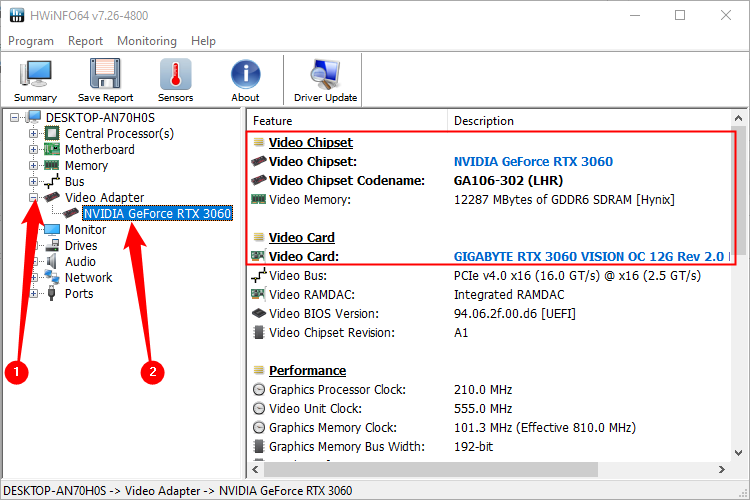
Third-party software helps identify your GPU quickly and accurately. These tools show detailed information about your graphics card. They are easy to use and work on most Windows PCs. Using these programs, you get more than just the GPU name. You can see memory size, clock speed, and driver version too. This info helps when updating drivers or troubleshooting.
Popular Gpu Detection Tools
Several programs stand out for GPU detection. GPU-Z is one of the most popular and trusted options. It focuses purely on graphics cards and offers precise details. Speccy is another tool that shows hardware info including the GPU. It gives a broader view of your PC’s components. HWMonitor provides hardware stats and real-time monitoring. These tools are free and safe to download from their official sites.
How To Use Gpu-z And Others
Download GPU-Z from the official website and install it. Open the program to see your GPU details immediately. The main screen displays the card name, GPU model, and memory size. Tabs let you check sensors and driver versions. Speccy works similarly: install, open, then select “Graphics” for GPU info. HWMonitor shows temperature and usage stats along with hardware specs. These programs require no technical skill and give quick results.
Tips For Troubleshooting Gpu Issues
Troubleshooting GPU problems can feel tricky. Many common issues have simple fixes. Small steps often solve big problems. Focus on key areas to check your GPU health. Follow clear tips for better results.
Updating Gpu Drivers
Drivers help your GPU work with your computer. Outdated drivers cause errors and poor performance. Visit the official GPU maker’s website. Download the latest driver for your model. Install the update carefully and restart your PC. This step often resolves crashes and glitches fast.
Checking For Hardware Problems
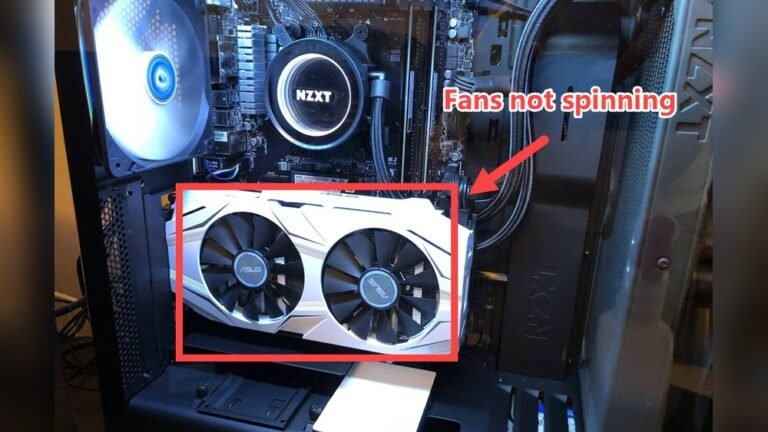
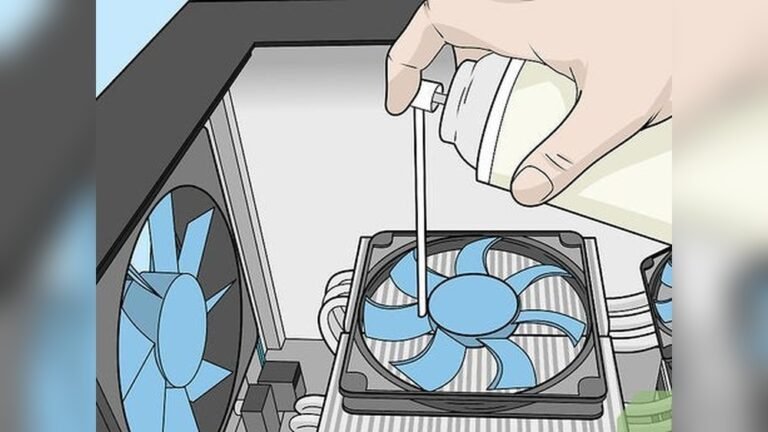
Physical issues can damage your GPU’s function. Open your PC case carefully. Look for dust blocking fans or vents. Clean with a soft brush or compressed air. Make sure the GPU sits firmly in its slot. Check all cables and power connectors. Overheating or loose parts cause many GPU faults.
Credit: www.avast.com
Frequently Asked Questions
How To Identify My Gpu On Windows?
Open Device Manager, expand Display adapters, and see your GPU model listed there. You can also use DirectX Diagnostic Tool by typing “dxdiag” in the Run box and checking the Display tab.
Can I Check Gpu Specs Without Software?
Yes, you can check GPU specs through system settings or BIOS. However, software tools provide detailed information like memory size and clock speed.
How To Check Gpu Usage In Real-time?
Use Task Manager on Windows by pressing Ctrl+Shift+Esc, then click the Performance tab and select GPU. This shows real-time usage and performance data.
What Tools Show Detailed Gpu Information?
Popular tools include GPU-Z, MSI Afterburner, and Speccy. These apps provide comprehensive GPU details like temperature, clock speeds, and VRAM.
Conclusion
Checking your GPU is simple and useful. Knowing your graphics card helps with gaming, work, and updates. Use basic tools or system settings to find your GPU details fast. Keep your drivers updated to improve performance. Understanding your GPU can save time and avoid problems.
Try these easy steps and see the difference. Stay informed about your hardware for a smoother computer experience.