How to Lower Cpu Usage Windows 10: Easy Tips to Boost Speed
Is your computer running slow or overheating? High CPU usage in Windows 10 can cause these problems and more.
If you’ve noticed your system lagging or your fan constantly spinning, it’s time to take control. You’ll learn simple and effective ways to lower your CPU usage. By following these easy steps, you can make your PC faster, cooler, and more responsive.
Keep reading to discover how to fix your CPU issues and get your Windows 10 running smoothly again.
Identify High Cpu Processes
High CPU usage slows down your Windows 10 computer. It causes lag and delays. Identifying which processes use most CPU helps fix this problem. You can then stop or manage those processes.
Windows 10 has built-in tools to check CPU usage. These tools show detailed information about running programs and processes. Use them to find which tasks consume the most resources.
Use Task Manager
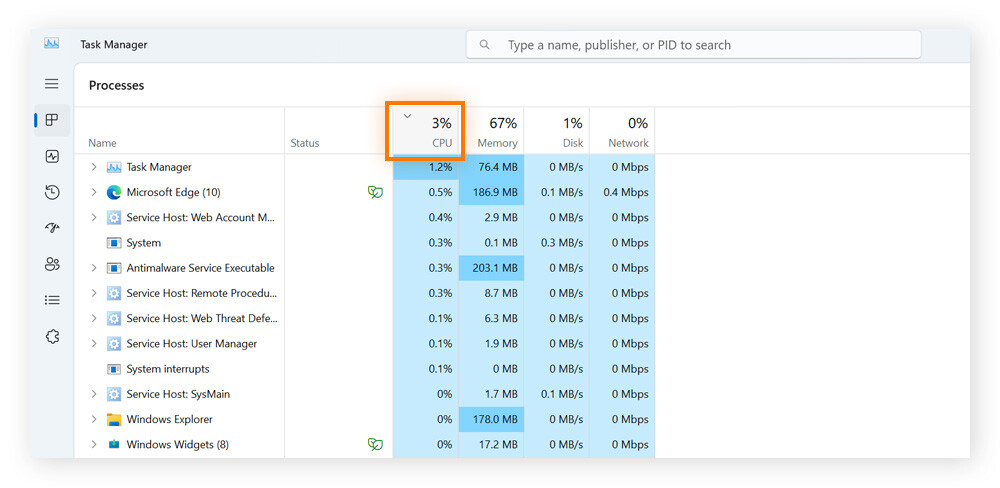
Task Manager is the easiest way to find high CPU processes. Press Ctrl + Shift + Esc to open it. Click the Processes tab. Here, you see a list of running apps and background processes.
Look under the CPU column. It shows the percentage of CPU each process uses. Sort the list by clicking the CPU header. The highest users will appear at the top.
Note any processes that use a large percentage for a long time. These are the main causes of high CPU load. You can right-click these processes to end task if needed.
Check Resource Monitor
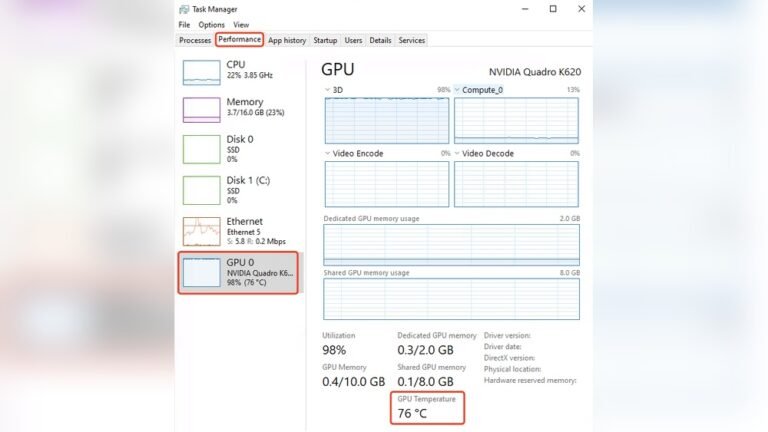
Resource Monitor gives more details about CPU usage. Open Task Manager, go to the Performance tab, and click Open Resource Monitor at the bottom.
In Resource Monitor, select the CPU tab. This shows all processes and their CPU usage in real time. It also displays services linked to each process.
Use the graphs and lists here to spot unusual CPU activity. Resource Monitor helps understand if system services or apps cause high CPU. You can also pause or stop processes directly.
Manage Startup Programs
Managing startup programs is a key step to lower CPU usage on Windows 10. Many apps start automatically with your PC. This can slow down your system and use more CPU power. Controlling which apps launch at startup helps your computer run smoother and faster.
Windows 10 offers a simple way to manage these programs. You can disable apps that are not needed right away. This reduces the load on your CPU during boot and keeps your system responsive.
Disable Unnecessary Apps
Press Ctrl + Shift + Esc to open Task Manager. Click the Startup tab to see all programs that start with Windows. Look for apps you don’t need immediately. Right-click and select Disable to stop them from launching automatically. Disabling does not remove the app; it just stops it from running at startup. This frees up CPU resources and speeds up your computer’s startup time.
Optimize Startup Impact
Task Manager shows the startup impact of each app. This helps identify which apps use the most CPU at startup. Focus on disabling apps with High or Medium impact first. Keep essential apps enabled to avoid issues. Regularly review this list to keep your startup optimized. This simple step cuts down CPU usage and improves overall system performance.
Adjust Power Settings
Adjusting your power settings can help reduce CPU usage on Windows 10. The right power plan controls how your PC uses energy. It also affects CPU performance and heat. Choosing the best plan helps balance power use and speed. This can lower CPU load and keep your system cooler.
Select Balanced Mode
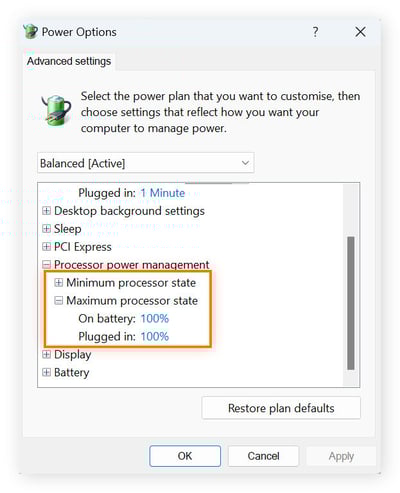
The Balanced mode gives a good mix of performance and energy saving. It adjusts CPU speed based on what you are doing. This means your CPU runs slower for light tasks. It speeds up only when needed. This reduces unnecessary CPU work and power use. Balanced mode is the best choice for most users.
Avoid High-performance Mode
High-Performance mode keeps your CPU running at full speed all the time. This causes high CPU usage and more heat. It uses more power, which can drain laptops faster. This mode is for heavy tasks like gaming or video editing. Avoid it for daily use to keep CPU usage low and save energy.
Credit: www.avast.com
Update Drivers And Windows
Keeping Windows 10 and its drivers up to date helps reduce CPU usage. Updates fix bugs and improve system performance. Old software can cause your computer to work harder than needed. Updating makes your PC run smoother and faster.
Check For Windows Updates
Open the Start menu and select Settings. Click on Update & Security. Choose Windows Update on the left side. Click Check for updates. Windows will search for new updates. If updates are found, click Download and install. Restart your PC to finish the update. This process fixes many performance issues.
Update Device Drivers
Press Windows key + X and select Device Manager. Find the device you want to update. Right-click the device and choose Update driver. Select Search automatically for updated driver software. Windows will look online for newer drivers. Follow any prompts to install updates. Updated drivers help hardware run efficiently. This lowers the CPU strain caused by outdated drivers.
Scan For Malware
Malware can cause high CPU usage on your Windows 10 computer. Malicious software runs in the background and uses system resources. Scanning for malware helps find and remove these threats. This step often improves your PC’s speed and performance.
Use Windows Defender
Windows Defender is built into Windows 10. It offers good protection against viruses and malware. To scan your PC, open Windows Security from the Start menu. Click on “Virus & threat protection.” Choose “Quick scan” to check your system fast. For a deeper check, select “Full scan.” It looks at all files and programs on your computer. After the scan, follow the prompts to remove any detected threats.
Try Third-party Antivirus
Third-party antivirus tools can add extra protection. Some are free and easy to use. Popular options include Avast, Bitdefender, and Malwarebytes. Download and install the antivirus software you trust. Run a full system scan to find hidden malware. These tools often catch threats Windows Defender misses. Keep the antivirus updated for the best results. Regular scans help keep your CPU usage low by stopping malware early.
Disable Background Apps
Background apps run in the background and use your CPU. They slow down your computer and reduce battery life. Disabling these apps can help lower CPU usage. This makes your Windows 10 PC faster and more efficient.
Turn Off Background Apps
Open the Settings app on your Windows 10 PC. Click on “Privacy” and then select “Background apps.” You will see a list of apps allowed to run in the background. Turn off the toggle next to apps you do not need running. This stops them from using CPU resources unnecessarily.
Limit App Permissions
Some apps keep running because they have permission to access system resources. Go to Settings, then “Privacy,” and check each category like Location, Camera, and Microphone. Turn off permissions for apps that do not need them. This reduces background activity and saves CPU power.
Optimize Visual Effects
Visual effects in Windows 10 make your screen look nice. They include animations, shadows, and smooth fonts. These effects use CPU power. Reducing them helps your computer run faster. It lowers CPU usage and improves system speed.
Optimizing visual effects lets you keep a balance. You can have a clean look without slowing down your PC. Windows 10 offers options to adjust these settings easily.
Adjust For Best Performance
This option turns off most visual effects. It makes Windows run faster. To do this, open System Properties. Click on Advanced system settings. Choose Settings under Performance. Select Adjust for best performance. Click OK to apply changes. Your PC will use less CPU. The screen may look simple but works faster.
Customize Visual Settings
You can choose which effects to keep. Open Performance Options like before. Select Custom instead of best performance. Check or uncheck effects like fade or shadow. Keep some effects to improve appearance. Turn off effects that use more CPU. This way, you control speed and looks. Test settings to find what feels right.
Credit: helpdeskgeek.com
Check For System File Issues
System file problems can make your CPU work harder than needed. Damaged or missing files slow down Windows 10. Checking and fixing these files helps lower CPU use. Windows has built-in tools that scan and repair system files. Running these tools regularly keeps your PC healthy and fast.
Run System File Checker
The System File Checker (SFC) scans your PC for missing or corrupted files. It replaces bad files with good ones from a backup folder. Open Command Prompt as an administrator. Type sfc /scannow and press Enter. The scan takes some time. Wait until it finishes. If errors appear, the tool tries to fix them automatically. Restart your PC after the process completes.
Use Dism Tool
Deployment Image Servicing and Management (DISM) fixes deeper system issues. It repairs the Windows image used by SFC. Open Command Prompt as an administrator. Enter DISM /Online /Cleanup-Image /RestoreHealth and press Enter. This command checks for corruption and fixes it online. The process can take several minutes. After finishing, run the SFC tool again to ensure all problems are resolved.
Consider Hardware Upgrades
Hardware upgrades can help lower high CPU usage in Windows 10. Sometimes, the current hardware struggles to keep up with software demands. Upgrading parts of your PC can ease the load on the processor. This results in smoother performance and less CPU strain.
Add More Ram
RAM lets your computer handle multiple tasks without slowing down. If your PC has low RAM, it uses CPU power to manage memory. Adding more RAM reduces this pressure on the CPU. This helps Windows 10 run programs faster and with less lag.
More RAM means your system won’t rely heavily on virtual memory. Virtual memory uses the hard drive, which is slower and makes the CPU work harder. Increasing RAM is a simple upgrade that often shows immediate improvement.
Upgrade To Ssd
Replacing your hard drive with an SSD improves overall system speed. SSDs read and write data faster than traditional drives. This reduces wait times for programs and files to open.
A faster drive means the CPU spends less time waiting for data. This lowers CPU usage and boosts system responsiveness. Upgrading to an SSD helps Windows 10 run efficiently and reduces stress on the processor.
Credit: www.avast.com
Frequently Asked Questions
How Can I Check Cpu Usage On Windows 10?
Open Task Manager by pressing Ctrl + Shift + Esc. Click the Performance tab. Select CPU to view current usage and processes.
What Causes High Cpu Usage On Windows 10?
High CPU usage can be caused by background apps, malware, outdated drivers, or system updates. Heavy software and startup programs also increase CPU load.
How Do I Reduce Cpu Usage In Windows 10?
Close unnecessary programs, disable startup apps, update drivers, and scan for malware. Adjust power settings to Balanced or Power Saver mode.
Can Windows Updates Affect Cpu Usage?
Yes, Windows updates can temporarily increase CPU usage during installation and optimization processes. Ensure updates complete to stabilize performance.
Conclusion
Lowering CPU usage on Windows 10 helps your computer run smoother. Try closing unused programs and checking for updates. Scan for viruses and clean temporary files often. Adjusting startup apps can also reduce CPU load. Simple steps make a big difference over time.
Keep your system clean and organized. You will notice better speed and fewer freezes. Stay patient and keep your PC healthy. Small efforts bring steady improvement.