How to Benchmark Gpu: Ultimate Guide to Maximize Performance
Are you curious about how well your GPU really performs? Whether you’re gaming, designing, or just want to get the most out of your system, knowing how to benchmark your GPU is key.
But where do you start? How can you be sure the numbers you see are accurate and meaningful? In this guide, you’ll discover simple, clear steps to test your GPU’s power. By the end, you’ll have the confidence to compare, optimize, and unlock the true potential of your graphics card.
Keep reading—you’re about to take control of your GPU like never before.
Choosing The Right Benchmark Tools
Choosing the right benchmark tools is key to testing your GPU’s power. The tool must match your needs and show clear results. Picking the wrong tool can give you wrong data. This section helps you find the best software to check your GPU’s speed and strength.
Popular Gpu Benchmarking Software
Many tools test GPU performance. 3DMark is a top choice for gamers. It tests graphics and gives scores. Unigine Heaven offers detailed visuals and stress tests. It shows how well your GPU handles heavy loads. FurMark focuses on intense stress to test stability. It shows if your GPU can run at max power without issues. UserBenchmark gives simple results and compares your GPU to others. Each tool suits different needs.
Criteria For Selecting Tools
Choose tools that are easy to use. The results must be clear and easy to read. The software should test the GPU parts you want, like gaming or video work. Check if the tool runs on your system. Free tools are good for simple tests. Paid tools may offer deeper analysis. Look for software updated often for new GPUs. The best tool fits your skill level and testing goals.
Preparing Your System
Preparing your system is the first step to get accurate GPU benchmark results. A clean and updated setup helps the GPU perform at its best. Small tweaks in settings can make a big difference in your test outcomes.
Taking time to prepare avoids errors and inconsistencies during benchmarking. It ensures the results show the true capability of your GPU.
Updating Drivers And Firmware
Start by checking your GPU drivers. Latest drivers often fix bugs and improve performance. Visit the official website of your GPU maker to download the newest version. Install the update carefully and restart your system.
Firmware updates are less common but important. They fix hardware-level issues and add support for new features. Check the GPU or motherboard manufacturer’s site for firmware updates. Follow their guide to update safely.
Optimizing System Settings
Close all unnecessary applications before starting the benchmark. Background programs can use GPU power and affect scores. Disable automatic updates and notifications during the test.
Set your power plan to high performance in your operating system. This stops the system from lowering GPU speed to save energy. Also, adjust your display settings to match the benchmark requirements. Consistent settings give more reliable results.
Running Benchmarks
Running benchmarks is a key step in testing your GPU’s performance. It shows how well your graphics card handles different tasks. This helps you compare GPUs and spot any issues. Benchmarks provide clear data to guide upgrades or tweaks.
Synthetic Tests
Synthetic tests use programs designed to push your GPU to its limits. They create complex scenes and effects to measure speed and power. These tests give a score that shows raw performance. Popular tools include 3DMark and Unigine Heaven. Scores help compare your GPU against others in a simple way.
Real-world Gaming Benchmarks
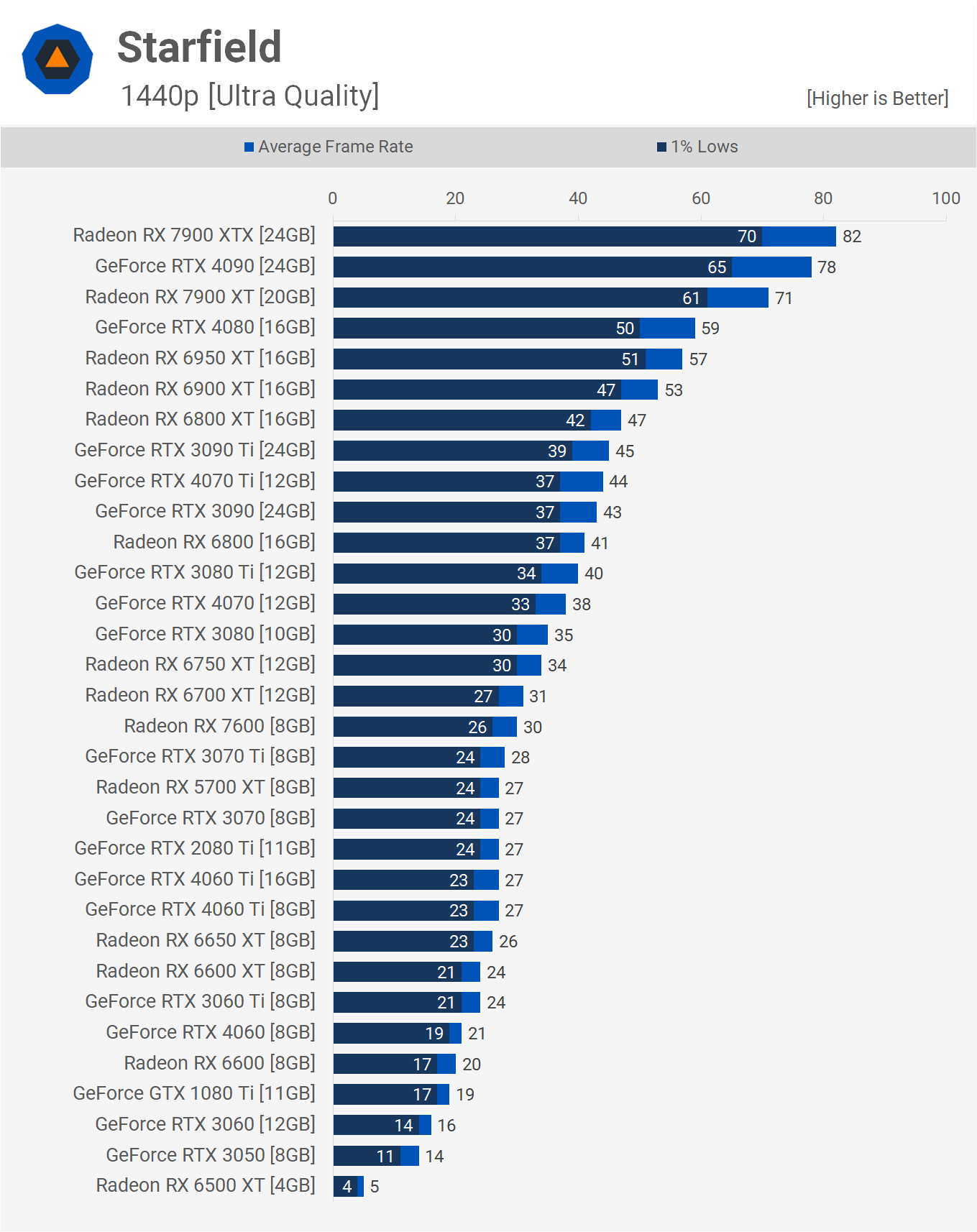
Real-world gaming benchmarks show how your GPU performs in actual games. They test frame rates, smoothness, and graphics quality. Running a game benchmark reveals how well your GPU handles popular titles. This method matches real user experience closely. Use games with built-in benchmarks or record FPS using software like FRAPS.
Stress Testing
Stress testing pushes your GPU to work hard for a long time. It checks stability, temperature, and power use under heavy load. Programs like FurMark and MSI Kombustor are common stress tests. They help find overheating or crashes that may happen in tough conditions. Stress tests ensure your GPU runs safely and reliably.
Credit: www.techspot.com
Analyzing Benchmark Results
Analyzing benchmark results is an important step in understanding your GPU’s performance. It helps you see how well your graphics card handles different tasks. This process breaks down the raw scores into useful information. You can learn which areas your GPU excels in and where it might lag. Proper analysis guides you in making better decisions for upgrades or settings adjustments.
Interpreting Scores And Metrics
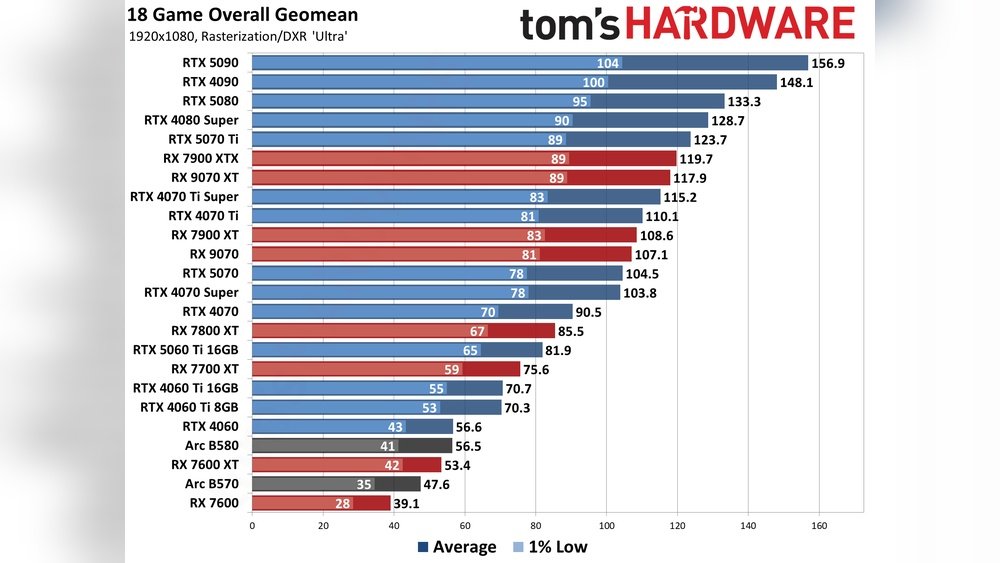
Benchmark scores show how fast and efficient your GPU runs. Higher scores mean better performance. Look at frame rates, rendering times, and temperature readings. These numbers tell you how smoothly games or applications run. Focus on consistent results across tests. Sudden drops or spikes might indicate problems. Understanding these metrics helps you judge your GPU’s real-world ability.
Comparing Against Baselines
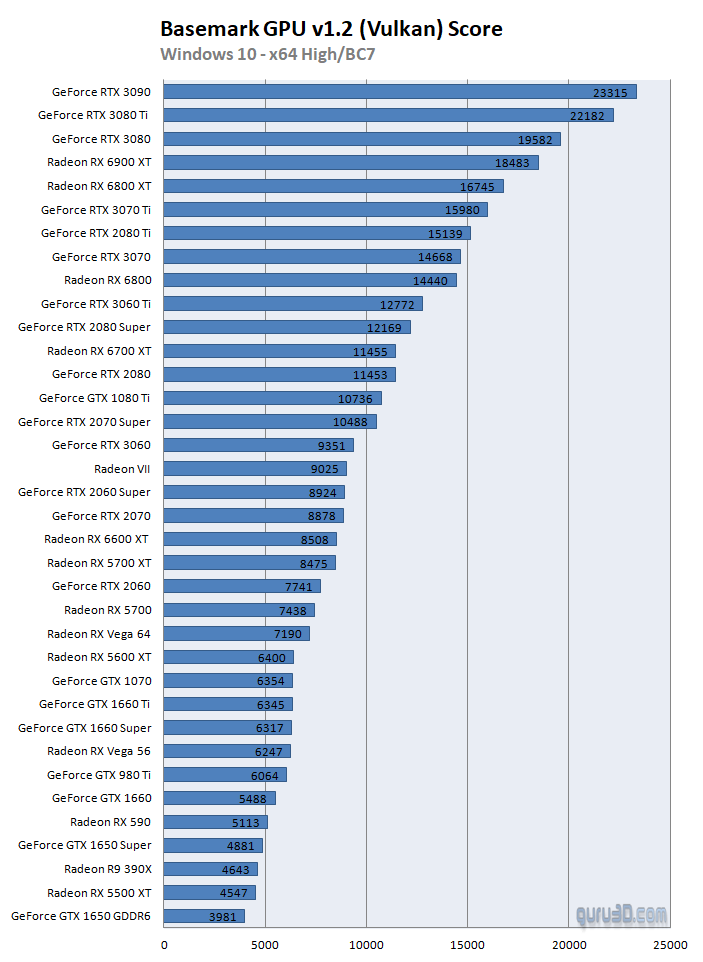
Use baseline scores to measure your GPU’s strength. Baselines come from similar GPUs tested in the same conditions. Comparing your results to these baselines shows if your card performs as expected. Scores much lower might suggest issues like overheating or outdated drivers. Scores higher than baseline indicate good optimization. This step gives context to your numbers and helps evaluate your GPU’s value.
Tweaking Gpu Settings
Tweaking GPU settings can improve your graphics card performance. Small changes can help you get better results in benchmarks. Adjusting these settings requires care and patience. It helps to know the basics before making changes.
Overclocking Basics
Overclocking means running your GPU faster than its base speed. It can boost frame rates and benchmark scores. Start by increasing the clock speed in small steps. Test stability after each change. Use software tools like MSI Afterburner for safe overclocking. Watch for crashes or graphic errors. Stop if the GPU becomes unstable.
Adjusting Power And Thermal Limits
Power and thermal limits control how much energy your GPU uses. Raising these limits allows higher performance during heavy tasks. Find these settings in your overclocking software. Increase power limit carefully to avoid overheating. Monitor GPU temperatures closely. Keep the temperature below 85°C for safety. Adjust fan speeds to help cool the GPU better.
Monitoring Performance Over Time
Monitoring GPU performance over time helps maintain smooth and stable operation. It shows how well your graphics card handles different tasks. Regular checks help spot issues early. This lets you fix problems before they get worse. You can also see if your GPU needs an upgrade or better cooling.
Using Performance Monitoring Tools
Many tools track GPU performance easily. Programs like MSI Afterburner and GPU-Z show real-time data. They display frame rates, clock speeds, and memory use. These tools help compare performance before and after updates. They also record data for later review. This way, you can spot trends and changes clearly.
Tracking Temperature And Usage
GPU temperature affects its speed and lifespan. High heat can cause crashes or slowdowns. Monitor temperatures during heavy use. Keep an eye on fan speeds and power consumption too. Tools often alert you if the GPU gets too hot. Staying within safe limits keeps your GPU healthy and running well.
Troubleshooting Performance Issues
Troubleshooting GPU performance issues is key to accurate benchmarking results. Performance problems can hide the true power of your graphics card. Identifying these issues early saves time and effort. It helps you get reliable data for comparison. This section focuses on practical steps to find and fix common GPU problems.
Identifying Bottlenecks
Bottlenecks slow down your GPU’s performance. They happen when one part limits the whole system. Check your CPU usage during GPU tests. High CPU use may block the GPU from working fully.
Monitor your system’s memory and storage speed too. Slow memory can restrict data flow to the GPU. Use tools like Task Manager or MSI Afterburner. They show real-time hardware activity and help spot bottlenecks.
Graphics settings can also cause bottlenecks. Running very high settings may overload the GPU. Lower settings to see if performance improves. This step confirms if settings are the issue.
Resolving Common Errors
Errors can cause crashes or poor performance during benchmarking. Update your GPU drivers to the latest version. Outdated drivers often lead to bugs or slowdowns.
Check for overheating problems. Excess heat forces the GPU to slow down to protect itself. Clean fans and improve airflow in your computer case. Use software to monitor temperature while testing.
Disable background programs that use GPU power. These apps reduce resources available for benchmarks. Closing them ensures the GPU focuses fully on the test.
Run benchmarks in safe mode or with minimal software running. This method helps isolate software conflicts that affect performance.

Credit: softwareg.com.au
Maximizing Gpu Lifespan
Maximizing the lifespan of your GPU is important for long-term performance. A well-maintained GPU runs cooler and lasts longer. Simple steps can protect your investment and keep your system stable. Small changes in care make a big difference.
Cooling Solutions
Proper cooling prevents your GPU from overheating. Overheating can cause damage and reduce lifespan. Use quality fans or liquid cooling systems to keep temperatures low. Ensure good airflow inside the computer case. Avoid blocking vents or fans. Monitor GPU temperature regularly with software tools.
Regular Maintenance Tips
Dust buildup reduces cooling efficiency. Clean your GPU and case every few months. Use compressed air to blow out dust from fans and heatsinks. Check fan operation to ensure they spin freely. Update GPU drivers for better performance and stability. Avoid overclocking beyond safe limits to prevent stress on components.
Credit: www.guru3d.com
Frequently Asked Questions
What Is Gpu Benchmarking And Why Is It Important?
GPU benchmarking measures your graphics card’s performance using tests and software. It helps compare GPUs, identify bottlenecks, and optimize gaming or rendering tasks for better results.
Which Tools Are Best For Benchmarking Gpus?
Popular GPU benchmarking tools include 3DMark, Unigine Heaven, and FurMark. These programs provide detailed performance scores and stress-test your GPU reliably.
How Do I Interpret Gpu Benchmark Scores?
Higher benchmark scores indicate better GPU performance. Compare scores within your GPU’s class to understand its relative power and efficiency.
Can Gpu Benchmarking Affect My System’s Stability?
Benchmarking stresses your GPU at maximum capacity, which may cause temporary crashes or overheating if cooling is inadequate. Monitor temperatures closely during tests.
Conclusion
Benchmarking your GPU helps you see its true performance. You learn how well it runs games and software. Testing allows you to compare different GPUs easily. This way, you can choose the best one for your needs. Keep your drivers updated for accurate results.
Remember, simple tools can give useful insights. Practice benchmarking to improve your understanding over time. This guide gives you a clear path to start. Now, try benchmarking your GPU and see the difference yourself.