How to Boost Gpu Performance: Ultimate Tips for Maximum Speed
Are you tired of your GPU slowing down just when you need it most? Whether you’re gaming, editing videos, or running heavy software, getting the best performance out of your graphics card can make a huge difference.
Imagine smoother gameplay, faster rendering, and a system that responds just the way you want. You’ll discover simple and effective ways to boost your GPU’s performance without needing expensive upgrades. Keep reading, and unlock the full power of your graphics card today!

Credit: www.avg.com
Optimize Driver Settings
Optimizing driver settings is a key step to improve your GPU’s performance. Proper settings help your graphics card run smoothly and efficiently. Small changes in the driver options can lead to noticeable boosts in speed and quality.
Adjusting these settings ensures better use of your hardware. It also reduces lag and improves visuals in games and applications. Here are some easy steps to optimize your GPU driver settings.
Update Graphics Drivers
Keep your graphics drivers up to date. Manufacturers release updates to fix bugs and improve performance. Visit the official website of your GPU maker to download the latest drivers.
New drivers often include enhancements for new games and apps. Updating is simple and can stop crashes or slowdowns. Regular updates ensure your GPU works at its best.
Adjust Control Panel Options
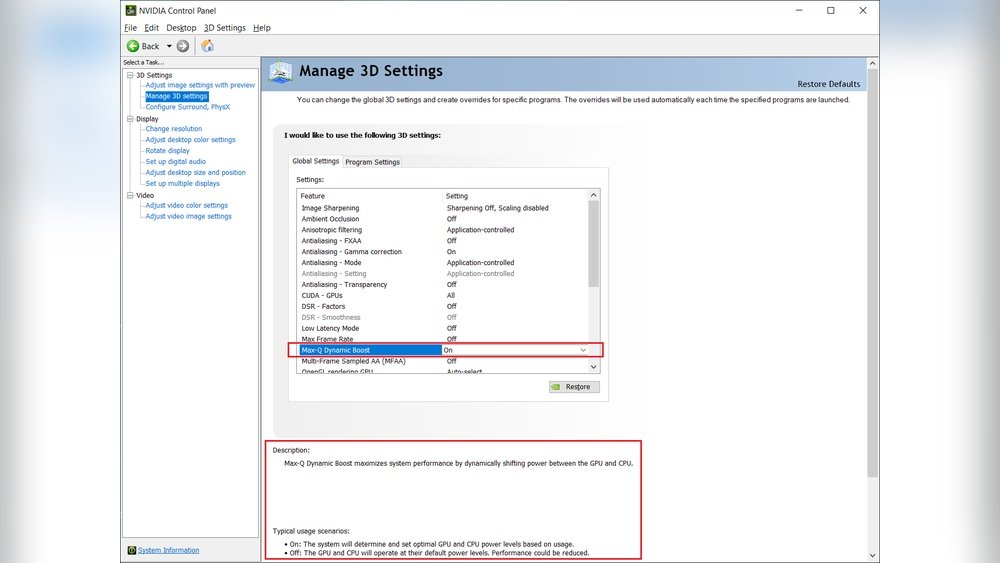
Open your GPU control panel to tweak settings. Options vary by brand, but most allow you to adjust image quality and performance. Lowering settings like anti-aliasing can increase frame rates.
Set power management mode to prefer maximum performance. This keeps your GPU running at higher speeds. Balance settings to avoid overheating while gaining better speed.
Enable Performance Mode
Many GPU software suites offer a performance mode. This mode prioritizes speed over energy saving. Activating it can boost your frame rates in games.
Performance mode may increase power use and heat output. Use it when you need extra GPU power. Turn it off during normal tasks to save energy.
Enhance Cooling Solutions
Enhancing cooling solutions is a key step to boost GPU performance. A cooler GPU runs faster and lasts longer. Heat slows down your graphics card and can cause crashes. Keeping your GPU cool helps it work at its best.
Clean Dust And Debris
Dust blocks air vents and fans on your GPU. This traps heat and reduces cooling. Use a soft brush or canned air to clean the GPU. Clean it regularly to keep airflow smooth. Avoid using a vacuum as it can damage parts.
Improve Airflow
Good airflow inside your computer case helps remove heat. Arrange cables neatly to avoid blocking air paths. Place fans to push hot air out and bring cool air in. Keep the case in a cool, open space for better air circulation.
Use Aftermarket Coolers
Aftermarket coolers can cool your GPU better than stock fans. They often have larger fans or liquid cooling options. Choose a cooler compatible with your GPU model. Installing one can lower temperatures and improve performance.
Overclock Your Gpu
Overclocking your GPU can improve its speed and boost performance. It means running your graphics card at higher speeds than the factory settings. This helps games and apps run smoother. Overclocking needs care to avoid damage or crashes. Follow simple steps to do it safely.
Choose Reliable Software
Pick trusted software to overclock your GPU. Tools like MSI Afterburner or EVGA Precision X1 work well. These programs let you change clock speeds and monitor your GPU. Avoid unknown apps to keep your computer safe. Download software only from official sites.
Increase Clock Speeds Safely
Start by raising the clock speed a little bit at a time. Increase the core clock by 10 to 20 MHz steps. Watch how your GPU reacts after each change. Avoid big jumps to prevent crashes or damage. Keep an eye on power limits and voltage settings.
Test Stability And Temperatures
After each increase, test your GPU’s stability. Use stress tests or play a demanding game for 10-15 minutes. Check if your system stays stable without crashes or glitches. Monitor the GPU temperature closely. Temperatures should stay below 85°C for safety.
Credit: www.gpuscore.com
Optimize In-game Settings
Optimizing in-game settings helps improve GPU performance. It reduces the load on your graphics card. This creates smoother gameplay and higher frame rates. Adjusting settings can make a big difference, especially on older or mid-range GPUs.
Simple changes in the game’s graphics options can boost performance without affecting gameplay. Focus on visuals that impact GPU power the most. Here are key settings to tweak for better performance.
Lower Graphics Quality
Reducing graphics quality is the easiest way to improve GPU speed. Lower details like textures, shadows, and models. This lets the GPU process images faster. The game still looks good but uses less power.
Try setting graphics to medium or low. Avoid ultra or high settings on weak GPUs. This change often increases frames per second significantly.
Adjust Resolution And Refresh Rate
Reducing screen resolution lowers the number of pixels the GPU renders. A smaller resolution means less work for the graphics card. Choose a resolution that balances quality and speed.
Refresh rate affects how often the screen updates each second. Lower refresh rates reduce GPU strain but can make gameplay less smooth. Find a refresh rate your GPU can handle comfortably.
Disable Unnecessary Effects
Turn off effects like motion blur, depth of field, and ambient occlusion. These effects use extra GPU power but add little to gameplay. Disabling them frees resources for higher frame rates.
Look for settings labeled as post-processing or special effects. Switch off anything that does not improve your experience directly.
Manage Background Processes
Managing background processes is key to better GPU performance. Many apps run silently and take up GPU power. This reduces the power available for games or graphics tasks. Stopping these apps frees up GPU resources and makes your system faster.
Close Unneeded Applications
Check which apps are open on your computer. Close programs you do not use right now. Apps like web browsers, chat programs, or video players use GPU power. Closing them helps your GPU focus on the main task.
Disable Startup Programs
Some programs start automatically with your computer. They run in the background and slow down your GPU. Use the task manager or system settings to turn off these startup apps. This frees GPU power as soon as your PC boots up.
Monitor Resource Usage
Use tools like Task Manager or Resource Monitor to see GPU use. Find apps that use too much GPU power. Watch for unexpected programs taking GPU resources. Stop or limit these to keep GPU performance smooth and steady.
Upgrade Hardware Components
Upgrading hardware components can improve your GPU performance significantly. The right parts make your system faster and more stable. Small changes in hardware can reduce bottlenecks and allow your GPU to work at its best. Focus on system RAM, storage speed, and power supply capacity to get better results.
Increase System Ram
More RAM helps your computer handle larger tasks smoothly. It supports the GPU by storing data quickly. Low RAM can slow down your GPU during games or heavy software use. Aim for at least 16GB of RAM for a balanced setup. Faster RAM with higher frequency also boosts performance slightly.
Use Faster Storage
Storage speed affects how fast your system loads data for the GPU. Traditional hard drives are slow and cause delays. Switching to an SSD reduces load times and improves overall speed. NVMe SSDs are faster than regular SSDs and better for gaming or editing. Quick data access helps the GPU process tasks efficiently.
Consider Power Supply Capacity
Your GPU needs enough power to run at full speed. A weak power supply causes crashes and poor performance. Check your GPU’s power requirements before upgrading the PSU. Choose a power supply with a higher wattage rating than your system needs. Reliable power delivery keeps your GPU stable and prevents damage.
Utilize Gpu Software Tools
Utilizing GPU software tools helps improve your graphics card’s performance. These tools give you control over settings and monitor your GPU’s health. They make adjusting performance simple and safe. By using the right software, you can get better speed and stability from your GPU.
Use Performance Monitoring Apps
Performance monitoring apps show how your GPU works in real time. They display temperature, usage, and clock speeds. This information helps you spot issues early. You can see if your GPU is overheating or running too slow. Popular apps include MSI Afterburner and GPU-Z. These tools keep you informed and help maintain smooth operation.
Apply Custom Fan Curves
Custom fan curves let you control your GPU’s cooling system. You can set fan speeds based on temperature. This prevents overheating and reduces noise. Fans run faster when the GPU is hot and slower when cool. This balance protects your hardware and keeps it quiet. Software like EVGA Precision X1 allows easy fan curve adjustments.
Schedule Regular Maintenance
Regular maintenance keeps your GPU running well over time. Use software to check for driver updates and clean out old files. Some tools remind you to update drivers or scan for problems. Keeping drivers current improves compatibility and performance. Routine checks help avoid crashes and slowdowns.
Credit: www.youtube.com
Frequently Asked Questions
How Can I Increase My Gpu Performance Quickly?
To boost GPU performance quickly, update your graphics drivers, close background apps, and optimize in-game settings. Overclocking the GPU can also help but must be done cautiously to avoid overheating and damage.
Does Cleaning My Gpu Improve Its Performance?
Yes, cleaning your GPU removes dust buildup that causes overheating. Cooler GPUs run more efficiently and maintain higher clock speeds, improving overall performance and stability during heavy usage.
What Settings Optimize Gpu For Gaming?
Adjust graphics settings like resolution, texture quality, and shadows to balance visuals and performance. Enabling V-Sync or FPS limiters can reduce screen tearing and improve smoothness without stressing the GPU.
Is Overclocking Safe For Boosting Gpu Speed?
Overclocking can enhance GPU speed but carries risks like overheating and instability. Use reliable software, increase speeds gradually, and monitor temperatures to maintain safe operation.
Conclusion
Boosting your GPU performance does not have to be hard. Small changes like updating drivers or adjusting settings help a lot. Keep your system cool to avoid slowdowns. Clean your hardware regularly to maintain speed. Try different software tools to find what works best.
Watch your GPU’s temperature and usage for best results. With patience and care, your GPU will run better and last longer. Simple steps bring steady improvements every day. Give these tips a try and enjoy smoother graphics soon.