How Tight Should Cpu Cooler Be: Essential Tips for Optimal Cooling
You’ve just installed your CPU cooler, but now you’re wondering: how tight should it really be? If it’s too loose, your processor could overheat.
If it’s too tight, you might damage your hardware. Finding the perfect balance is crucial for keeping your PC running smoothly. You’ll discover exactly how to secure your CPU cooler without risking any harm. Keep reading to ensure your system stays cool and safe.

Credit: softwareg.com.au
Importance Of Proper Cpu Cooler Tightness
Proper tightness of a CPU cooler is very important for your computer’s health. It affects how well the cooler works and how long your CPU lasts. Too loose or too tight can cause problems. Finding the right balance helps your CPU run cooler and safer.
Correct tightness ensures good contact between the cooler and CPU. This contact is needed for heat to move away from the processor. Without it, the CPU may overheat and slow down or get damaged. Proper mounting also keeps the cooler stable and stops it from moving or making noise.
Effects On Cooling Efficiency
Good tightness improves heat transfer from the CPU to the cooler. This keeps your CPU temperature low. Low temperatures help your PC run fast and avoid crashes. If the cooler is not tight enough, heat will not pass well. Your CPU will get hotter and may reduce its speed to cool down.
Risks Of Over-tightening
Too much tightness can damage your CPU or motherboard. Screws that are too tight can crack the CPU or the socket. It may also bend the motherboard. Over-tightening can stress the cooler and reduce its lifespan. Avoid using too much force when fixing the cooler.
Consequences Of Loose Installation
A loose cooler does not touch the CPU properly. This causes poor heat transfer and higher CPU temperatures. The cooler may also vibrate or make noise. Loose installation can lead to sudden CPU overheating. This can cause system crashes or permanent damage.
Recommended Tightening Techniques
Proper tightening of a CPU cooler is important for good cooling. Too loose or too tight can cause problems. Use correct techniques to get the best fit and avoid damage. Follow steps to ensure the cooler works well and lasts long.
Using Manufacturer Guidelines
Start with the instructions from the cooler maker. They give exact torque or pressure limits. Follow these rules to avoid breaking parts or poor contact. Manuals often show which screws to tighten first. Stick to these steps for safe installation.
Tools For Accurate Tightening
Use the right tools for better control. A torque screwdriver or wrench helps apply the correct force. Avoid using ordinary tools that can overtighten. Some coolers come with special tools to fit screws perfectly. These tools protect your CPU and motherboard.
Step-by-step Installation Process
First, clean the CPU and cooler base with a cloth. Apply a small dot of thermal paste in the center. Place the cooler evenly on top of the CPU. Tighten screws a little on each corner, moving diagonally. Repeat until all screws feel snug, not too tight. Check the manual for final torque numbers. Connect the fan to the motherboard header.
Signs Of Incorrect Cooler Pressure
Knowing the signs of incorrect cooler pressure helps protect your CPU. Too much or too little pressure affects cooling performance. It can cause damage or reduce the life of your processor. Spotting these signs early keeps your system safe and stable.
Temperature Fluctuations
Inconsistent CPU temperatures often mean cooler pressure is wrong. Sudden spikes or drops in temperature show poor contact between cooler and CPU. This stops heat from moving away efficiently. Watch your temperature readings closely to catch this issue.
Physical Damage Indicators
Look for cracks or marks on the CPU or cooler base. Warped coolers or bent screws suggest pressure is too high. Damaged thermal paste or missing parts also signal problems. These signs need fixing to avoid permanent damage.
Performance Drops
Lower CPU performance can result from wrong cooler pressure. Overheating causes the CPU to slow down to protect itself. Lagging or freezing during tasks might be a clue. Keep an eye on system speed and responsiveness to detect this early.
Tips For Maintaining Optimal Contact
Maintaining optimal contact between the CPU and cooler is crucial for effective heat transfer. Proper contact ensures the CPU stays cool and performs well. Follow these tips to keep the connection tight and reliable. Small efforts can prevent overheating and extend your CPU’s life.
Thermal Paste Application
Apply thermal paste evenly in a thin layer. Too much paste can cause poor heat transfer. Too little paste leaves gaps that trap air. Use a pea-sized amount in the center of the CPU. When you install the cooler, it spreads the paste evenly. Clean old paste before reapplying for the best results.
Regular Inspection
Check the cooler’s tightness every few months. Vibrations and heat cycles can loosen screws. Look for dust build-up on the cooler and fan. Dust reduces cooling efficiency and causes heat build-up. Clean the cooler gently with compressed air. Inspect thermal paste condition and replace if dried out.
Re-tightening Practices
Tighten screws in a cross pattern to distribute pressure evenly. Avoid overtightening to prevent damaging the CPU or motherboard. Use a screwdriver with a torque limit if possible. Check the manufacturer’s recommended torque settings. Retighten screws if you notice any looseness during inspections.
Special Considerations For Different Cooler Types
Different CPU coolers need different tightening methods. The right pressure keeps your CPU safe and cool. Too loose means poor contact and heat build-up. Too tight can damage the CPU or motherboard. Understanding each cooler type helps you apply the right force.
Air Coolers
Air coolers use metal fins and a fan to move heat away. Tighten the screws evenly in a cross pattern. This spreads pressure and prevents damage. Use firm but gentle pressure. Over-tightening can crack the cooler base or motherboard. Check the manufacturer’s guide for torque specs.
Liquid Coolers
Liquid coolers have a pump block attached to the CPU. The block must sit flat on the processor. Tighten the screws gradually and evenly. Avoid overtightening to protect the pump and CPU socket. The mounting bracket should hold the block firmly but not squeeze too hard.
Low-profile Coolers
Low-profile coolers fit in small cases with limited space. They need careful tightening because of their compact size. Use moderate pressure to ensure good contact. Avoid bending the motherboard or stressing the CPU socket. Tighten screws slowly and check alignment often.

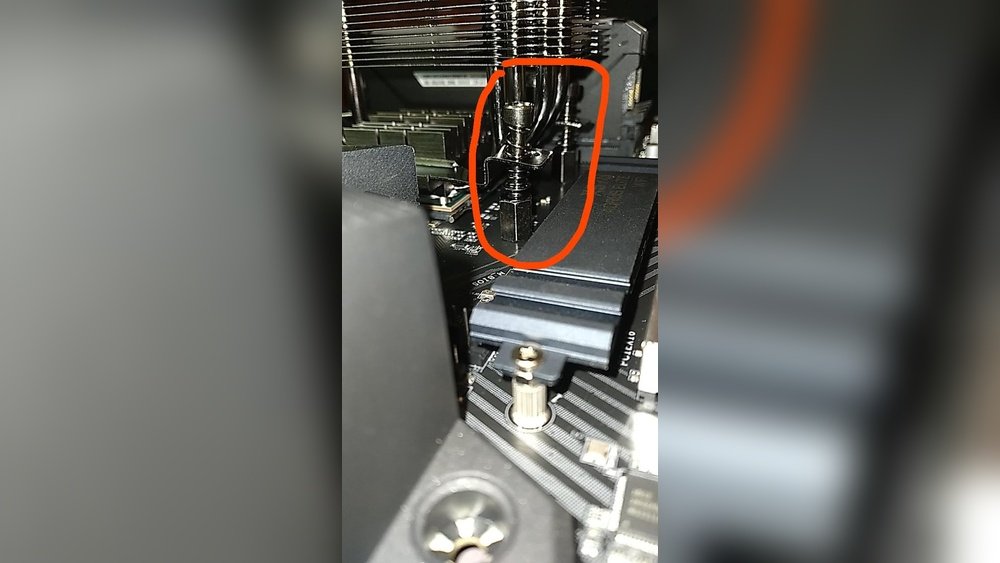
Credit: www.reddit.com

Credit: www.youtube.com
Frequently Asked Questions
How Tight Should A Cpu Cooler Be Screwed?
A CPU cooler should be snug but not overly tight. Tighten screws evenly until the cooler is secure, avoiding excess force to prevent motherboard damage or uneven pressure on the CPU.
What Happens If Cpu Cooler Is Too Loose?
If the cooler is too loose, it won’t make proper contact with the CPU. This causes poor heat transfer, leading to higher temperatures and possible CPU overheating or thermal throttling.
Can Overtightening Cpu Cooler Damage Components?
Yes, overtightening can damage the CPU, motherboard, or cooler. Excess pressure may crack the CPU die or warp the motherboard, reducing performance and risking hardware failure.
How To Ensure Even Pressure On Cpu Cooler?
Tighten screws gradually in a diagonal or cross pattern. This method ensures even pressure distribution across the CPU surface for optimal heat transfer and prevents damage.
Conclusion
Tighten your CPU cooler just enough to hold it firmly. Too loose causes poor heat transfer and high temperatures. Too tight can damage the CPU or motherboard. Use even pressure on all screws or clips. Check the cooler’s manual for the right torque.
A good fit keeps your CPU cool and safe. Simple care helps your computer run better and longer. Small steps make a big difference in performance. Keep it steady, not forced. That’s how you get the best results.