How to Monitor Gpu Temp: Easy Tips to Prevent Overheating
Are you worried that your GPU might be overheating? Keeping an eye on your GPU temperature is crucial to ensure your computer runs smoothly and lasts longer.
When your GPU gets too hot, it can slow down, crash, or even get damaged. But don’t worry—monitoring your GPU temp is easier than you think. You’ll discover simple, effective ways to track your GPU’s temperature and keep it in a safe range.
By the end, you’ll know exactly how to protect your system and boost its performance. Let’s get started!

Credit: hognerdobrasil.com.br
Why Monitor Gpu Temp
Monitoring your GPU temperature is important for your computer’s health. The GPU works hard during gaming, video editing, and other tasks. It generates a lot of heat. Watching the temperature helps avoid problems. It keeps your system safe and running well.
Risks Of Overheating
Too much heat can damage your GPU. It may cause your computer to shut down suddenly. Overheating can lead to hardware failure. This means you might need to replace parts sooner. Heat can also affect other components inside your PC.
Impact On Performance
High temperatures slow down your GPU. The system lowers speed to cool down. This causes lag and poor graphics quality. Your programs and games will run badly. Keeping the GPU cool helps maintain smooth performance.
Longevity Of Hardware
Heat shortens the life of your GPU. Constant high temperatures wear down parts faster. Monitoring temperature helps avoid this damage. A cooler GPU lasts longer and works better. This saves money on repairs and upgrades.
Credit: www.gpu-mart.com
Signs Of Gpu Overheating
GPU overheating can cause many problems with your computer. It is important to know the signs of overheating early. This helps you fix the issue before it causes damage. Watch for unusual behavior from your computer and graphics card.
Unexpected Shutdowns
Your computer may shut down without warning. This happens to protect the GPU from heat damage. Sudden shutdowns while gaming or working can mean the GPU is too hot. Don’t ignore these shutdowns. They are a clear sign of overheating.
Graphical Glitches
Overheating can cause strange visuals on your screen. You might see flickering, lines, or colors that don’t belong. These glitches happen because the GPU struggles to work under high heat. If graphics look wrong, check your GPU temperature right away.
High Fan Noise
The GPU fan spins faster to cool down the card. Loud or constant fan noise can show the GPU is very hot. Fans running at full speed for a long time is a warning sign. Pay attention to fan noise; it often means the GPU is overheating.
Tools To Check Gpu Temperature
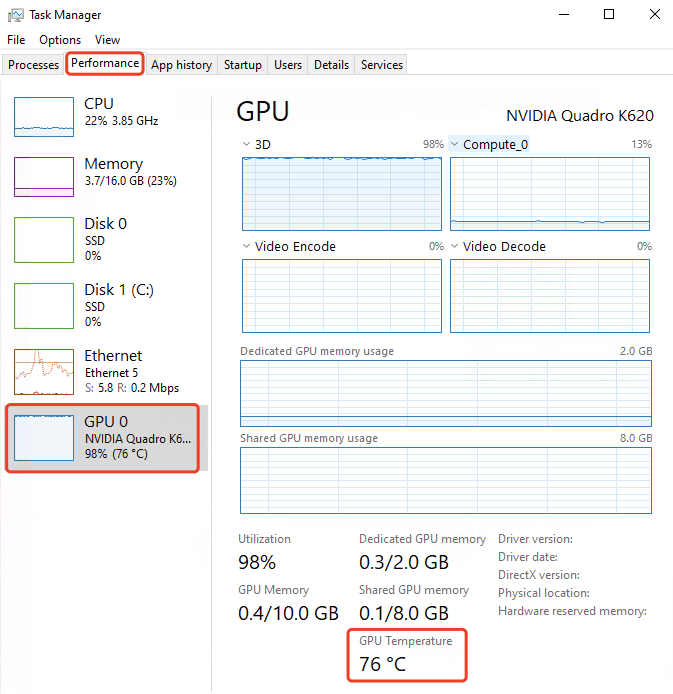
Monitoring your GPU temperature helps keep your computer safe. It prevents overheating and keeps performance steady. Several tools let you check your GPU temperature easily. These tools range from built-in software to external apps and hardware sensors.
Built-in Software Options
Most GPUs come with their own software. This software often shows temperature and other stats. You can find it in the control panel or GPU utility app. It is simple and requires no extra downloads. These tools give basic temperature info quickly.
Third-party Monitoring Apps
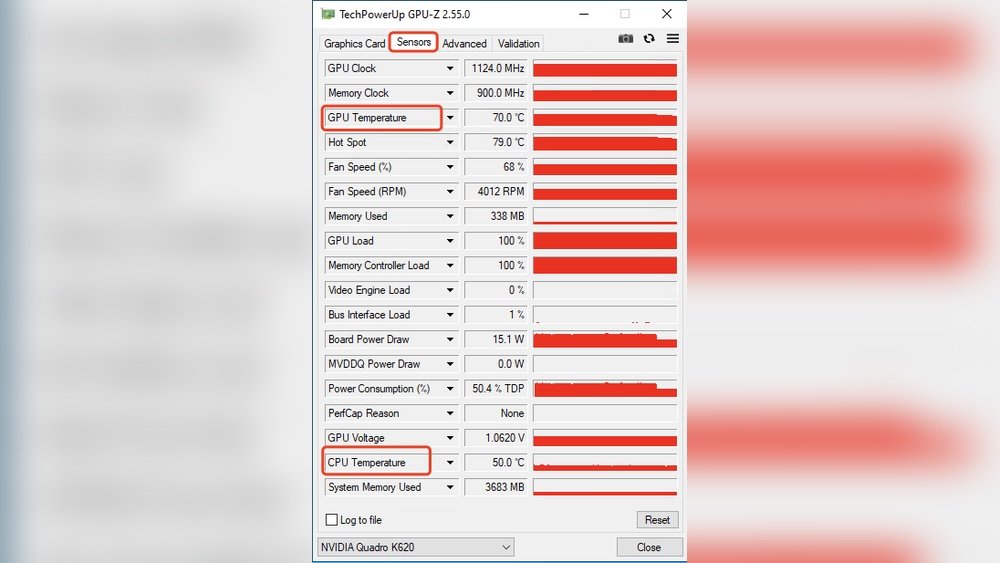
Many apps monitor GPU temperature in detail. Popular apps include MSI Afterburner and HWMonitor. They offer more options like fan speed and clock rates. These apps work with most GPU brands and models. They update data in real time for precise monitoring.
Using Hardware Sensors
Hardware sensors can measure GPU temperature directly. These sensors are built into some motherboards and GPUs. You can also buy external devices to check heat levels. Hardware sensors give accurate and reliable temperature readings. They work well for users who want detailed data.
How To Read Gpu Temp Data
Reading GPU temperature data helps keep your computer safe and fast. It shows how hot your graphics card is while working. Watching these numbers can stop damage and improve performance.
Understanding the temperature data is easy once you know what to look for. Many tools show real-time stats and let you set alerts. This way, you stay informed and act quickly.
Safe Temperature Ranges
Most GPUs work well between 30°C and 85°C. Below 30°C means the card is cool and safe. Above 85°C, the GPU may get too hot and slow down.
Try to keep your GPU below 80°C during heavy use. Different models have different limits. Check your GPU’s manual for exact safe ranges.
Interpreting Real-time Stats
Real-time stats show the current temperature of your GPU. These numbers update every few seconds. Watching them helps you see if the card is heating up too fast.
Look for sudden spikes that last a long time. These may mean poor cooling or too much load. Stable temperatures show your cooling system works well.
Setting Alerts For High Temps
Many monitoring tools let you set alerts for high temperatures. Choose a temperature limit, like 80°C. The tool will notify you if the GPU goes above this.
This lets you act fast to cool your GPU. You can close programs or increase fan speed. Alerts protect your hardware from damage and keep it running smooth.
Tips To Prevent Gpu Overheating
Keeping your GPU cool is key to good performance and a long life. Overheating can cause slowdowns and damage. Follow these tips to keep your GPU temperature in check and avoid problems.
Improve Airflow In Case
Good airflow helps move heat away from your GPU. Use enough case fans to push cool air in and hot air out. Avoid blocking vents with cables or other parts. Arrange fans to create a clear path for air. Keep your PC case in a cool, open space.
Clean Dust And Debris
Dust blocks air and traps heat. Clean your GPU and case often with compressed air or a soft brush. Focus on fan blades, heatsinks, and vents. Make cleaning a regular habit to keep parts running cool.
Optimize Fan Settings
Adjust your GPU fan speed for better cooling. Use software tools to set fan curves that increase speed when temperature rises. Avoid running fans at maximum all the time to reduce noise. Balanced fan control keeps the GPU cool and quiet.
Apply Thermal Paste Properly
Thermal paste helps heat move from the GPU chip to the cooler. Old or poorly applied paste reduces cooling. Remove the old paste carefully and apply a small, even layer of fresh thermal paste. This simple step improves heat transfer and lowers temperature.
Advanced Cooling Solutions
Advanced cooling solutions help keep your GPU temperature low. This prevents damage and keeps performance steady. Basic fans may not cool well enough for heavy use. Better cooling tools can manage heat more efficiently. These options suit gamers and professionals who push their GPUs hard.
Aftermarket Gpu Coolers
Aftermarket GPU coolers replace the stock cooler on your graphics card. They usually have bigger fans or better heat sinks. These coolers move heat away faster. Installation needs some care but is often worth it. Aftermarket coolers reduce noise and lower temperature more than original ones.
Liquid Cooling Options
Liquid cooling uses water or coolant to cool the GPU. It moves heat away faster than air cooling. This method keeps the GPU very cool and quiet. You can buy all-in-one liquid coolers or custom loops. Liquid cooling is good for overclocking or heavy workloads. It needs more maintenance but offers excellent cooling.
Custom Fan Curves
Custom fan curves let you control fan speed based on temperature. Fans spin faster as the GPU gets hotter. You can set quiet operation at low temps and aggressive cooling at high temps. Many GPU software tools allow easy fan curve setup. Custom curves balance noise and cooling effectively.
Regular Maintenance For Gpu Health
Keeping your GPU in good shape needs regular care. Regular maintenance helps your GPU run cooler and last longer. Small checks and cleaning can stop big problems. It also keeps your computer fast and safe.
Routine Cleaning
Dust can block air vents and fans. This makes your GPU hotter than it should be. Use a soft brush or compressed air to clean dust. Do this every few months to keep airflow clear. Avoid touching sensitive parts to prevent damage.
Monitoring Software Updates
GPU software controls how it works. Updates fix bugs and improve performance. Check for updates from your GPU’s maker often. Install them to keep your GPU healthy. This can also help monitor its temperature better.
Checking Hardware Connections
Loose cables can cause your GPU to overheat. Turn off your computer and check all connections. Make sure the GPU is firmly in its slot. Check power cables too. Secure connections help your GPU work well and stay cool.

Credit: www.shoshitamam.com
Frequently Asked Questions
How Can I Check My Gpu Temperature?
You can check GPU temperature using software like MSI Afterburner, HWMonitor, or GPU-Z. These tools provide real-time temperature readings and help monitor GPU health efficiently.
What Is A Safe Gpu Temperature Range?
A safe GPU temperature typically ranges between 30°C and 70°C under normal use. Temperatures above 85°C may cause overheating and reduce GPU lifespan.
Why Is Monitoring Gpu Temperature Important?
Monitoring GPU temperature prevents overheating, which can cause hardware damage and system crashes. It helps maintain performance and extends the GPU’s lifespan.
How Often Should I Monitor Gpu Temperature?
It’s best to monitor your GPU temperature during gaming or heavy tasks. Regular checks ensure your system runs smoothly without overheating risks.
Conclusion
Monitoring your GPU temperature protects your computer from damage. Keep an eye on the numbers during heavy use. Use simple software tools to check the heat often. Stay alert to avoid overheating and reduce performance drops. Taking small steps can extend your GPU’s life.
Remember, a cool GPU means a happy, fast system. Regular checks help you catch problems early. Don’t wait until your computer slows down or crashes. Keep your GPU temperature in a safe range every day.