How to Know What Gpu You Have: Quick and Easy Steps
Are you curious about the GPU inside your computer but don’t know where to start? Knowing what GPU you have is key to understanding your device’s performance, gaming capabilities, and even how to upgrade it.
Whether you want smoother gameplay, better video editing, or just want to be sure your system meets certain software requirements, this guide will show you exactly how to find out what GPU you have—quickly and easily. Keep reading, and by the end, you’ll have the confidence to check your GPU anytime without any hassle.
Credit: breezeresidency.com
Check Gpu On Windows
Knowing your GPU on a Windows computer helps with software and game choices. It also aids in troubleshooting and upgrading. Windows offers simple ways to find this information. Here are three easy methods to check your GPU quickly.
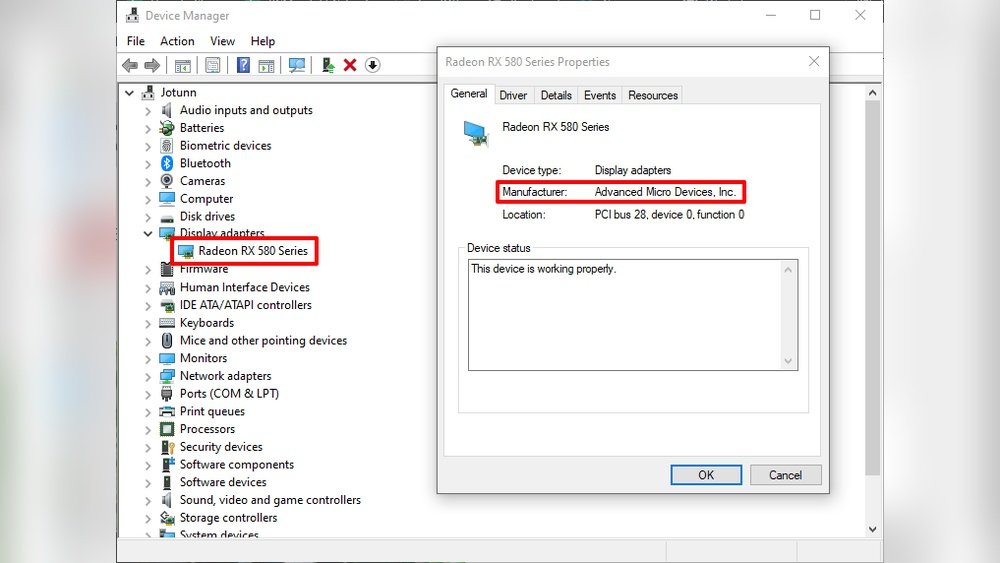
Use Device Manager
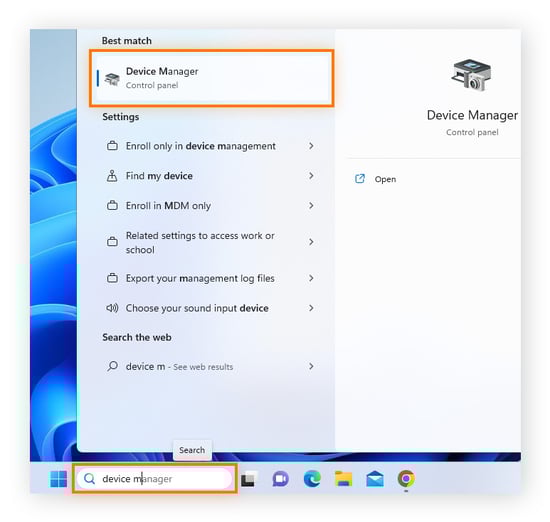
Device Manager shows all hardware connected to your PC. Press Windows + X and select Device Manager. Expand the Display adapters section. Your GPU name appears here. This method works for most Windows versions.
Access Display Settings
Right-click on your desktop and choose Display settings. Scroll down and click Advanced display settings. Select the display you want to check. Your GPU details appear under Display adapter properties. This is a quick way to view the GPU in use.
Try Directx Diagnostic Tool
Press Windows + R to open the Run box. Type dxdiag and press Enter. Click the Display tab. The GPU name and manufacturer show here. This tool also gives other system info.
Find Gpu On Mac
Finding out which GPU your Mac has is simple and quick. Knowing your GPU helps with software compatibility and performance checks. Macs use different graphics processors depending on the model and year. This guide shows two easy ways to find your GPU on a Mac.
Use About This Mac
Start by clicking the Apple icon at the top left of your screen. Select “About This Mac” from the menu. A window appears with basic info about your Mac. Look for the “Graphics” section here. It shows your GPU name and model. This method works on most Mac versions and is the fastest way.
Check System Report
For more details, click the “System Report” button in the About This Mac window. A new window opens with detailed hardware info. Find and click “Graphics/Displays” in the sidebar. Here, you see your GPU’s name, VRAM size, and other specs. This method gives a deeper look at your graphics hardware.
Identify Gpu On Linux
Knowing your GPU on Linux helps you manage drivers and improve performance. Linux offers simple ways to find this information quickly. You do not need extra software or tools. Just use built-in commands or system menus to check your GPU details.
Use Terminal Commands
Open the terminal on your Linux system. Type lspci | grep -i vga and press Enter. This shows your graphics card details. Another command is lshw -C display. It provides detailed info about your GPU. For a quick check, use glxinfo | grep "OpenGL renderer". These commands work on most Linux distributions.
Check System Information
You can also find your GPU in system settings. Go to “About” or “Details” in your Linux menu. Look for “Graphics” or “Display” section. It lists the GPU model and driver version. This method is easy for users who prefer a graphical interface. No need for terminal commands or extra tools.
Use Third-party Software
Third-party software makes finding your GPU simple and fast. These tools show detailed information about your graphics card. They provide more data than basic system settings. This helps you understand your hardware better. Many programs are free and easy to use.
Popular Gpu Detection Tools
Several tools work well for detecting GPUs. GPU-Z is a favorite among many users. It displays GPU name, memory size, and clock speeds. Speccy shows detailed info about your whole system. It highlights the graphics card clearly. Another option is HWMonitor, which also tracks temperatures. These tools support most GPU brands and models.
How To Install And Use
Download the tool from the official website. Run the installer and follow the on-screen steps. Launch the program after installation finishes. The main window shows GPU details immediately. Check fields like GPU name, memory, and driver version. Close the program when done. No special skills are needed to use these tools.
Read Gpu Details Physically
Reading your GPU details physically helps you identify the exact graphics card inside your PC. This method works well if you want quick, direct information. It also avoids software tools or complex commands. You just need to open your PC case and check the card itself. Here’s how to do it safely and easily.
Locate The Gpu On Your Pc
First, turn off your computer and unplug it from power. Open the side panel of your PC case. The GPU usually sits in a slot near the bottom of the motherboard. It looks like a large card with one or more fans. Desktop PCs often have the GPU installed horizontally in a PCIe slot. Laptops have the GPU built inside, so you cannot see it physically.
Check Model And Manufacturer
Look closely at the graphics card for a label or sticker. This label shows the model name and manufacturer. Common brands include NVIDIA, AMD, and Intel. The model number might be printed on the card’s surface or a sticker. Write down or take a photo of these details. This information helps you learn the exact GPU you have.
Credit: vixencomposites.com
Tips For Accurate Gpu Identification
Knowing the exact GPU in your computer helps with software updates and troubleshooting. Sometimes, the GPU name shown is not clear or complete. Using simple steps can give you a more accurate identification. This section offers easy tips to confirm your GPU model correctly.
Verify Driver Information
Start by checking the driver details on your computer. Open the device manager and find the display adapters section. The listed name is often the GPU model. Look at the driver version and date for extra clues. These details confirm if the driver matches your GPU. Updated drivers usually mean the system reads the GPU correctly. This step ensures you avoid confusion from generic or placeholder names.
Cross-check With Manufacturer’s Website
After finding the GPU name, visit the official manufacturer’s website. Enter the model number or search for the product. Compare the specifications listed with your system’s info. This check helps confirm the exact GPU version and features. Manufacturer sites often list updates and support tools as well. Using this method reduces errors from incorrect or outdated system data.

Credit: breezeresidency.com
Frequently Asked Questions
How Can I Check My Gpu On Windows 10?
Open Task Manager, go to the Performance tab, and select GPU. It shows your GPU model and usage in real-time, making identification simple.
What Is The Easiest Way To Find Gpu On Mac?
Click the Apple menu, select About This Mac, then click System Report. Under Hardware, click Graphics/Displays to see your GPU details.
How Do I Identify My Gpu Using Device Manager?
Open Device Manager, expand Display Adapters, and you will see your GPU listed by name and manufacturer.
Can I Check My Gpu Without Third-party Software?
Yes, both Windows and Mac offer built-in tools like Task Manager or System Information to view GPU details easily.
Conclusion
Knowing your GPU helps you choose the right software and games. It also guides you in upgrading your computer wisely. Checking your GPU is quick and simple. Use the steps shared to find out your GPU easily. This knowledge saves time and avoids confusion later.
Keep your system info handy for future use. Understanding your GPU boosts your computer experience. Keep exploring and stay informed about your hardware.